What matters when choosing?
For a monitor used through long custom-map sessions, identify whether editing space, screen position, play-testing or laptop docking is your primary need, then check the specifications that serve it.
| Concern | What to check | Who this matters to |
|---|
| Editor workspace |
Check native resolution and screen size; consider whether text and tool panels will need scaling. |
If I keep a map viewport beside properties, assets and scripts, I want room to see them without losing readable text. Around 36% of consumers put workspace detail first. |
| Screen positioning |
Check stand adjustments or suitable mounting options and whether the screen will fit your desk at an appropriate distance. |
During extended editing, I need to place the screen directly in front of me rather than work around a fixed stand. For around 29% of consumers, positioning is the primary concern. |
| Play-testing |
Check the refresh rate at native resolution over your chosen input, along with your computer’s output and cable. |
When I test rapid camera movement or action in my map, I care about the display mode my setup can actually run. Around 21% of consumers put play-testing refresh rate first. |
| Laptop docking |
Check USB-C video capability, power-delivery wattage and the cable and hub functions you require. |
If I build maps on a laptop, I want the display connection and charging arrangement to suit my machine. Laptop connectivity comes first for around 14% of consumers. |
Joybuy product choices
These models offer different approaches to map editing and play-testing, from conventional 4K screens to a wider-format display. Compare each one’s stated display mode, connections and positioning options with your own setup.
 No image available
LG UltraGear G8 27G850A
Consider this model if you want a 27-inch display for map editing and regular play-testing.
Its product title specifies 4K UHD, Nano IPS and dual-mode 240Hz/480Hz operation. Check which resolution, input and computer configuration applies to each refresh mode.
View on Joybuy
 No image available
ASUS ProArt Display PA32UCG-K
Consider this 32-inch creator-oriented model if map assets and play-testing both feature in your workflow.
The title specifies a 4K HDR IPS Mini LED panel, 120Hz and Thunderbolt 3. Check the supported input mode and your laptop’s charging requirements before treating it as a docking solution.
View on Joybuy
 No image available
Acer Predator X49X
Consider this wider-format option if you want space for map-editing windows alongside play-testing, provided your desk can accommodate it.
The title specifies a 49-inch, 32:9 curved QD-OLED display, Double Quad HD resolution and 240Hz. It is a different format from a conventional 4K monitor; check the supported refresh mode over your chosen connection.
View on Joybuy
 No image available
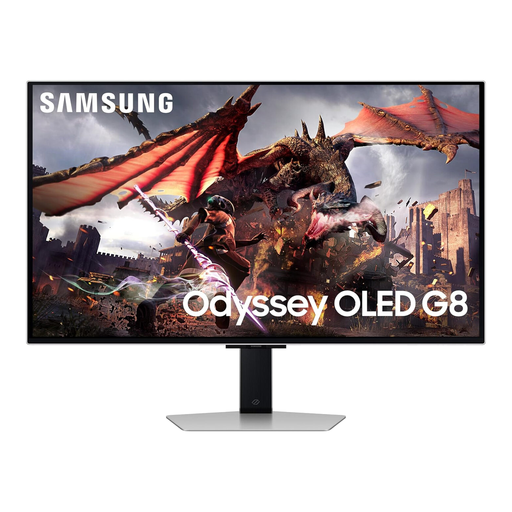
Samsung Odyssey OLED G8 LS32DG802SUXXU
Consider this 32-inch gaming display if you want an Ultra HD screen for map work as well as play-testing.
The title identifies an OLED model. Check its supported refresh modes and stand adjustments against your computer and workstation before deciding whether it fits long sessions.
View on Joybuy
 No image available
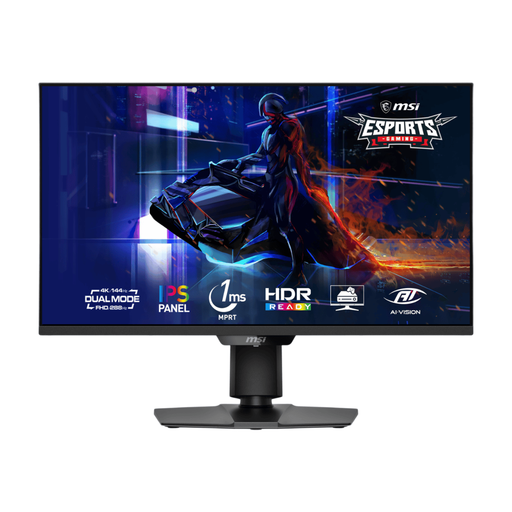
MSI MAG 275UPD E14
Consider this 27-inch model if you edit maps and regularly test gameplay at higher refresh rates.
The title specifies 4K UHD at 144Hz, FHD at 288Hz and Adaptive Sync. Check which inputs and computer settings support the mode you intend to use.
View on Joybuy
Common questions
Should I prioritise 4K or a higher refresh rate for custom maps?
Prioritise a 4K workspace if seeing detailed editor panels and assets is your main need; add higher refresh capability if you frequently test fast-moving gameplay. Dell UK specifies 4K and 120Hz for the U2725QE, while Samsung UK specifies 4K and 144Hz for the Odyssey G70D. Confirm that your computer and connection support the mode you want.
How should I set up a monitor for a long editing session?
Position it directly in front of you, with the screen top around eye level and the display about an arm’s length away, following Health and Safety Executive guidance. Adjust the stand and workstation together, and take short, frequent breaks from screen work.
Can one USB-C cable run the display and charge my laptop?
Yes, if the laptop, monitor and cable support the required video and charging functions. Check your laptop’s video-output capability and charging requirement against the exact monitor’s USB-C specification; a USB-C socket alone does not establish that the combination will work.
What should I do with an old monitor when replacing it?
Use an appropriate electrical-waste collection route rather than household rubbish if the monitor displays the crossed-out wheelie-bin symbol. GOV.UK advises that electrical products bearing that symbol should not be put in household rubbish.


