Map-detail learners
If you spend time reading routes, landmarks, objective markers and interface text, compare QHD legibility before making refresh rate your deciding factor.


For learning multiplayer maps on a PC, a 27-inch QHD IPS monitor at 165–180Hz is a sensible starting point if your setup runs games comfortably at QHD. QHD has more pixels than Full HD, but check whether map labels and the interface are comfortable to read at your usual viewing distance. Consider a 240Hz OLED model if your game, PC and connection can use that refresh rate; whichever route you take, check headphone routing, inputs and stand adjustment on the exact monitor.
If you spend time reading routes, landmarks, objective markers and interface text, compare QHD legibility before making refresh rate your deciding factor.
If you frequently turn the camera or track moving players, compare native refresh rates and adaptive-sync support, then check which connection enables the mode you want.
If you play with headphones, decide whether audio will come from the PC or console or pass through the monitor. Check the exact audio output, video inputs and stand adjustment.
For map learning with headphones, settle on readable resolution and a workable desk setup before deciding whether your PC can make use of a higher refresh-rate route.
Consider it when: map and interface legibility matter alongside smooth camera movement.
Trade-off: headphone outputs and stand adjustments differ even among the LG and ASUS models described here.
Consider it when: your game, PC and connection can make use of the higher refresh rate and you want the specified OLED panel type.
Trade-off: the refresh-rate figure alone does not establish that it will help you read a map more comfortably; check the exact model's desktop-use guidance and warranty terms.
Consider it when: running the game at QHD places more load on your PC than you want to accept.
Trade-off: the 1920 × 1080 Dell G2722HS has fewer pixels than the cited 2560 × 1440 QHD models, so check map and interface readability at your viewing distance.
| Concern | What to check | Who this matters to |
|---|---|---|
| Map and interface clarity | Compare 2560 × 1440 with 1920 × 1080, then check the game's interface scaling at your usual viewing distance. | If I am learning routes from small labels and markers, I want those details to be comfortable to read. Around 45% of consumers put map and interface clarity first. |
| Smooth camera scans | Check the native refresh rate, adaptive-sync compatibility and the mode available through your chosen input. | When I turn quickly or follow another player, I care about how the display handles movement, provided my PC can supply the frames. Smooth scanning is the primary need for around 36% of consumers. |
| Headphones and desk fit | Check where your headphones will connect and whether the stand or a compatible mount gives you the adjustment you need. | I need my headset connection and screen position to work at my desk without relying on an assumed monitor feature. For around 19% of consumers, that setup is the main concern. |
LG specifies the 27GS75QN-B at 180Hz normally; its 200Hz overclocked mode requires a DisplayPort 1.4-capable graphics card and cable.
Use the native rate as your baseline, then check your graphics output, cable and monitor input before counting on the overclocked mode.
ASUS lists tilt and swivel, but not height adjustment, for the VG27AQ3A. LG lists height, tilt and pivot adjustment for the 27GR75Q-B.
Check the exact stand and mounting pattern against your desk position.
If the supplied stand cannot reach a comfortable height, using a compatible monitor arm adds another item to your setup.
A headphone or earphone output is model-specific. Whether you need one depends on where you intend to connect your headphones.
Decide between a PC or console connection and monitor-based audio first, then check the chosen monitor's output and video inputs.
The cited Dell Full HD model is 1920 × 1080, while the cited QHD models are 2560 × 1440. That changes both pixel count and the rendering demand on your PC.
If your PC runs the game comfortably at QHD, compare map labels and interface scaling at your normal viewing distance before settling on Full HD.
LG's UK range includes QHD IPS examples at 165Hz and 180Hz, offering models to compare for this desk-based scenario.
The VG27AQ3A is an ASUS QHD Fast IPS option with a listed maximum refresh rate of 180Hz.
Dell lists the Alienware AW2726DM as a 26.5-inch QHD QD-OLED model at 240Hz for buyers considering that display route.
These QHD gaming monitors cover 27-inch choices and larger curved designs for map learning. Compare desk fit and the refresh mode your connection can use, and confirm how your headphones will connect.
 No image available
Consider this for QHD map learning if your game, PC and connection can use its listed refresh mode. Confirm whether its audio connections suit your intended headphone setup.
 No image available
This suits a closer look if you want a 27-inch QHD IPS display for map detail and can use its listed refresh mode. Check which input enables that mode, along with headphone routing and stand adjustment.
 No image available
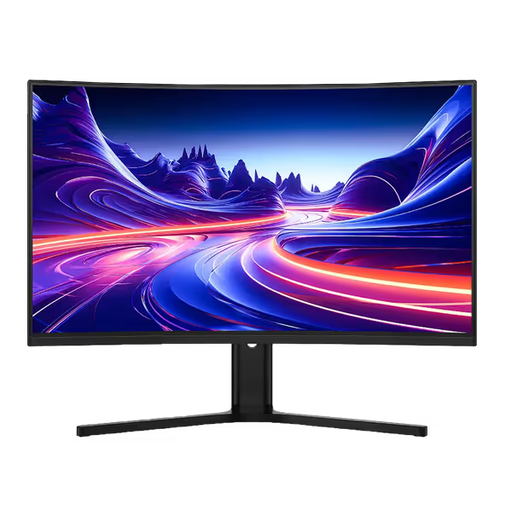
Consider the larger curved format if it fits your desk and viewing distance. The product name lists two HDMI and two DisplayPort 1.4 inputs; confirm the exact screen dimensions and whether its audio output suits your headphones.
No image available
This larger curved QHD option is worth checking if its size suits your map-learning desk setup. Its product name lists VESA 100 × 100 mm mounting; confirm headphone compatibility and the refresh mode available through your chosen input.
No: start with a resolution and screen position that let you read the game's interface comfortably. A higher refresh rate is useful only to the extent that your game and setup can use it; for example, LG says the 27GS75QN-B requires a DisplayPort 1.4-capable graphics card and cable for its 200Hz overclocked mode.
Yes, if that model has a suitable audio output. LG lists a three-pole headphone output for the 27GR75Q-B, and ASUS lists an earphone jack for the VG27AQ3A. Check your chosen monitor's manual and the headset features you need, rather than assuming an audio jack handles every headset function.
Match the monitor's documented adaptive-sync technology and supported input to your graphics setup. NVIDIA describes compatibility testing for G-SYNC monitors, but check the exact monitor model and connection you plan to use rather than relying on a general product-family label.
A faulty monitor may qualify for a statutory remedy under the UK Consumer Rights Act 2015, depending on the circumstances. The Act's explanatory notes describe a conditional short-term right to reject. Contact the seller promptly with your order details; a manufacturer's warranty does not replace statutory rights.