For a screen shared between multiplayer map study and desk work, a 27-inch QHD monitor with a high refresh rate is a practical starting point: it gives you more pixels than Full HD while retaining a fast-motion option. A smaller Full HD screen puts competitive play ahead of desktop detail; a dual-resolution screen lets you switch priorities, while OLED calls for closer attention to panel care and warranty terms. Whichever route you choose, check that your PC, connection and desk can support it.
Who each setup suits
Map-detail and desk-work players
If you study routes and call-outs alongside browser tabs or documents, start by comparing readable desktop space with the refresh rate you want for play. A 27-inch QHD high-refresh screen is one route to consider; its position and connections still need to work at your desk.
Competitive motion-first players
If repeated fast turns matter more to you than fine map detail or room for work windows, a smaller Full HD high-refresh screen may fit your priorities. TFTCentral describes this trade-off for competitive players who favour a smaller viewing area and higher frame rates over image detail.
High-contrast home-office gamers
If dark-scene contrast is a leading consideration, compare OLED models individually rather than assuming they share the same glare treatment or service terms. Samsung lists a glare-reduction feature for its Odyssey OLED G60SD; check the room lighting, care guidance and seller terms for the exact screen you choose.
What matters when choosing
Decide how often map detail and office work must share the screen with competitive play. That choice determines which display mode is worth checking against your PC and desk.
27-inch QHD high-refresh IPS
Consider it: When one screen needs to accommodate map reading, work windows and fast multiplayer play. ASUS and Dell each specify a 27-inch QHD model at 180Hz.
Trade-off: This route lacks the 4K detail and switchable Full HD 360Hz mode specified for Dell’s AW2725QF.
4K and Full HD dual-resolution IPS
Consider it: When you want to change between detailed desktop viewing and a faster competitive mode. Dell specifies 4K at 180Hz and Full HD at 360Hz for the AW2725QF.
Trade-off: The 360Hz mode is Full HD, not 4K, and your PC must be capable of driving the mode you intend to use.
QHD high-refresh OLED
Consider it: When contrast and a fast stated pixel response are priorities. Samsung specifies QHD, 360Hz and 0.03ms grey-to-grey response for the Odyssey OLED G60SD.
Trade-off: Manufacturer panel-protection features do not establish the care requirements or warranty coverage for every OLED monitor.
Smaller Full HD high-refresh screen
Consider it: When a smaller viewing area and a speed-focused setup matter more than desktop space. BenQ specifies its 25-inch MOBIUZ EX251 at Full HD and 220Hz.
Trade-off: Full HD has fewer pixels for map references and work windows than QHD or 4K.
| Concern |
What to check |
Who this matters to |
| Map detail, work space and motion |
Compare native resolution, refresh rate and variable-refresh support at the display mode you plan to use. |
I need to read call-outs and keep work windows usable without setting aside fast camera movement; around 36% of consumers put that work-and-map balance first. |
| Competitive motion |
Check the refresh rate available in each resolution mode and whether your PC can supply the intended frame output. |
I practise quick turns and am willing to give up desktop detail for a faster mode; roughly 29% of consumers make competitive motion their primary concern. |
| Device connections |
Match each source device and cable to the monitor’s port-level resolution and refresh limits; confirm DisplayPort Alt Mode if relying on USB-C video. |
I switch between a gaming PC and a work laptop and want to know which display mode each can reach; about 21% of consumers put connection compatibility first. |
| Desk fit and panel care |
Check stand or mount adjustment against your desk and lighting; for OLED, read the exact model’s care guidance and seller terms. |
I spend work and play sessions at the same desk, so screen position and reflections matter to me; around 14% of consumers prioritise comfort, room lighting or panel care. |
Checks before you buy
-
Assuming every port delivers the headline refresh rate
Dell specifies QHD at 180Hz over DisplayPort for the Alienware AW2725DM, but QHD up to 144Hz over its HDMI inputs. The connection can therefore change the mode available on that model.
Check the monitor’s input table against your PC or console output, cable and intended resolution before choosing a connection.
-
Assuming any USB-C laptop port carries monitor video
ASUS says USB-C video on the ROG Strix XG27ACS requires the connected device to support DisplayPort Alt Mode. A USB-C connector alone does not establish that capability.
Check your laptop’s output specification and the monitor’s cable requirements before planning a single-cable setup.
-
Choosing the screen before checking the desk
A monitor that cannot sit at a comfortable height or position may be awkward to use through both work and gaming sessions. The Health and Safety Executive advises a comfortable, sustainable posture for display-screen work at home.
Measure the available desk space, consider the screen’s position relative to windows and check the stand adjustments or mounting options of the exact model.
A compatible monitor arm or a change to the workstation may be needed if the supplied stand cannot provide a comfortable position.
-
Treating OLED protection features as warranty terms
Samsung describes safeguard features for the Odyssey OLED G60SD, but a feature description does not establish the warranty, panel policy or care instructions for a different model or seller.
Read the terms for the exact OLED monitor and seller, and keep a copy of the listing and purchase record.
Relevant brands and models to compare
ASUS ROG
The ROG Strix XG27ACS is a 27-inch QHD high-refresh example for a shared gaming and work desk.
- ASUS specifies 1440p, 180Hz, variable-refresh compatibility and DisplayPort, HDMI and USB-C video connections for this model.
- USB-C video requires DisplayPort Alt Mode support from the connected device; check the laptop before relying on that connection.
Alienware
Dell’s AW2725DM represents a conventional QHD high-refresh choice, while its AW2725QF offers switchable 4K and Full HD modes.
- Dell specifies QHD at 180Hz over DisplayPort for the AW2725DM and 4K at 180Hz or Full HD at 360Hz for the separate AW2725QF.
- The AW2725DM’s HDMI inputs are specified up to QHD at 144Hz; the AW2725QF’s dual-resolution feature does not apply to other Alienware models.
BenQ MOBIUZ
The EX251 offers a smaller Full HD high-refresh route, while the EX270M is another high-refresh model to assess for desk positioning.
- BenQ specifies the 25-inch EX251 at Full HD and 220Hz, and lists 240Hz plus height, tilt and swivel adjustment for the EX270M.
- Check the EX270M’s product information sheet for its native resolution before selecting it for map detail or office work.
Samsung Odyssey
The Odyssey OLED G60SD is a QHD OLED model to consider when contrast, high stated refresh rate and room reflections shape the decision.
- Samsung specifies QD-OLED, QHD, 360Hz, 0.03ms grey-to-grey response and a glare-reduction feature for the G60SD.
- Samsung’s panel-safeguard claims do not replace a check of the exact model’s care instructions and the seller’s warranty terms.
Joybuy monitor choices
These monitors cover QHD high-refresh, OLED and dual-mode approaches to combining map study with multiplayer play. Compare each model’s stated mode with your PC’s outputs and the way you use your home-office desk.
 No image available
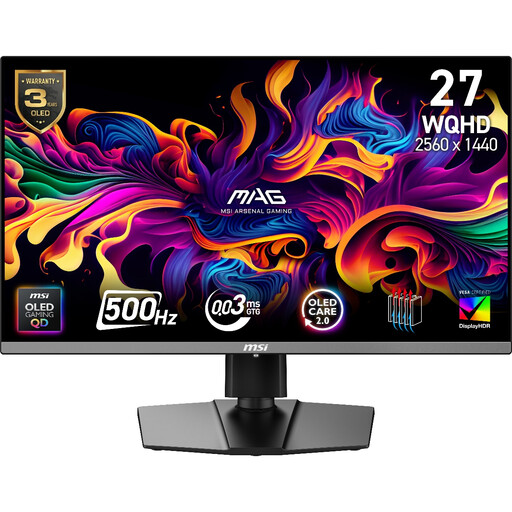
MAG 272QP QD-OLED X50, 27-inch QHD 500Hz
Consider this QD-OLED model if QHD map detail and a high stated refresh rate are both priorities. Its name specifies 2560 × 1440 resolution, 500Hz, 0.03ms response and AMD FreeSync. Check whether your source device and connection can deliver the mode you want, and read the applicable OLED care and warranty terms.
View on Joybuy
 No image available
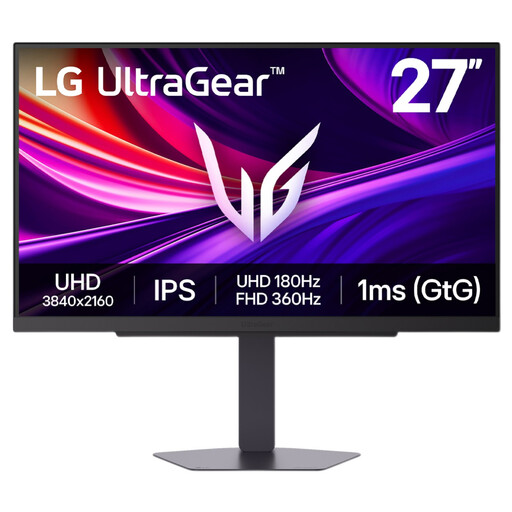
LG UltraGear 27G810A-B, 27-inch 4K dual-mode IPS
Consider this model if you want to switch display modes between detailed desktop use and faster play. Its name specifies a 27-inch 4K IPS screen with dual mode and a maximum of 360Hz. Check the resolution and connection requirements for each mode rather than assuming the maximum refresh rate applies at 4K.
View on Joybuy
 No image available
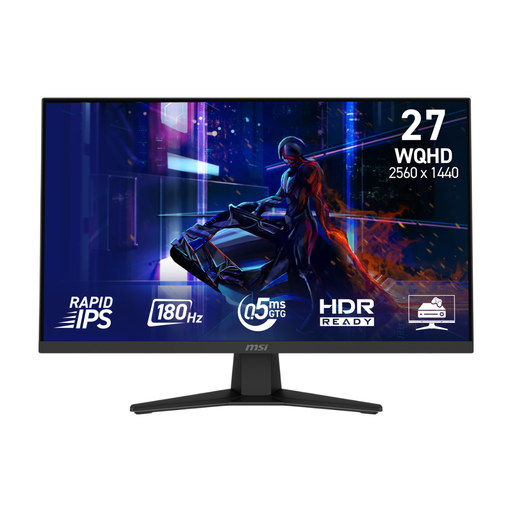
MSI MAG 274QF, 27-inch WQHD Rapid IPS
This is a QHD option for reading map detail and using work windows on the same screen as your games. Its name specifies a 27-inch WQHD Rapid IPS display, a 180 refresh-rate figure and Adaptive Sync. Check which input supports your intended mode and whether the stand or a compatible mount will position it comfortably.
View on Joybuy
 No image available
Acer X Predator X27U W3, 26.5-inch QD-OLED
Consider this QHD OLED model if you want a high stated refresh rate for play while retaining map detail. Its name specifies 2560 × 1440 resolution, 240Hz, 0.03ms response, FreeSync Premium Pro and G-SYNC Compatible support. Confirm input limits, desk adjustment, OLED care guidance and seller terms for the exact unit.
View on Joybuy
 No image available
HKC G27H2DPro, 27-inch QHD Fast IPS 220Hz
This QHD model is relevant if you want space for map references and work windows alongside a high stated refresh rate. Its name specifies 2560 × 1440 resolution, Fast IPS and 220Hz. Check the available mode on your intended input and whether the stand or a suitable mount fits your desk.
View on Joybuy
Common questions
Is 27-inch QHD a sensible starting point for map learning and desk work?
Yes, if you want one monitor for reading maps and work windows as well as fast multiplayer play. ASUS’s XG27ACS and Dell’s AW2725DM are 27-inch QHD examples specified at 180Hz; a smaller Full HD screen is another route when competitive motion matters more to you than desktop detail.
Do I need DisplayPort for the monitor’s highest refresh rate?
It depends on the exact model and mode. Dell specifies QHD at 180Hz over DisplayPort but up to 144Hz over HDMI for the Alienware AW2725DM, so match the monitor’s input limits with your source device and cable. For USB-C video on the ASUS XG27ACS, the source device must support DisplayPort Alt Mode.
What should I check if I also work at this monitor?
Check that the screen can sit at a comfortable height and distance for your workstation. The Health and Safety Executive advises a comfortable, sustainable posture for display-screen work at home; compare the model’s stand or mounting options with your desk and room lighting.
What should I do with an old monitor when replacing it?
Check local recycling options and the seller’s current take-back arrangements rather than putting the monitor in ordinary waste. UK government guidance on waste electrical and electronic equipment aims to reduce electrical equipment sent to landfill or incineration.


