Panoramic simulator builders
You want the landing view to span aligned screens. Matching the main displays and checking GPU outputs, combined resolution and bezel placement matter more than judging the centre monitor alone.


Choose the screen layout before choosing monitors: a panoramic moon-landing view calls for displays you can align and run together, while separate instrument screens can use different settings. Check the graphics card’s display support, outputs and cables against the intended layout before prioritising refresh rate or resolution. A grouped view also needs support from the simulator and graphics setup.
You want the landing view to span aligned screens. Matching the main displays and checking GPU outputs, combined resolution and bezel placement matter more than judging the centre monitor alone.
You care about lunar terrain, cockpit shadows and highlights. Compare resolution and the exact model’s stated HDR certification, while accounting for the graphics load of rendering across several screens.
You also use the rig for fast games and want to consider refresh rate and variable refresh rate (VRR). Check whether the PC can deliver the frame rates you want at the resolution you intend to use.
Decide whether the side screens will extend the landing view or hold separate instruments. NVIDIA describes Surround and AMD describes Eyefinity as ways to combine displays into a larger surface; an extended desktop keeps screens separate.
Choose it when: The simulator, GPU and planned display arrangement support one wide game surface across the main screens.
Allow for: A larger combined rendering resolution and bezel breaks in the view. AMD’s three-screen Eyefinity example combines three 1920 × 1080 displays into 5760 × 1080.
Choose it when: The main screen shows the landing while other screens hold instruments, maps or communications.
Allow for: Separate screens do not, by themselves, create one panoramic game image. AMD notes that extended displays can retain different resolutions, refresh rates and orientations.
| Concern | What to check | Who this matters to |
|---|---|---|
| Display compatibility and alignment | Confirm the GPU’s supported display count and outputs, then compare the main screens’ resolution, refresh range and mounting geometry. | If my landing view spans several screens, I need them to connect and line up without disrupting the view. Around 42% of consumers put compatibility and alignment first. |
| Terrain detail and HDR | Assess total rendered resolution across the main screens; if HDR matters, check the exact model’s VESA DisplayHDR or DisplayHDR True Black certification and tier. | When I focus on lunar terrain and cockpit shadows, I want enough detail and a meaningful basis for judging HDR claims. Around 33% of consumers make visual detail their primary concern. |
| Motion and refresh rate | Check the intended input’s resolution and refresh-rate modes, plus VRR compatibility with the GPU. | If I also play fast games, I care whether the PC and monitor can work at the frame-rate target I have chosen. Roughly 25% of consumers prioritise motion responsiveness. |
A grouped view has a combined resolution, and the number of displays a graphics card can drive depends on its specifications. AMD’s three-screen Eyefinity example combines three 1920 × 1080 screens into 5760 × 1080.
List the intended screens, GPU outputs, cables and target display mode before ordering. Check whether the simulator needs one grouped view or separate desktops.
A monitor can offer different operating modes or connection capabilities. Dell’s AW2725QF, for example, specifies 4K at up to 180Hz or FHD at up to 360Hz, rather than both at once.
Check the exact model’s input specifications for the resolution and refresh rate you plan to use, then check the cable path for each screen.
Generic HDR wording does not identify a VESA DisplayHDR tier. VESA says displays must meet the relevant specifications to carry its DisplayHDR logo.
If dark cockpit areas and bright lunar highlights influence your choice, check the exact model’s certification and stated tier rather than comparing labels alone.
Different sizes, resolutions or physical positions can interrupt an image intended to span several panels. Differences matter less when screens are deliberately used for separate instruments.
For a panoramic main view, compare models and mounting adjustments before buying multiple units. Use differently configured screens for auxiliary windows where that arrangement suits the simulator.
Named Alienware models illustrate a choice between resolution modes and a high-refresh QD-OLED screen; their specifications should not be assumed to apply across the range.
Samsung’s 27-inch Odyssey OLED G6 G61SH is one QHD QD-OLED option to examine for a visually focused setup.
ZOWIE positions the XQ2566X around fast competitive play, a different use priority from building a wide cinematic view.
These monitors offer 4K or QHD options for considering a multi-screen simulator. Compare their stated modes with your GPU, intended connections and screen arrangement; an individual monitor’s refresh-rate specification does not establish what the complete rig can run.
 No image available
Consider this model if you want to compare a 4K display option with a separate faster mode for other games.
The product name specifies 4K UHD Nano IPS, dual-mode 240Hz/480Hz, AMD FreeSync Premium Pro, DisplayPort 2.1 and HDMI 2.1. Check the resolution and input required for each refresh-rate mode before planning several screens.
 No image available
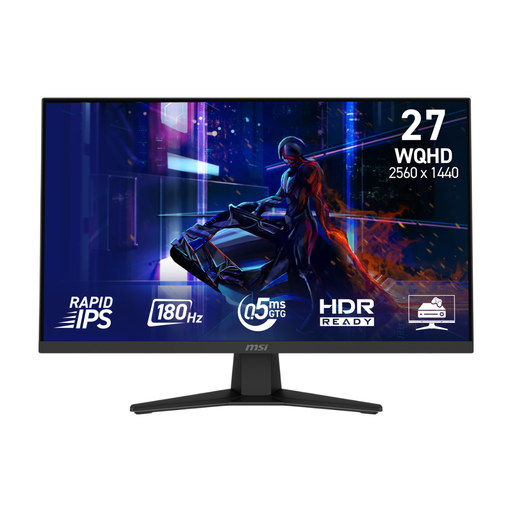
This WQHD model is an option to compare when planning similarly specified screens for the main view.
Its product name specifies a 180Hz refresh rate and Adaptive Sync. Check the modes available through your intended inputs and whether the stands or mounts will let the screens align.
 No image available
Consider this QHD option if panel type and a high stated refresh rate both matter to your choice.
The product name specifies 2560 × 1440, 240Hz, HDMI 2.1, DisplayPort 1.4, FreeSync Premium Pro and G-SYNC Compatible. Confirm the intended mode by input and assess how its size fits beside the other screens.
No image available
This is another QHD option for a setup that also needs to accommodate high-refresh gaming.
The product name specifies a 2560 × 1440 QD-OLED display, 240Hz and Adaptive-Sync. Confirm its input modes and physical fit before choosing it for a matched main-view arrangement.
 No image available
Consider this model if you want a QHD OLED screen and a high stated refresh rate for the rig.
Its product name specifies 240Hz. Check the S27DG612’s exact input modes and HDR specifications rather than applying specifications from a differently named Odyssey G6 model.
Use a grouped display when the simulator and GPU support the panoramic layout you want. NVIDIA describes Surround and AMD describes Eyefinity as combining displays into a larger surface. Keep an extended desktop if the other screens are for instruments or support windows; AMD notes that extended displays can have different resolutions, refresh rates and orientations.
Arrange the displays in Windows to match where they sit on your rig. Microsoft advises identifying the screens in Display settings, dragging them into position and testing the layout by moving the pointer between them.
An HDR label alone is not a dependable way to compare stated HDR capability. If it matters to your purchase, check the exact model’s VESA DisplayHDR or DisplayHDR True Black certification and tier; VESA says its logo is reserved for displays meeting the relevant specifications.
No. VESA says DisplayPort Multi-Stream Transport can drive multiple screens from one source, but you still need to check support and available bandwidth across the GPU, hub or monitor, and cable path for the arrangement you intend to use.