Console-first platform players
If you mainly connect a PS5 or Xbox Series console, establish which resolution, 120Hz and variable refresh rate (VRR) modes your console and chosen monitor can use together over HDMI.


Choose by the console modes you want and the way you use your desk, not the monitor’s highest advertised refresh rate. For a compatible Xbox Series X 4K/120Hz setup, Xbox Support specifies an HDMI 2.1 display and suitable cable; a QHD monitor is another option when 1440p suits you, provided its HDMI input accepts the modes you need. Check the stand, connections and audio against your work setup too.
If you mainly connect a PS5 or Xbox Series console, establish which resolution, 120Hz and variable refresh rate (VRR) modes your console and chosen monitor can use together over HDMI.
If the screen also serves your home office, consider its resolution, physical adjustment, mounting options, inputs and audio alongside gaming specifications.
If you connect both a computer and a console, keep the monitor’s faster PC modes separate from the HDMI modes available to the console.
Decide whether console output, everyday desk use or switching between devices is your main priority, then check the exact monitor’s inputs and supported modes.
| Concern | What to check | Who this matters to |
|---|---|---|
| Console video modes | Match the monitor’s documented HDMI resolution and refresh-rate combinations to your console; check VRR support where you intend to use it. | If I mainly play on a console, I want to know that its intended output will work rather than relying on the panel’s headline refresh rate. Around 45% of consumers put console compatibility first. |
| Home-office fit | Check desk space, stand adjustment or VESA mounting, and the inputs and audio your work setup requires. | When one screen handles work and games, I need it positioned comfortably and connected to my everyday devices. Desk usability comes first for around 33% of consumers. |
| PC-and-console flexibility | Compare the modes available through HDMI, DisplayPort and any USB-C video input; USB-C video requires a compatible source device. | If I switch between a computer and a console, I want useful connections for both without mistaking a PC mode for a console feature. Around 22% of consumers primarily value that flexibility. |
A monitor’s 165Hz, 240Hz or 320Hz specification does not establish what it accepts from a console over HDMI. Xbox Support specifies a Series X, an Ultra High Speed HDMI cable supporting HDMI 2.1 and an HDMI 2.1 display for its 4K/120Hz setup.
Check the monitor’s HDMI timing table against your console and the games you intend to play before choosing on refresh rate alone.
BenQ UK lists two HDMI 2.0 ports on the MOBIUZ EX2710Q, but two HDMI 2.1 ports on the EX2710U. Screen size and a high panel refresh rate do not resolve that difference.
Read the connectivity and supported-mode information for the exact model, particularly if 4K/120Hz is a priority.
Stand adjustment, mounting, audio and computer connections can change whether the same monitor works conveniently for office tasks. ASUS ROG, for example, says USB-C video on the XG27UCG requires a source device supporting DisplayPort Alt Mode.
List your devices and ports, measure the desk, and decide how you will position the screen and handle sound.
Depending on those choices, you may also need a monitor arm, speakers, a dock or additional cables.
The 27-inch EX2710Q and EX2710U illustrate QHD and 4K IPS options for a combined gaming and office desk.
The 27-inch ROG Strix XG27UCG offers a dual-mode option for a desk shared by a computer and console.
Dell’s AW2725Q illustrates a 27-inch-class 4K QD-OLED option for consumers prioritising its listed panel specifications and stand adjustment.
LG’s 27GS95QE-B illustrates a 27-inch QHD OLED route rather than a 4K choice.
These monitors offer 27-inch QHD or 4K options, dual-mode choices and a larger curved screen for platform gaming at a desk also used for work. Compare each one’s documented console HDMI modes with your intended setup; its listed maximum refresh rate alone cannot settle that choice.
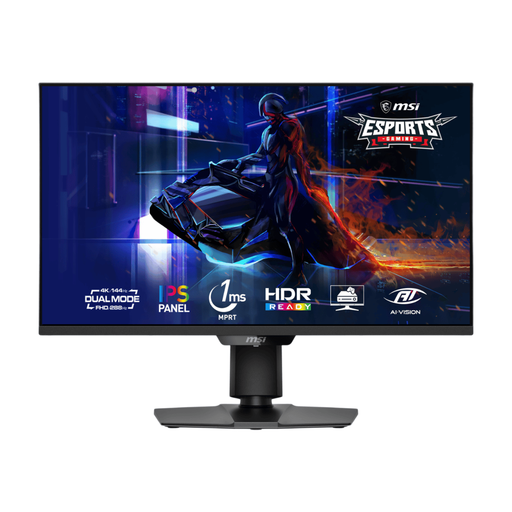 No image available
Consider this if you want a 4K screen for the desk alongside a faster Full HD mode. The listed dual modes are UHD at 144Hz and Full HD at 288Hz; check which HDMI modes your console can use.
 No image available
This 4K UHD Nano IPS option is worth comparing if you also want a faster mode for PC use. Its title lists 240Hz/480Hz dual-mode operation, DisplayPort 2.1 and HDMI 2.1; confirm the resolution and refresh combinations available to your console over HDMI.
 No image available
Consider the larger curved format if it fits your work-and-play desk. The title lists 3840 × 2160 resolution, 165Hz and USB-C at 65W; measure your available space and check the console’s supported HDMI modes.
 No image available
This is a QHD option if 4K output is not your priority. Its listed 240Hz refresh rate and 0.03ms response time are monitor specifications; check the HDMI timing table for the modes your console will actually use.
 No image available
Consider this 2560 × 1440 option if QHD suits both your games and desktop work. Its listed refresh rate is 220Hz; check the HDMI console modes and stand adjustment before deciding whether it fits your setup.
It depends on the console output mode you want. For Xbox Series X at 4K/120Hz, Xbox Support specifies the console, an Ultra High Speed HDMI cable supporting HDMI 2.1 and an HDMI 2.1 display; check the exact monitor’s supported modes rather than assuming every console use requires that setup.
Yes, if the individual monitor supports the modes you need. PlayStation provides a PS5 1440p output test covering SDR and HDR at 60Hz and 120Hz, plus VRR; use that test and the monitor’s manual to check the combination.
No: a monitor’s maximum rating does not establish the output available from your console. Check the supported HDMI modes for the exact monitor and console, especially where a faster mode is intended for a PC or a different resolution.
A direct connection is a useful starting point when checking Xbox video features: Xbox Support advises using the supplied HDMI cable, since an intervening soundbar or AV receiver can affect video features. If you need a longer Series X cable, Xbox advises a certified Ultra High Speed HDMI cable.
Check an electrical-equipment collection or take-back route rather than putting the monitor in ordinary household waste. GOV.UK’s guidance covers waste electrical and electronic equipment; ask your local authority which collections accept monitors or check the retailer’s take-back arrangements.