What should you check first?
Choose between QHD detail and Full HD’s lower pixel count with your PC in mind, then check whether the monitor can be positioned on the bedroom desk. MSI and ASUS list 27-inch QHD models at 180Hz, while LG lists a 27-inch Full HD model at 180Hz; those refresh-rate figures do not settle the resolution or desk-fit decision.
| Concern |
What to check |
Who this matters to |
| Factory-layout detail |
Compare native resolution at the screen size you want, and consider whether your PC runs the game comfortably at QHD. |
When I am tracing production chains across a large map, I want enough detail to inspect the layout without losing sight of the wider plan. Around 33% of consumers put layout detail first. |
| Desk fit and positioning |
Measure usable desk width and depth; compare stand dimensions and check height adjustment or suitable mounting. |
If the desk is shared, I need room for the screen without pushing it too close or leaving it at an awkward height. For around 27% of consumers, positioning is the primary concern. |
| Smooth play and PC output |
Check the refresh rate available through your chosen input and whether your PC and connection support the intended resolution and adaptive-sync mode. |
I want movement to feel responsive, but a higher monitor rating will not supply frames my PC cannot render. Around 20% of consumers prioritise the balance between frame output and refresh rate. |
| Long-session comfort |
Check the exact model’s positioning options and how the screen will sit relative to room lighting; treat comfort-feature labels as supplementary. |
During a long planning session, I need a screen position that works with my chair and does not catch distracting reflections. Comfort is the leading concern for around 20% of consumers. |
Joybuy monitors for this setup
These QHD gaming monitors are options for reading detailed factory layouts. Compare their stated resolution and refresh rates with your PC, then check the exact stand and desk fit before choosing one for a shared bedroom.
 No image available
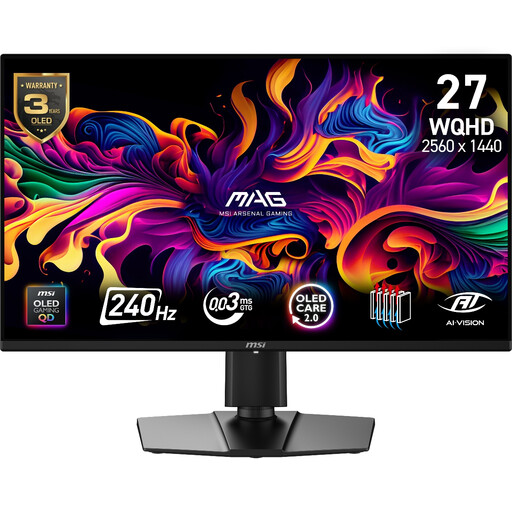
MAG 274QP QD-OLED X24 27-inch WQHD 240Hz
Consider this QHD model if factory-layout detail matters and you also want a high stated refresh rate; check that your PC and chosen connection can support the settings you intend to use.
The product name specifies a 27-inch QD-OLED screen, 2560 × 1440 resolution, 240Hz and Adaptive-Sync. Check the stand dimensions and adjustment range against your desk position.
Joybuy
 No image available
Samsung Odyssey G6 S27DG612 27-inch QHD OLED 240Hz
This is another QHD choice for inspecting dense factory maps; compare its physical fit as well as its panel specification before placing it on a shared desk.
The product name specifies a 27-inch QHD OLED display and 240Hz. Confirm that your PC and chosen input support the resolution and refresh rate you plan to use.
Joybuy
 No image available
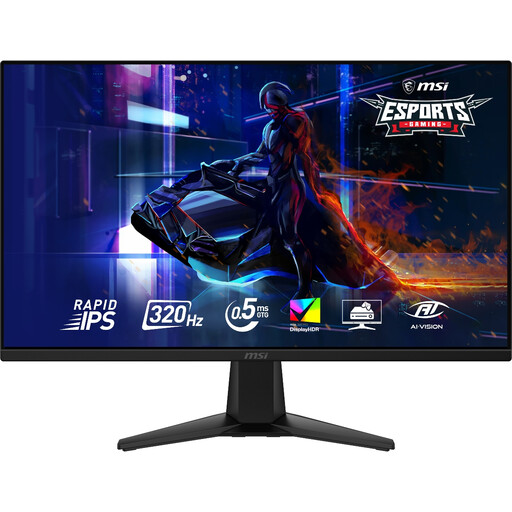
MAG 275QF X32 27-inch WQHD Rapid IPS 320Hz
Consider this QHD option if you want detailed layouts and have a PC and connection that can make use of a high refresh-rate ceiling.
The product name specifies 2560 × 1440, 320Hz and Adaptive-Sync. Check the stand’s positioning options; if you plan to use an arm, confirm the monitor, arm and desk are compatible.
Joybuy
 No image available
Acer X Predator X27U W3 26.5-inch QHD QD-OLED 240Hz
The 26.5-inch QHD format is relevant if you want factory-map detail in a screen slightly smaller than the 27-inch options here; check the complete footprint, not just the diagonal size.
The product name specifies 2560 × 1440, 240Hz, FreeSync Premium Pro and G-SYNC Compatible support. Check the stand’s dimensions and adjustment range, along with your PC’s intended output.
Joybuy
 No image available
HKC G27H2DPro 27-inch QHD Fast IPS 220Hz
This QHD model covers the screen-detail need, but its glossy finish makes room lighting and possible reflections worth considering for a shared bedroom.
The product name specifies a 27-inch Fast IPS panel, 2560 × 1440 and 220Hz. Check stand fit and positioning, and confirm that your PC and connection support your intended settings.
Joybuy
Common questions
Should I choose 27-inch QHD for a virtual-factory game?
Choose 27-inch QHD when reading dense layouts is a priority and your PC runs your games comfortably at 2560 × 1440. It has about 78% more pixels than Full HD, but a 27-inch Full HD screen remains worth considering if your PC’s frame output is the deciding factor.
Will a 180Hz monitor automatically make the game smoother?
No: the PC and game must supply frames, and the connection must support the refresh rate you select. ASUS specifies up to 180Hz through DisplayPort but up to 144Hz through HDMI for the VG27AQ3A, so check the limit for the exact input you will use.
How should I position a monitor on a shared-bedroom desk?
Measure the usable desk space and compare the monitor’s stand footprint and adjustment range before buying. The Health and Safety Executive advises positioning the top of the screen around eye level and the screen about an arm’s length away; check whether the supplied stand lets you achieve a comfortable position.
Can a monitor arm replace the supplied stand?
Yes, if the exact monitor, arm and desk are compatible. ASUS lists 100 × 100 mm VESA mounting for the VG27AQ3A, as does BenQ for the EX2710Q, but you must also check monitor weight, arm capacity, fixings, clamp clearance and desk strength.
What warranty details should I check?
Check the exact model’s warranty terms and keep the proof of purchase. ASUS’s UK LCD-monitor support information lists a 36-month product warranty, but cautions that its information may not apply to every product in a category or series; confirm the terms for the monitor you choose.


