For reaction practice in a student room, start by checking whether your PC and game can sustain the frame rate needed for a compact, high-refresh monitor. A motion-clarity-focused 360Hz setup makes more sense for consistently high-frame-rate competitive play; if frame rates fluctuate or the screen must also serve as a study display, weigh variable refresh rate, connections and stand adjustment alongside the headline refresh rate.
Who should consider these monitors?
Competitive reaction-practice players
If you train or play fast competitive PC games, you may want a compact display that helps you follow fast-moving targets. Before pursuing a very high refresh rate, check the frame rate your system sustains in the game you actually play.
Players with variable frame rates
If your games do not consistently run at very high frame rates, variable refresh rate (VRR) and its compatibility with any blur-reduction mode deserve particular attention. Those modes cannot be assumed to work together on every monitor.
Students sharing one desk between work and games
If the screen also serves coursework on a constrained desk, check its stand, footprint and position relative to the room’s lighting. Refresh rate is only one part of making the setup usable day to day.
What matters when choosing?
Check the frame rate your game can sustain before choosing a refresh-rate target, then assess the monitor’s connections, settings and fit on your desk.
| Concern |
What to check |
Who this matters to |
| Fast-target clarity |
Check the refresh rate at your intended resolution and whether a quoted maximum requires an overclocked mode. |
If I practise tracking fast targets, I want the display settings to match the pace of my game. Around 40% of consumers put motion clarity and high refresh first. |
| PC, connection and VRR |
Check sustained in-game frame rate, the required input and whether VRR works with the exact model’s blur-reduction mode. |
When my game’s frame rate varies, I need settings that work with my PC rather than a refresh-rate figure I cannot consistently use. For around 30% of consumers, compatibility is the primary concern. |
| Student-room desk fit |
Measure the space for the screen and stand; check adjustment or mounting options and potential reflections. |
On a cramped desk, I need room to position the screen comfortably without crowding my study space. Desk fit comes first for around 20% of consumers. |
| Study and gaming balance |
Check whether the available inputs, screen size and stand adjustment work for both your study device and gaming PC. |
If one screen has to handle documents as well as games, I care about a workable daily setup, not just maximum refresh. Around 10% of consumers make that balance their first priority. |
Buying pitfalls to avoid
-
Choosing the highest Hz figure without checking in-game frame rate
For the XL2566K, ZOWIE by BenQ says stable 360 frames per second are important to its 360Hz experience and cautions that unstable performance can feel worse than playing at 240Hz. The refresh-rate figure alone does not establish how your own PC and game will perform.
Check frame rate in your reaction-practice game at the graphics settings you intend to use, as well as the connection needed for your chosen display mode.
-
Comparing response-time numbers without their measurement labels
AOC’s 25G3ZM/BK listing uses MPRT for its 0.5ms figure, while Dell uses GtG for the AW2525HM’s 0.5ms figure. These are different measurement descriptions, so matching numbers do not establish equal visible blur or overshoot.
Read the measurement label and the conditions for the quoted setting before using response time to compare models.
-
Assuming VRR and blur reduction always work together
ZOWIE by BenQ says DyAc or DyAc+ must be turned off to use VRR on the relevant setup. ASUS describes ELMB Sync and Adaptive-Sync operating together on the ROG Strix XG259QN. The available combination depends on the model.
Decide whether you chiefly need a motion-clarity mode for steady high frame rates or VRR for fluctuating frame rates, then check the exact monitor’s supported settings.
-
Leaving the desk layout until after choosing a screen
A screen and its stand both need space. The Health and Safety Executive’s display-screen guidance also calls attention to screen arrangement and lighting that limits glare.
Measure desk width and depth, check stand adjustment and mounting compatibility, and plan where the screen will sit relative to the lighting.
If the supplied stand cannot accommodate your layout, a compatible mount may be needed to position the screen as intended.
Relevant brands for reference
ZOWIE by BenQ
The XL2566K illustrates a compact, motion-clarity-focused esports option: ZOWIE by BenQ specifies a 24.5-inch Full HD TN panel, 360Hz refresh rate and DyAc+.
- Consider this model when your competitive game and PC can sustain very high frame rates.
- ZOWIE says stable 360fps matters for its 360Hz experience, and DyAc or DyAc+ cannot be used with VRR on the relevant setup.
Alienware
Dell specifies the 24.5-inch Full HD Fast IPS AW2525HM at up to 320Hz through DisplayPort, with Adaptive-Sync support and an adjustable stand.
- Its stand adjustment and Adaptive-Sync support are worth considering if the screen will serve both gaming and desk work.
- Dell specifies a lower maximum of 255Hz through HDMI, so the intended connection matters.
ASUS ROG
Two distinct compact options illustrate the range: ASUS specifies the XG259QN Fast IPS model at up to 380Hz overclocked, while the XG259CS combines 180Hz Fast IPS with stand adjustment and a 100 × 100mm VESA mount.
- The XG259CS offers a route for a mixed study-and-gaming desk; ASUS describes ELMB Sync with Adaptive-Sync on the higher-refresh XG259QN.
- The XG259QN’s 380Hz figure is an overclocked maximum, not an indication of the frame rate your game will deliver.
Joybuy monitors to consider
These high-refresh Joybuy monitors offer different screen sizes and resolution choices for gaming and study. They are larger than the compact 24.5-inch route discussed above, so measure your desk and check the frame rate and connection required for the mode you want.
 No image available
LG UltraGear G8 27G850A, 27-inch dual-mode monitor
Consider this model if you want to choose between a Full HD high-refresh mode for games and a 4K mode for other screen use, and have room for a 27-inch display.
Its stated modes are 480Hz at Full HD and 240Hz at 4K UHD. The product name specifies Nano IPS, 1ms GtG, AMD FreeSync Premium Pro, DisplayPort 2.1 and HDMI 2.1. Check which input supports your intended mode and whether your PC and game can sustain its frame rate.
View on Joybuy
 No image available
Samsung Odyssey G6 S27DG612, 27-inch QHD OLED monitor
This is a 240Hz option if you want a QHD screen for gaming and study and can accommodate a 27-inch display.
The product name specifies an OLED panel and 0.03ms response time. Check the measurement conditions behind that response-time figure, the input needed for 240Hz and the space required on your desk.
View on Joybuy
 No image available
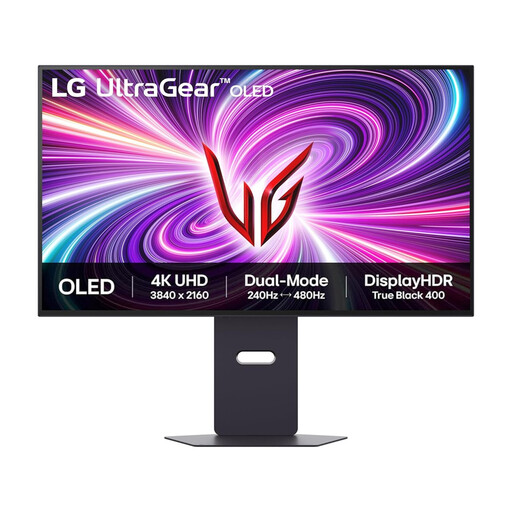
LG UltraGear OLED 32GS95UV-B, 32-inch dual-mode monitor
Consider the dual display modes only if a 32-inch screen fits the student-room desk and you have a use for both gaming and 4K display settings.
The stated maximum is 480Hz at Full HD or 240Hz at 4K UHD, not 480Hz at 4K. The product name also specifies OLED, a 0.03ms response-time figure, HDMI 2.1, NVIDIA G-SYNC and AMD FreeSync Premium Pro. Confirm the connection and PC performance needed for your chosen mode.
View on Joybuy
 No image available
Acer Predator X27U W3, 26.5-inch QHD QD-OLED monitor
This 240Hz QHD model is worth considering if you want a screen larger than the compact esports examples without moving to a 32-inch display.
Its product name specifies 2560 × 1440 resolution, QD-OLED, HDR10, FreeSync Premium Pro and G-SYNC compatibility. Check its physical fit, the response-time measurement conditions and the input required for 240Hz.
View on Joybuy
 No image available
LG UltraGear 34GX900A-B, 34-inch OLED WQHD monitor
Choose this 34-inch format only if the desk can accommodate a substantially wider screen than the compact reaction-practice options.
The product name specifies WQHD resolution, OLED and 240Hz. Measure the available width and depth, then confirm the connection and PC frame rate needed to use the intended refresh setting.
View on Joybuy
Frequently asked questions
Will a 360Hz monitor automatically improve my reaction time?
No: a 360Hz specification does not guarantee a change in your reaction time or create frames your PC and game cannot produce. For the XL2566K, ZOWIE by BenQ says stable 360fps is important and cautions that an unstable 360fps experience may be worse than playing at 240Hz.
Can I use VRR and blur reduction at the same time?
Only if the exact monitor supports that combination. ZOWIE by BenQ says DyAc or DyAc+ must be off for VRR on the relevant setup, while ASUS describes ELMB Sync working with Adaptive-Sync on the XG259QN. Check the model’s supported modes before buying.
What should I check for a small student-room desk?
Measure the space for both the screen and its stand, then check adjustment and mounting options. ASUS specifies height, tilt, swivel and pivot adjustment and a 100 × 100mm VESA mount for the XG259CS; the Health and Safety Executive also advises arranging display-screen workspaces and lighting to limit reflections and glare.
What should I do with an old gaming monitor?
Check an appropriate electrical-equipment collection or take-back route rather than assuming it belongs with ordinary household waste. GOV.UK identifies the UK Waste Electrical and Electronic Equipment Regulations 2013, as amended, as the framework underpinning recovery, reuse and recycling; check the available arrangements with the seller or your local authority.


