Competitive FPS reaction trainers
If flicks, tracking and target acquisition are your main drills, a compact esports screen and its fast-motion presentation matter more than a headline specification alone.


For reaction-timing practice, choose a refresh mode that your PC and video connection can sustain rather than buying on the highest Hz figure alone. A compact 360Hz Full HD esports monitor suits a focus on fast-moving targets; higher-refresh models and larger mixed-use displays involve different panel, resolution and connection trade-offs. Limited wall sockets call for a safe power arrangement, not a particular refresh-rate tier.
If flicks, tracking and target acquisition are your main drills, a compact esports screen and its fast-motion presentation matter more than a headline specification alone.
A high-refresh mode is most relevant when your PC and game settings can deliver sufficiently high, stable frame rates. Check that your GPU output, cable and monitor input support the mode you intend to use.
If the available wall sockets already serve other equipment, plan where the monitor will draw mains power and check the combined load before using an extension device.
Settle the refresh mode and connection your PC can use, then weigh motion presentation against other desk uses. Treat the monitor's power requirements and the whole desk's electrical load as a separate setup decision.
Consider it when: FPS target tracking is the main use and you can supply high frame rates. ZOWIE by BenQ specifies the 24.5-inch Full HD XL2566K with 360Hz and DyAc+.
Trade-off: ZOWIE describes clearer moving outlines, but that does not establish faster personal reactions; a TN-focused display may be less suitable when wide viewing angles or colour-oriented work matter more.
Consider it when: You want the stated refresh-rate ceiling of Dell's 24.5-inch Full HD Alienware AW2524HF alongside its Fast IPS panel.
Trade-off: Dell lists different refresh figures by connection, including 255Hz over HDMI; confirm the exact mode your PC, port and cable can use.
Consider it when: Refresh-rate headroom is the priority and your PC can feed a suitable mode. ASUS specifies the 24.1-inch Full HD ROG Swift Pro PG248QP at up to 540Hz.
Trade-off: It remains a specialist TN display, and its external power adapter still needs a mains connection.
| Concern | What to check | Who this matters to |
|---|---|---|
| Sustained high refresh | Check the desired mode against the monitor input, cable and GPU output; consider the frame rate your game can sustain. | If I practise at very high frame rates, I want the display to run in the mode I am buying it for. Around 36% of consumers put usable high refresh first. |
| Motion clarity | Check the panel type and whether a motion-clarity mode works at your intended refresh setting; do not equate a GTG figure with total system latency. | When targets move quickly across the screen, I care most about how clearly I can follow them. Motion clarity comes first for around 29% of consumers. |
| Safe power planning | Check the rating of every connected appliance against the extension device's marked limit; do not chain extension devices. | With wall sockets already occupied, I need a safe way to power the whole desk, not just the monitor. Around 21% of consumers make that their primary concern. |
| Desk and mixed use | Check screen size, stand adjustment and whether the resolution and panel type suit your non-gaming tasks. | If the same desk serves work and practice, I need the screen to fit and remain useful beyond drills. For around 14% of consumers, desk and mixed-use fit matters most. |
The maximum mode can differ by connection: Dell UK lists 255Hz over HDMI for the Alienware AW2524HF alongside higher refresh figures.
Before ordering, match the desired mode to the exact monitor input, GPU output and cable, then check that the mode can be selected on your PC.
A grey-to-grey, or GTG, figure describes a panel transition under specified conditions. It does not measure rendering, game latency or how quickly a person responds.
Consider response time alongside the refresh mode, sustained frame delivery and motion presentation that matter to your drills.
Electrical Safety First warns that overloading can cause overheating and says not to plug one extension lead into another.
If you need an extension device, use one appropriately rated device from the wall socket and keep the combined load within its marked rating. For a permanent arrangement needing more fixed sockets, consult a registered electrician.
ASUS specifies power consumption below 21W for the ROG Swift Pro PG248QP, but that figure is for the monitor, not a PC and everything else connected at the desk.
Check the ratings of all appliances on an extension device before deciding whether the arrangement stays within its marked limit.
Its XL2566K is a 24.5-inch Full HD TN esports monitor aimed at fast-motion play.
Dell's AW2524HF is a 24.5-inch Full HD Fast IPS option with extensive stand adjustment.
The ROG Swift Pro PG248QP is a 24.1-inch Full HD TN display for a specialist high-refresh setup.
These choices cover high-refresh reaction practice in larger gaming displays, including options for a desk used for more than competitive drills. Check each model's usable mode and power arrangement for your own setup.
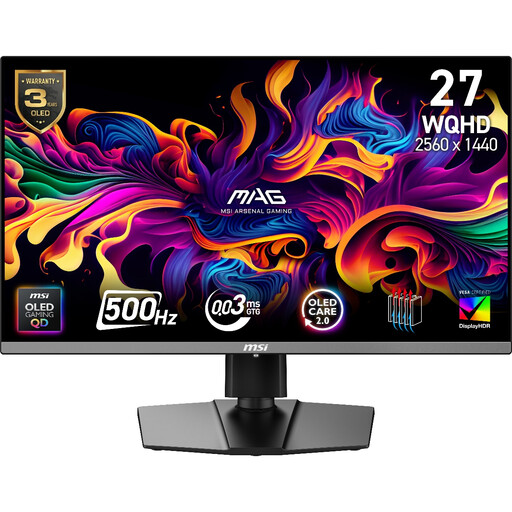 Image unavailable
Consider this 27-inch format if you want high-refresh gaming alongside a 2560 × 1440 desktop, provided your PC can supply the frames you need.
The product name specifies a QD-OLED panel, 500Hz refresh rate, 0.03ms GTG response time and AMD FreeSync; the response-time figure is not a measure of your reaction time.
Confirm the input and cable required for your intended mode. Check the monitor's electrical rating and every other device's load before using an extension device.
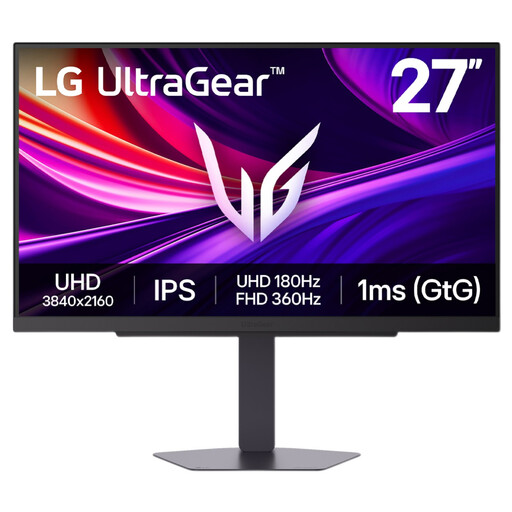 Image unavailable
Consider this model if you want to switch between reaction practice and uses that call for a 4K desktop.
The product name specifies an IPS panel, a dual-mode design and a maximum 360Hz refresh rate. Confirm which resolution, input and cable provide the mode you intend to use.
Check its electrical rating and the combined load of your desk equipment before choosing an extension device.
 Image unavailable
Consider this option if a 2560 × 1440 gaming display matters more to your desk use than the 360Hz-and-above esports routes.
The product name specifies a 26.5-inch QD-OLED panel, 240Hz refresh rate and 0.03ms response time. That response-time figure does not establish end-to-end latency or faster personal reactions.
Confirm the refresh mode available through your chosen input, and check the monitor's electrical rating alongside the other loads on any extension device.
No refresh-rate specification guarantees faster human reactions. A higher supported mode changes how often the display can update, but the experience also depends on game frame rate, connection mode and wider system latency.
Check the exact model rather than assuming every input supports the headline figure. Dell UK lists 255Hz over HDMI for the Alienware AW2524HF alongside higher refresh figures; match your desired mode to the monitor's specified port, cable and GPU output.
No: the monitor still needs mains power. If you add outlets with an extension device, Electrical Safety First advises against chaining extension devices and against exceeding the device's marked load rating.
Check the lead's marked rating, its condition and the combined load of everything connected to it. Electrical Safety First advises fully unwinding a cable reel to achieve its current rating; if your desk routinely needs more fixed sockets, consult a registered electrician.