For reviewing fast FPS action, consider a compact Full HD monitor with a very high refresh rate if your PC and connection can use the intended mode. If replay timelines, notes and other desktop work matter as much as speed, a larger QHD high-refresh screen may suit you better. Either choice needs to fit your desk and the way you use it during long sessions.
Who these choices suit
FPS replay analysts
If you repeatedly inspect fast movement, tracking or brief events, prioritise the refresh mode you can actually use and the motion settings you need. Dell and ZOWIE list compact, very-high-refresh models, though a specification alone does not establish which will look clearer in your setup.
Players who also edit and review footage
If replay controls, timelines, chat or notes share your screen, a larger QHD display deserves consideration alongside refresh rate. LG and ASUS list high-refresh QHD OLED models as examples of this route.
Long-session desk users
If you spend extended periods reviewing footage, check whether the stand and screen treatment work with your desk and lighting. Positioning the workstation and taking breaks remain separate considerations; display features do not replace them.
What matters when choosing
Compact Full HD esports screen
Consider it when: Fast FPS movement is the main focus of replay review and you prefer a 24–25-inch screen.
Trade-off: Full HD leaves less room for timelines and notes than QHD, and the highest refresh mode may depend on the input connection.
Larger QHD high-refresh screen
Consider it when: Replay-interface detail and room for other desktop work matter alongside fast gaming.
Trade-off: Check whether your PC can deliver the resolution and refresh mode you intend to use. For OLED models, consider persistent timelines and other static interface elements when reviewing care guidance.
| Concern |
What to check |
Who this matters to |
| Fast-motion review |
Check the refresh rate available through your intended input and whether a motion-clarity mode changes other settings. |
When I inspect quick FPS movement, following the action matters more to me than extra space for controls. Around 30% of consumers put motion-first replay review at the top of their priorities. |
| Long-session desk fit |
Check stand adjustment against your seating position and screen reflections against your room lighting; plan breaks separately. |
If I spend hours at the desk, I need to position the screen without fighting my setup or the room lighting. Desk fit is the primary concern for around 30% of consumers. |
| Replay workspace |
Compare screen size and resolution for timelines, controls and notes, as well as the refresh mode you intend to use. |
With controls and notes open beside a replay, I would rather have more room to see the interface. Roughly 20% of consumers prioritise that QHD detail and workspace. |
| Source compatibility |
Confirm the PC output, input port and cable for your chosen mode; check any VRR and blur-reduction combination on the exact model. |
Before choosing a high-refresh screen, I want to know that my existing setup can run the mode I intend to use. For around 20% of consumers, compatibility comes first. |
Buying pitfalls
-
Relying on the headline refresh rate
The available mode can depend on the input. Dell lists the AW2524HF at 255Hz through HDMI and 480Hz through DisplayPort in its connection specifications, alongside its 500Hz headline positioning.
Check the monitor’s port-specific modes against your PC output and cable before choosing it for a particular refresh rate.
-
Assuming VRR and blur reduction always work together
ZOWIE says DyAc, DyAc+ and DyAc 2 must be turned off to use variable refresh rate on the models covered by its support guidance.
Decide which mode matters more for your games and replay material, then check the setting combination for the exact monitor.
-
Treating display features as the whole long-session setup
Stand adjustment and reflection control do not take the place of a suitable workstation or breaks. The Health and Safety Executive identifies workstation setup and changes of activity as separate considerations for covered display-screen work.
Check that you can position the screen at your desk, manage reflections and step away regularly during lengthy sessions.
-
Assuming OLED care removes static-content risk
Replay timelines and desktop controls can remain on screen for long periods. ASUS describes OLED Care+ on the PG27AQDP as reducing burn-in risk, not eliminating it.
Review the exact model’s panel-care settings and warranty terms in light of how long your usual interface stays visible.
Brands to consider
These model lines illustrate different ways to balance fast-motion review, replay workspace and desk fit; the details apply to the named models rather than every monitor from each brand.
ZOWIE by BenQ
The XL2586X takes a compact, esports-focused approach for buyers prioritising a very high refresh rate and quick access to game settings.
- ZOWIE lists a 24.1-inch Fast TN panel, 540Hz, DyAc 2, an adjustable stand and an S Switch for the XL2586X.
- ZOWIE’s support guidance says its DyAc mode cannot be used with VRR; its motion-clarity comparisons are manufacturer claims.
Alienware
The AW2524HF offers a compact Full HD Fast IPS route with extensive stand adjustment.
- Dell lists a 24.5-inch display, up to 500Hz, anti-glare treatment and height, pivot, swivel and tilt adjustment.
- Dell’s listed connection specifications include 255Hz through HDMI and 480Hz through DisplayPort, so check the mode available from your source.
LG UltraGear
The 27GS95QE-B represents a 27-inch QHD OLED route for replay-interface detail alongside high-refresh gaming.
- LG lists QHD resolution, 240Hz and an anti-glare, low-reflection treatment for the 27GS95QE-B.
- Consider room lighting and persistent replay-interface elements when assessing this OLED model for long sessions.
ASUS ROG
The PG27AQDP combines QHD resolution with a native 480Hz OLED mode for buyers seeking both replay detail and very high refresh.
- ASUS specifies a 26.5-inch QHD WOLED panel, native 480Hz and OLED Care+.
- ASUS says its care features and heatsink reduce burn-in risk; they do not guarantee that static-content damage cannot occur.
Joybuy monitors for replay review
These QHD and wider-format OLED choices suit shoppers considering more room for replay controls alongside a high listed refresh rate. Compare their screen sizes with your desk, and check the refresh mode available through your intended connection.
 No image available
Samsung Odyssey G6 S27DG612 27-inch QHD OLED 240Hz
Consider this 27-inch QHD option if replay-interface detail matters alongside its listed 240Hz refresh rate. Check the refresh mode available through your intended connection and the OLED care and warranty terms for prolonged static-interface use.
View on Joybuy
 No image available
LG UltraGear 34GX900A-B 34-inch OLED WQHD 240Hz
Consider this 34-inch WQHD screen if you want space for replay controls beside the action without giving up a listed 240Hz refresh rate. For long-lived timelines or HUDs, review the OLED care advice, warranty terms and input-specific refresh mode before buying.
View on Joybuy
 No image available
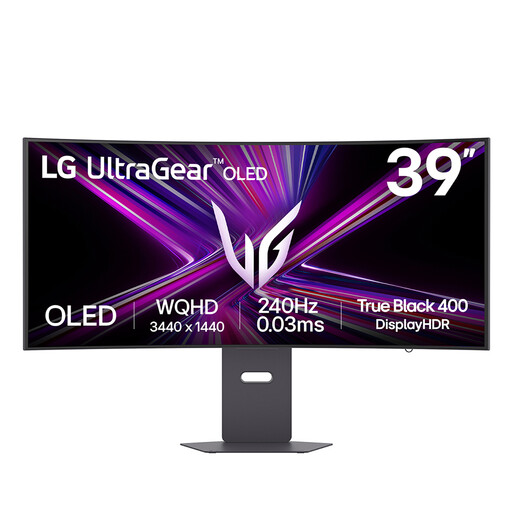
LG UltraGear 39GX900A-B 39-inch OLED QHD 240Hz
This 39-inch option is for shoppers who want a larger replay workspace alongside a listed 240Hz refresh rate. Check its fit and viewing position at your desk, as well as the connection-specific refresh mode and OLED care terms.
View on Joybuy
 No image available
Acer X Predator X49X 49-inch 32:9 QD-OLED 240Hz
Consider this curved 49-inch, 32:9 screen if keeping multiple replay views or controls visible is a priority. Check desk depth and mount suitability for its size, then confirm the refresh mode for your connection and the OLED care terms.
View on Joybuy
 No image available
Acer X Predator X27U W3 26.5-inch QD-OLED QHD 240Hz
This 26.5-inch QHD option suits shoppers seeking replay-interface detail in a less expansive format than the ultrawide models, with a listed 240Hz refresh rate. Check the stand’s exact adjustments against your desk, plus the input-specific refresh mode and OLED care terms.
View on Joybuy
Common questions
Should I choose Full HD or QHD for competitive replay review?
Choose a compact Full HD esports screen if following fast FPS movement at the highest usable refresh rate is your priority. Choose QHD if you regularly need more room for replay controls and notes; confirm that your PC and connection can run the resolution and refresh mode you want.
Can I use VRR and ZOWIE DyAc at the same time?
No, not on the compatible models covered by ZOWIE’s support guidance: it says to turn off DyAc, DyAc+ or DyAc 2 before enabling variable refresh rate. Check your exact model and graphics output if VRR is part of your intended setup.
Are breaks required during a long replay-review session?
For UK workers covered by display-screen-equipment requirements, the Health and Safety Executive says employers must assess workstations and reduce risks, including through breaks or changes of activity. Its guidance favours short, frequent breaks; this is not a rule applying to every gaming session.
What should I check before replacing an old monitor?
Ask the retailer how it handles take-back of the old monitor when you buy a replacement. GOV.UK describes retailer obligations for taking back electrical waste of the same type as a newly purchased item; confirm the arrangement available for your order.


