Start with desk fit and cockpit readability: a 23.8- to 24.5-inch monitor is a compact starting point, with QHD worth considering when small labels and maps matter most. A compact Full HD high-refresh model is a different choice for motion-first play, while a 27-inch QHD screen makes sense only if its complete footprint and viewing position work at your desk. Check the computer connection needed for your intended refresh mode and how you will position the screen before ordering.
Who this choice affects
Small-desk cockpit learners
If your keyboard, mouse and flight controls share a narrow surface, start by checking the monitor’s complete footprint. A 23.8- to 24.5-inch screen is a compact option, but its resolution still matters when you need to read cockpit labels.
Detail-first simulator users
If you regularly read maps, ship panels and control bindings, compare native resolution before chasing the highest refresh-rate figure. QHD offers 2560 × 1440 pixels on the AOC, LG and ASUS models discussed here; check that your computer can run your intended game settings at that resolution.
Motion-first space-combat players
If rapid panning and targeting matter more to you than fine interface detail, compare refresh modes and compatible variable refresh rate (VRR). A compact Full HD monitor is one route, provided its resolution is sufficient for the controls you need to read.
What to prioritise
Compact QHD
Choose when: desk space is limited but reading small cockpit labels is a priority.
Trade-off: driving QHD at your chosen game settings asks more of the graphics system than Full HD.
Compact high-refresh Full HD
Choose when: fast-moving play takes priority and the smaller screen still accommodates your controls.
Trade-off: Full HD provides fewer native pixels for panels and maps than QHD.
27-inch QHD
Choose when: you want a larger QHD interface and have measured enough room for the screen, stand and controls.
Trade-off: the larger footprint can make screen placement harder on a small desk.
| Concern | Buying check | Who this matters to |
|---|
| Desk fit and position |
Measure usable width and depth against the complete with-stand dimensions. Check height adjustment or mounting options if the supplied stand will not place the screen comfortably. |
If my controls share the desk, I need room to use them without pushing the screen into an awkward position. Around 42% of consumers put fit and screen placement first. |
| Cockpit detail |
Compare native resolution and check how your computer runs the intended simulator at that resolution. |
Small labels, maps and training prompts need to remain legible while I learn their functions. For around 33% of consumers, interface detail is the primary concern. |
| Smooth motion |
Check compatible VRR support and the refresh mode available through your computer’s actual output and cable. |
When I pan or target quickly, I care most about how motion looks as the game’s frame rate changes. Smooth motion comes first for around 25% of consumers. |
Buying pitfalls
-
Choosing 27 inches without measuring the desk
Diagonal size does not tell you how much space the stand occupies. ASUS lists its VG27AQ3A at 61.50 cm wide with stand and without height adjustment; the Health and Safety Executive advises positioning the screen’s top edge around eye level and the screen about an arm’s length away.
Compare full with-stand dimensions with the space left after placing your controls. If you plan to use an arm, check the monitor’s mounting pattern and the arm’s load rating.
A riser, compatible arm or rearranged desk may be needed if the supplied stand cannot achieve a suitable position.
-
Assuming the headline refresh rate works through every connection
Dell specifies up to 320Hz through DisplayPort but 255Hz through HDMI for the Alienware AW2525HM. LG says the 27GS85Q-B’s 200Hz overclock requires a DisplayPort 1.4-capable graphics card and cable.
Match the monitor’s stated resolution and refresh mode to your computer output and cable. Treat overclocked modes as conditional.
-
Using refresh rate as a substitute for readable controls
A compact Full HD monitor and a compact QHD monitor answer different priorities: the cited Dell AW2525HM has 1920 × 1080 native resolution, while the AOC Q24G2A/BK has 2560 × 1440.
Decide whether interface detail or fast-moving play is your main concern, then check the game’s interface and your computer’s performance at the resolution you intend to use.
-
Replacing a monitor without checking take-back arrangements
GOV.UK says retailers selling a new version of household electrical equipment must provide customers with a way to dispose of the old item.
Check the seller’s take-back instructions when arranging a replacement monitor.
Brands to consider
AOC
The Q24G2A/BK is a compact QHD reference point: AOC specifies a 23.8-inch IPS panel at 2560 × 1440 with Adaptive Sync.
- Its size and native resolution make it relevant when desk width and labelled controls both matter.
- Check the complete stand footprint and connection modes for your planned setup.
Alienware (Dell)
Dell’s 24.5-inch AW2525HM represents the compact, high-refresh Full HD route.
- Dell specifies height and pivot adjustment and refresh rates up to 320Hz through DisplayPort.
- Its native resolution is 1920 × 1080, and Dell specifies up to 255Hz through HDMI.
LG UltraGear
LG’s 27GS85Q-B is a 27-inch QHD option for a desk that can accommodate a larger screen.
- LG specifies a native 180Hz refresh rate.
- LG’s 200Hz overclock requires a DisplayPort 1.4-capable graphics card and cable; measure the desk before choosing a 27-inch screen.
ASUS TUF Gaming
The VG27AQ3A is another 27-inch QHD option with VESA 100 × 100 mounting.
- ASUS lists a 61.50 cm width with stand, giving you a concrete desk-fit measurement.
- ASUS lists no height adjustment for the supplied stand, so check the screen position you can achieve.
Joybuy product choices
These choices include larger detail-focused gaming monitors and one compact monitor for a desk where positioning matters. Measure the space available beside your controls; the 24-inch Dell is not a like-for-like gaming-specification alternative to the QHD and 4K models.
 No image available
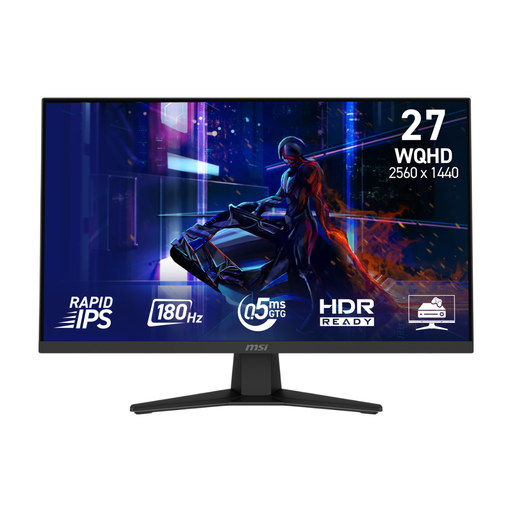
MSI MAG 274QF 27-inch WQHD gaming monitor
Consider this 27-inch model if QHD cockpit detail matters and you have measured room for the screen and controls.
The product name specifies WQHD, a 180Hz refresh rate, Rapid IPS and Adaptive Sync. Confirm its complete with-stand footprint and the connection required for your intended mode.
View on Joybuy
 No image available
Samsung Odyssey G6 S27DG612 27-inch QHD OLED monitor
Consider this QHD option if interface detail and a high refresh-rate specification matter more than keeping the screen compact.
The product name specifies OLED and 240Hz. Check its complete stand footprint against your desk and confirm which refresh mode your computer can use through its available connection.
View on Joybuy
 No image available
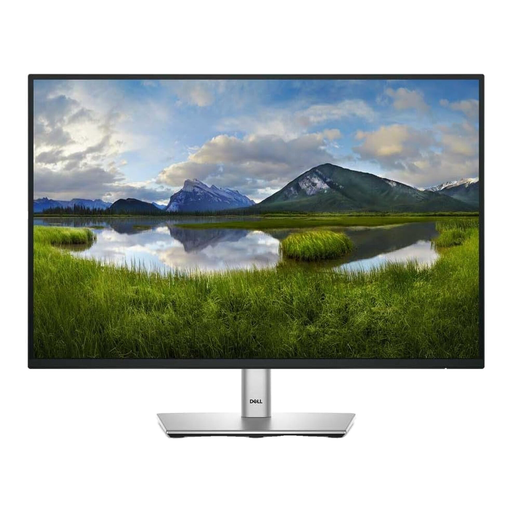
DELL P2425 24-inch monitor
The 24-inch size is worth considering when controls leave limited desk space, but check its gaming requirements separately from its physical fit.
Confirm the exact refresh rate and whether a compatible variable-refresh-rate mode is available before choosing it for fast-moving play.
View on Joybuy
 No image available
LG UltraGear G8 27G850A 27-inch 4K gaming monitor
Consider this larger-screen option if detailed interfaces are a priority and your desk and computer can accommodate your intended setup.
The product name specifies 4K UHD, Nano IPS and dual-mode 240Hz/480Hz operation. Check the complete with-stand dimensions and which connection supports each intended resolution and refresh mode.
View on Joybuy
Common questions
Is a 24-inch or 27-inch monitor more suitable for a small desk?
Start with your usable desk dimensions and viewing position rather than diagonal size alone. A 23.8- to 24.5-inch screen is the more compact starting point when flight controls share the desk; a 27-inch screen can work if its stand and viewing position fit. For a concrete comparison, ASUS lists the 27-inch VG27AQ3A at 61.50 cm wide with stand.
Will the advertised maximum refresh rate work over HDMI?
Check the exact monitor and connection rather than assuming it will. Dell specifies up to 320Hz over DisplayPort and 255Hz over HDMI for the AW2525HM; LG says the 27GS85Q-B’s 200Hz overclock requires a DisplayPort 1.4-capable graphics card and cable.
Does variable refresh rate matter for a space simulator?
It can help when the game’s frame rate varies, provided the monitor and graphics output support a compatible mode. The Video Electronics Standards Association explains that Adaptive-Sync can match display updates to the graphics card’s rendering rate; it does not guarantee a particular game frame rate.
What should I do with an old monitor when replacing it in the UK?
Ask the seller about its electrical-equipment take-back route. GOV.UK says retailers must provide customers with a way to dispose of old household electrical equipment when selling a new version of the same item.


