Simulation UI managers
If you regularly read hospital dashboards, staff lists, queues and maps, usable screen space and legible text may matter more than an extreme refresh rate.


For a detail-heavy virtual hospital game, start by considering a 27-inch QHD IPS monitor with a height-adjustable stand or a compatible mount: it offers more pixel workspace than Full HD without moving to 4K. Choose Full HD if your PC performs more comfortably at that resolution, or consider 4K if fine detail matters most and your system and game settings can accommodate it. On a small desk, check the stand footprint and viewing distance before choosing by screen size or refresh rate alone.
If you regularly read hospital dashboards, staff lists, queues and maps, usable screen space and legible text may matter more than an extreme refresh rate.
If the monitor shares a narrow desk with your keyboard and mouse, compare its stand depth and adjustment options as well as its screen diagonal.
If you play management simulations alongside other games, match the monitor’s resolution and refresh rate to the output your PC can deliver in those games.
For this small-desk setup, decide how much interface detail you need, then check whether the monitor physically fits and whether your PC can use its display modes. Mounting and connections are separate checks: neither follows from resolution alone.
| Concern | What to check | Who this matters to |
|---|---|---|
| Readable workspace | Compare native resolution at the same screen size, and check whether the game’s interface scales comfortably. | If I spend most of a session scanning small labels, menus and maps, I want enough detail without making the interface awkward to read. Around 40% of consumers may put readable workspace first. |
| Desk fit and positioning | Measure desk width and usable depth against the complete monitor and stand; check height adjustment or mounting compatibility. | When my keyboard and mouse already fill the desk, I need the screen to fit where I can view it comfortably. For around 30% of consumers, physical fit may be the main concern. |
| PC performance and smoothness | Check expected frame rates at the native resolution and the refresh mode supported by your PC and connection. | If I also play faster-moving games, I want smooth motion without choosing a display mode my PC cannot make useful. Around 20% of consumers may prioritise that match. |
| Connections | Match the monitor’s inputs to your devices; for USB-C video, check DisplayPort Alt Mode support on the source device. | If I switch between a PC and another device, I need the planned connections to carry the display mode I intend to use. This may be the primary need for around 10% of consumers. |
Pixel density differs at the same size: Dell lists 109ppi for its QHD G2724D, while BenQ lists 82ppi for its Full HD EX2710S. That distinction matters when small management-game labels fill the screen.
Compare resolution and pixel density for the exact size you are considering. If possible, inspect the game’s interface at your intended resolution.
A stand can take up usable desk depth even when the panel fits. The Health and Safety Executive advises placing a screen directly in front of you, about an arm’s length away, with its top at eye level.
Check the complete dimensions, adjustment range and mounting pattern. For an arm, also check its load rating, clamp clearance and suitability for your desk.
If the supplied stand cannot fit or position the screen as needed, a compatible monitor arm may be an additional item to arrange.
A high-refresh monitor does not make a PC produce more game frames. Monitor refresh rate and the frame rate the system delivers are different things.
Check performance in the games you play at the resolution you plan to use before prioritising a higher refresh rate over workspace or desk fit.
A USB-C connector alone does not establish video compatibility. ASUS advises checking DisplayPort Alt Mode support on the source device for its ROG Strix XG27ACS.
Check the laptop or handheld, monitor port and required cable against the resolution and refresh mode you want to use.
These model examples help distinguish resolution, stand and connection choices; specifications for one model do not apply to every monitor from its brand.
Dell’s G2724D is a 27-inch QHD Fast IPS example for comparing screen detail and positioning on a constrained desk.
The 27-inch MOBIUZ EX2710S and EX2710U illustrate Full HD and 4K choices at the same nominal screen size.
The QHD ROG Strix XG27AQV and XG27ACS are relevant when comparing high-refresh models and adjustment or connection options.
The Q27G4XFAD is a 27-inch QHD Fast IPS example with a height-adjustable base.
The MAG 274QF is another 27-inch QHD option for comparing resolution and refresh rate.
These monitors cover 4K, QHD and Full HD choices for the virtual-hospital setup, including a smaller 24.5-inch screen and a QHD professional model suited to more modest gaming needs. Compare each model’s actual stand footprint and your PC’s output before choosing.
 Image unavailable
Consider this model if fine detail is the priority and your PC can support the display mode you intend to use.
Its listed dual modes are 4K at 240Hz and 1080p at 480Hz; they should not be read as the same resolution-and-refresh combination.
Check the stand footprint against your desk and the supported mode over your chosen connection.
 Image unavailable
This is a QHD option if you want room for dense menus alongside a high stated gaming refresh rate.
Check whether your PC can deliver useful frame rates at QHD, and compare the stand’s dimensions with your available desk space.
Consider the panel type and your intended long-session use when comparing it with IPS models.
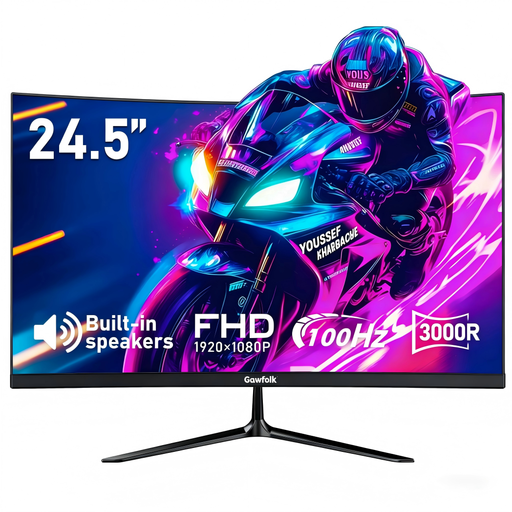 Image unavailable
The smaller screen format may suit a constrained setup if Full HD provides enough room for your game’s menus.
The name specifies a 75 × 75mm VESA mount; check any proposed arm against that pattern and the monitor’s mounting requirements.
Measure the complete monitor and stand before assuming the smaller diagonal will fit your desk.
 Image unavailable
This QHD model is worth considering if you want detail for management screens and also value a high stated refresh rate.
Check your PC’s frame rates at 2560 × 1440 and the display mode supported by its connection.
Confirm the stand footprint and positioning options against your small-desk setup.
 Image unavailable
Consider this professional monitor if QHD workspace matters more to you than a gaming-focused refresh specification.
Its stated 75Hz refresh rate is a more modest choice for gaming than the higher-refresh models here.
Check the exact model’s width and stand depth before deciding whether it suits your desk.
Measure the complete monitor and stand against your usable desk width and depth. Dell lists its G2724D at 61.19cm wide and 20.02cm deep with the stand, while BenQ lists the EX2710S at 614.1mm wide and 216.7mm deep. Leave room to position the screen in front of you at a comfortable distance; the Health and Safety Executive suggests about an arm’s length.
Not necessarily: prioritise readable menus and desk fit if those are your main needs. A higher refresh rate is more relevant when your PC delivers enough frames and you also play faster-moving games; the monitor’s refresh rate and the game’s frame rate are different things.
Yes, if the laptop and monitor support a compatible USB-C video mode. For its ROG Strix XG27ACS, ASUS specifically advises checking that the source device’s USB-C port supports DisplayPort Alt Mode; also confirm the cable and desired resolution and refresh mode.
No particular gaming-monitor model is required for private leisure use by the workplace guidance cited here. For workers who use display screen equipment daily for continuous periods of an hour or more, the Health and Safety Executive says the Display Screen Equipment Regulations apply and employers have workstation-assessment duties. If this desk also serves as a workstation, discuss that setup with your employer rather than treating a gaming specification as a substitute for an assessment.