For a space-trading setup with several physical monitors, check the PC’s simultaneous-display support, available outputs and desk space before choosing screens. Matching 27-inch QHD monitors gives the cockpit and supporting windows a consistent size and resolution; a 4K or dual-mode primary monitor is worth considering if centre-screen detail or alternative refresh modes matter more to you than matching every display. In either case, confirm the resolution and refresh rate your PC can run on each connected screen.
Who these setups suit
Multi-screen route planners
If you keep flying, maps, trade tools and communications on separate screens, start with the number and arrangement of displays your PC can support. Matching size and resolution may matter more to your layout than the highest advertised refresh rate.
Detail-first cockpit pilots
If the centre screen carries dense cockpit or trading information while side screens hold supporting windows, compare a 4K primary monitor with a matched QHD arrangement. Check how mixed resolutions and scaling feel at your desk.
Flexible single-primary gamers
If you want one main screen for detailed route flying and also play games where a faster Full HD mode appeals, compare dual-mode monitors. Treat the other displays as supporting screens rather than assuming they need the same specification.
What to check before buying
For several monitors, establish the connection plan first, then decide whether matching screens or a more detailed centre display better serves your cockpit layout.
| Concern |
What to check |
Who this matters to |
| Display connections and layout |
Check the PC or dock’s simultaneous-display support, usable outputs and each screen’s intended resolution and refresh rate. Measure the desk layout. |
I need flying and trade windows visible together, so an extra monitor is useful only if my PC can run it and it fits the desk. Around 38% of consumers put this connection-and-layout need first. |
| Centre-screen detail |
Compare the primary monitor’s native resolution with the side screens, and check scaling and your intended game settings. |
Dense cockpit information belongs on my centre screen, even if the supporting displays differ in resolution. For around 37% of consumers, centre-screen detail is the primary concern. |
| Refresh and additional features |
Check which input supports the refresh mode you want and whether features such as a KVM or USB-C video connection meet a specific desk need. |
I would rather choose refresh and switching features for the games and devices I use than specify every screen alike. This is the first priority for around 25% of consumers. |
Buying pitfalls
-
Ordering several screens before checking the PC’s outputs
A monitor’s HDMI, DisplayPort or USB-C inputs do not establish how many displays the PC or dock can drive at your chosen settings. Microsoft Support explains how Windows identifies and arranges connected screens, but those controls do not add unsupported outputs.
Write down the intended resolution and refresh rate for each screen, then check the GPU or dock documentation and the required cables before ordering.
A mismatched connection plan could mean needing a different adapter, cable or dock, or being unable to use one screen as intended.
-
Giving every screen the primary monitor’s specification
The flight display and its supporting windows may have different jobs. A 4K centre screen also brings different scaling and PC demands from QHD side screens; identical premium specifications are not automatically useful across the desk.
Assign each display a job before deciding which specifications need to match and which matter chiefly on the primary screen.
-
Assuming any USB-C port carries video
A USB-C connection needs compatible video support at the source. ASUS specifically advises checking DisplayPort Alt Mode support for USB-C video use with its ROG Strix XG27UCG.
Check the computer’s USB-C specification and use a confirmed compatible video output for each planned connection.
-
Treating a similar model name as the same product
Monitor suffixes can distinguish products. For example, LG 32GS95UE-B and 32GS95UV-B should not be treated as interchangeable solely because their names look alike. Availability can change too: LG’s UK page marks the 32GS95UE-B discontinued.
Check the full model code, seller, current availability and applicable warranty terms on the product you intend to order.
Brands and model lines to compare
Alienware
Two distinct Dell UK models illustrate a matched QHD route and a 4K primary-screen route.
- Dell UK specifies 2560 × 1440 and up to 180Hz through DisplayPort 1.4 for the 27-inch AW2725DM; the AW2725Q is a separate 27-inch 4K QD-OLED model rated at 240Hz.
- Do not transfer the AW2725Q’s panel or resolution specifications to the AW2725DM. Check current availability for the exact model you choose.
LG UltraGear
The LG UK 32GS95UE-B illustrates a larger OLED primary monitor with two operating modes.
- LG UK specifies 4K at 240Hz and Full HD at 480Hz for this exact model.
- LG’s UK page marks the 32GS95UE-B discontinued; its specification is useful for comparing display routes, not for assuming current availability.
BenQ MOBIUZ
The EX271Q is relevant when one gaming display must also serve a desk with multiple connected devices.
- BenQ lists QHD, 180Hz, a built-in KVM and DisplayPort, HDMI and USB-C connectivity for the EX271Q.
- A KVM does not establish how many monitors the connected PC can drive; check host outputs separately.
AOC AGON
The Q27G42XNE offers another 27-inch QHD high-refresh specification to examine for a multi-screen plan.
- AOC specifies a Fast VA panel and 180Hz refresh rate for the Q27G42XNE.
- Its Fast VA panel differs from the Fast IPS panel specified for Dell’s AW2725DM; compare the exact models and stand arrangements rather than assuming matching specifications.
ASUS ROG
The ROG Strix XG27UCG is a 27-inch dual-mode IPS primary-screen option with several connection types.
- ASUS specifies 4K at 160Hz or Full HD at 320Hz, with DisplayPort 1.4, HDMI and USB-C.
- For USB-C video, ASUS says to confirm that the source device supports DisplayPort Alt Mode.
Joybuy monitors for these setups
These monitors cover 27-inch QHD screens for a matching arrangement and larger or higher-resolution choices for a primary display. Compare each one with your PC’s outputs and the space available for the complete setup.
 Image unavailable
LG UltraGear G8 27G850A 27-inch 4K Nano IPS monitor
Consider this as a higher-resolution centre screen if you also want the dual-mode option named in the listing. The title specifies 240Hz and 480Hz modes, DisplayPort 2.1 and HDMI 2.1; confirm which mode and connection your PC can use alongside the other displays. This is an IPS model, not the LG OLED model discussed above.
View on Joybuy
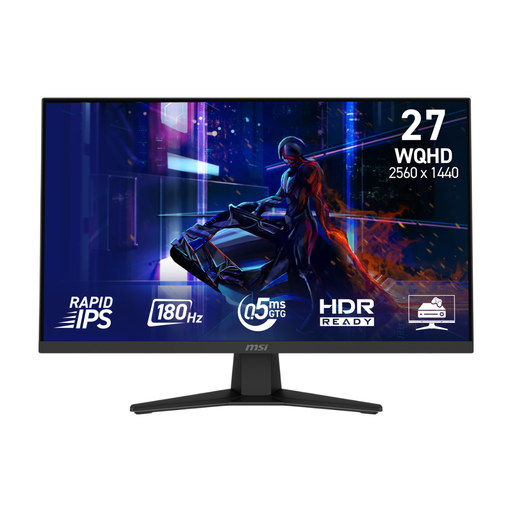 Image unavailable
MSI MAG 274QF 27-inch WQHD Rapid IPS monitor
This 27-inch WQHD model is a candidate for similarly sized cockpit and supporting screens. Its listing names Adaptive Sync and a 180 refresh-rate specification; check the connection-specific refresh modes and your PC’s capacity for the full display arrangement.
View on Joybuy
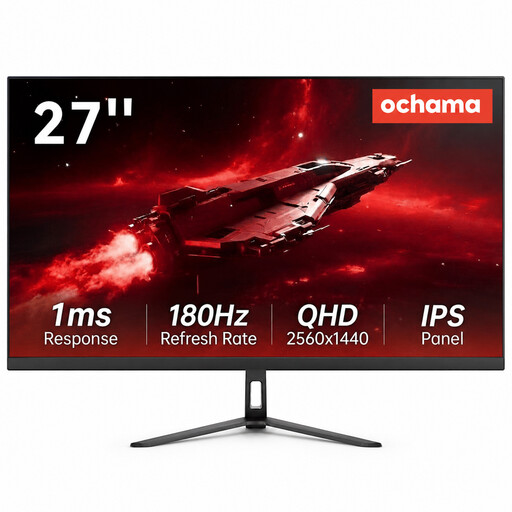 Image unavailable
Ochama 27-inch QHD IPS 180Hz monitor
The 27-inch QHD format is relevant if you want similarly sized screens for flying and supporting windows. The listing names an ultra-narrow bezel; confirm the available video inputs, your PC’s display support and whether the advertised keyboard is included before ordering.
View on Joybuy
 Image unavailable
HKC G27H2DPro 27-inch QHD Fast IPS monitor
Consider this 2560 × 1440 screen if a 27-inch display fits your multi-monitor layout and a 220Hz specification matters for the main gaming screen. Confirm the refresh mode available through your chosen input, as well as the stand or mounting arrangement.
View on Joybuy
 Image unavailable
Dahua 32-inch curved 4K OLED 165Hz monitor
This larger, curved 3840 × 2160 display is a candidate for the centre of a mixed-screen cockpit rather than a matching 27-inch row. Check its physical fit beside the other monitors, the input mode you intend to use and whether your PC can drive the complete setup.
View on Joybuy
Common questions
How do I arrange several monitors in Windows?
In Windows 10 or 11, open Settings, then System and Display. Microsoft Support advises using Identify to match the numbered displays to your physical screens, Detect if a connected display is missing, and the on-screen arrangement to reflect their positions on your desk.
Do several inputs on a monitor mean my PC can run several screens?
No: those inputs describe ways to connect that monitor, not the number of simultaneous displays the PC supports. Check the PC or dock’s outputs, supported display count, cables and resolution-and-refresh combinations for every planned screen.
Can I use a 4K main monitor with QHD side monitors?
Yes, if you want greater resolution on the centre display and are comfortable with different scaling across the desk. Check the game settings your PC can run with all screens connected; Dell UK’s 4K AW2725Q and QHD AW2725DM illustrate the different display specifications, not a guarantee that a particular PC can run both as intended.


