Balanced QHD squad players
If you want more pixels for maps and in-game detail without giving up a high refresh rate, start with 27-inch QHD models—provided your PC can keep up. BenQ UK and ASUS ROG UK list 165Hz and 180Hz examples respectively.


For squad-survival matches on a PC that can run games smoothly at 2560×1440, a 27-inch QHD monitor at 165Hz or 180Hz offers a sensible balance of detail and high-refresh play. Consider 240Hz when your games and graphics card can deliver very high frame rates; choose FHD when preserving frame-rate headroom matters more than QHD detail. If you use headphones, decide where they will connect before treating monitor speakers or a headphone socket as a deciding feature.
If you want more pixels for maps and in-game detail without giving up a high refresh rate, start with 27-inch QHD models—provided your PC can keep up. BenQ UK and ASUS ROG UK list 165Hz and 180Hz examples respectively.
If rapid movement is your priority and your PC regularly produces very high frame rates at QHD, a 240Hz model may be worth considering. MSI lists the G274QPX as a QHD 240Hz example; the panel rate does not determine the frames your PC can render.
If QHD places too much demand on your PC at your preferred game settings, FHD offers a lower-resolution high-refresh route. LG UK lists the 27GS60F-B at 1920×1080 and 180Hz, while Dell UK lists the G2722HS at 1920×1080 and 165Hz.
Check the frame rates your PC achieves at your preferred settings before choosing a resolution and refresh rate. Then work out whether your headphones need to connect to the monitor or can connect directly to another device.
| Concern | What to check | Who this matters to |
|---|---|---|
| QHD detail and motion | Check native 2560×1440 resolution, the supported refresh rate through your chosen input and your in-game frame rates. | I want map and game detail without giving up fluid movement, so the PC must handle QHD at my preferred settings. Around 31% of consumers would put this balance first. |
| Fast-motion priority | Check actual game frame rates, the connection needed for the stated refresh rate and how response time is measured. | Fast movement matters most to me, and I can make use of a higher refresh rate with my current PC. Roughly 31% of consumers would make that their primary concern. |
| FHD frame-rate headroom | Compare your game performance at 1920×1080 and 2560×1440, then confirm the screen’s native resolution. | I would rather maintain my preferred frame rate than increase the resolution. For approximately 23% of consumers, that would be the leading need. |
| Headphones and desk setup | Check the exact model’s headphone socket and audio path if connecting at the display; also check stand or mounting options. | My headset needs a convenient connection, and the screen must fit how I arrange my desk. About 15% of consumers would prioritise this setup need. |
The supported rate can depend on the monitor input. ASUS ROG UK lists the XG27ACS-W at up to 180Hz through DisplayPort or USB-C, but up to 144Hz through HDMI; that limit should not be applied to other models.
Match the exact monitor’s input specification to your graphics device and cable before ordering.
Response-time labels can describe different measurements. LG lists 1ms grey-to-grey (GtG) for the 27GS60F-B, while BenQ’s EX2710Q materials distinguish 2ms GtG from 1ms moving picture response time (MPRT).
Compare the measurement label and operating conditions, not just the number on its own.
A 240Hz panel cannot display frames the PC has not rendered. Whether the higher panel rate matters to you depends on the frame rates you achieve in squad-survival matches at your preferred settings.
Check your game’s frame rate at the resolution you intend to use before making 240Hz a requirement.
Built-in speakers may go unused if your headset connects directly to a PC, controller or separate audio device. A monitor headphone socket matters more if you intend to route audio through the display.
Choose the headset connection point first, then check the exact monitor’s ports and your source device’s audio settings.
The ROG Strix XG27ACS illustrates a 27-inch QHD high-refresh route, according to ASUS ROG UK.
The G274QPX illustrates the QHD 240Hz route for players considering a higher panel refresh rate.
The 27GS60F-B illustrates a 27-inch FHD high-refresh alternative, according to LG UK.
The EX2710Q is a 27-inch QHD 165Hz IPS option listed by BenQ UK.
The G2722HS provides another model-specific reference for a 27-inch FHD high-refresh setup.
These QHD monitors offer different stated refresh rates for squad-survival play. Start with your PC’s frame rates and preferred headset connection, then check the exact input modes of any model you are considering.
 No image available
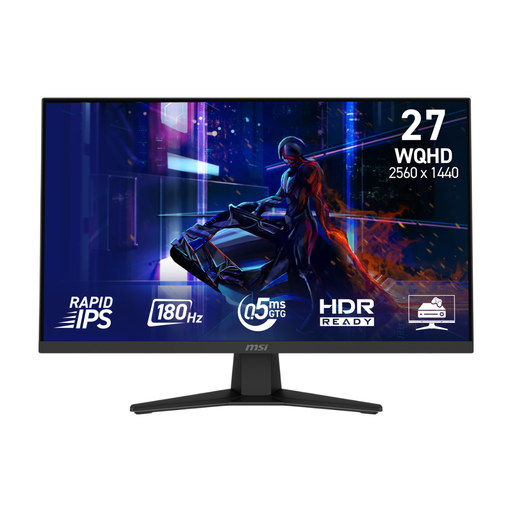
Consider this model if WQHD play suits the frame rates your PC can maintain.
Its title lists Rapid IPS, adaptive sync and a 0.5ms response-time claim. Confirm how response time is measured, the refresh rate supported through your chosen input and the headphone connection you intend to use.
 No image available
Consider its QHD 240Hz specification if your PC can produce high frame rates at the settings you use.
The title identifies a 2560×1440 QD-OLED display and a 0.03ms response-time claim. Check the supported rate for your chosen input and the headphone-routing options if your headset will connect at the display.
 No image available
This is a QHD option to consider if your PC can make use of its stated 220Hz refresh rate.
The title specifies 2560×1440 and Fast IPS. Confirm the maximum rate through your intended input and whether its audio connections suit your headset arrangement.
 No image available
Consider this 240Hz option if high frame rates at QHD are a priority for your setup.
The title lists an OLED panel and a 0.03ms response-time claim. Check supported input modes and headphone routing before deciding whether it fits your PC and headset.
 No image available
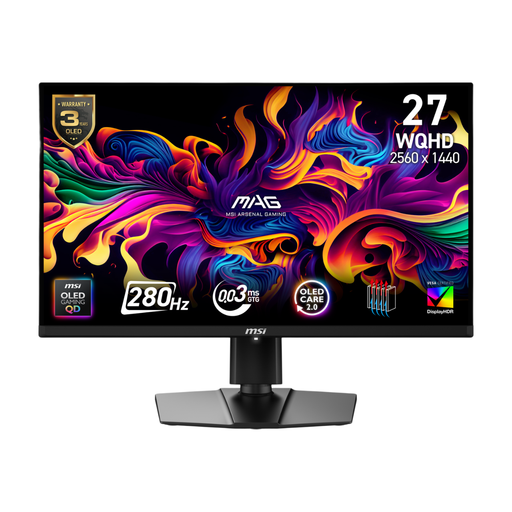
Its stated 280Hz rate is relevant if your games, graphics device and chosen connection can make practical use of it at QHD.
The title identifies a QD-OLED panel and a 0.03ms response-time claim. Confirm input-specific refresh rates, adaptive-sync compatibility and the audio path needed for your headphones.
Start with QHD at 165Hz or 180Hz if you want detail and high-refresh play and your PC handles your preferred settings at that resolution. A 240Hz model makes more sense when your games regularly run at very high frame rates; ASUS ROG UK lists a QHD 180Hz example, while MSI lists the QHD 240Hz G274QPX.
Yes, on some specific monitor and input combinations. ASUS ROG UK lists the XG27ACS-W at up to 144Hz through HDMI and up to 180Hz through DisplayPort or USB-C; check the specifications of your exact monitor, graphics device and cable rather than applying those limits to every display.
Monitor speakers need not decide the purchase if your headset connects directly to your PC, controller or separate audio device. If you want to plug wired headphones into the monitor instead, check its headphone socket and how your source device sends audio through the chosen connection.
Check the collection or recycling arrangements available through your local authority or retailer before disposing of it. GOV.UK identifies the Waste Electrical and Electronic Equipment Regulations 2013, as amended, as the UK framework for electrical and electronic waste.