A 27-inch QHD IPS monitor is a sensible starting point for building games and coursework if it fits your desk and your PC can run games comfortably at 2560 × 1440. Choose a smaller Full HD screen when desk space or graphics performance matters more than interface space; consider QHD OLED when contrast and fast response take priority, provided you are comfortable with the exact model’s panel-care and warranty terms. Check which refresh rates your computer, monitor input and cable can use together.
Who each screen may suit
Building-game and study all-rounders
If you keep maps, build menus or coursework open on the same screen, a 27-inch QHD IPS monitor is worth considering. LG UK and AOC UK describe 2560 × 1440 IPS models with high-refresh options; measure the desk before settling on that size.
Students with limited desk space or PC performance
A smaller Full HD monitor may fit a tighter setup or make high frame rates easier to achieve. TFTCentral describes the trade-off for smaller, lower-resolution gaming screens: less image detail and workspace.
Gamers prioritising contrast and response
A QHD OLED is another route if its visual characteristics matter more to you than the practicalities of panel care. Dell UK specifies a QD-OLED panel and a 0.03 ms GtG response time for the AW2725D; check the terms for whichever model you actually choose.
What matters when choosing
27-inch QHD IPS
Choose when: You want room for building-game interfaces and study work on one screen, and both desk and PC can accommodate QHD.
Trade-off: Running games at QHD can place more demand on the graphics card than Full HD.
Compact Full HD
Choose when: A smaller desk or a modest PC makes the compact, lower-resolution route more useful.
Trade-off: TFTCentral notes that choosing a smaller, lower-resolution gaming screen means giving up image detail.
QHD OLED
Choose when: Contrast and fast pixel response are priorities and a near-27-inch display fits the room.
Trade-off: Panel-care guidance and warranty provisions need checking for the exact model.
| Concern | What to check | Who this matters to |
|---|
| Interface and study space |
Confirm native resolution and measure the available desk space, including room for the stand. |
If maps, build tools and coursework share my screen, I want enough space to see them comfortably. Roughly 31% of consumers would put that mixed-use workspace need first. |
| Usable refresh rate |
Compare the monitor’s normal and optional refresh modes with its input limits and your computer’s output. |
I want smooth play, but a headline mode is little use if my connection cannot reach it. For around 31% of consumers, usable refresh would be the primary concern. |
| Desk and PC limits |
Check the stand footprint and whether your PC runs your games comfortably at the screen’s native resolution. |
With little desk room or a PC that struggles at QHD, I would rather make the setup fit than gain more pixels. Around 23% of consumers would prioritise those constraints. |
| OLED characteristics |
Check the exact panel type, stated response-time conditions, panel-care guidance and warranty terms. |
If contrast and fast response shape my choice, I need to understand the care terms that come with the particular OLED model. Those visual priorities would come first for roughly 15% of consumers. |
Mistakes to avoid
-
Assuming the highest refresh rate works with every connection
LG says the optional 200Hz mode on its 27GS75QN-B needs a DisplayPort 1.4-capable graphics card and a DisplayPort 1.4 cable.
Check your computer’s output, the monitor’s input specifications and the cable before relying on an optional mode at native resolution.
Using that mode may require a compatible cable if you do not already have one.
-
Choosing a smaller screen for refresh rate alone
TFTCentral describes smaller, lower-resolution screens as one way to pursue high frame rates, with image detail as a trade-off. That trade-off matters when building-game menus and maps occupy the screen.
Compare a compact Full HD display with a 27-inch QHD display against your desk dimensions, usual viewing position and the interface space you need.
-
Assuming every OLED has the same care and warranty terms
Dell describes anti-burn-in measures and a three-year warranty for the AW2725D. Those are terms associated with that model, not an OLED-wide provision.
Read the panel-care instructions, warranty coverage and exclusions for the exact monitor you are considering.
-
Adding the monitor to an overloaded socket setup
London Fire Brigade warns against overloading extension leads and says coiled drum leads can overheat.
Check the lead’s rating and the equipment connected to it. If an extension is necessary, follow London Fire Brigade’s advice to use a suitable fused inline type rather than a plug-in cube adaptor.
A worn lead or crowded socket arrangement may call for a replacement lead or a different desk layout.
Relevant brands to consider
AOC
AOC UK presents the Q27G4F as a 27-inch, 2560 × 1440 Fast IPS gaming monitor, relevant to a shared study-and-gaming desk.
- The Q27G4F product information lists Adaptive Sync and a height-adjustable stand.
- Check the exact Q27G4 variant: its panel, stand and connections should not be assumed from another model’s details.
LG UltraGear
LG UK lists the 27GS75QN-B as a 27-inch QHD IPS monitor with 180Hz standard operation and an optional 200Hz overclock.
- The 27GS75QN-B offers a QHD IPS option with high-refresh modes.
- LG says its 200Hz overclock requires a DisplayPort 1.4-capable graphics card and DisplayPort 1.4 cable.
Alienware
Dell UK positions the AW2725D as a QHD QD-OLED gaming monitor with a 26.7-inch viewable diagonal and 280Hz refresh rate.
- Dell states a 0.03 ms GtG response time for the AW2725D.
- Dell’s stated anti-burn-in measures and three-year warranty concern this model; read the applicable terms before choosing another OLED.
Gaming monitors on Joybuy
These models cover QHD OLED, QHD IPS and a 27-inch 4K dual-mode option for a study-and-gaming desk. Compare their native resolution and modes against your PC and available space rather than treating a listed refresh rate as one you can automatically use.
 No image available
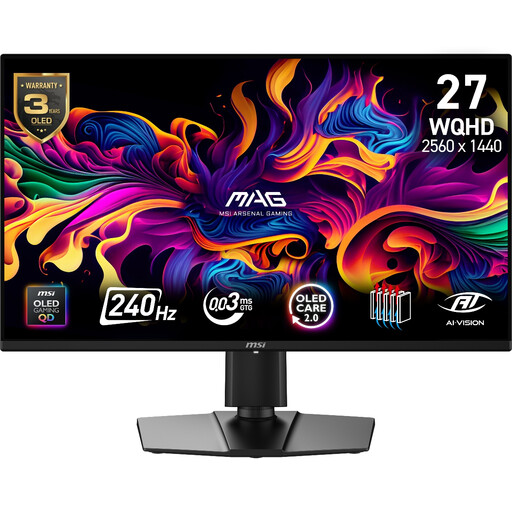
MAG 274QP QD-OLED X24 27-inch gaming monitor
Consider this QHD OLED option if interface space and the OLED route both matter to you; check its panel-care and warranty terms for your intended use.
The product name specifies 2560 × 1440, 240Hz, 0.03 ms response time and Adaptive-Sync. Confirm which mode your computer and connection can use.
Joybuy
 No image available
HKC G27H2DPro 27-inch QHD Fast IPS monitor
This is a QHD IPS option for a desk used for both building games and study, provided its stand fits your available space.
The product name specifies 2560 × 1440 and 220Hz. Check the refresh-rate limits of the input you plan to use and your computer’s output.
Joybuy
 No image available
LG UltraGear G8 27G850A 27-inch 4K dual-mode monitor
Consider this model if you want to assess a 4K screen as well as different gaming modes, rather than assuming a QHD recommendation applies unchanged to 4K.
The product name identifies a Nano IPS panel, 4K UHD, dual 240Hz/480Hz modes, DisplayPort 2.1 and HDMI 2.1. Check the resolution associated with each mode and whether your PC and connection can use it.
Joybuy
Common questions
Do building games need a 200Hz monitor?
No particular refresh rate is required by this buying scenario; start with the screen space you want and a mode your computer can use. LG says the optional 200Hz setting on its 27GS75QN-B requires a DisplayPort 1.4-capable graphics card and cable, while its standard refresh rate is 180Hz.
Can I connect a monitor through an extension lead in a student room?
Check that the extension is suitable for the equipment connected and do not overload it. London Fire Brigade advises a fused inline extension rather than a plug-in cube type and warns that coiled drum leads can overheat; also check any rules for your accommodation.
What if my student room does not have enough sockets?
Ask the accommodation manager about the permitted electrical setup rather than adding adaptors to an already crowded socket. Citizens Advice says relevant codes for university halls in England cover electrical safety, but that does not itself establish permission for a particular monitor or extension arrangement.
Does every OLED gaming monitor have burn-in cover?
Do not assume the same cover applies to every OLED monitor. Dell describes anti-burn-in measures and a three-year warranty for its AW2725D; check the coverage, exclusions and panel-care instructions for the exact model you plan to buy.


