What matters when choosing
Decide how much desk detail you need before paying attention to the highest advertised refresh rate, then check whether your hardware, connection and screen position suit the monitor.
QHD IPS at around 180Hz
Consider it when: One flat screen needs to handle game information and ordinary home-office tasks as well as high-refresh play; Dell and LG list 27-inch QHD models in this class.
Accept the trade-off: The maximum mode can depend on the connection. Dell specifies QHD 180Hz over DisplayPort but QHD 144Hz over HDMI for the Alienware AW2725DM.
240Hz-class QHD
Consider it when: Fast camera movement is your priority and your PC can deliver high frame rates at QHD; Samsung lists a 240Hz QHD Odyssey G65B as one example.
Accept the trade-off: The refresh specification cannot create frames your hardware does not produce, and it does not replace checks on measured response behaviour or desk positioning.
| Concern |
What to check |
Who this matters to |
| QHD workspace |
Check native resolution, comfortable text scaling and your game's performance at the intended settings. |
I want room to follow maps and chat during practice without giving up a useful work desktop. Around 40% of consumers put that shared-screen detail first. |
| Motion and tear control |
Match the desired refresh rate and VRR format to your device and selected port; compare independently measured response behaviour where available. |
When the camera moves quickly, I care most about tracking the action without distracting blur or tearing. Roughly 30% of consumers make motion their primary concern. |
| Desk fit and connections |
Measure the available space and check stand or VESA-mount options, required cables and input-specific display modes. |
I spend long periods working at this desk, so I need a screen I can position and connect for both uses. About 30% of consumers prioritise the workstation setup. |
Joybuy monitor choices
These Joybuy choices cover several ways to practise support roles at a shared desk: QHD screens with different sizes and refresh rates, plus a curved FHD option focused on an overclocked high-refresh mode. Compare desktop detail, desk fit and the connection your gaming device can actually use.
 No image available
Acer X Predator X27U W3 26.5-inch QHD QD-OLED 240Hz monitor
Consider this QHD option if fast-moving games are a priority and your device can deliver the frame rates you want.
- The listing names 2560 × 1440 resolution, FreeSync Premium Pro and G-SYNC Compatible support.
- Check the refresh and VRR modes available through your chosen connection. The listed 0.03ms response figure is not an independent measure of motion clarity.
Joybuy
 No image available
Samsung Odyssey G6 S27DG612 27-inch QHD OLED 240Hz monitor
This is a QHD, high-refresh option for support-role practice if your hardware can supply suitably high frame rates.
- Check which refresh and VRR modes your chosen monitor input, cable and source device can use.
- The advertised 0.03ms response figure does not establish independently measured blur or overshoot.
Joybuy
 No image available
HKC G27H2DPro 27-inch QHD Fast IPS 220Hz monitor
This 2560 × 1440 option suits consumers who want QHD desktop detail alongside a high advertised refresh rate.
- Confirm the mode available with your graphics hardware, cable and selected input.
- Check stand adjustment or mounting compatibility against your desk setup; do not use a response-time label alone to judge fast-motion quality.
Joybuy
 No image available
CRUA 32-inch 1500R curved QHD 165Hz monitor
Consider this larger curved screen if it fits your desk and your preferred viewing distance.
- The listing specifies 2560 × 1440 resolution, Adaptive Sync and VESA 100 × 100mm mounting.
- Check the connection required for the 165Hz mode and confirm that your source device supports the resolution and frame rate you intend to use.
Joybuy
 No image available
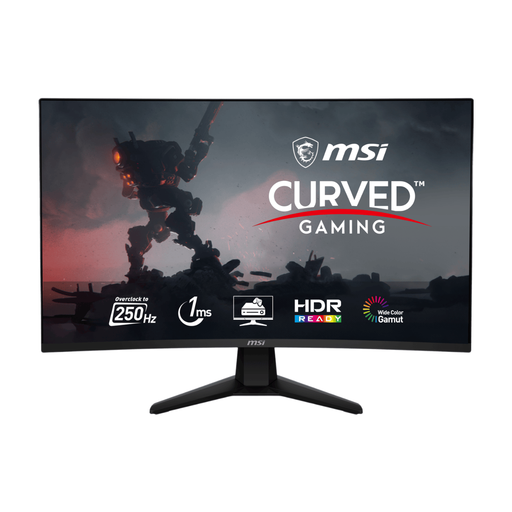
MSI MAG 32C6X 32-inch FHD curved 250Hz (OC) monitor
This curved option is for consumers prioritising an available high-refresh mode over the QHD desktop detail of the other listed screens.
- The product name specifies Adaptive Sync and marks 250Hz as an overclocked mode.
- Check the required connection and source-device support for that mode, and decide whether FHD resolution suits a 32-inch screen at your viewing distance.
Joybuy
Frequently asked questions
Does UK display-screen guidance matter if I work and game at the same desk?
It can matter for work use, rather than requiring every private gaming buyer to choose a particular monitor. The Health and Safety Executive says display-screen-equipment regulations can apply to employees working from home permanently or long-term; discuss the work setup with your employer where those arrangements apply.
How should I position a monitor for home-office work?
Place the screen directly in front of you, with its top around eye level and the display about an arm's length away, in line with Health and Safety Executive guidance. Check whether the stand or a compatible mount lets you reach that position on your desk.
Will any HDMI cable give me the monitor's highest refresh rate?
No: the available mode depends on the monitor input, source-device output and cable. Dell lists the AW2725DM at QHD 180Hz over DisplayPort but QHD 144Hz over HDMI; LG says the optional 200Hz mode on its 27GS85Q-B needs a DisplayPort 1.4-capable graphics card and cable.
What should I check before replacing an old monitor?
Check the retailer's current take-back arrangements and your local recycling options rather than putting an old monitor in general waste. GOV.UK describes the UK waste electrical and electronic equipment framework, but collection arrangements should be checked for your purchase and location.


