What matters when choosing?
Decide whether footage detail, competitive play or a simpler multi-device desk is the deciding need; then check that the monitor’s connections support the mode and setup you intend to use.
| Concern |
What to check |
Who this matters to |
| Recorded-play detail |
Check native resolution against your recordings, then confirm your computer can output the resolution and refresh rate you want. |
If I pause footage to examine small interface elements or visible artefacts, I want enough native detail to inspect what the recording actually contains. Around 40% of consumers put this review need first. |
| Review and fast play |
Check the refresh rate available through your chosen input and whether any adaptive-sync mode works with your gaming device. |
When I use the same screen to study matches and play competitive games, I do not want to choose it solely for paused frames. For around 30% of consumers, mixed review and fast play is the main concern. |
| Desk fit and device switching |
Measure the desk with the stand in place; check laptop video output, USB-C power needs and any KVM connections you plan to use. |
With a laptop and gaming devices sharing my desk, I need the screen and connections to fit the way I work. Desk space and switching are the primary concern for around 30% of consumers. |
Relevant brands to consider
These named ranges offer different approaches to detail, refresh rate and desk connectivity; check the specifications of the particular model rather than treating a range name as a feature guarantee.
Alienware
Dell’s 27-inch-class AW2725Q and AW2725DF illustrate the choice between 4K footage detail and a higher-refresh QHD route.
- Dell lists the AW2725Q as 4K at 240Hz and the AW2725DF as QHD at 360Hz.
- The AW2725DF’s higher stated refresh rate does not give it the AW2725Q’s native 4K resolution.
BenQ MOBIUZ
The EX271Q is a QHD IPS option for a desk where laptop connection and peripheral switching are central requirements.
- BenQ specifies USB-C with 65W power delivery, a KVM switch and 100mm of height adjustment for the EX271Q.
- Its specified maximum refresh rate is 180Hz through DisplayPort or 144Hz through HDMI; check which input your device will use.
MSI
The MAG 271QP QD-OLED X28 is a WQHD QD-OLED route for reviewing footage and playing at high refresh rates on one screen.
- MSI specifies 2560 × 1440, 280Hz and HDMI 2.1 for this model.
- MSI describes OLED Care 2.0 as reducing burn-in risk; check the exact warranty terms rather than assuming the feature determines cover.
LG UltraGear
LG’s 27GS95QE-B is a named QHD OLED alternative when the same monitor is intended for review and high-refresh play.
- LG lists the 27GS95QE-B at QHD and 240Hz, with HDMI 2.1.
- LG specifies typical brightness of 275 nits at 100% average picture level for this model; assess the lighting where the screen will sit.
Joybuy monitor choices
These models cover 4K monitors with separate faster, lower-resolution modes and QHD OLED monitors for mixed footage review and gaming. Check desk fit, connections and the mode your own device can deliver for each model.
 No image available
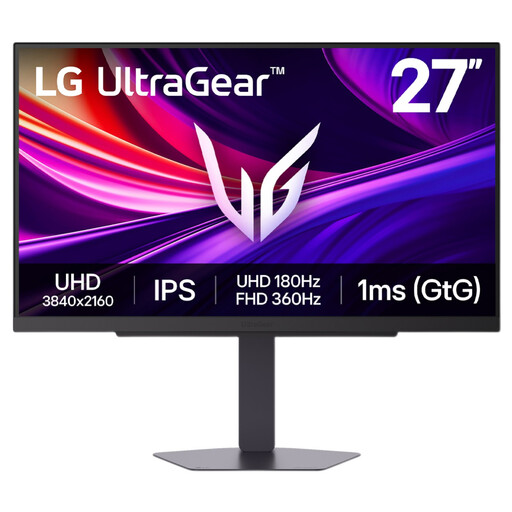
LG UltraGear G8 27G850A 27-inch 4K Nano IPS
Consider this dual-mode model if you want 4K footage review and a separate faster mode for play. Its listed modes are 4K at 240Hz and 1080p at 480Hz; 480Hz is not a 4K mode. Check that your device and cable support the mode you intend to use.
View on Joybuy
 No image available
LG UltraGear 27G810A-B 27-inch 4K IPS
This dual-mode option suits a setup that alternates between 4K review and faster, lower-resolution play. The listed maximum of 360Hz applies at 1080p, not 4K; check the modes available through your chosen connection.
View on Joybuy
 No image available
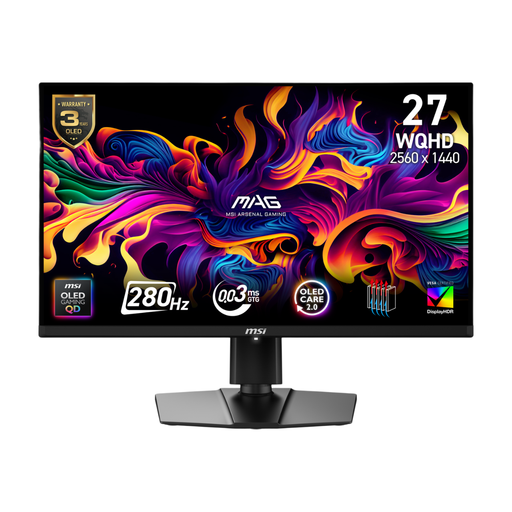
MSI MAG 271QP QD-OLED X28 27-inch QHD
Choose this WQHD route to weigh footage review alongside fast competitive play rather than native 4K detail. MSI specifies 280Hz and 0.03ms GtG for this model. Its listed USB-C power delivery is 15W, so check your laptop’s charging requirement before relying on the monitor for power.
View on Joybuy
 No image available
Samsung Odyssey G6 S27DG612 27-inch QHD OLED
This QHD OLED model is an option when competitive play shares the screen with footage review. The title lists 240Hz and 0.03ms GtG; the stated typical brightness is 200 cd/m², so consider your room lighting. Confirm that your device and cable support the QHD mode you want.
View on Joybuy
 No image available
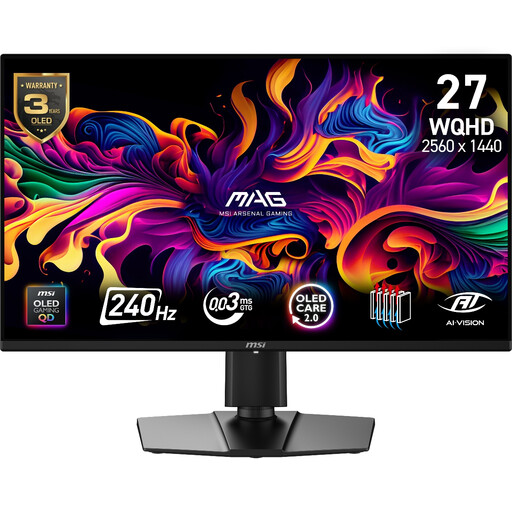
MAG 274QP QD-OLED X24 27-inch WQHD
Consider this 2560 × 1440 model if QHD review and high-refresh gaming will share one screen. Its title lists 240Hz and 0.03ms GtG. Listed USB-C power delivery is 15W; check your laptop’s needs and the refresh-rate mode available through your intended connection.
View on Joybuy
Frequently asked questions
Do I need 4K to review tournament footage?
No: 4K is the detail-first choice when your recordings and computer workflow can use it, not a requirement for every review session. If you also spend substantial time playing fast competitive games, weigh that need against the refresh rates available on QHD models.
Can one monitor simplify a laptop and gaming desk?
Yes, if its connections suit your devices. BenQ specifies USB-C with 65W power delivery, DisplayPort Alt Mode and a KVM switch on the EX271Q; check your laptop’s USB-C video capability and power requirement before planning around one cable.
Will every port support a monitor’s highest refresh rate?
Not necessarily. BenQ specifies up to 180Hz through DisplayPort and 144Hz through HDMI on the EX271Q, so check the port-specific mode as well as your source device and cable.
What should I consider for long footage-review sessions?
Positioning, lighting and breaks matter alongside the monitor’s adjustments. The Health and Safety Executive advises these measures for extended display-screen work; an individual gaming-monitor feature should not be treated as a way to prevent eye problems.
What should I check about warranty and an old monitor?
Read the terms for the exact monitor and seller, and keep your proof of purchase; BenQ’s published EX271Q warranty information says its warranty period starts from the first customer’s purchase date. If you are replacing a screen, check current retailer or local-authority collection arrangements rather than putting electrical equipment into ordinary waste. UK Government guidance describes the WEEE framework as regulating electrical and electronic equipment to reduce disposal through incineration and landfill.


