Bright-room map readers
If you play near windows or strong room lighting, reflections can get in the way of reading unit labels, tooltips and maps.


For turn-based strategy games in a bright room, check reflections, typical screen brightness and desk positioning before making refresh rate the deciding feature. A 27-inch 4K IPS monitor offers more pixels for dense maps and menus if your PC can drive it; QHD reduces the rendering load and may suit you better if you also play faster games. Neither an HDR peak-brightness figure nor a certification tier alone tells you how readable a screen will be in your room.
If you play near windows or strong room lighting, reflections can get in the way of reading unit labels, tooltips and maps.
If long sessions involve dense menus, maps and data panels, screen size, resolution and comfortable interface scaling may matter more to you than an extreme refresh rate.
If you also play faster games, a QHD high-refresh IPS or OLED monitor may appeal, provided its interface detail and bright-room readability suit your setup.
Start with the light falling on your screen and the amount of map detail you want to see. Then decide how much refresh rate matters for games beyond turn-based strategy.
| Concern | What to check | Who this matters to |
|---|---|---|
| Reflections and readability | Look for a stated matte or anti-glare finish and a typical brightness specification; check whether you can position the screen away from direct reflections. | If windows or lamps reflect in my screen, I need to read maps and tooltips without constantly shifting position. Around 50% of consumers put bright-room readability first. |
| Map and interface detail | Compare resolution at the intended screen size, check your PC connection and consider how the game handles interface scaling. | When a game fills the screen with small labels and menus, I want enough detail to follow them at my usual desk distance. For around 30% of consumers, that detail is the primary concern. |
| Smoothness in other games | Distinguish native from overclocked refresh rates and check the required graphics-card port and cable. | I play turn-based games, but I also want fluid motion in faster titles and can accept less native interface space if I choose QHD. Around 20% of consumers prioritise that mixed-gaming use. |
HDR peak and typical brightness describe different conditions. BenQ UK lists 300 nits typical and 600 nits HDR peak for the EX2710U; LG UK lists 275 nits typical and 1,300 nits peak for the 27GS93QE-B.
For daytime strategy play, compare the exact model’s typical brightness and screen finish separately from its HDR peak figure.
HDR signal support is not the same claim as a certified performance tier. The Video Electronics Standards Association says a display must meet its specifications to carry a DisplayHDR logo.
If certification matters to you, check the named tier against the exact model and variant.
Screen finish is only part of the setup. The Health and Safety Executive’s display-screen guidance also addresses arranging screens and lighting to avoid reflections.
Try repositioning the screen or controlling direct light, then assess whether a documented matte or anti-glare finish addresses the reflections that remain.
LG UK specifies 180 Hz as the native refresh rate of the 27GS85Q-B; its 200 Hz overclocked mode requires a DisplayPort 1.4-capable graphics card and cable.
Check the native rate and the connection needed for any additional mode before treating the higher figure as available to your PC.
The ROG Strix XG27UCGR is a 27-inch 4K IPS option to examine if map detail, a stated anti-glare surface and stand adjustment are priorities.
The EX2710U is a 27-inch 4K IPS option if you want to consider a matte coating and local dimming alongside strategy-game detail.
LG UK documents distinct QHD routes: the 27GS85Q-B Nano IPS model and the 27GS93QE-B OLED model.
These monitors offer different screen sizes, resolutions and stated gaming features. For a bright-room strategy setup, weigh the available finish information and your desk position alongside map detail and refresh rate.
 No image available
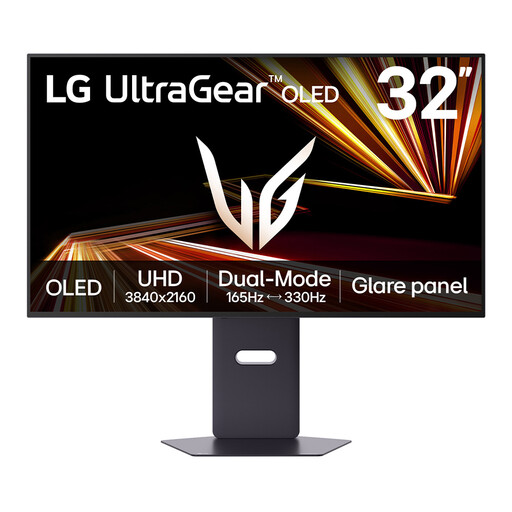
Consider this 4K model if you want a larger screen for maps and menus and have room for it on your desk.
OLED panel; dual-mode operation with a stated maximum of 330 Hz. Check typical brightness for your room, and account for the listing’s advice to avoid displaying static images for prolonged periods.
 No image available
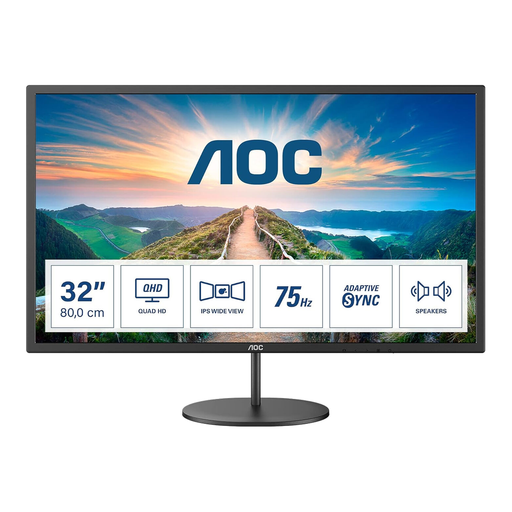
Consider this larger IPS screen if screen size matters more to you than the high refresh rates offered by other models here.
The title specifies AdaptiveSync and built-in speakers. Confirm its exact resolution and how the screen handles reflections before choosing it for dense maps in a bright room.
 No image available
The 27-inch 4K format is worth considering if detailed strategy interfaces are a priority and your PC supports your intended display mode.
Dual-mode 240 Hz/480 Hz; DisplayHDR 600; DisplayPort 2.1 and HDMI 2.1. Check which mode each refresh rate applies to, plus the screen finish and typical brightness for your room.
 No image available
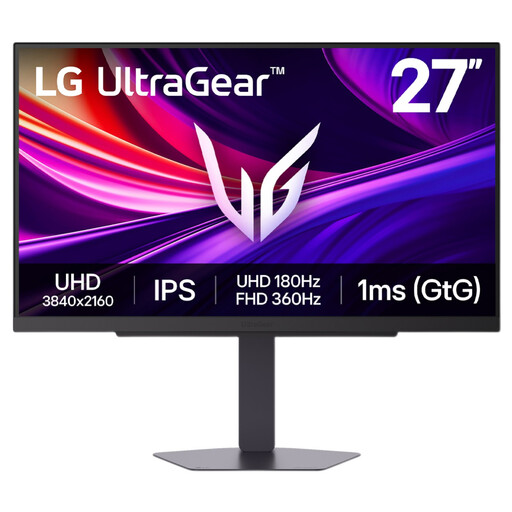
This 27-inch 4K option may suit you if you want more pixels for maps and menus while also considering faster games.
Dual-mode operation with a stated maximum of 360 Hz. Confirm the mode your PC can use, and check screen finish and typical brightness when assessing it for daytime play.
 No image available
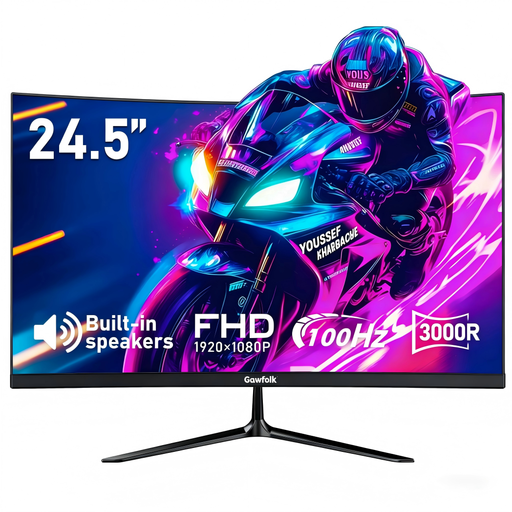
Consider this smaller FHD screen if a compact setup and a stated anti-glare finish matter more than fitting extra map detail on screen.
3000R curvature; AMD FreeSync; 75 × 75 mm VESA mounting. The listing associates 100 Hz with HDMI and limits VGA to 60 Hz; check brightness and your intended connection before buying.
Not necessarily: where the screen sits relative to the window still matters. The Health and Safety Executive advises arranging screens and lighting to avoid reflections and glare, so try changing the screen position as well as considering its finish.
No: HDR signal support does not establish a DisplayHDR performance tier. If that tier affects your choice, check the exact model against the Video Electronics Standards Association’s certification rather than relying on a general HDR label.
You will usually adjust it using the monitor’s own buttons or on-screen menu. Microsoft Support notes that the Windows brightness slider may not appear for an external monitor.