What matters when choosing?
For a monitor used for both turn-based tactics and desk work, settle the workspace and screen-position questions before deciding which gaming modes you need.
| Concern | What to check | Who this matters to |
|---|
| Map and document space |
Compare screen size and resolution, then assess whether text and game interfaces are comfortable at your viewing distance. ASUS describes its 27-inch WQHD display as offering more desktop space than standard Full HD. |
If I keep a tactics-game map and detailed menus on the screen, I want room for those elements as well as my work windows. Around 31% of consumers put workspace detail first. |
| Desk positioning |
Check stand adjustment or the exact VESA mounting requirements against your desk. The Health and Safety Executive advises positioning the top of the screen around eye level and the screen about an arm’s length away. |
When the same desk is used for long work sessions, I need to place the screen comfortably rather than rely on its gaming specifications. Desk integration comes first for around 31% of consumers. |
| Smoothness and connections |
Match adaptive-sync support and the desired resolution and refresh mode to your computer, port and cable. Dell UK lists different QHD refresh limits for the AW2725DM’s DisplayPort and HDMI inputs. |
I want smooth game movement, but only at a mode my computer and chosen connection can actually use. Around 23% of consumers make connection-compatible smoothness their primary concern. |
| 4K or QD-OLED features |
Compare the exact panel and resolution specifications, then read the model’s connection, warranty and screen-care terms before deciding. |
If a particular display characteristic matters more to me than the standard QHD IPS route, I am willing to make those model-specific checks. Premium panel features are the first concern for around 15% of consumers. |
Joybuy monitor choices
These monitors cover several ways to equip a desk shared between tactics games and office tasks: 27-inch 4K and QHD displays, plus larger curved screens. Choose by the screen area, panel type and physical fit you need, then confirm the connection mode with your computer.
 No image available
LG UltraGear G8 27G850A, 27-inch 4K UHD Nano IPS
Consider this 27-inch 4K option if detailed game maps and office content are priorities.
The product name specifies AMD FreeSync Premium Pro, DisplayPort 2.1 and HDMI 2.1. Check the supported resolution and refresh-rate combination for the input, computer and cable you will use.
View on Joybuy
 No image available
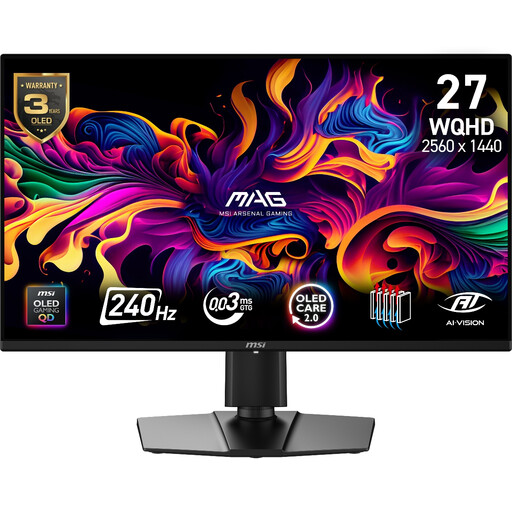
MAG 274QP QD-OLED X24, 27-inch WQHD
Consider this QD-OLED model if its panel type and high-refresh specification are deliberate priorities alongside desk work.
Its product name specifies 2560 × 1440, 240Hz and Adaptive-Sync. Read the exact OLED care guidance and warranty terms before using it for prolonged office tasks.
View on Joybuy
 No image available
HKC G27H2DPro, 27-inch QHD Fast IPS
This QHD screen suits a closer look if you want one 27-inch display for tactics-game interfaces and documents.
The product name specifies 2560 × 1440 and 220Hz. Check the refresh modes available through your chosen input and whether the stand provides the positioning your desk needs.
View on Joybuy
 No image available
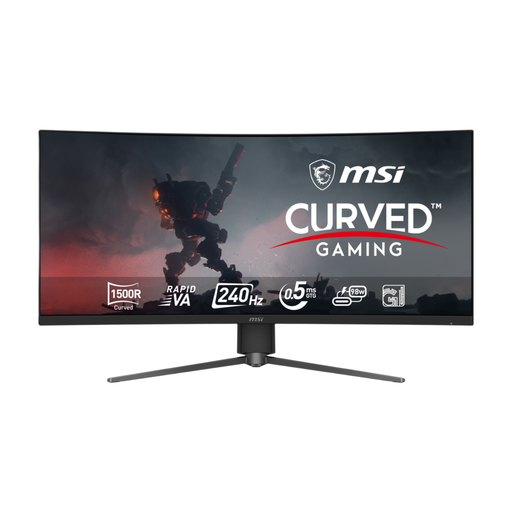
MSI MPG 346CQRF X24, 34-inch curved UWQHD
Consider the wider screen if you want game content and work windows on one display and have room for a 34-inch monitor.
The product name specifies a Rapid VA panel, 240Hz and Adaptive Sync. Measure your desk and viewing distance, then check the supported mode for your computer and connection.
View on Joybuy
No image available
CRUA 32-inch 1500R curved QHD monitor
This larger QHD option is worth considering if a curved 32-inch screen fits your desk and preferred viewing distance.
The product name specifies 2560 × 1440, 165Hz and VESA 100 × 100 mm mounting. Check the mode available through your chosen connection and whether the stand or a compatible mount gives you the height you need.
View on Joybuy
Questions and answers
Do I need a 240Hz or 280Hz monitor for turn-based tactics?
No particular refresh rate is required to choose a monitor for this scenario. Prioritise a readable workspace, desk fit and a connection your computer can use; the Video Electronics Standards Association describes Adaptive-Sync as a way to support smoother, tear-free gaming images, not as a requirement for a specific game genre.
How can I tell whether my PC can use a monitor’s advertised refresh rate?
Compare the monitor’s input-specific resolution and refresh limits with your graphics output and cable. Dell UK, for example, lists the AW2725DM at up to QHD 180Hz through DisplayPort 1.4 but QHD 144Hz through HDMI; LG UK says the 27GS75QN-B’s 200Hz overclock requires a DisplayPort 1.4-capable graphics card and cable.
What should I check when the monitor also serves as my work screen?
Check that its stand or a compatible mount lets you position it appropriately at your desk. The Health and Safety Executive advises placing the top of the screen around eye level and the display about an arm’s length away; its guidance also addresses separate display, keyboard and mouse arrangements for prolonged laptop use.
Does working from home mean I must buy a particular gaming monitor?
The Health and Safety Executive’s Great Britain guidance concerns workstation assessment, not a requirement to buy a particular monitor model. It says employers must assess workstations when workers use display screen equipment daily as part of normal work for continuous periods of an hour or more, and that employers’ health-and-safety duties also extend to home workers; this does not establish a Northern Ireland-specific rule or a personal obligation to purchase a monitor.


