Map-and-interface readers
If you spend long sessions navigating maps, unit panels and tooltips, prioritise readable screen space before an exceptionally high refresh rate.


A 27-inch QHD IPS monitor with an adjustable stand is a practical starting point when you need to read detailed game interfaces and use the same desk for work. Consider QHD OLED if dark-scene presentation and high refresh rates matter more, but check its care and warranty terms for long sessions with static maps or office content. Whichever panel you choose, confirm that it fits your desk and that your PC connection supports the resolution and refresh mode you want.
If you spend long sessions navigating maps, unit panels and tooltips, prioritise readable screen space before an exceptionally high refresh rate.
If the monitor also serves as your home-office screen, check its physical fit, positioning options and connections alongside its gaming specifications.
If dark scenes, HDR presentation and responsive camera movement shape your choice, compare OLED models while accounting for their panel-care terms.
Start with readable maps and a workable desk position, then decide how much you value motion and dark-scene presentation. A 27-inch QHD IPS gaming screen, an office-led QHD IPS screen and a QHD OLED screen serve different priorities; the connection and stand still need to suit your setup.
| Concern | What to check | Who this matters to |
|---|---|---|
| Maps and text | Check native resolution, screen size and your preferred text scaling at the available viewing distance. | I want to read unit panels and tooltips without giving up a useful desktop workspace. Around 36% of consumers would put map and interface readability first. |
| Desk positioning | Check desk depth and the exact stand adjustments or mounting options. The Health and Safety Executive advises placing the screen about an arm’s length away, with its top around eye level. | My screen needs to sit comfortably at the same desk throughout work and play. For roughly 29% of consumers, workstation fit would be the primary concern. |
| Smooth motion | Check the refresh mode available at your chosen resolution through the PC port and cable; confirm adaptive-sync compatibility if you need it. | When I pan across a battle or scroll a map, I notice uneven movement. About 21% of consumers would prioritise smooth motion above the other factors here. |
| Dark-scene presentation | Compare the exact panel and HDR specifications, then read the model’s static-content care guidance and seller warranty terms. | I care most about how night battles and cinematic scenes look, while accepting that my screen also shows static interfaces. Around 14% of consumers would make contrast and HDR presentation their first priority. |
LG lists 180Hz as the standard refresh rate for the 27GS75QN-B. Its 200Hz overclocked mode requires a DisplayPort 1.4-capable graphics card and cable.
Check the refresh rate available at your intended resolution through the port and cable you will actually use.
A fast panel does not establish whether its stand lets you position the screen comfortably. The Health and Safety Executive’s display-screen guidance addresses screen height and viewing distance as part of the wider workstation setup.
Measure your desk and check the stand’s adjustment range or the exact model’s mounting compatibility before ordering.
If the supplied stand cannot achieve a workable position, you may need a compatible arm or riser.
Samsung describes protection features on its Odyssey OLED G60SD, but those brand claims do not settle how another OLED model should be used with persistent maps, toolbars or spreadsheets.
Read the care guidance for the exact model and the seller’s warranty terms before choosing OLED for a desk that regularly displays static content.
A reference point for 27-inch QHD IPS gaming screens with desk-positioning options.
LG’s cited models offer separate QHD IPS and QHD OLED routes rather than a single set of range-wide specifications.
The UltraSharp U2724D illustrates a work-led 27-inch QHD choice that retains a higher-than-60Hz refresh rate.
The cited Odyssey OLED G60SD is a QHD QD-OLED option for buyers considering very high refresh rates.
These choices cover wider ultrawide screens, a 27-inch OLED gaming screen, an office-oriented QHD screen and a larger curved gaming screen. Compare their dimensions and connection requirements against your desk and PC rather than treating them as interchangeable alternatives.
 No image available
Consider this 34-inch option if a wider screen for maps and work appeals to you and fits your desk.
The product title lists an OLED panel and 240Hz refresh. The listing warns against displaying static images for extended periods, so review its care guidance for long map or office sessions.
Check which resolution and refresh mode your PC, port and cable can deliver.
 No image available
This wider format may suit a desk where game maps and office windows need space; measure the available desk area first.
The product title specifies 3440 × 1440 resolution, up to 175Hz via DisplayPort and 100Hz via HDMI, with height, swivel and tilt adjustment.
Choose the connection with its stated refresh limit in mind, and confirm any HDR certification that matters to your decision.
 No image available
Consider this 27-inch option if OLED and high refresh matter more to you than an office-first specification set.
The product title lists QHD, 240Hz and 0.03ms. Check the connection needed for your intended QHD refresh mode and read the exact model’s care guidance and seller warranty for prolonged static maps or office content.
 No image available
This office-oriented QHD option may suit a desk used mainly for work and map-heavy games rather than high-refresh gaming.
Check the exact model identity and refresh specification before ordering: the product title names PA278CFRV and 100Hz, while accompanying candidate information refers to a separate PA278CV model and 75Hz.
 No image available
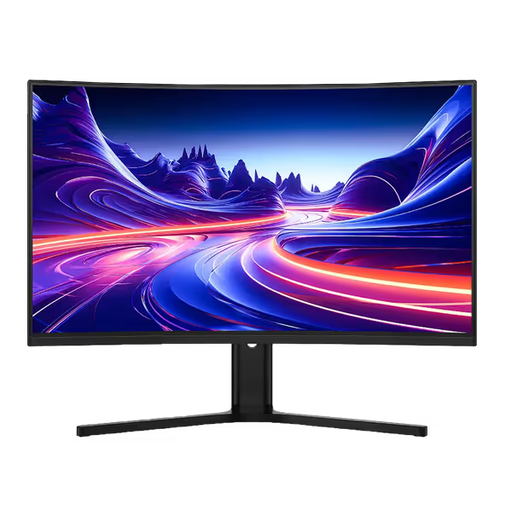
If you prefer a larger curved screen for gaming, check its dimensions and your viewing distance before choosing it for a shared desk.
The product title lists 2560 × 1440 resolution, 180Hz, a VA panel and HDMI and DisplayPort inputs. Check the refresh available through your chosen connection and confirm adaptive-sync support if variable frame rates matter to you.
Yes, if readable game interfaces, routine office use and smooth gaming all matter to you. Check desk distance, text scaling, stand adjustment and your PC’s ability to run games at QHD before deciding; OLED may suit you better if dark-scene presentation is the stronger priority.
No particular refresh rate is established as a requirement for these games. If fast camera movement matters to you, compare higher-refresh options, but confirm the refresh your PC and connection can provide at the resolution you intend to use.
The Health and Safety Executive advises positioning the top of the screen around eye level and the screen about an arm’s length away. Check the stand’s adjustment range or a compatible mount, and consider the chair and desk position together.
Read the care guidance and seller warranty terms for the exact OLED model, particularly if maps, toolbars or spreadsheets remain on screen for long periods. A named screen-protection feature does not replace those model-specific checks.