What to check before buying
Start with the devices and call equipment you already use, then check how the screen will fit your desk and which gaming mode those devices can actually deliver.
| Concern |
What to check |
Who this matters to |
| Work space and laptop connections |
Check the resolution and available inputs. For a USB-C setup, confirm laptop video support, the monitor’s power delivery and any keyboard-and-mouse switching. |
I want room for a call, shared material and notes without repeatedly moving cables between my laptop and PC. Around 31% of consumers put this shared-workspace need first. |
| Workstation positioning |
Measure desk depth and check stand adjustment or compatible VESA mounting. If you are an employee using a screen daily for sustained periods, ask about your employer’s DSE process. |
When I spend much of the working day at this desk, I need to position the screen comfortably, not just choose its gaming specification. For around 31% of consumers, workstation positioning is the primary concern. |
| Gaming refresh mode |
Check refresh rates by input and the graphics output and cable required for the mode you want. |
Gaming after work matters most to me, and I can choose my connection around the monitor’s supported refresh mode. Smooth gaming comes first for around 23% of consumers. |
| Existing-device compatibility |
List each device’s video outputs and match them to the monitor’s ports; check adapter requirements before relying on a particular resolution or refresh mode. |
My existing laptop or PC connections limit what I can use, so I need to settle compatibility before comparing other features. Around 15% of consumers place that need first. |
Joybuy monitors for a shared desk
These gaming monitors offer different screen sizes, resolutions and gaming modes for a desk also used for calls and documents. Check your laptop connections, call equipment and available desk space against the particular model rather than assuming each offers the same work setup.
 No image available
Dahua 32-inch curved 4K OLED gaming monitor
Consider this model if you want a curved 4K screen at a shared work-and-gaming desk.
The product title lists 165Hz, USB-C 65W and a USB hub. Check that your laptop supports the intended USB-C video connection and can use the available charging power.
The listing gives conflicting 32-inch and 31.5-inch size details; confirm the exact dimensions and your separate webcam and microphone needs.
View on Joybuy
 No image available
LG UltraGear 34GX900A-B 34-inch OLED WQHD, 240Hz
The ultrawide format may suit you if you want space for work windows alongside a gaming-focused display; measure your desk width and viewing position first.
The title specifies a 34-inch OLED WQHD screen and 240Hz refresh rate. Confirm the input needed for your intended mode and whether your laptop and call equipment fit the setup.
Consider the listing’s advice about prolonged static images when planning work with fixed windows onscreen.
View on Joybuy
 No image available
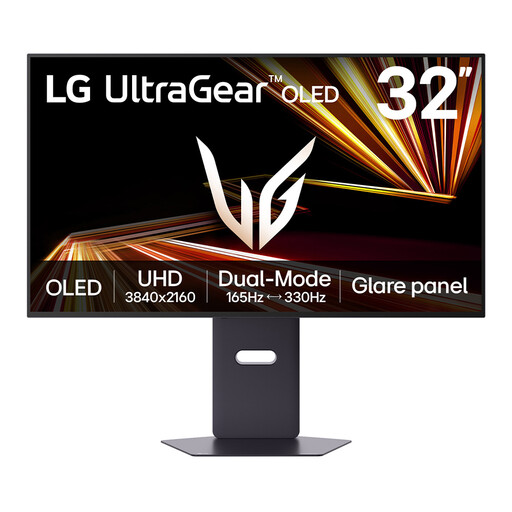
LG UltraGear 32GX850A-B 32-inch OLED 4K, dual-mode
This model is worth comparing if you want a 4K work surface and a separate high-refresh gaming mode.
The product title lists a dual-mode maximum of 330Hz; check the resolution, connection and device required for the mode you plan to use.
The title and technical details differ between 32 inches and 31.5 inches. Confirm the exact size, laptop connection and call peripherals before buying.
View on Joybuy
 No image available
Samsung Odyssey G6 S27DG612 27-inch QHD OLED, 240Hz
Consider this 27-inch QHD model if that screen format fits your desk and gaming refresh rate is a priority.
The product title specifies OLED and 240Hz. Check which input and source device support your intended mode, and confirm your laptop connection separately.
Plan your speaker or headset, webcam and microphone arrangements for calls.
View on Joybuy
 No image available
LG UltraGear G8 27G850A 27-inch 4K Nano IPS
This 27-inch 4K option suits a comparison centred on a high-resolution work screen and distinct gaming modes.
The title lists dual-mode 240Hz/480Hz operation, DisplayPort 2.1 and HDMI 2.1. Check the resolution and source-device requirements for each mode rather than assuming either rate works with every connection.
Confirm the laptop connection and arrange call audio and video equipment separately.
View on Joybuy
Frequently asked questions
Will a gaming monitor improve team calls on its own?
No. Screen size and resolution can help you arrange a call beside chat and documents, but they do not establish camera, microphone, speaker or conferencing-software capability. Check those parts of your setup separately; Dell lists no built-in speaker for the G2724D.
Do home-working DSE rules apply to my monitor setup?
They can apply to the worker’s arrangements, not simply to the purchase of a monitor. The UK Health and Safety Executive says the regulations apply to workers using display screen equipment daily for continuous periods of an hour or more and says an individual assessment should be carried out where the rules apply, including relevant home-working arrangements. Ask your employer how its DSE process applies to your work.
Will I get the advertised refresh rate from any connection?
No. LG specifies DisplayPort 1.4-capable graphics and cable for the 27GS85Q-B’s overclocked 200Hz mode, while BenQ lists the EX271Q at up to 180Hz through DisplayPort and 144Hz through HDMI. Check the monitor’s port-specific mode against your computer and cable.
What should I check about warranty and returns?
Check the terms for the exact product and seller before ordering. Manufacturer-direct terms for one model do not automatically apply to another retailer’s listing; distinguish any voluntary return policy from the remedies that may apply if goods are faulty, damaged or misdescribed.


