
24/7 Customer Support

Free returns

Same-day & Next-day Delivery

Quality Guaranteed

Unlock Your Welcome Offers: FREE Delivery | Up to 80% OFF | Free 30-day JoyPlus trial
Download the APP
Buying gaming monitors can quickly become confusing. Refresh rates, response times, HDR labels, panel types and curved designs all compete for attention, but a higher number does not automatically mean a better fit for your desk or games.
As the Joybuy Product Recommendation Officer, I focus on separating useful specifications from marketing noise. Whether you need a monitor for PC gaming, console gaming, simulation, content creation or home working, the right choice depends on how the display will actually be used.
A 240Hz gaming monitor can display up to 240 frames per second, but your graphics card, game settings and connection standard must be able to deliver that output. If your system produces 90 frames per second, a 240Hz panel will not create additional frames by itself.
Check the maximum refresh rate supported at the monitor’s native resolution. Some displays support their highest figure through DisplayPort but a lower rate through HDMI. This is particularly important when connecting a monitor for console gaming.
Manufacturers may quote response time using different methods, such as GtG or MPRT. A 0.03ms OLED figure and a 1ms MPRT VA figure should not be treated as an exact like-for-like comparison.
For fast games, look at the complete specification: panel technology, refresh rate, adaptive sync support and connection options. A high refresh rate monitor with compatible AMD FreeSync, NVIDIA G-SYNC compatibility or another adaptive-sync system can help reduce visible tearing and stuttering when frame rates fluctuate.
A curved gaming monitor can suit racing games and large-scale environments, but it takes more desk depth and may not suit users who prefer a flat screen for design work. Similarly, HDR support varies considerably. Look for the stated certification, brightness and contrast technology rather than relying on the letters “HDR” alone.
OLED panels provide self-lit pixels and deep black levels, but buyers should consider OLED care features and the possibility of image retention or burn-in with prolonged static content. This matters if the same monitor will show a desktop, editing interface or office application for many hours.
A QHD gaming monitor or 1440p gaming monitor uses 2560 × 1440 resolution, providing more desktop space and detail than Full HD without the graphics demand of 4K. It is a practical middle ground for many PC gamers.
UWQHD, commonly 3440 × 1440, adds horizontal space in a 21:9 format. A 34-inch ultrawide gaming monitor can suit racing, flight simulation and multitasking. Dual QHD at 5120 × 1440 is wider again, but requires a powerful graphics card and substantial desk width.
For creative work, check measurable coverage such as sRGB, DCI-P3 or Rec.709, as well as factory calibration details. A colour-accurate monitor should still be paired with an appropriate colour profile and, where required, calibration hardware.
Check whether the monitor provides the ports you actually need. DisplayPort is commonly used for high refresh rates on PCs, while HDMI 2.1 can be useful for compatible consoles and newer graphics hardware. USB-C with Power Delivery can simplify a laptop setup, but confirm the wattage and whether the port supports video, data and charging together.
Ergonomics also affect long-term value. Height, tilt, swivel and pivot adjustments make it easier to position the screen correctly. Check VESA compatibility if you plan to use an arm or wall mount, and measure the stand depth before ordering.
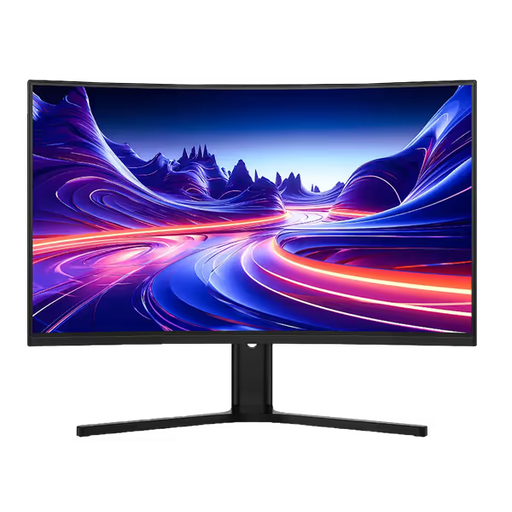
Why This Fits Their Persona: A 31.5-inch 2560 × 1440 VA display with 180Hz refresh suits PC and console users who want a larger screen without moving to an ultrawide format.
The specification identifies separate HDMI and DisplayPort limits, helping buyers match the connection to the intended refresh rate.
2560 × 1440 resolution, 180Hz refresh rate, 1ms MPRT and 100mm height adjustment.
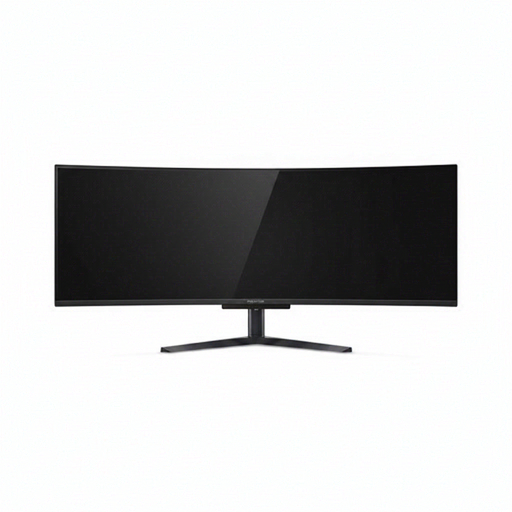
Why This Fits Their Persona: This 32:9 display is aimed at users with a large desk who want an expansive gaming and multitasking workspace from one screen.
It states the full Dual QHD resolution, 240Hz capability and HDMI 2.1, DisplayPort and USB-C connectivity rather than relying on a generic gaming label.
5120 × 1440 QD-OLED panel, 240Hz refresh rate, 99% DCI-P3 coverage and USB-C with 90W Power Delivery.
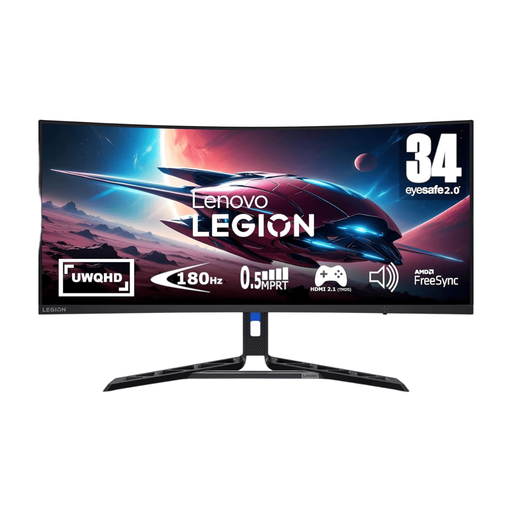
Why This Fits Their Persona: The 21:9 curved format gives racing, flight and open-world games additional horizontal viewing space while remaining suitable for productivity.
The adjustable stand and Natural Low Blue Light feature address practical desk setup and extended-use considerations, while the native resolution is clearly stated.
34-inch UWQHD panel, 180Hz refresh rate, AMD FreeSync Premium and lift, tilt, pivot and swivel adjustment.
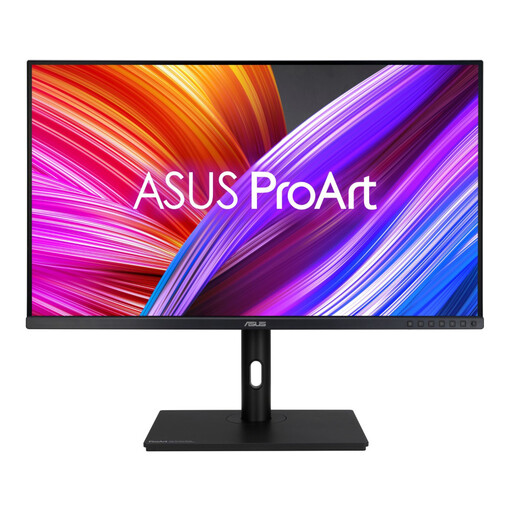
Why This Fits Their Persona: Photographers, editors and designers may value consistent colour and an adjustable 31.5-inch workspace more than esports-level refresh rates.
Its specification prioritises stated colour coverage and calibration details, rather than presenting a high refresh rate as the main selling point.
2560 × 1440 IPS panel, 100% sRGB and 100% Rec.709 coverage, Calman Verified status and a four-port USB hub.
If these profiles do not match your setup, consider a Samsung Odyssey G6 27-inch QHD OLED 240Hz model for competitive play, an LG UltraGear 34-inch OLED WQHD 240Hz display for high-speed ultrawide gaming or an AOC Q32V4 31.5-inch QHD IPS monitor for everyday use and casual gaming. A portable 16-inch 2K display can also suit users who move between a laptop, console and shared workspace.
We have compiled a complete, real-time list of products that fully satisfy these strict selection criteria and UK safety regulations.
Yes, 1440p is a useful option for compatible PCs and consoles, offering more detail than Full HD. Confirm that the console or graphics card supports the monitor’s resolution and refresh rate through the selected HDMI or DisplayPort connection.
Lifespan depends on usage, heat, power conditions and panel technology. Keep ventilation clear, use a suitable power supply and avoid physical pressure on the screen. OLED owners should enable pixel-shifting, logo-dimming or other manufacturer-provided care functions where available.
Running cost depends on screen size, brightness, refresh rate, HDR use and daily hours. Larger ultrawide and OLED screens may have different power requirements from smaller IPS models. Check the product’s stated typical or maximum consumption and use standby settings when the display is not needed.