Choose a mouse whose shape, primary buttons and scroll wheel work comfortably in your large-screen setup before focusing on high sensor specifications. Extra programmable buttons are more useful if you regularly assign tabletop shortcuts; wireless connectivity is worth considering when a cable restricts where you play, provided you are happy to manage charging or batteries. Tabletop Simulator’s published controls use right-click for camera rotation, middle-click for panning and the wheel for zooming, so those controls deserve particular attention if you play it.
Who this is for
Tabletop-simulator shortcut users
If you frequently move pieces and adjust the camera, an accessible wheel and buttons you can assign to repeated actions may matter more than headline sensor figures. The Tabletop Simulator Knowledge Base lists right-click rotation, middle-click panning and wheel zoom among its default controls.
Large-screen lounge players
If you play away from a conventional desk or want less cable clutter around a TV or large monitor, consider where the mouse will sit and how you will manage its battery or charging routine.
Long-session comfort prioritiser
If you play for extended periods, assess both mouse shape and where you can place it. The Health and Safety Executive advises keeping a mouse within easy reach, using it with a straight wrist and supporting the forearm on the desk.
What matters when choosing
For a fixed desk, start with the controls and fit you will actually use; for seating farther from the computer, check connection and battery arrangements as well.
| Concern |
What to check |
Who this matters to |
| Camera and piece controls |
Check left and right clicks, a clickable wheel and scrolling you can control; confirm any shortcut software works with your setup. |
If I often pan, zoom and move pieces in a tabletop simulator, I want those actions within easy reach rather than relying on repeated keyboard reaches. Around 40% of consumers put these controls first. |
| Long-session comfort |
Check shape and handedness, and whether the mouse can sit within easy reach with your forearm supported. |
During a long seated game, I need a shape and position that do not make me stretch or grip tightly. Comfort is the primary concern for around 30% of consumers. |
| Cable-free placement |
Check the connection method, whether a receiver is included and how the mouse is powered. |
When I sit away from the computer, I want to place the mouse where a cable will not restrict play. Around 20% of consumers prioritise that freedom of placement. |
| Essential controls without extras |
Compare the controls you need with the complete purchase terms rather than choosing by maximum DPI alone. |
If basic click, drag and navigation actions cover my games, I would rather avoid paying for features I will not use. Keeping the purchase modest comes first for around 10% of consumers. |
Buying pitfalls
-
Choosing mainly by maximum DPI
A sensitivity figure does not tell you whether the wheel, middle click or button placement will suit camera control. The Tabletop Simulator Knowledge Base identifies right-click, middle-click and wheel actions in its default controls.
Check those controls and a sensitivity setting you can use comfortably before comparing higher sensor figures.
-
Assuming more buttons are always useful
Programmable controls help only when you have actions worth assigning and can reach the buttons comfortably.
List the shortcuts you repeat. If they remain convenient on the keyboard, consider whether extra mouse buttons add anything to your setup.
-
Expecting mouse shape alone to settle comfort
Even a shape you like can be awkward if you must stretch to reach the mouse or grip it tightly.
Position it within easy reach and support your forearm, as the Health and Safety Executive advises; assess the fit in your own playing position.
-
Putting an old mouse in household rubbish
Electrical waste and removable batteries need appropriate disposal. GOV.UK advises using an electrical-waste collection route rather than household rubbish.
Check local collection or retailer take-back options, and use an appropriate battery-recycling route for removable batteries.
Brands and mouse lines to consider
Logitech G
The G502 line offers wired and wireless options for players considering extra mouse-accessible controls.
- Logitech G lists 11 programmable buttons and onboard profiles for the G502 HERO, and 13 customisable controls for the wireless G502 X LIGHTSPEED.
- Button count does not establish hand fit. Logitech G lists the wired G502 X at 89 g, but weight alone cannot show how it will feel in your setup.
Razer
The Basilisk line is relevant if you want a right-handed shape and a choice of scrolling or wireless features.
- Razer lists 10+1 programmable buttons for the wired Basilisk V3; its Basilisk V3 X HyperSpeed listing identifies nine programmable controls and two wireless modes.
- Check shape, software compatibility and battery arrangements for the particular Basilisk model you are considering rather than treating the line as a single configuration.
CORSAIR
The wired M65 RGB ULTRA is a reference point for players considering adjustable weight without a large number of buttons.
- CORSAIR lists a tunable-weight system and eight programmable buttons for the M65 RGB ULTRA.
- CORSAIR positions this model for FPS gaming. Assess its shape and controls against your board-game actions rather than assuming that positioning determines its fit.
Joybuy product choices
These mice offer wired or wireless ways to set up large-screen board-game play. The vertical V7 is a general mouse rather than a gaming mouse; for any model, check the wheel and middle-click functions if your game uses them for camera control.
 No image available
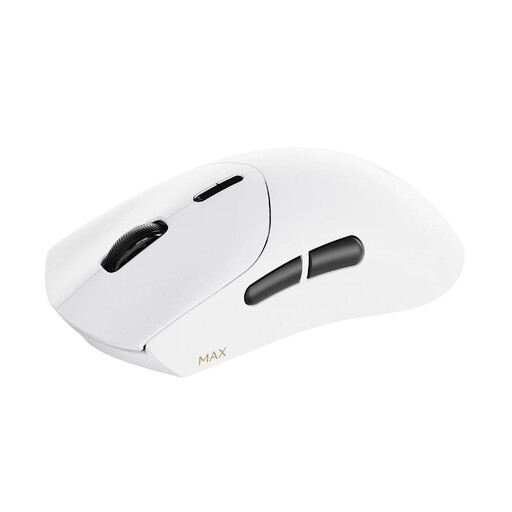
Rapoo VT7 MAX Wireless Gaming Mouse, White
Consider this for cable-free placement and mouse-accessible shortcuts. The title specifies a 53 g weight and 10 programmable buttons. Its stated battery life of up to 750 hours depends on a driver update and low-power mode; check the middle-click and scrolling functions if you need them for camera control.
View on Joybuy
 No image available
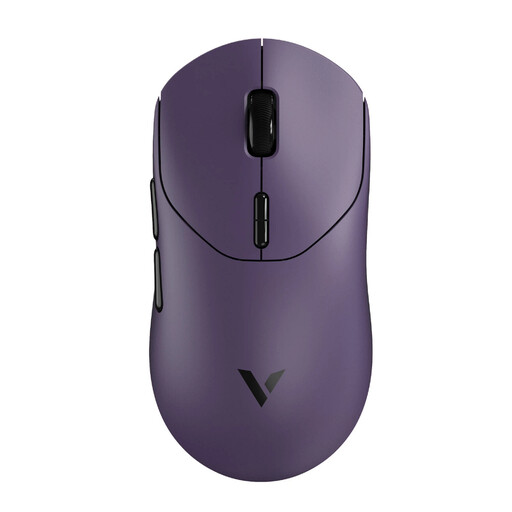
Rapoo VT2 Wireless Gaming Mouse, Purple
Consider this if you want wireless placement and programmable shortcuts in the mechanical-switch variant. The title specifies 53 g and 10 programmable buttons. Its stated battery life of up to 750 hours depends on a driver update and low-power mode; confirm middle-click and wheel behaviour for your game.
View on Joybuy
 No image available
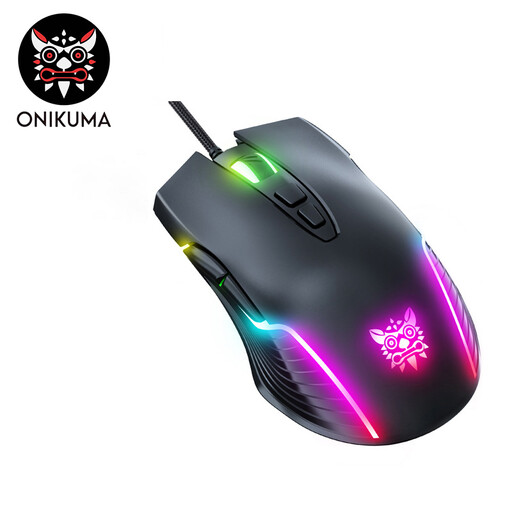
ONIKUMA CW905 Wired Gaming Mouse
Consider a wired mouse if you play at a fixed desk and do not want to manage a wireless battery. The title identifies programmable buttons; confirm how they are configured and whether the software works with your computer before relying on custom shortcuts. Check cable reach for your large-screen position.
View on Joybuy
 No image available
AJAZZ AJ200 AI MC Wireless Gaming Mouse with Charging Dock
Consider this model if you want a choice of connection methods for your large-screen setup. Its title lists Bluetooth, 2.4 GHz and USB-C connectivity. Confirm the included charging equipment, middle-click and wheel behaviour before buying; the listing gives conflicting weight figures, so check the exact variant if weight matters to you.
View on Joybuy
 No image available
V7 MW500BT Bluetooth Vertical Mouse
Consider this general-purpose vertical mouse if cable-free placement and its shape appeal more than gaming-specific features. The title lists Bluetooth and 2.4 GHz connectivity, six buttons and adjustable sensitivity up to 1600 DPI. Assess the shape for your hand, and confirm middle-click and button-remapping support if your game needs them.
View on Joybuy
Common questions
Do digital board games on a large screen require very high DPI?
No particular maximum DPI is established as necessary for these controls. If you play Tabletop Simulator, check that click-and-drag, right-click, middle-click and wheel zoom feel controllable at a sensitivity suited to your display; its Knowledge Base documents those mouse actions.
What should I set up first on a multi-button mouse?
Test the game’s existing mouse controls before assigning shortcuts. In Tabletop Simulator, the published defaults include left-click object pickup, right-click camera rotation, middle-click panning and wheel zoom; keep those actions accessible while you decide which repeated commands merit an extra button.
Will an ergonomic gaming mouse settle discomfort during long sessions?
Mouse shape alone cannot determine how comfortable your setup will be. The Health and Safety Executive advises placing the mouse within easy reach, keeping the wrist straight, supporting the forearm and avoiding a tight grip; assess the shape in that playing position.
How should I dispose of an old mouse?
Use an appropriate electrical-waste collection or retailer take-back route rather than putting an old mouse in household rubbish. GOV.UK also advises handling removable batteries through a suitable recycling route.


