For economic simulations, choose a conventional multi-button layout if you want several shortcuts without a dense thumb grid; prioritise a configurable scroll wheel if maps and menus occupy more of your time; consider a 12-button side panel only if you will use and learn that many bindings. A large screen alone does not establish a need for maximum DPI, while button reach and desk setup still matter during long sessions.
Who might need a different layout?
Shortcut-heavy simulation players
If you repeatedly use camera, construction, pause, speed and menu commands, you may want selected actions on the mouse rather than reaching for the keyboard each time. Plan the bindings before choosing a button layout.
Map and menu navigators
If much of a session involves maps, lists and technology trees, compare wheel modes and tilt controls as well as button count. Logitech G and Razer describe different configurable wheel options in their G502 X and Basilisk V3 lines.
Long-session desk players
If you play for extended periods, consider grip, thumb reach and the space available to move the mouse. The Health and Safety Executive’s display-screen equipment guidance also treats workstation arrangement as relevant to prolonged screen use; a mouse shape alone cannot settle whether a setup feels comfortable.
What matters when choosing?
Decide how many commands you will actually bind, then consider how you navigate maps and menus. Check reach and connection arrangements against your desk setup before settling on a model.
Conventional multi-button layout
Choose it when: You want several camera, speed or interface shortcuts without learning a 12-button thumb grid.
Trade-off: More controls still require a comfortable grip and reachable buttons. Logitech G lists 13 customisable controls for the wireless G502 X LIGHTSPEED; check wheel functions for the exact G502 X variant you choose.
Scroll-focused wired layout
Choose it when: Moving through long lists and map views matters at least as much as assigning many commands. Razer lists tactile, free-spin and Smart-Reel wheel modes for the Basilisk V3.
Trade-off: Its wired connection needs a suitable cable path, and its 10+1 programmable buttons are a different layout from a dedicated 12-button thumb panel.
12-button thumb grid
Choose it when: You have enough repeatable commands to map and practise a larger set. CORSAIR lists 16 programmable buttons and a repositionable side panel for the SCIMITAR ELITE WIRELESS SE.
Trade-off: Check whether you can distinguish and reach the thumb buttons reliably; wireless use also adds charging and connection setup.
| Concern |
What to check |
Who this matters to |
| Shortcut capacity |
Count the commands you would map, then check button reach and whether the configuration software supports those assignments. |
When I repeatedly use build, speed and camera commands, I want shortcuts I can identify without looking away from the game. Around 38% of consumers would put command organisation first. |
| Map and menu navigation |
Compare tactile and free-spin wheel modes, and check whether wheel tilt can be assigned in your game. |
If I move between maps, lists and technology trees, I want scrolling that remains controllable. Roughly 31% of consumers would prioritise navigation. |
| Long-session fit and setup |
Check grip and thumb reach, then allow for cable routing or wireless charging and receiver placement. |
During extended sessions, I need controls within comfortable reach and a connection that works at my desk. Around 31% of consumers would make comfort and setup their primary concern. |
Buying pitfalls
-
Buying more buttons than you will use
A 12-button thumb panel helps only if its controls are reachable and distinguishable. CORSAIR’s repositionable SCIMITAR side panel offers adjustment, not a guarantee that it will suit every grip.
List your repeat commands first. If the list is short, consider a conventional multi-button layout; if it is long, check thumb-button reach before committing to a grid.
-
Treating maximum DPI as a large-screen requirement
A mouse’s maximum sensitivity figure does not establish which setting will feel controllable in an economic simulation on your display.
Choose controls and wheel behaviour for the actions you use, then adjust pointer sensitivity in your operating system and game.
-
Expecting mouse shape to resolve every comfort issue
The Health and Safety Executive’s display-screen equipment guidance identifies overuse and workstation conditions among factors relevant to fatigue and upper-limb problems. Mouse fit is only one part of an extended desk session.
Check chair and display placement, desk height, mousing space and whether you can reach the controls without stretching. Reassess the setup if discomfort develops.
-
Choosing wireless without planning the connection
CORSAIR documents separate 2.4 GHz, Bluetooth and USB modes for the SCIMITAR ELITE WIRELESS SE. A wired alternative avoids battery management but needs a workable cable route.
Before buying, check the available USB port, receiver position and charging arrangements for the connection you intend to use.
Charging takes time, and a 2.4 GHz receiver occupies a USB port while in use.
Relevant gaming-mouse brands
Logitech G
The G502 X line is worth examining if you want several controls in a conventional gaming-mouse layout rather than a full thumb grid.
- Logitech G lists 13 customisable controls for the G502 X LIGHTSPEED and documents ratcheted and hyperfast scrolling plus programmable wheel tilt for the wired G502 X.
- Those specifications do not establish that either variant’s shape or button positions will suit your hand and grip.
Razer
The wired Basilisk V3 line is relevant when configurable scrolling matters alongside a moderate shortcut layout.
- Razer lists 10+1 programmable buttons and tactile, free-spin and Smart-Reel scroll modes for the Basilisk V3.
- Check the right-handed shape against your grip and plan a suitable cable path at your desk.
CORSAIR
The SCIMITAR ELITE WIRELESS SE line is relevant if you intend to assign a substantial set of commands to thumb buttons.
- CORSAIR lists 16 programmable buttons, a repositionable 12-button side panel, onboard profiles and multiple connection modes.
- A dense panel may be difficult to distinguish or unnecessary if you use only a few repeat shortcuts; check reach and allow for charging.
Joybuy mice for simulation setups
These gaming mice offer different starting points for an economic-simulation desk setup: the Rapoo listing identifies programmable buttons, while the AJAZZ listing identifies several connection modes. Check wheel behaviour, button mapping and grip against the tasks that matter most to you.
 No image available
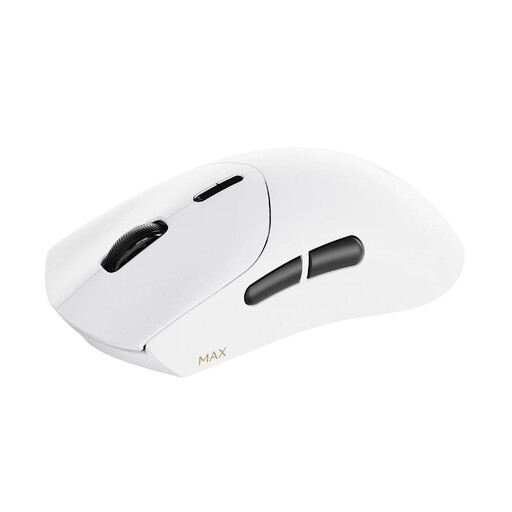
Rapoo VT7 MAX wireless gaming mouse, white
For assigning frequent simulation commands to the mouse, this variant lists 10 programmable buttons.
Its listed weight is 53g. Check wheel modes and button reach if map navigation or grip fit is a priority.
The listed battery duration is conditional on how the mouse is configured; check the low-power setting before relying on that figure.
View on Joybuy
 No image available
AJAZZ AJ200 AI MC wireless gaming mouse with charging dock
For a setup where connection choice matters, this variant lists Bluetooth, 2.4G and USB-C modes.
Check how its buttons can be mapped for your game and whether its wheel behaviour suits map and menu navigation. Confirm the exact variant’s weight and grip fit before buying.
View on Joybuy
Common questions
Do I need very high DPI for economic simulations on a large screen?
No particular maximum DPI follows from screen size alone. Choose a mouse whose controls, wheel and grip suit your game, then adjust sensitivity in the operating system and game until pointer movement feels controllable.
Will SCIMITAR ELITE WIRELESS SE button settings work without keeping software open?
CORSAIR documents three onboard profile slots for predefined button assignments, DPI settings and lighting effects on the SCIMITAR ELITE WIRELESS SE. Use iCUE to customise settings and save them to onboard memory.
Which SCIMITAR ELITE WIRELESS SE connection should I use for gaming?
CORSAIR presents the SCIMITAR ELITE WIRELESS SE’s 2.4 GHz receiver connection as its gaming-oriented wireless option and describes Bluetooth as suited to everyday computing. If you plan to use the receiver, check that your computer has an available USB port and test the connection in your setup.
What should I do if a mouse bought from a UK trader is faulty?
Contact the selling trader and keep your order details. GOV.UK guidance on the Consumer Rights Act 2015 explains that repair or replacement can be available when a fault is discovered more than 30 days after purchase or delivery; a manufacturer’s voluntary warranty is separate from statutory rights.


