What to check before buying
Start with the commands you use repeatedly, then assess hand fit and your screen setup. A brighter room does not, by itself, establish a reason to choose one mouse sensor over another.
| Concern |
What to check |
Who this matters to |
| Reachable controls |
Check the position of programmable buttons and whether the scroll behaviour suits your map and menu bindings. |
If I repeatedly switch between maps, inventory and tools, I want those commands within reach without shifting my grip. Around 40% of consumers put shortcut access first. |
| Long-session fit |
Compare listed weight, shape and side-button placement; check whether any thumb control can be repositioned. |
During a long session, I care more about a manageable shape and controls I can press comfortably than a higher button count. For around 30% of consumers, handling is the primary concern. |
| Bright-room visibility |
Look for reflections on the display and consider screen position and room lighting separately from mouse features. |
When the room is bright, I need to see the game clearly before deciding whether a different mouse would help my controls. Around 30% of consumers prioritise sorting out that visibility issue. |
Wireless mice on Joybuy
These wireless gaming mice are choices to compare if you want movement without a cable. For exploration games, check that each model’s button layout and scrolling suit your own map, inventory and tool shortcuts; wireless connectivity alone does not answer that question.
 No image available
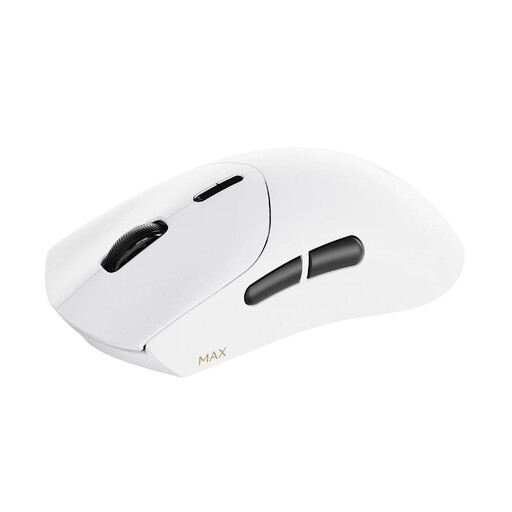
Rapoo VT7 MAX Wireless Gaming Mouse — White
Consider its programmable controls if you want to move exploration-game shortcuts onto the mouse, but check whether the buttons are within comfortable reach.
The product name lists 10 programmable buttons, a 53 g weight and an 8K wireless polling rate. Its stated battery life of up to 750 hours applies at 1000 Hz with low-power mode enabled through the latest driver; check the scroll behaviour before buying.
View on Joybuy
 No image available
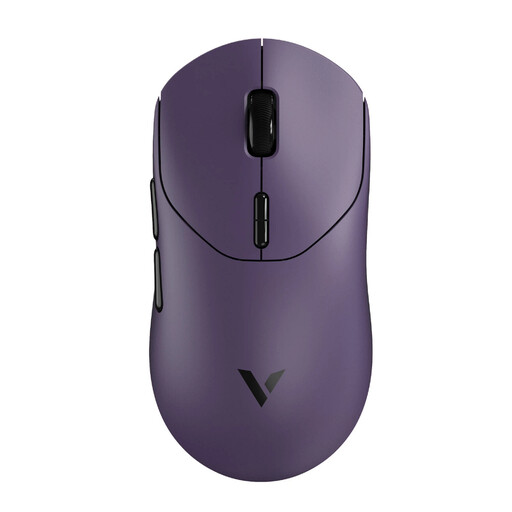
Rapoo VT2 Wireless Gaming Mouse — Purple
If you want mouse-bound actions without a cable, compare its button positions with the commands you use most often.
The product name lists 10 programmable buttons, a 53 g weight and an 8K wireless polling rate. Its stated battery life of up to 750 hours applies at 1000 Hz when the latest driver enables low-power mode; confirm the scroll behaviour and physical button layout.
View on Joybuy
 No image available
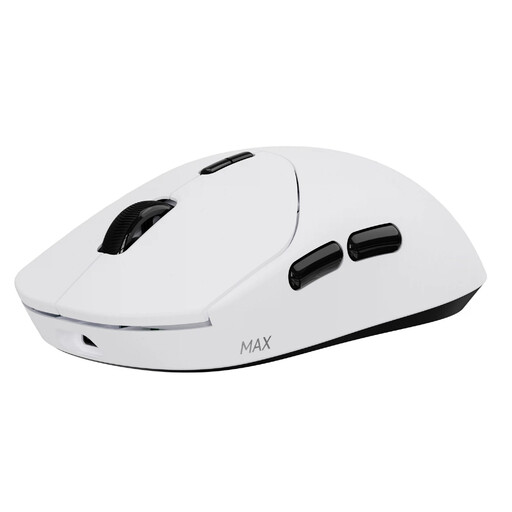
Rapoo VT2 MAX Wireless Gaming Mouse — White
Its listed programmable buttons may suit a set of map and tool shortcuts if you can reach their positions comfortably.
The product name lists 10 programmable buttons, a 53 g weight and an 8K wireless polling rate. The stated up-to-750-hour battery life is conditional on 1000 Hz use and low-power mode enabled through the latest driver; check the wheel and button layout for your bindings.
View on Joybuy
 No image available
AJAZZ AJ200 AI MC Wireless Gaming Mouse with Charging Dock
Consider this variant if a charging dock and a choice of connection methods matter to you, then check how its controls fit your exploration-game bindings.
The product name lists Bluetooth, 2.4G and USB-C modes and a 24000 DPI PAW3311 sensor. Confirm its weight before using that figure to judge long-session handling, and check the number and placement of remappable buttons.
View on Joybuy
 No image available
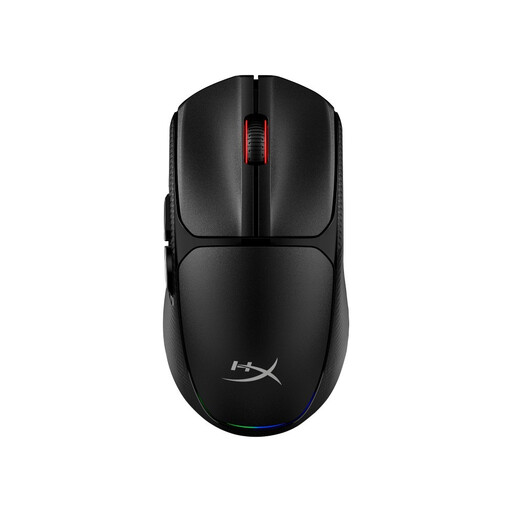
HyperX Pulsefire Fuse Wireless Gaming Mouse
For cable-free exploration play, check whether its physical controls accommodate the shortcuts you want on the mouse.
Compare its button positions and scroll behaviour with your preferred bindings, and confirm weight and battery duration if either affects your choice.
View on Joybuy
Frequently asked questions
Will RGB or a high DPI rating help with gaming in a bright room?
Neither is a substitute for dealing with reflections on the display. The Health and Safety Executive identifies glare and contrast as lighting considerations; choose mouse lighting for its appearance and assess sensor requirements separately from screen visibility.
How many programmable buttons do exploration games need?
There is no universal minimum: count the map, inventory, tool and other actions you actually want to move off the keyboard. Then check whether you can reach the relevant buttons without changing your grip; a larger advertised count is useful only if its layout works for you.
Should I choose a wired or wireless gaming mouse?
Choose wired if avoiding charging matters more to you than cable-free movement; consider wireless if keeping the cable off the desk is worth managing a battery. Check the exact model’s controls and charging arrangement, because those details can differ between variants.
What if I also use the gaming setup for work?
For a workplace display-screen setup, follow your employer’s display-screen-equipment process as well as checking your own comfort. The Health and Safety Executive says its display-screen guidance explains employer duties under the Display Screen Equipment Regulations 1992, and its lighting guidance discusses glare and contrast.


