Players who use frequent shortcuts
If you repeatedly open maps and menus or issue commands, reachable buttons may be worth assigning to the actions you use most. Check that the layout lets you press them without changing your grip.


Prioritise controls you can reach comfortably and a scroll wheel that suits the commands you actually use, rather than choosing a mouse for its headline sensor specification. If reflections make the game hard to read, follow the Health and Safety Executive’s advice to arrange the desk and screen to avoid glare; then weigh grip, button layout and wired or wireless use against your needs.
If you repeatedly open maps and menus or issue commands, reachable buttons may be worth assigning to the actions you use most. Check that the layout lets you press them without changing your grip.
If a window or lamp reflects in your display, address screen positioning separately from mouse selection. The Health and Safety Executive advises arranging the desk and screen to avoid glare or bright reflections.
If you want fewer cables on the desk, compare wireless models by their controls, shape and power arrangements. A wireless connection alone does not tell you whether a mouse suits your game commands.
Deal with visible screen reflections before paying for a different mouse; for mouse selection, start with the commands you want within reach, then consider fit and desk setup.
| Concern | What to check | Who this matters to |
|---|---|---|
| Reachable shortcuts | List the commands you would assign, then check button reach, wheel functions and how profiles are configured. | If I use several map, menu and action commands repeatedly, I want shortcuts I can press without losing my grip. Around 36% of consumers put accessible commands first. |
| Screen readability | Look for reflections from windows or lamps and consider whether moving the screen or adjusting blinds reduces them. | When reflections obscure game information, I need a clearer view before changing mouse specifications. For around 29% of consumers, glare is the primary concern. |
| Long-session fit | Check shape, weight and thumb-button placement, particularly whether extra controls sit comfortably within reach. | If I spend a long session clicking and scrolling, an awkward grip or button position matters more to me than another shortcut. Around 21% of consumers prioritise fit. |
| Desk connection | For wireless, check power and receiver arrangements; for wired, plan a cable path that does not interfere. | On a shared desk, I want to decide whether clearing the cable is worth managing a wireless mouse’s power needs. Desk connectivity comes first for around 14% of consumers. |
Lighting on the mouse does not remove reflections from the monitor. The Health and Safety Executive identifies desk and screen arrangement as a way to avoid glare and bright reflections.
Check where light falls on the display. Adjust the screen position or use blinds or curtains where appropriate, then choose the mouse for its controls and fit.
A dense button layout can be useful for many distinct commands, but controls you do not use still take time to assign and learn.
Write down the shortcuts you want on the mouse. Consider a denser side-button layout only if those assignments would be useful and comfortable to reach.
Connection type, wheel behaviour and button layout differ between the G502 X, Basilisk and Naga variants discussed here.
Check the complete model name and the exact model’s control and connection specifications before choosing a variant.
Wireless use can clear a cable from the desk, while a wired connection avoids the need to manage mouse power. Neither choice determines whether the buttons suit your commands.
Choose by the desk arrangement you prefer, and check the model’s power or cable requirements alongside its control layout.
A wireless setup may also mean keeping track of charging, batteries or a receiver, depending on the model.
Its G502 X range is relevant if you want a right-handed layout with configurable controls, with wired and LIGHTSPEED wireless variants to compare.
The Basilisk and Naga models offer different control layouts: configurable scrolling on the Basilisk V3 35K, or a denser button arrangement on the Naga V3 Pro.
The M65 RGB ULTRA Wireless is an alternative to consider if adjustable weight matters more to you than a particularly dense button layout.
These mice offer wireless and wired ways to set up a management-game desk. Compare their stated controls and check button reach for your grip; screen reflections need a separate fix.
 No image available
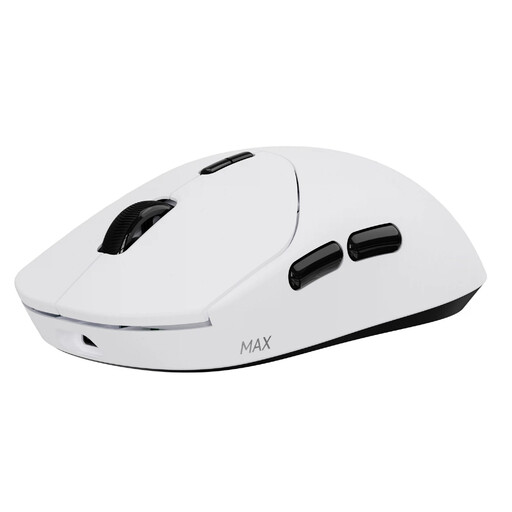
For repeated commands on a cable-free desk, consider its stated 10 programmable buttons, but check whether their positions suit your grip.
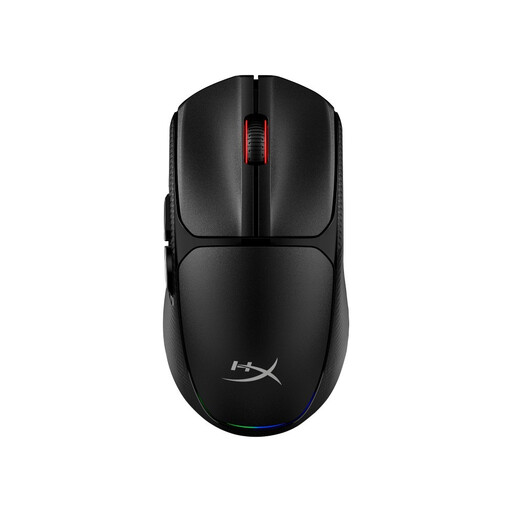
The product title states a 53 g weight and True 8K wireless polling rate. Its stated battery life of up to 750 hours at 1000 Hz requires a driver update to unlock low-power mode.
 No image available
For cable-free play at a shared desk, this is a wireless option; check its button layout before planning a set of management-game shortcuts.
Confirm how many controls you can assign and whether the customisation you need is available for your setup.
 No image available
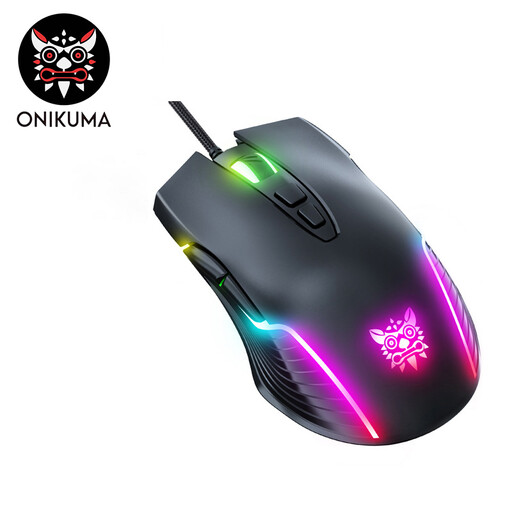
If you prefer a wired desk setup, consider this model after checking that its cable can be routed comfortably.
The product title describes programmable buttons; confirm which controls can be remapped and how assignments are made before relying on them for game shortcuts.
A bright room alone is not a reason to choose a mouse by a headline sensor figure. If reflections are obscuring the game, start with the desk and screen: the Health and Safety Executive advises arranging them to avoid glare or bright reflections. Assess mouse tracking separately for the surface you use.
Choose by the actions you repeat: additional reachable buttons suit several distinct shortcuts, while a configurable wheel may suit frequent scrolling through lists and menus. For example, Razer specifies tactile and free-spin scrolling modes for the Basilisk V3 35K; check whether those wheel functions or extra button assignments better match your play.
Assign a small set of commands you use often and can remember, then check that you can reach each control comfortably. Logitech G says its G HUB software supports assignments and settings; confirm the software and configuration options for the exact mouse you choose.
Health and Safety Executive display-screen guidance concerns work use, not a rule for choosing a gaming mouse. Its practical advice to arrange a desk and screen to avoid glare can still help you assess reflections at a home gaming desk.