Shortcut-heavy network planners
If you repeatedly use build, camera, speed or menu commands, you may want those functions on reachable mouse buttons instead of returning to the keyboard.


Choose a dense thumb-button layout if you have many recurring railway-management commands to assign; if you use fewer shortcuts, consider a multi-button mouse whose wheel suits the way you navigate maps and menus. For dark-room sessions, check button reach and whether lighting can be reduced, while arranging the screen and room lighting to avoid glare.
If you repeatedly use build, camera, speed or menu commands, you may want those functions on reachable mouse buttons instead of returning to the keyboard.
If much of your play involves moving around maps, menus and lists, consider the wheel behaviour as well as the available shortcut buttons.
If button reach and a low-distraction setup matter during extended play, assess the mouse at your desk. Configurable mouse lighting does not replace attention to screen reflections and glare.
Decide which commands deserve mouse buttons, then weigh scrolling and desk setup against the time it will take to learn the layout.
Choose it when: You have enough repeat commands to use a thumb grid. CORSAIR specifies 16 programmable buttons and a repositionable 12-button side panel for the SCIMITAR ELITE WIRELESS.
Trade-off: Check that you can reach and distinguish the side buttons without accidental presses; wireless use also calls for charging.
Choose it when: You want shortcuts alongside a choice of scrolling behaviours. Razer specifies 10+1 programmable buttons and tactile, automatic and free-spin wheel behaviours for the wired Basilisk V3.
Trade-off: Its cable needs a clear route across the desk, and its wheel options matter only if they suit your navigation habits.
Choose it when: You want several assignments and saved profiles without a full thumb grid. Logitech G specifies 11 programmable buttons and onboard profiles for the wired G502 HERO.
Trade-off: It has fewer button positions than the researched SCIMITAR layout; adjustable weight should be judged by personal fit, not assumed to ensure comfort.
| Concern | What to check | Who this matters to |
|---|---|---|
| Shortcut layout | List the commands you would assign; check button reach and remapping options. | If I repeatedly open build menus or change game speed, I want commands I can find without losing my grip. Around 40% of consumers put shortcut access first. |
| Map and menu navigation | Check whether the wheel offers the deliberate or rapid scrolling behaviour you want. | Moving through large maps and long lists makes a controllable wheel my priority. Navigation comes first for around 30% of consumers. |
| Comfort and dark-room setup | Check thumb reach and lighting controls; position the mouse within easy reach and assess screen glare. | During a long evening session, I need controls I can reach comfortably without distracting lighting. Around 30% of consumers prioritise fit and the dark-room setup. |
A 12-button thumb panel takes practice and offers little practical value if you only intend to assign a few commands.
Write down your repeat build, camera and menu actions before deciding whether a dense panel or a less crowded layout suits you.
Mouse lighting can help with visibility or personalisation, but it does not resolve reflections or an awkward mouse position. The Health and Safety Executive advises arranging screens and lighting to avoid glare.
Check whether the lighting can be dimmed or switched off, and assess your screen and desk lighting separately.
A wireless mouse needs charging management, and a stated battery maximum can depend on settings and use.
If uninterrupted play matters, check how the mouse charges and whether your chosen model works while connected by cable; compare wired options if you prefer not to manage charging.
The SCIMITAR ELITE WIRELESS is relevant if your main aim is assigning many recurring commands.
The wired Basilisk V3 pairs a multi-button layout with selectable wheel behaviours for players who value both shortcuts and scrolling.
The wired G502 HERO is a reference point for several shortcuts and saved profiles without a 12-button thumb panel.
This wireless option is worth considering if mouse-button shortcuts are your priority for railway-management games. Check wheel behaviour and lighting controls separately if either will decide your choice.
 No image available
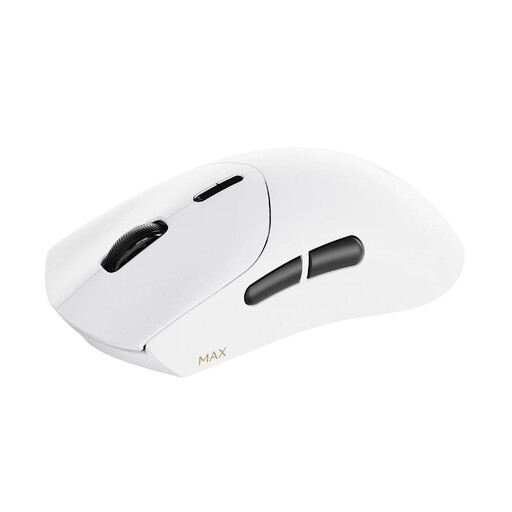
Consider this model if you want to assign repeat build or menu commands to a wireless mouse with 10 programmable buttons and macro support.
The listed weight is 53 g. Check that the assignments you need are available in A HUB, and confirm the wheel behaviour and lighting controls if those matter for your setup.
Rapoo lists up to 750 hours of battery life at 1000 Hz, with an updated driver required for low-power mode; that stated maximum is not a guarantee for every set of settings.
Choose enough buttons for the commands you will actually use and can reliably find by touch. The researched Razer Basilisk V3 has 10+1 programmable buttons, the Logitech G502 HERO has 11, and the CORSAIR SCIMITAR ELITE WIRELESS has 16 with a 12-button side panel; the larger layout calls for more thumb-grid practice.
No: configurable lighting may help you locate the mouse or recognise a profile, but it does not establish better comfort or control. Check whether you can reduce the lighting, and follow the Health and Safety Executive’s advice to arrange your screen and room lighting to avoid reflections and glare.
Keep the mouse within easy reach so you can use it with a straight wrist, as the Health and Safety Executive advises. Then check that the side buttons are reachable without changing your grip and assign only the repeat actions you can recall easily.
Use an appropriate electrical-waste collection or recycling route rather than putting the mouse in household rubbish. GOV.UK’s guidance covers electrical products and batteries; check the handling instructions for any removable battery before recycling it.