Choose a gaming mouse around the control problem you notice most: a thumb keypad suits frequent tool and command changes, while a conventional multi-button shape offers shortcuts without a dense side grid. For a large screen, look for adjustable sensitivity rather than choosing by maximum DPI alone; hand fit, button reach, connection and tracking surface also affect the choice.
Who this choice matters to
Command-heavy sandbox builders
If you repeatedly change tools, manage an inventory or trigger mapped actions, reachable mouse controls may reduce how often you reach for the keyboard. A dense thumb layout is worth considering only if you can use its buttons comfortably.
Long-session world creators
Extended building or exploration makes shape, grip and thumb reach important personal fit checks. More controls are of little use if the mouse feels awkward to hold.
Large-display navigators
If you alternate between moving across a large display and placing objects precisely, adjustable sensitivity lets you try different cursor speeds instead of relying on one maximum DPI figure.
What to prioritise
Decide how many commands you genuinely want under your thumb before comparing shapes and sensitivity controls. The following routes address different priorities rather than forming a performance ranking.
Thumb-keypad mouse
Consider it: When repeated building and inventory actions make keyboard reaches your main frustration; Corsair lists a repositionable 12-button side panel on the SCIMITAR ELITE WIRELESS SE.
Trade-off: The dense grid takes time to map and learn, and its position still needs to suit your thumb.
Multi-control all-rounder
Consider it: When you want assignable controls and switchable scrolling without a dedicated thumb keypad; Razer lists these features for the Basilisk V3 35K.
Trade-off: Secondary button functions require configuration and a modifier layout you can remember.
Wired mouse with DPI-shift control
Consider it: When a smaller set of quick-access functions and a wired setup suit you; Logitech G lists a configurable DPI-shift button and dual-mode wheel for the G502 X wired.
Trade-off: You need room for the cable, and this layout does not provide a 12-button side panel.
| Concern | What to check | Who this matters to |
|---|
| Reachable commands |
Check usable button positions and whether your intended mappings require companion software. |
If I frequently switch building tools and inventory actions, I want the commands I repeat within comfortable thumb reach rather than on a crowded grid I cannot navigate. Around 40% of consumers put command access first. |
| Long-session comfort |
Compare shape, grip and weight with a mouse you already find comfortable; check the return terms if you cannot try it. |
For extended building sessions, I would rather have a shape my hand can settle into than extra buttons I seldom use. Comfort comes first for around 30% of consumers. |
| Large-screen control |
Look for adjustable sensitivity and try different in-game settings; check the tracking surface you plan to use. |
When crossing a large display and then placing small objects, I need to change cursor speed without losing control. Roughly 30% of consumers prioritise sensitivity and navigation. |
Buying pitfalls
-
Choosing by maximum DPI alone
A higher DPI setting moves the cursor faster, as Logitech explains, but the advertised maximum does not tell you whether building and object selection will feel controlled.
Choose adjustable sensitivity, then try several settings in the game alongside the mouse shape and button layout.
-
Assuming every desk surface tracks the same way
Logitech notes that optical sensors may struggle on transparent, glossy or poorly reflective surfaces. Your desk or mat therefore matters alongside the mouse.
Check the surface you intend to use and try a suitable mouse mat if tracking is inconsistent.
A transparent or glossy desk may mean using a separate opaque mouse mat.
-
Equating more buttons with easier control
A side keypad helps only when its buttons are reachable and you can reliably remember the actions assigned to them. A secondary-function layer also takes setup and practice.
List the commands you use repeatedly. If that list is short, compare conventional multi-button layouts before committing to a dense thumb grid.
-
Comparing wireless runtimes without their conditions
Corsair states different SCIMITAR ELITE WIRELESS SE runtimes for 2.4 GHz and Bluetooth, both with RGB lighting off; those figures should not be treated as identical-use results.
Compare the connection and lighting settings you intend to use, and check whether charging interruptions or wired use while charging suit your setup.
Relevant brands to consider
Logitech G
The G502 X wired is relevant if you want a conventional multi-control layout with a DPI-shift button and switchable wheel behaviour.
- Logitech G lists a reversible or removable DPI-shift button, programmable wheel-tilt inputs and an 89 g weight for the wired G502 X.
- Its cable needs space on the desk; choose another connection type if cable-free movement is essential.
Razer
The Basilisk V3 35K is a right-handed alternative for players who want several controls and configurable scrolling without a 12-button thumb grid.
- Razer lists 13 controls and a four-way wheel with selectable scrolling modes for this model.
- Its secondary functions take configuration in Razer Synapse and must be easy for you to remember during play.
Corsair
The SCIMITAR ELITE WIRELESS SE is relevant when repeat commands make an adjustable thumb keypad worth learning.
- Corsair lists 16 programmable buttons, including a repositionable 12-button side panel, and offers 2.4 GHz, Bluetooth and wired use while charging.
- Check whether the side grid fits your thumb reach and whether you want to spend time mapping its controls.
Joybuy gaming mouse options
These gaming mice offer different combinations of connection, controls and sensitivity for sandbox play. Compare each model with the commands you use and the space available on your desk; they are not the same models as the brand examples above.
 No image available
AJAZZ AJ200 AI MC wireless gaming mouse with charging dock
Consider this if you want connection options and adjustable sensitivity for moving between navigation and precise selection.
The product name specifies Bluetooth, 2.4 GHz and USB-C modes, a PAW3311 sensor and a maximum of 24,000 DPI. Confirm the weight and that the available button assignments cover your repeated commands.
View on Joybuy
 No image available
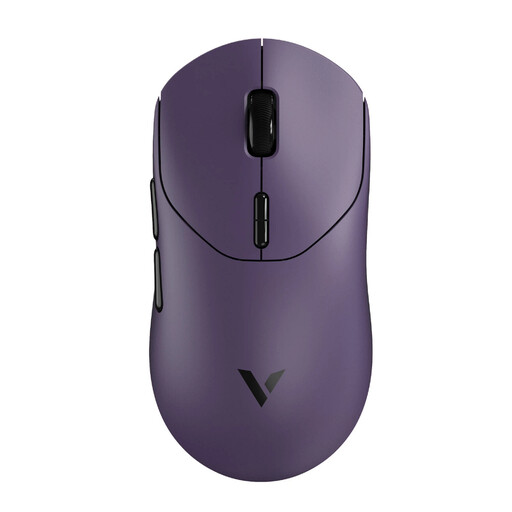
Rapoo VT2 wireless gaming mouse, purple
Its listed programmable controls make it worth considering if you want mouse access to several recurring sandbox actions.
The product name specifies 10 programmable buttons, a 53 g weight and wireless polling of up to 8 kHz. Check hand fit and tracking on your intended surface, and assess any battery claim against the settings you plan to use.
View on Joybuy
 No image available
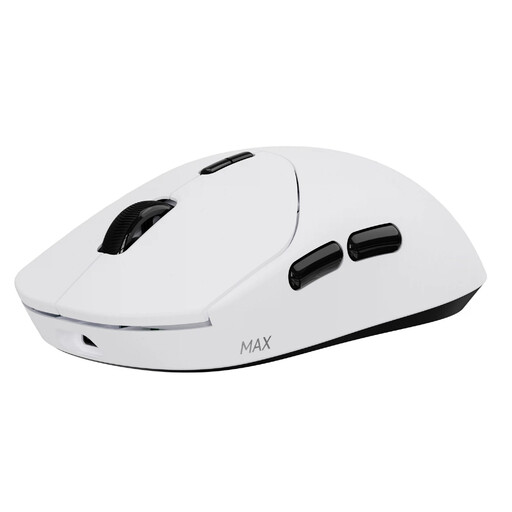
Rapoo VT2 MAX wireless gaming mouse, white
Consider this variant if ten programmable buttons match the set of building or inventory commands you want to reach from the mouse.
The product name specifies a 53 g weight, wireless polling of up to 8 kHz and optical switches. Check the shape against your grip, the intended tracking surface and battery runtime under your chosen settings.
View on Joybuy
 No image available
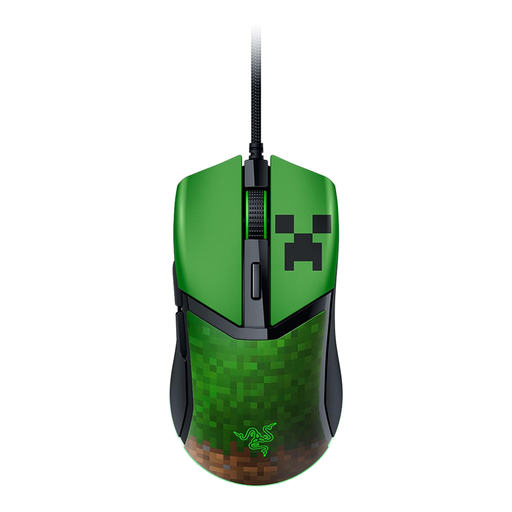
Razer Cobra wired gaming mouse, Minecraft Edition
This is a wired option if a cable suits your desk and you prefer a mouse without a dedicated thumb keypad.
Before choosing it for sandbox shortcuts, confirm how many controls you can assign and whether its sensitivity settings meet your needs.
View on Joybuy
 No image available
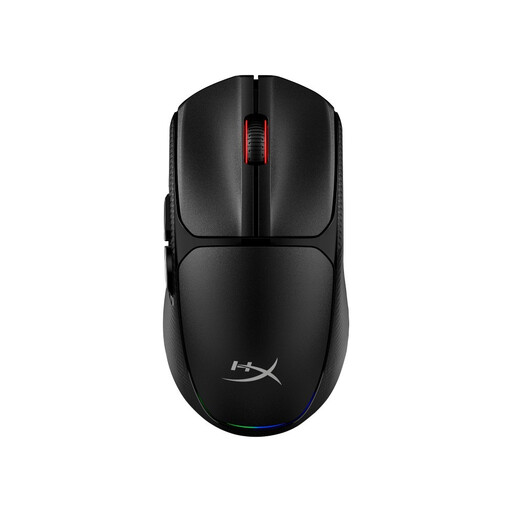
HyperX Pulsefire Fuse wireless gaming mouse
Consider this wireless option if you want to keep mouse movement free of a cable while assessing controls for your usual tools.
Confirm the number and placement of assignable buttons, the sensitivity settings and software compatibility before relying on it for a particular command layout.
View on Joybuy
Common questions
Does a large screen mean I need the highest DPI available?
No: adjustable sensitivity matters more than the advertised maximum when you need both quick cursor travel and controlled object placement. Logitech explains that increasing DPI makes the cursor move faster, so try several settings in your game.
Is a 12-button side panel worth choosing for sandbox games?
It can be worthwhile if repeated keyboard reaches are your main problem and you can comfortably locate the thumb buttons. If you use only a few shortcuts, compare a conventional multi-button layout instead; the grid takes time to map and learn.
Will I need mouse configuration software?
Plan to check software support if you want remapped commands, macros or settings beyond the defaults. Logitech G identifies G HUB, Razer identifies Synapse and Corsair identifies iCUE for features on the respective models discussed here; confirm support for your operating system and whether the settings you need can be stored on the mouse.
How should I compare wireless battery claims?
Compare figures under the connection and lighting settings you intend to use. Corsair states up to 150 hours over 2.4 GHz or up to 500 hours over Bluetooth for the SCIMITAR ELITE WIRELESS SE, with RGB off in both cases; those conditions matter when assessing the claim.


