For virtual spacecraft design, choose a simpler mouse if frequent viewport movement matters more than direct shortcuts; choose configurable scrolling and extra controls if you regularly switch between tools, panels and navigation. A thumb-grid mouse makes more sense when you have many repeated commands you can reliably reach and remember. Check grip and button placement before headline sensitivity figures, and treat lighting as optional rather than a substitute for a desk you can see comfortably.
Who needs which controls?
Shortcut-heavy spacecraft builders
If you repeatedly change tools, views or simulation commands, accessible button mappings may matter more than a minimal control layout. A thumb grid is worth considering only if you can reach its buttons and remember what you assigned to them.
Precision-first viewport navigators
If much of your work involves moving the pointer and repositioning the camera, consider a mouse that feels manageable through repeated movement. A simpler layout may suit you if most commands can stay on the keyboard.
Long-session dark-room users
If you work for extended periods at a low-light desk, start with a shape that suits your grip and controls you can locate comfortably. Configurable mouse lighting can suit your preferred setup, but it should remain secondary to fit and usable desk lighting.
What should you check?
Decide how many commands need a mouse button, then assess movement and grip. The three control layouts below address different parts of the same spacecraft-design workflow.
Light, simple layout
Consider it when: Broad camera movements and a straightforward set of controls take priority. Logitech G lists its PRO X SUPERLIGHT 2 DEX at 60 g with five programmable buttons.
Trade-off: Five buttons leave fewer direct places for design commands, and that model’s right-handed asymmetrical shape needs to suit your grip.
Configurable scroll and controls
Consider it when: You alternate between viewport adjustments, menus and long panels. Razer describes selectable scroll modes and secondary button functions on the Basilisk V3 Pro 35K.
Trade-off: Making use of the extra functions takes configuration, while its right-handed shape still needs a grip check.
Thumb-grid command layout
Consider it when: You have a stable set of many repeatable shortcuts. Corsair describes 16 programmable buttons and an adjustable 12-button side panel on the SCIMITAR ELITE WIRELESS.
Trade-off: A dense grid takes time to learn and can invite mistaken presses if your command assignments keep changing.
| Concern |
What to check |
Who this matters to |
| Command access |
Count your recurring actions and check button reach. Confirm that remapping works with your operating system and design application. |
When tools and simulation actions change repeatedly, I want the commands I use most within easy reach without learning more buttons than I need. Around 42% of consumers put direct command access first. |
| Pointer movement |
Check the stated mouse mass and shape against your usual grip; consider how its connection suits your desk. |
Frequent camera moves make me favour an uncomplicated mouse I can move comfortably across the pad. For around 33% of consumers, movement is the primary concern. |
| Grip and low-light setup |
Check handedness and grip fit, and whether any mouse lighting can be adjusted or turned off. Keep the desk and controls visible. |
During a long session in a dark room, I need a shape that feels comfortable and a desk setup I can navigate. Grip and low-light usability come first for around 25% of consumers. |
Common buying mistakes
-
Choosing by maximum DPI alone
A headline sensitivity figure does not tell you whether the shape, buttons or your chosen setting will work well for detailed design. SCAN UK’s gaming-mouse guide places particular emphasis on finding a comfortable fit.
Choose a suitable grip and control layout, then set a sensitivity you can manage in your design software.
-
Buying a thumb grid without a command plan
A large side panel is useful only when its assigned actions are both repeatable and easy to distinguish by touch.
List the commands you use most. If only a few need direct access, compare smaller programmable layouts before choosing a 12-button grid.
-
Using RGB as a substitute for desk visibility
Configurable mouse lighting does not establish hand comfort or make the keyboard and surrounding workspace visible.
Choose the mouse for fit and control placement; use lighting settings to suit a desk where you can still see what you need.
-
Overlooking disposal of an old mouse
A replaced mouse is electrical waste. GOV.UK describes a same-type retailer take-back obligation when customers buy electrical equipment.
Ask the seller how its take-back arrangement works, or check an appropriate local electrical-waste route before disposing of the mouse.
Brands to consider
These brands illustrate different control approaches; the cited features belong to the named models, not to every mouse each brand makes.
Logitech G
A reference point for a lighter wireless mouse with a relatively simple layout.
- Logitech G lists the right-handed PRO X SUPERLIGHT 2 DEX at 60 g, with LIGHTSPEED wireless and five programmable buttons.
- The five-button layout offers fewer direct shortcut positions than a button-dense mouse; check the asymmetrical shape against your grip.
Razer
A reference point for combining configurable scrolling with additional controls on a right-handed mouse.
- Razer describes multiple scroll modes and Hypershift secondary functions for the Basilisk V3 Pro 35K’s 13 controls.
- Those mappings take setup, and the ergonomic shape will not suit every grip.
Corsair
A reference point for workflows with many stable, repeatable commands.
- Corsair describes 16 programmable buttons and an adjustable 12-button side panel on the SCIMITAR ELITE WIRELESS.
- The grid may be more control than you need if only a few commands recur, and its position still needs to fit your thumb.
Joybuy mouse options
These gaming mice offer different combinations of programmable controls, movement-focused specifications and desk-setup features. Match each one to your shortcut count and grip rather than treating the list as a ranking of every possible mouse layout.
 No image available
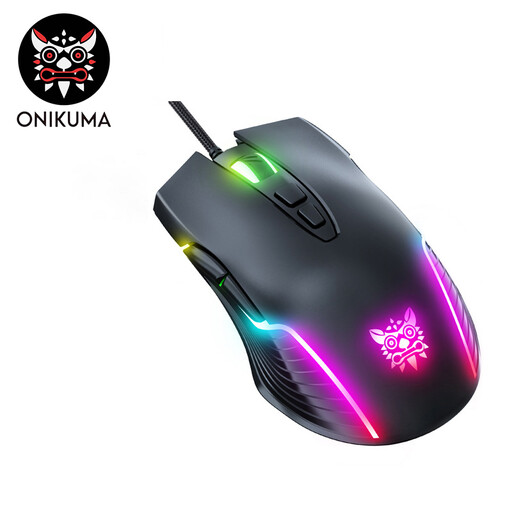
ONIKUMA CW905 wired gaming mouse
Consider this wired model if you want programmable controls and adjustable lighting for your desk.
Its product name specifies programmable buttons and RGB lighting modes. Check that button customisation works with your operating system and design software, and that the shape suits your grip.
View on Joybuy
 No image available
AJAZZ AJ200 AI MC wireless gaming mouse with charging dock
Consider it if connection flexibility and a charging dock matter alongside your design controls.
The product name specifies Bluetooth, 2.4G and USB-C modes and a PAW3311 sensor rated at 24000 DPI. Confirm shortcut-software compatibility before depending on custom mappings, and check the mouse’s actual weight if low-effort movement is a priority.
View on Joybuy
 No image available
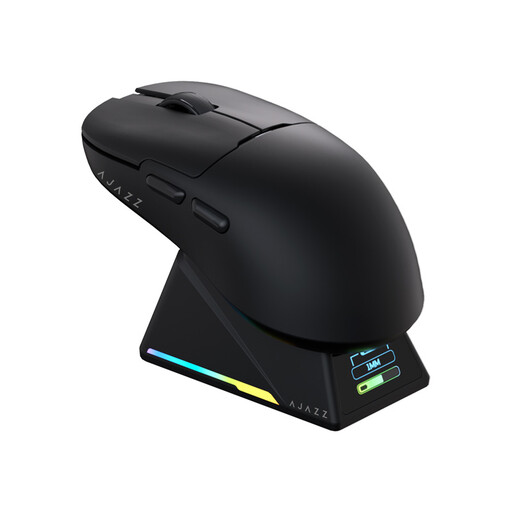
AJAZZ AJ159 APEX wireless gaming mouse with magnetic charging base
Consider it if stated mouse mass matters for repeated viewport movement and you want a charging base on the desk.
The product name specifies 56 g, a PAW3950 sensor, an 8 kHz polling-rate claim and a magnetic charging base with a colour screen. Confirm the connection modes, sensor setting and customisation-software compatibility for this exact model before relying on them.
View on Joybuy
 No image available
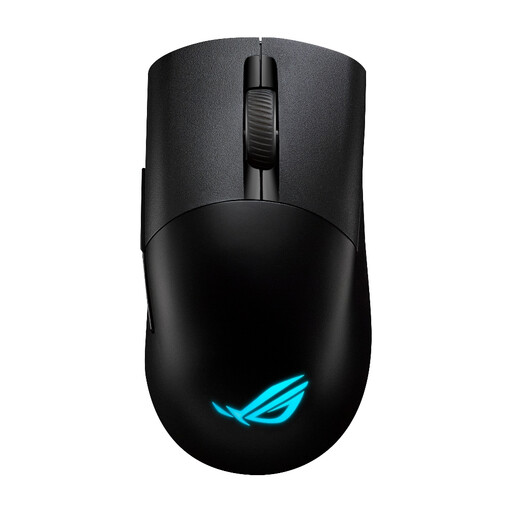
ASUS ROG Keris Wireless AimPoint gaming mouse, black
Consider this model if its right-handed shape fits your grip and a smaller set of direct commands is sufficient.
Check its actual weight before choosing it for low-effort movement. If you need macros or use an operating system other than Windows 10 or 11, confirm the relevant software support for your setup.
View on Joybuy
 No image available
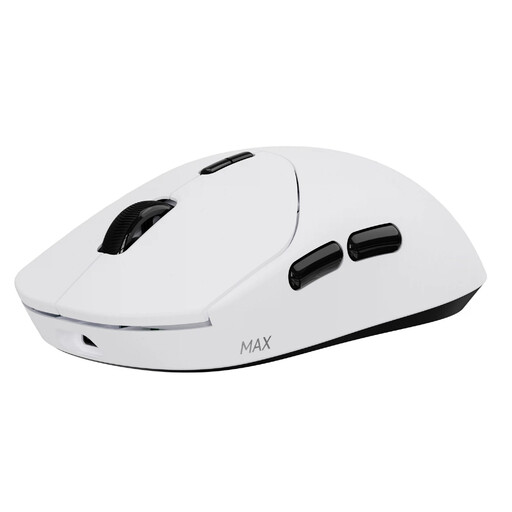
RAPOO VT2 MAX wireless gaming mouse, white
Consider it if you want a stated low mouse mass without giving up a larger set of programmable controls.
The product name specifies 53 g, ten programmable buttons and macro support. Check that its shape fits your hand and that its configuration software works with the computer and design application you use.
View on Joybuy
Frequently asked questions
Do I need a very high DPI setting for spacecraft design?
No: choose a sensitivity that lets you position objects and move the viewport controllably. A mouse’s maximum DPI is a specification, not a setting you need to use; grip and repeatable control also matter.
Is RGB lighting necessary in a dark room?
No. Mouse lighting is optional for this task and does not replace a comfortable grip or enough light to see the desk and controls. If you want RGB, check whether you can adjust it to suit your setup.
Can I put design shortcuts and macros on mouse buttons?
Yes, where the exact mouse and its software support the mappings you need. Corsair describes remapping and macros through iCUE for the SCIMITAR ELITE WIRELESS, while Razer describes secondary functions through Hypershift on the Basilisk V3 Pro 35K. Check operating-system compatibility and any rules that apply to your design application before building a workflow around macros.
What should I do with an old mouse when replacing it in the UK?
Ask the seller about same-type electrical-waste take-back or use an appropriate local collection route. GOV.UK describes a retailer take-back obligation when customers buy electrical equipment; check how the seller’s arrangement applies to your replacement.


