Shortcut-heavy factory planners
If you repeatedly place, rotate, copy and inspect structures, thumb-accessible controls may be worth configuring for the commands you use most. Check that you can reach the buttons without changing your grip.


Choose the control layout around what interrupts your factory-building sessions: a reachable side keypad suits many repeated commands, while a mouse with selectable wheel behaviour suits frequent map and menu navigation. For longer sessions, check grip and button reach before adding controls, and choose wireless only if cable freedom is worth managing charging.
If you repeatedly place, rotate, copy and inspect structures, thumb-accessible controls may be worth configuring for the commands you use most. Check that you can reach the buttons without changing your grip.
If you regularly pan around the factory and work through long production screens or menus, consider wheel behaviour and sensitivity settings alongside programmable buttons.
If you build for extended periods, compare shape, weight, button reach and connection method with your usual grip and desk arrangement. More controls will not compensate for an awkward fit.
Decide which repeated task matters most, then check whether the mouse can handle it comfortably in your game. Button count, wheel modes and wireless connectivity solve different problems; none establishes a good fit on its own.
| Concern | What to check | Who this matters to |
|---|---|---|
| Shortcut access | Count buttons you can reach comfortably and check how you would assign your repeated commands. | When I cycle through build tools and blueprints, I want frequent commands near my thumb rather than relying on keyboard reach; around 31% of consumers put shortcut access first. |
| Map and menu navigation | Compare selectable wheel behaviour and sensitivity controls you can tune to your desk and game. | If maps and lengthy menus take up much of my session, I want scrolling that handles both quick movement and deliberate steps. Around 31% of consumers prioritise navigation. |
| Long-session fit | Compare shape and button reach with your palm, claw or fingertip grip; consider weight in that context. | I build for extended stretches, so a shape that fits my grip matters more than controls I struggle to reach; around 23% of consumers put long-session fit first. |
| Connection and charging | Decide whether a cable disrupts your setup; for wireless models, check connection options and battery conditions. | A cable can get in the way of my desk arrangement, but I also need a charging routine I can manage. Around 15% of consumers put connection flexibility first. |
A dense thumb grid helps only if its buttons suit your reach and you have enough repeated commands to assign to them.
List the actions you would move from the keyboard before choosing a side panel. If considering the CORSAIR SCIMITAR ELITE WIRELESS SE, check whether its adjustable Key Slider places the buttons within comfortable reach.
A headline sensitivity figure does not tell you whether the shape, wheel or settings will suit movement around your factory and its menus.
Look for sensitivity you can adjust, then consider how wheel behaviour and your available desk space affect the way you navigate.
CORSAIR lists up to 150 hours over 2.4 GHz and up to 500 hours over Bluetooth for the SCIMITAR ELITE WIRELESS SE with RGB lighting off. Those figures should not be treated as the same result across connection and lighting settings.
Choose the connection mode you expect to use and keep a charging cable accessible for longer sessions.
Charging can interrupt a session if the mouse has not been charged beforehand.
Button placement and mouse shape can make an otherwise useful layout awkward during extended use. SCAN UK highlights comfort as a difficult part of choosing a gaming mouse.
Compare the candidate with how you hold your current mouse. If you cannot check the fit in person, read the relevant retailer's return terms before ordering.
These brand examples illustrate different control layouts on the named models, not a judgement about every mouse each brand makes.
The SCIMITAR ELITE WIRELESS SE is relevant if many factory-building commands need to sit near your thumb.
The Basilisk V3 is an option for a smaller set of shortcuts alongside frequent scrolling.
The wired G502 X is relevant if you want configurable controls and a wheel with two scrolling modes.
These gaming mice offer wired or wireless starting points for different factory-building setups. Compare reachable controls, scrolling and grip fit against the tasks you perform most often rather than treating the list as a single control-layout recommendation.
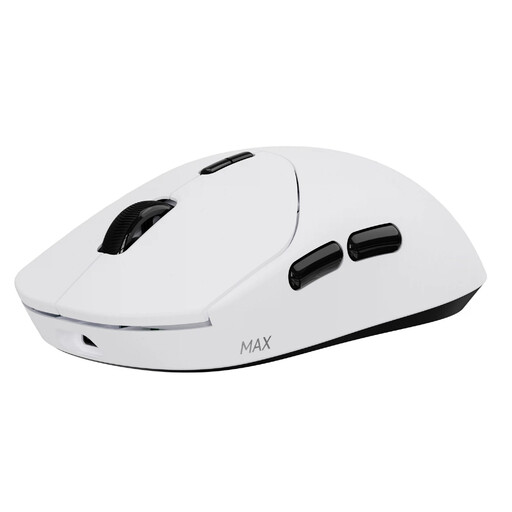 No image available
Consider this model if you want several recurring commands on a wireless mouse. Its title specifies 10 programmable buttons and a 53 g weight; check whether the button positions and wheel suit your grip and navigation tasks.
Its stated battery duration depends on settings, including the low-power mode and polling rate used.
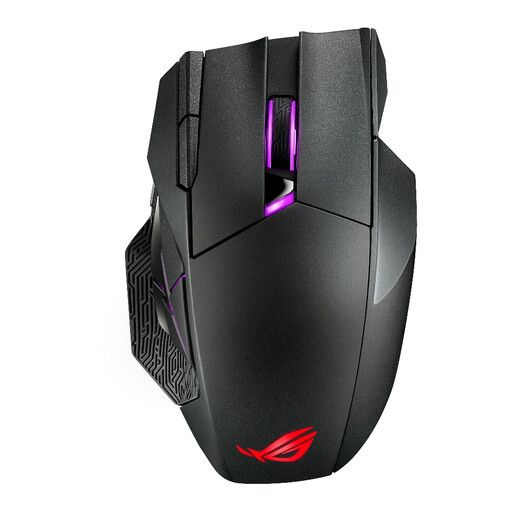 No image available
If you want shortcut access without a cable across your desk, compare this model's reachable controls with the actions you intend to bind. Check its mouse-only weight, grip fit and wheel behaviour if long sessions and menu navigation matter to you.
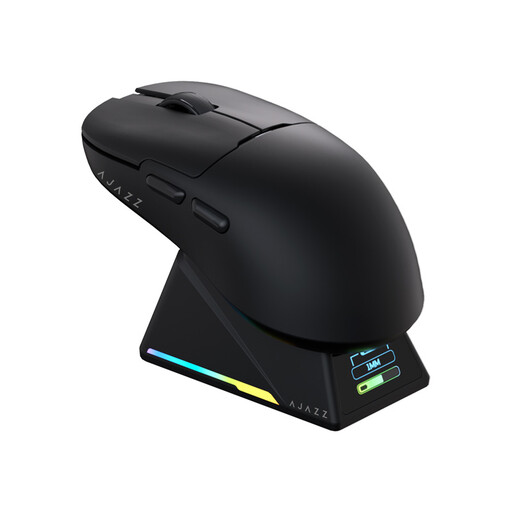 No image available
For a lighter-handling preference, the title specifies 56 g and describes 2.4G wireless and wired connection options with a magnetic charging base. Check the number of buttons you can remap and how the wheel operates before choosing it for command-heavy play.
If maximum sensitivity matters to you, clarify the differing DPI figures in the product information before relying on one.
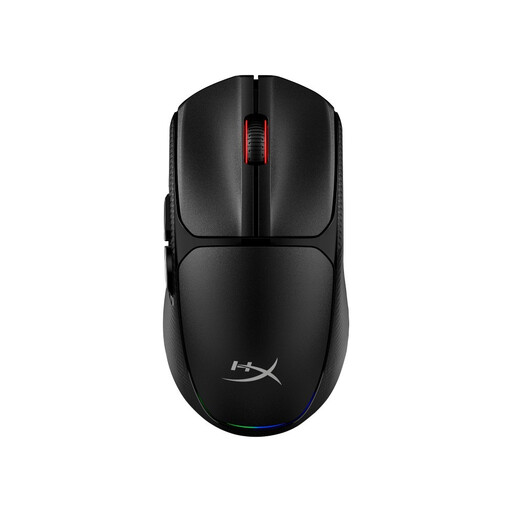 No image available
If wireless desk movement is your priority, check whether this model has enough reachable, remappable controls for your regular build commands. Compare its wheel behaviour and shape with the navigation and grip you use during longer sessions.
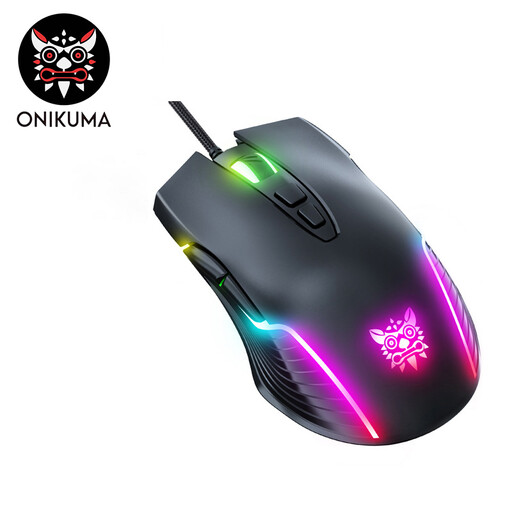 No image available
If a cable suits your desk, this model is worth comparing with wireless options for your usual build commands. Its title describes programmable buttons and adjustable sensitivity; check which buttons can be remapped and whether its wheel suits frequent menu scrolling.
No: display size alone does not establish a useful DPI setting for factory-building play. Choose sensitivity you can adjust, then tune it to your desk space, cursor movement and in-game camera controls.
Choose enough reachable buttons for the commands you actually repeat. A 12-button side panel makes sense if you can assign and comfortably use many commands; if you need only a smaller set, check a less crowded layout and its wheel behaviour instead.
For the SCIMITAR ELITE WIRELESS SE, CORSAIR describes its 2.4 GHz connection as intended for gaming and Bluetooth as suited to everyday computing tasks. Check the connection options on the exact mouse you choose, along with its charging requirements.