Choose a mouse with controls you can reach comfortably for the actions you repeat, rather than choosing by its maximum DPI. An MMO-style button grid is worth considering if you have many commands to map; otherwise, focus on grip, scrolling and a manageable set of shortcuts. A large screen alone does not establish a DPI requirement, so adjust sensitivity for your own display and desk setup.
Who is this for?
Route builders mapping repeat actions
If you regularly place or inspect railway content, accessible thumb buttons may help you organise the commands you use most. Dovetail Games documents mouse interaction with cab controls in Train Simulator Classic; the number of shortcuts you need depends on your own workflow.
Simulator users changing views
If you spend more time driving and inspecting scenery than mapping editor commands, easy-to-find controls and scrolling may matter more than a large side-button grid. Dovetail Games assigns mouse-wheel zoom and mouse camera rotation in its Train Sim World PC controls guide.
Long-session desktop users
If you use a large-screen desk setup for extended sessions, consider the mouse alongside your grip and desk position. The UK Health and Safety Executive advises keeping a mouse within easy reach so it can be used with a straight wrist; no particular mouse shape guarantees comfort.
What matters when choosing?
Start with the commands you would actually put on the mouse, then assess hand fit and scrolling. Train Sim World uses the mouse for camera rotation and its wheel for zoom, so those controls deserve attention alongside button count.
| Concern |
What to check |
Who this matters to |
| Shortcut access |
List repeat commands, then check button reach and the software needed to map them. |
If I keep reaching for editor and camera commands, I want shortcuts under my thumb without losing track of what each button does; around 42% of consumers would put shortcut access first. |
| Long-session comfort |
Check handedness, grip and thumb reach; position the mouse so your arm is not stretched. |
During long building sessions, I need a mouse I can reach with a relaxed hand rather than stretching across the desk; roughly 33% of consumers would make comfort their primary concern. |
| Scrolling and pointer control |
Check sensitivity adjustment and whether the wheel offers the scrolling behaviour you prefer. |
When switching views and placing objects, I want zoom and pointer travel I can control on my display; about 25% of consumers would prioritise navigation and precision. |
Buying pitfalls
-
Choosing by maximum DPI alone
A large display does not establish a required DPI. Railway-simulator controls make pointer movement and scrolling relevant, but a high setting is not a substitute for controllable placement.
Choose adjustable sensitivity and set it up on the display and desk surface you will use.
-
Buying a button grid without commands to map
A dense side panel takes setup and practice. If most commands stay on the keyboard, extra buttons may add complexity without helping your workflow.
Write down your repeat actions before deciding whether a conventional multi-button layout is enough.
-
Judging comfort by the mouse alone
The UK Health and Safety Executive advises keeping the mouse within easy reach and using it with a straight wrist. Mouse shape cannot make up for a position that leaves your arm stretched.
Arrange the desk and chair first, then assess handedness, grip and button reach.
-
Overlooking wireless upkeep
Wireless operation brings charging or battery-management considerations, and stated battery life may depend on particular settings.
Check the exact model’s battery-life conditions, charging connection and available connection modes.
Charging time may interrupt use, depending on the model and connection mode.
Relevant brands to consider
Logitech G
The wired G502 X is a right-handed option to examine if you want several reachable controls and a switchable scroll wheel.
- Logitech G specifies an 89 g weight, an adjustable DPI-shift button and free-spin and ratcheted wheel modes for the G502 X.
- Its shape and control layout still need to suit your hand; those specifications do not establish railway-simulation performance.
Razer
The right-handed Basilisk V3 is relevant if you plan to configure several commands and want a choice of scroll behaviours.
- Razer specifies 11 programmable buttons, profile switching and tactile, free-spin and automatic wheel modes for the Basilisk V3.
- The controls are useful only if their placement works for you and you will configure the actions you need.
Corsair
The Scimitar Elite Wireless SE offers an MMO-style layout to consider when route building calls for many mapped commands.
- Corsair specifies 16 customisable buttons, including a repositionable 12-button side panel, plus wireless and Bluetooth modes.
- A dense button layout takes practice, while wireless use adds charging considerations.
SteelSeries
The Rival 5 is a moderate-button option for users who expect to keep some railway commands on the keyboard.
- SteelSeries specifies nine programmable buttons and an 85 g weight for the Rival 5.
- It offers fewer direct command inputs than a dense MMO-style layout.
Joybuy product choices
These wired and wireless gaming mice offer different starting points for a large-screen virtual railway. Compare their stated controls with the shortcuts you use, and check wheel behaviour and hand fit before choosing.
 No image available
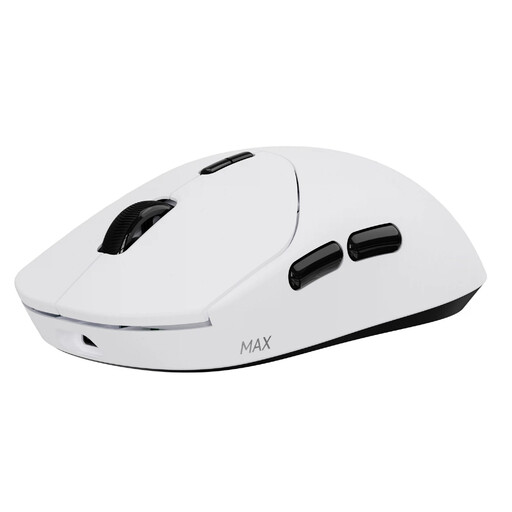
RAPOO VT2 MAX Wireless Gaming Mouse, White
Consider this model if you have several repeat commands to place on the mouse. Its listing names 10 programmable buttons and a 53 g weight; check its wheel behaviour for zoom and scrolling, as well as how the shape fits your hand.
View on Joybuy
 No image available
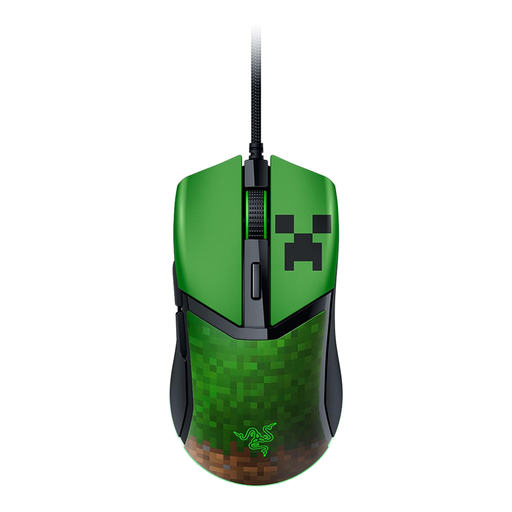
Razer Cobra Wired Gaming Mouse, Minecraft Edition
If a wired mouse suits your desk setup, assess this Minecraft Edition against the railway controls you plan to use. Check button number and placement, and whether its wheel feels suitable for zoom and scrolling.
View on Joybuy
 No image available
AJAZZ AJ200 AI MC Wireless Gaming Mouse with Charging Dock
Consider this model if you want a charging dock and a choice of connections at your desk. Its listing names Bluetooth, 2.4G and USB-C modes; check button reach and wheel behaviour against your railway controls, and confirm the weight if it affects your choice.
View on Joybuy
Common questions
Do I need a very high-DPI mouse for a large screen?
No particular DPI follows from screen size alone. Dovetail Games documents mouse camera rotation, wheel zoom and cab-control interaction in its railway simulators; choose adjustable sensitivity and set it for comfortable pointer travel and controlled placement on your own display.
How many programmable buttons should I choose?
Choose enough reachable buttons for the actions you will actually map. A moderate-button layout makes sense when most commands remain on the keyboard; consider a dense side panel when you can identify many repeat actions and are willing to learn their positions.
Is free-spin or ratcheted scrolling more useful?
Ratcheted scrolling gives distinct steps, while free-spin scrolling lets you move through long lists or repeated scroll actions more quickly. Logitech G and Razer specify switchable or configurable modes on the G502 X and Basilisk V3 respectively; choose according to how you navigate and zoom.
How should I position the mouse for long sessions?
Keep it within easy reach and aim to use it with a straight wrist. The UK Health and Safety Executive also advises against stretching the mouse arm or gripping too tightly; desk position matters alongside the mouse you choose.


