Choose a PC for the recording and editing you plan to do, not for gaming specifications alone. Hardware video encoding can reduce CPU workload while recording, and Adobe recommends more memory for editing 4K footage than HD footage. A camera-led controller tutorial does not need a capture card unless you also need to bring in an external HDMI feed; if you do, check the capture device’s connection requirements before choosing the PC.
Who the setup needs to serve
Camera-led controller tutorial makers
If the lesson mainly shows your hands, the controller and a screen recording from the same PC, focus on dependable recording and straightforward editing. An external gameplay feed is a separate requirement, not an automatic part of this setup.
Console-gameplay demonstrators
If viewers must see controller inputs alongside gameplay from a console or second PC, check how that HDMI feed will reach the recording PC. The capture device’s required port and cable become part of the PC decision.
4K tutorial editors
If you plan to edit 4K footage, memory and working storage deserve closer attention. Adobe’s Premiere 25.x recommendations specify 32 GB or more RAM for 4K and higher media, compared with 16 GB for HD media.
What to check before choosing
Decide whether the tutorial needs an external gameplay feed, then match the PC to your recording software and intended editing resolution.
| Concern |
What to check |
Who this matters to |
| Recording and encoding |
Check the exact GPU and which hardware encoder your recording software can use. OBS Project explains that hardware encoding moves encoding work away from the CPU. |
If I am recording the demonstration and gameplay together, I need the recording setup to keep pace without relying on gaming performance alone; around 42% of consumers put dependable recording first. |
| Editing memory and storage |
Match RAM to your footage: Adobe recommends 16 GB for HD media and 32 GB or more for 4K and higher in Premiere 25.x. Check SSD capacity for the application, cache and media. |
When my footage is ready to edit, I need room for the project and its working files, especially if I move to 4K; roughly 33% of consumers prioritise editing capacity. |
| External gameplay capture |
Check whether you need HDMI capture at all. For the Elgato Game Capture 4K X, confirm an unencrypted HDMI source and a suitable direct USB connection; Elgato specifies USB 3.2 Gen 2 for its stated requirements. |
If the lesson includes gameplay from my console or another PC, I need that feed to reach the recording PC at the intended resolution; about 25% of consumers make capture connectivity their primary concern. |
Buying mistakes to avoid
-
Choosing by gaming frame rate alone
A PC can meet your gaming aims while its memory, working storage, encoder setup or ports do not match the tutorial workflow. Adobe’s Premiere recommendations also differ between HD and 4K media.
Write down the footage resolution, recording software, editor and any simultaneous gameplay capture before checking the exact configured GPU, RAM, SSD and ports.
-
Assuming every USB port suits a capture card
The required connection depends on the device. Elgato specifies USB 3.2 Gen 2 for the Game Capture 4K X and notes that USB 3.2 Gen 1 works at reduced capture resolution.
Match the capture device’s requirement to a named PC port and suitable cable; do not assume a hub or dock provides an equivalent connection.
If the available connection falls short, you may need to change the capture device or connection setup.
-
Buying capture hardware for a camera-only lesson
A capture card brings in a compatible external HDMI feed. It is not needed simply to film the physical controller with a camera and record the same PC’s screen.
Settle the video plan before adding capture hardware: include it when console or second-PC footage must appear in the tutorial.
An unnecessary capture device also adds cables and setup work.
-
Reading a desktop-family description as an exact specification
Memory, graphics, storage and ports can vary between configurations in the ASUS ROG, Lenovo Legion and HP OMEN lines.
Keep the full model and configuration identifier when comparing listings, and check the individual product’s ports, storage, memory and warranty before ordering.
Relevant desktop brands
ASUS ROG
ASUS UK Store lists both the compact ROG G22CH and the larger ROG G700, giving buyers different chassis sizes to consider for a home studio.
- The listed G22CH configuration has 32 GB DDR5 RAM, 2 TB NVMe storage and RTX 4070 Super graphics; ASUS also lists front 10 Gbps USB ports.
- Check the compact model’s available ports and expansion against your planned capture and storage setup rather than assuming it can be expanded like a larger tower.
Lenovo Legion
Lenovo’s UK Legion desktop range includes Tower 5 and Tower 7 lines for buyers comparing tower configurations.
- Lenovo describes upgradeable memory and storage and tool-free access for specified models in the range.
- Those range descriptions do not establish the RAM, graphics card, ports or warranty of every configuration; check the individual model.
HP OMEN
HP’s UK OMEN 35L line is a prebuilt desktop option for buyers considering a tower with a stated upgrade path.
- One HP Store UK OMEN 35L configuration lists a Core Ultra 7 265F, 32 GB RAM and a 1 TB SSD; HP describes the line as tool-less and upgradeable.
- Confirm the exact variant’s components and expansion options rather than applying one configuration’s specification to the whole OMEN 35L line.
Joybuy product choices
These choices include four desktops with 32 GB RAM for buyers planning more demanding editing, plus a Lenovo laptop with 16 GB RAM for a more self-contained HD-focused setup. The listed components alone do not establish compatibility with a particular capture card or recording-software encoder.
 No image available
CyberPowerPC JOYB1013 — Ryzen 7 9800X3D, RTX 5080 16 GB
Consider this desktop if your tutorial plan includes 4K editing: its listed 32 GB DDR5 RAM meets Adobe’s Premiere 25.x memory recommendation for 4K and higher media.
It lists a 2 TB NVMe SSD and Windows 11 Home. If you plan to use an external capture card, check its required port and cable against this configuration; also confirm encoder support for your recording software.
View on Joybuy
 No image available
Stormforce Cyclone — Core i7, RTX 5080, 32 GB RAM
Its listed 32 GB RAM makes this desktop worth considering for a 4K editing plan under Adobe’s Premiere 25.x memory guidance.
The title also specifies a 2 TB SSD and Windows 11. Check the exact USB port and cable requirements if the tutorial will include external HDMI capture, and confirm the encoder available to your recording software.
View on Joybuy
 No image available
CyberPowerPC JOYB1010 — Core Ultra 7 265KF, RTX 5070 12 GB
For a recording setup that will also edit 4K footage, its listed 32 GB DDR5 RAM meets Adobe’s Premiere 25.x memory recommendation for 4K and higher media.
The configuration lists a 1 TB NVMe SSD and Windows 11 Home. Plan how much working space your footage needs, and check capture-device port compatibility and recording-software encoder support separately.
View on Joybuy
 No image available
Stormforce Defiance — Ryzen 7 5700X, RTX 5070, 32 GB RAM
This desktop’s listed 32 GB RAM aligns with Adobe’s Premiere 25.x memory recommendation if 4K editing is part of the tutorial workflow.
It also lists a 2 TB SSD and Windows 11. Before planning external gameplay capture, match the intended device to a suitable PC port and cable, and check encoder support for the recording software you will use.
View on Joybuy
 No image available
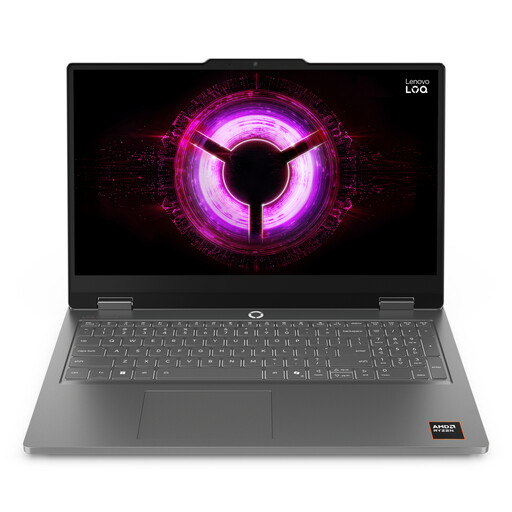
Lenovo LOQ Essential 15ARP11 — Ryzen 7 170, RTX 5050
This laptop is an option when you want the PC and display in one unit for an HD-focused tutorial setup. Its listed 16 GB RAM matches Adobe’s Premiere 25.x memory recommendation for HD media; Adobe recommends 32 GB or more for 4K and higher.
The title lists a 1 TB SSD and a 15.6-inch 144 Hz FHD display. Check the laptop’s ports against any external capture device and confirm encoder support for your recording software.
View on Joybuy
Frequently asked questions
Do I need a capture card to film a controller tutorial?
No, not if you are filming the controller with a camera and recording the same PC’s screen. Add a capture card when the tutorial needs gameplay from a console or another external HDMI source; for a device such as the Elgato Game Capture 4K X, check the HDMI source and USB requirements before buying.
Is 16 GB or 32 GB RAM more suitable for editing?
Choose according to the footage you intend to edit: Adobe’s Premiere 25.x recommendations list 16 GB for HD media and 32 GB or more for 4K and higher. For an HD-focused tutorial, 16 GB may fit that guidance; if 4K editing is planned, check configurations with at least 32 GB alongside the rest of the editor’s requirements.
Which PC ports matter for console gameplay capture?
The port must meet the requirements of the capture device you choose. Elgato specifies USB 3.2 Gen 2 for the Game Capture 4K X’s stated requirements and says USB 3.2 Gen 1 works at reduced capture resolution, so check the named PC port, cable and intended recording setup rather than relying on the presence of a USB socket alone.


