Choose the PC around what you will record, rather than its gaming label alone: check the hardware encoder, space for video files and connections required by your capture method. Recording a controller and PC screen does not itself call for an HDMI capture card. To bring console footage into the tutorial, an external USB card offers a setup you can disconnect or move, while an internal PCIe card requires a compatible desktop with a free slot.
Who is this setup for?
Controller-tutorial recorder
You mainly want to film a controller and record a PC screen. Check that your recording software can use the PC’s hardware encoder and that you have room to store the resulting files; an external HDMI feed is not part of this setup.
Console gameplay creator
You want console footage alongside the controller demonstration. The choice of USB or internal PCIe capture card determines which PC connections, display path and cables you need.
One-PC gamer and tutorial creator
You plan to play on the desktop while recording. Consider the exact CPU, GPU, supported encoder and storage together, rather than choosing from an advertised game frame rate alone.
What matters when choosing?
Decide whether the tutorial needs an external HDMI feed before choosing capture hardware. For PC-screen recording, focus on the encoder and storage; for console footage, establish the capture-card connection first.
Record directly on the PC
Choose when: the tutorial shows the controller, a camera view or content running on the PC.
Trade-off: this route does not bring an external console’s HDMI output into the recording.
Add a USB capture card
Choose when: you need an HDMI source and want to disconnect or move the capture setup.
Trade-off: the available capture formats depend on the card and the speed of the PC’s compatible USB port.
Add an internal PCIe capture card
Choose when: the setup will stay at a desktop with a confirmed free slot compatible with the chosen card.
Trade-off: installation means opening the case; this is not a laptop option.
| Concern |
What to check |
Who this matters to |
| Recording and encoding |
Confirm that the exact graphics configuration has a hardware encoder supported by your recording software. OBS Project generally recommends hardware encoding because it moves work away from the CPU. |
If I am recording a PC game alongside a controller demonstration, I want the footage encoded without relying solely on the CPU. Around 44% of consumers put dependable recording first. |
| Console capture connections |
Match an external card to the PC’s USB speed, or an internal card to a free compatible PCIe slot. Check the source-to-card-to-display HDMI path. |
When my tutorial needs console footage, I need the signal to reach both the recording PC and my display. For around 33% of consumers, getting that capture path right is the primary concern. |
| Storage and room fit |
Check SSD capacity for your planned recordings and games, plus case dimensions and any storage expansion you may need. |
If the desktop must fit my spare-room desk and hold recorded files locally, I need a workable physical setup as well as storage. That is the main priority for around 23% of consumers. |
Buying pitfalls
-
Choosing by gaming performance alone
A game-performance figure does not tell you whether the exact PC has an encoder recognised by your recording software or the connections for your capture method.
Check the installed CPU and GPU against the software’s encoder support, then compare the PC’s ports with your planned recording equipment.
-
Treating every USB-C port as equally capable
For Elgato 4K X, Elgato specifies a 10 Gbps USB 3.2 Gen 2 connection for its full stated performance; slower connections reduce the available formats.
Check the speed of the exact PC port required by your chosen card, not just its connector shape.
-
Forgetting the display path
An HDMI capture setup must connect the source, capture card, display and PC in the required arrangement.
List those devices and their connections before ordering, including the cables needed for passthrough.
Elgato’s cited external-card passthrough setup requires an additional HDMI cable.
-
Assuming recording equipment grants reuse rights
A suitable PC and capture card do not, by themselves, give you permission to use protected music, video or other third-party material in a published tutorial.
For a UK tutorial, check the rights and any applicable exception before using such material. GOV.UK explains that permission is generally required unless you hold the rights or an exception applies.
Brands to consider
These prebuilt desktop lines offer configurations to compare; assess the exact model rather than assuming that a brand name establishes capture compatibility.
MSI
An MSI MAG Infinite S3 configuration is listed with an Intel Core i5-14400, RTX 5060, 16 GB DDR5 RAM and a 1 TB SSD.
- Its listed components give you a starting point for comparing a prebuilt desktop with your recording needs.
- Confirm the exact model’s ports, available expansion and operating noise before planning a capture-card installation.
Acer
Acer Nitro and Predator desktops are listed in different configurations, including models with 16 GB memory and either 512 GB or 1 TB SSD storage.
- The listed storage options provide different starting capacities for games and recorded files.
- Check connectivity and storage on the individual model; the Acer name does not establish its recording setup.
PCSpecialist
UK retail listings include the PCSpecialist Flux 350 with a Ryzen 7 7700, RTX 5060 Ti, 16 GB RAM and a 1 TB SSD.
- The stated components allow a configuration-by-configuration comparison.
- Verify the chosen desktop’s spare PCIe slot, USB connection and room-noise suitability separately.
Joybuy desktops for PC-based recording
These gaming desktops are choices to examine if you plan to record on the PC itself. If the tutorial also needs console footage, check each desktop against your chosen USB or PCIe capture card before deciding.
 No image available
CyberPowerPC JOYB1013 gaming desktop, white
Consider this desktop for a fixed PC-recording setup, but confirm its exact CPU, GPU and SSD configuration before choosing it; the supplied configuration details conflict. Also check encoder support and the connections required by any capture card.
View on Joybuy
 No image available
Stormforce Defiance Ryzen 7 5700X, RTX 5070, 2 TB SSD
For keeping game and recording files on one desktop, this configuration lists 32 GB RAM and a 2 TB SSD. It also lists an RTX 5070; confirm encoder support in your recording software and check the exact USB port or free PCIe slot if you will add console capture.
View on Joybuy
 No image available
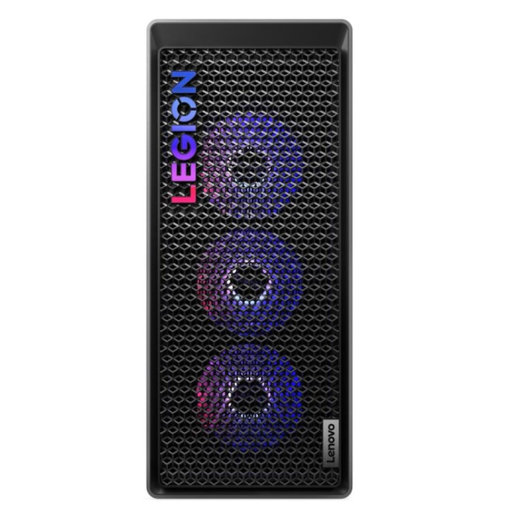
Lenovo Legion T7 34IAS10, RTX 5070 Ti, 1 TB SSD
If you will run games and recording software on one tower, this model lists a Core Ultra 7 265K, 32 GB RAM and an RTX 5070 Ti, with a 1 TB SSD for local files. Confirm encoder support and the exact capture-card connection you need before ordering.
View on Joybuy
 No image available
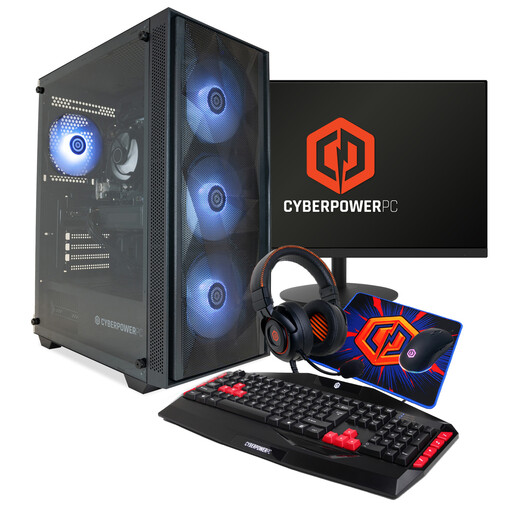
CyberPowerPC JOYB1004 RTX 5060 desktop bundle
For setting up a spare-room desk, this bundle lists a monitor, keyboard, mouse, headset and mousepad alongside the PC. The desktop lists a Ryzen 5 7500F, 16 GB DDR5, an RTX 5060 and a 1 TB NVMe SSD. Confirm the supplied monitor’s specifications, encoder support and any capture-card connections you require.
View on Joybuy
 No image available
CyberPowerPC JOYB1010 RTX 5070 gaming desktop, black
For recording PC gameplay at a fixed desk, this configuration lists a Core Ultra 7 265KF, 32 GB DDR5, an RTX 5070 and a 1 TB NVMe SSD. Check its encoder support in your intended software and confirm capture-card compatibility if the tutorial will include an HDMI source.
View on Joybuy
Frequently asked questions
Do I need a capture card to film a controller tutorial?
Not if you are recording a camera view of the controller and content running on the PC. To bring an external console’s HDMI output into the PC recording, choose a compatible capture device and check how it connects to the display.
Should I choose a USB or PCIe capture card?
Choose USB if you want a setup you can disconnect or move, provided the PC has the port speed required by the chosen card. Choose an internal PCIe card only for a desktop with a confirmed free compatible slot; Elgato specifies an open x4, x8 or x16 slot for its 4K Pro.
Can the gaming PC’s graphics hardware encode my recording?
It can if the exact graphics configuration has an encoder supported by your recording software. OBS Project generally recommends hardware encoding to move encoding work away from the CPU, but the gaming-PC label alone does not confirm which encoder is available.
Can I include third-party music or footage in a UK tutorial?
Do not assume that owning a game or track gives you permission to reuse protected material in a published tutorial. GOV.UK explains that permission or a licence is generally needed unless you hold the rights or an applicable exception covers the use; check the relevant rights and platform terms for what you intend to publish.


