Choose the PC around what you need to record, not gaming specifications alone: check the exact components and available OBS encoder, then test the game, camera and microphone together at your planned settings. Console gameplay also needs a compatible HDMI capture path, whereas filming a controller with a USB camera does not automatically require a capture card. A configurable desktop gives you more control over components, but a fixed configuration may be simpler if it already meets your needs.
Who is this setup for?
PC-gameplay tutorial makers
If you play and record on the same PC, the game, controller footage, commentary and OBS scene must work together at your chosen settings. OBS Project explains why encoder choice and scene complexity matter alongside basic compatibility.
Controller-first home-office creators
If your work centres on filming demonstrations and editing short tutorials at a desk, consider storage, connections and the final component list before choosing a graphics configuration. PCSpecialist offers component selection, while CyberPowerPC UK lists separate creator and editing desktop categories.
Console gameplay demonstrators
If the tutorial must show console gameplay as well as the controller, plan how its HDMI feed will reach the PC. Elgato’s HD60 X specifications illustrate why capture-device connections and recording limits need checking separately.
What matters when choosing?
Decide whether you are recording PC gameplay, a camera view of the controller or a console HDMI feed. Then compare the exact PC configuration with the recording scene and the space available at your desk.
| Concern | What to check | Who this matters to |
|---|
| Gaming and recording together |
Check the exact GPU, its available OBS encoder and performance with your planned game and scene. OBS Project cautions that compatibility alone does not guarantee recording capability. |
I need gameplay, camera footage and commentary to record together without relying on basic software compatibility as a performance promise. Around 36% of consumers may put simultaneous gaming and recording first. |
| Storage and components |
Compare the final processor, GPU, memory and SSD configuration; check connections and options for later expansion. |
If I keep game files, raw clips and edited videos on one machine, the final configuration matters more to me than the range name. Roughly 29% of consumers may prioritise that production workflow. |
| Home-office fit |
Check case dimensions, ventilation space and accessible ports; seek model-specific noise information if the microphone will be close to the PC. |
A tower sharing my recording desk needs to fit without obstructing equipment or putting fan noise close to the microphone. Around 21% of consumers may make desk practicality their primary concern. |
| Console capture |
If recording a console’s unencrypted HDMI output, compare the capture device’s source compatibility, USB requirement and capture format separately from passthrough. |
I want the console game feed in the tutorial, not just a camera view of the controller, so the connection into the PC is central to my choice. Approximately 14% of consumers may put console capture first. |
Buying pitfalls
-
Assuming OBS compatibility means smooth recording
OBS Project says a compatible system is not necessarily capable of the intended recording workload; encoder, resolution, frame rate and scene complexity all matter.
Build your planned scene with the game, camera, microphone and overlays, then make a short test recording before relying on the setup for a tutorial.
-
Choosing a capture device by passthrough alone
Elgato lists different passthrough and capture limits for the HD60 X. The format shown on your monitor therefore does not establish the format you can record.
Compare the source signal, monitor format and desired recording format against the exact device’s separate specifications.
If its capture limit falls short of your planned recording format, you may need a different device or a lower recording setting.
-
Treating all hardware encoders alike
OBS Project notes that encoder generations can differ in image quality at the same bitrate, even though hardware encoding moves work away from the CPU.
Check the exact GPU and encoder option, then compare short recordings at the settings you intend to use.
-
Assuming every PC in a range has the same connections
Configurable ranges from builders such as PCSpecialist can contain different component selections. A range name does not identify the ports, storage or expansion options of your final system.
Keep the final parts list and check its memory, storage, front and rear connections, and upgrade terms before ordering.
A configuration without enough capacity or suitable connections may call for later storage, memory or peripheral accessories.
Brands to consider for this workflow
PCSpecialist
A custom-PC builder relevant if you want to select components for gaming and tutorial production.
- PCSpecialist says its configurator lets buyers choose the processor, graphics card, memory and storage.
- Check the completed configuration and applicable warranty terms; configurability alone does not establish recording performance.
CyberPowerPC UK
Lists gaming, streaming, editing and content-creator desktop categories as starting points for comparison.
- Its separate categories can help you find configurations aimed at different workflows.
- Check an individual system’s components and connections against your OBS scene and equipment; a category label is not a recording test.
Chillblast
Offers custom and prebuilt gaming-PC routes for buyers weighing component choice against a fixed configuration.
- Chillblast describes its systems as hand-built and tested; this is the builder’s own claim.
- CPU, GPU, memory and SSD choices vary, so compare the precise model rather than applying one system’s specification to the range.
NVIDIA GeForce RTX
A graphics platform to examine if your OBS workflow calls for NVIDIA hardware encoding, rather than a PC builder.
- NVIDIA lists NVIDIA Encoder among its RTX 4060-family features; OBS Project documents NVENC as a hardware-encoding option.
- Confirm the exact GPU and encoder available in the PC, then test your intended game and recording settings.
Joybuy product choices
These gaming desktops and a large-screen laptop offer different component and form-factor starting points for a home-office controller tutorial. Compare each listing with your game, recording scene and peripherals; console HDMI footage requires a separate compatible capture path.
 No image available
Stormforce Cyclone Intel Core i7, 32GB RAM, 2TB SSD, RTX5080
A desktop option if you want to keep PC games and tutorial files on the same machine. The listed configuration includes 32GB RAM and a 2TB SSD; confirm its OBS encoder and test the complete recording scene.
Check tower placement and the connections needed for your camera, microphone and other equipment.
Joybuy
 No image available
Stormforce Defiance Ryzen 7 5700X, 32GB RAM, 2TB SSD, RTX5070
Consider this desktop if your gaming and tutorial workflow calls for the listed 2TB SSD and 32GB RAM. Verify the available OBS encoder and test recording with your intended game and sources.
Confirm that its connections and tower placement suit your desk equipment.
Joybuy
 No image available
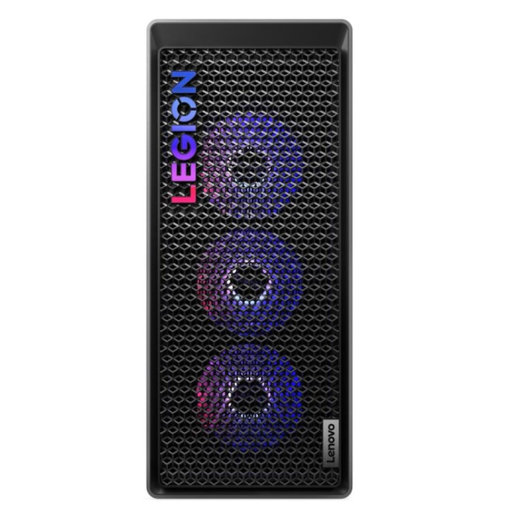
Lenovo Legion T7 34IAS10, Core Ultra 7 265K, 32GB RAM, 1TB SSD, RTX 5070 Ti
A tower to compare if the listed processor and RTX 5070 Ti fit your gaming plans. Its 1TB SSD needs to accommodate your games and footage; check the OBS encoder and test the intended recording scene.
Confirm the final system’s connections and available space for the tower.
Joybuy
 No image available
CyberPowerPC JOYB1013, Ryzen 7 9800X3D, RTX 5080 16GB, 32GB DDR5, 2TB NVMe SSD, White
A desktop configuration to consider when keeping games and tutorial files locally matters. It lists a 2TB NVMe SSD and 32GB DDR5; verify the OBS encoder and test the game, camera and microphone together.
Check the tower’s space requirements and the peripherals you will need.
Joybuy
 No image available
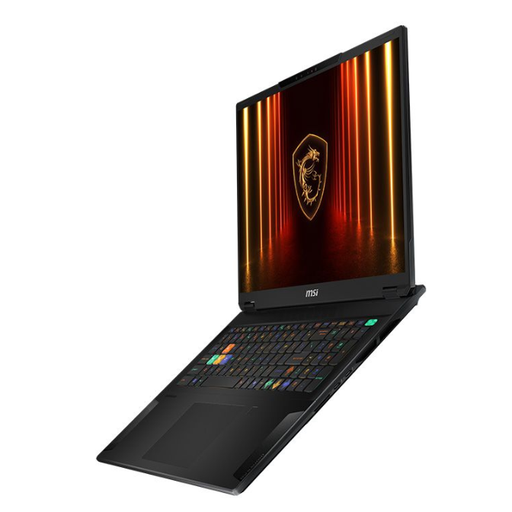
MSI Stealth 18 AI Studio A1VGG-001UK, 18-inch, Core Ultra 9, 32GB RAM, 2TB SSD, RTX 4070
A laptop alternative if you want an 18-inch display rather than a separate desktop tower. Its listed 2TB SSD and 32GB RAM offer a configuration to compare with your file needs; check the OBS encoder and test your recording scene.
Confirm that its connections suit your camera, microphone and any console capture device.
Joybuy
Frequently asked questions
Will any Windows gaming PC record reliably with OBS?
No: meeting OBS compatibility requirements does not guarantee that a PC can record your intended tutorial. OBS Project says the workload varies with encoder, resolution, frame rate and scene complexity, so test the complete scene at your planned settings.
Do I need a capture card to film a controller tutorial?
Not if you are filming the controller with a USB camera and recording PC gameplay directly. To bring a supported, unencrypted console HDMI feed into the PC, choose a capture device whose source support, USB connection and recording limits match your setup.
Should I use hardware encoding in OBS while gaming?
Hardware encoding is a sensible option to test when the same PC runs the game and OBS. OBS Project says it moves encoding work from the CPU to specialised hardware, but encoder generations and recording settings affect the result; compare short clips from your actual scene.
Can a capture card record the same format it passes to my monitor?
Not necessarily: passthrough and capture have separate limits. Elgato lists up to 2160p60 passthrough for the HD60 X, while its listed capture formats include 2160p30 and 1440p60; check both specifications on the exact device you intend to use.


