For gaming and recording on the same PC, choose a desktop with a supported GPU hardware encoder, then assess the graphics card against the games and settings you intend to use. OBS Project says hardware encoding generally shifts encoding work away from the CPU. If you will edit comparison footage, plan for clip storage and separate audio tracks; if footage comes from a console or second PC, check the capture card’s slot and source requirements before choosing a tower.
Who this setup suits
Same-PC game recorders
If you want one desktop to run a game and record it locally in OBS, check its hardware-encoder support alongside its suitability for your chosen game settings. OBS Project recommends hardware encoders generally because they reduce CPU encoding work.
Comparison-video editors
If you keep source clips and adjust game, voice and chat audio separately, storage expansion and editing-format compatibility matter alongside the PC’s gaming specifications. OBS Project documents multitrack recording and the recording-container choices that affect editing.
Console or dual-PC capture users
If footage comes through an internal capture card, check the tower’s available PCIe slot against the card’s interface, as well as the card’s supported input. Those requirements depend on the card; Elgato specifies them for its 4K60 Pro MK.2.
What to check before buying
Decide where the footage will come from, then check the desktop against the game settings, editing workflow and physical space you expect to use.
| Concern |
What to check |
Who this matters to |
| Gameplay while recording |
Confirm the exact GPU and an OBS-supported hardware encoder. Assess gaming capability at your intended resolution, frame rate and settings rather than treating encoder support as a performance guarantee. |
If I play and record on one PC, I need the game to remain usable while OBS captures footage; around 36% of consumers put that gameplay-and-recording balance first. |
| Clips and editing |
Check installed SSD capacity and expansion options, then test your editor with the recording codec, container and any separate audio tracks you need. |
When I compare several takes, I need room to retain clips and a way to adjust their audio in the edit; keeping footage workable is the primary concern for around 36% of consumers. |
| Office fit and expansion |
Measure the intended space and check the exact tower’s dimensions and expansion layout. For internal capture, match a free PCIe slot and the card’s supported input to your source. |
I need a tower that fits my workspace and leaves room for the components my capture setup requires; around 28% of consumers place physical fit or expansion first. |
Buying pitfalls
-
Choosing by GPU name alone
A graphics-card name does not tell you the tower’s memory, storage, dimensions or available expansion. Configurations can differ within the same PC family.
Compare the full specification of the exact model, including its CPU, GPU, memory, SSD, ports and expansion layout. Check any upgradeability claim against the components and slots you intend to add.
-
Assuming every capture card fits every tower
Internal cards have their own slot and source requirements. For example, Elgato specifies a PCIe 2.0 x4 interface and unencrypted HDMI sources for its 4K60 Pro MK.2; those conditions are not a standard for every card.
If internal capture is essential, choose the card and check its interface, supported input and software requirements against the exact PC before ordering.
-
Treating a 1TB SSD as the whole archive plan
Game installs, multiple takes and editing projects can all use the same drive. An advertised starting capacity does not establish how much footage your chosen settings will accommodate.
Plan where recordings and backups will go, and confirm the tower’s storage-expansion options before relying on it for a growing clip library.
-
Overlooking recording-file recovery
OBS Project warns that a conventional MP4 or MOV recording normally needs finalisation, so an interruption while writing can leave the file unrecoverable.
Consider MKV or Hybrid MP4/MOV where appropriate, and test the complete recording-to-editing workflow before a long comparison session.
Relevant brands for reference
HP OMEN
HP Store UK lists an OMEN 35L configuration with an Intel Core i7-14700F, 32GB RAM, a 1TB SSD and an RTX 5070 12GB.
- The listed configuration gives same-PC recorders a specific set of components to assess against their games and recording settings.
- HP describes the chassis as easy to upgrade, but check the exact model’s free slots, ports and dimensions before planning additions.
Lenovo Legion
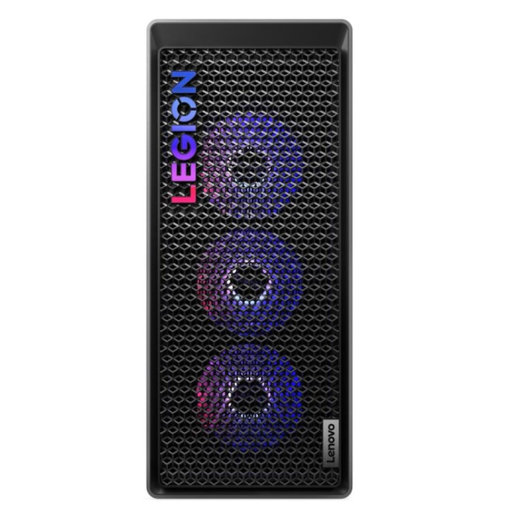
Lenovo UK lists a Legion Tower 5 Gen 10 configuration with a Ryzen 7 7800X3D, RTX 5070 Ti 16GB, 32GB DDR5 and a 1TB SSD.
- Lenovo also specifies an 850W power supply for that particular configuration, giving buyers a model-specific detail to consider when assessing the tower.
- Cooling and quiet-operation descriptions are Lenovo’s claims, not a measure of how a particular tower will sound in your office. Check the exact configuration and its current availability.
Corsair
Corsair UK shows a CORSAIR ONE i600 configuration pairing an Intel Core Ultra 7 270K with an RTX 5070, 32GB DDR5 and a 1TB M.2 SSD.
- The listed configuration is a concrete starting point for checking a prebuilt PC against a recording and editing workflow.
- Confirm the individual PC’s dimensions, cooling and storage-expansion options; specifications on a filtered category page should not be applied to every Corsair configuration.
Joybuy gaming desktops
These desktops are choices to assess for playing and recording on the same PC. If you intend to capture a console or second PC, check the exact tower and capture card for a compatible free slot before choosing any of them.
 No image available
Lenovo Legion T7 34IAS10 – Intel Core Ultra 7 265K, RTX 5070 Ti, 32GB RAM, 1TB SSD
For playing and recording on one desktop, check this RTX 5070 Ti configuration against your game settings; NVIDIA lists AV1 encoding support for the RTX 50 series.
The listed configuration includes an Intel Core Ultra 7 265K, 32GB RAM, a 1TB SSD and Windows 11 Home. If you plan to expand clip storage or install an internal capture card, confirm the free storage connections and PCIe-slot layout on this exact tower.
View on Joybuy
 No image available
Stormforce Defiance – Ryzen 7 5700X, RTX 5070, 32GB RAM, 2TB SSD
For same-PC recording with clips kept locally, this listing combines an RTX 5070 with a stated 2TB SSD; NVIDIA lists AV1 encoding support for the RTX 50 series.
It also specifies an AMD Ryzen 7 5700X, 32GB RAM and Windows 11. Check the tower’s dimensions for your workspace and its free slots if you expect to add storage or an internal capture card.
View on Joybuy
 No image available
CyberPowerPC JOYB1010 – Intel Core Ultra 7 265KF, RTX 5070 12GB, 32GB DDR5, 1TB NVMe SSD
For recording gameplay on the same PC, check whether this RTX 5070 configuration meets your chosen game settings; NVIDIA lists AV1 encoding support for the RTX 50 series.
The title specifies an Intel Core Ultra 7 265KF, RTX 5070 12GB, 32GB DDR5, a 1TB NVMe SSD and Windows 11 Home. Confirm free storage connections and a compatible PCIe slot if your editing archive or capture setup will need them.
View on Joybuy
Frequently asked questions
Should I use CPU or GPU encoding when recording a game on the same PC?
Start by checking whether OBS can use your installed GPU’s hardware encoder. OBS Project generally recommends hardware encoding because it moves encoding work away from the CPU; the practical choice still depends on the game load, GPU and recording format you intend to use.
Do I need a capture card to record gameplay on the same PC?
No capture card is automatically needed for ordinary same-PC recording in OBS. A card becomes relevant for a console, another PC or a specific capture workflow. If you choose an internal Elgato 4K60 Pro MK.2, check for an available PCIe 2.0 x4-compatible slot and match your source to its stated unencrypted HDMI and input-format conditions.
How can I keep game, voice and chat audio separate for editing?
Use separate tracks in OBS Advanced Output and confirm that your editor can work with them. OBS Project says this mode can record up to six audio tracks and suggests MKV for multitrack recording, with remuxing later if your editing workflow needs it.
Should I record comparison footage directly to MP4?
Consider the risk of an interrupted recording before choosing a conventional MP4 file. OBS Project says standard MP4 and MOV files normally require finalisation; MKV is more fault-tolerant but may need remuxing, while Hybrid MP4/MOV is another option. Test your chosen format with the editor and export workflow you will use.


