Choose the PC around how you review footage and how it will connect to your large screen, rather than its gaming label alone. For playback, check the installed graphics card’s outputs against your monitor, cable and intended display settings, then choose storage for the recordings you plan to keep. If you also edit in Adobe Premiere, Adobe recommends an eight-core CPU, at least 32 GB of RAM on Windows and a GPU with at least 4 GB of video memory; those are application-specific recommendations, not requirements for simply watching footage.
Who is this for?
Large-screen tournament reviewers
You mainly watch and compare recordings on an external display. Check the connection between the final PC configuration and your monitor before choosing; Adobe’s Premiere guidance also describes sending a video preview to an attached monitor through the graphics card.
Players who edit their own matches
You play games but also cut clips or export footage. Adobe’s Premiere recommendations make CPU cores, RAM and GPU memory relevant to that editing work, even though straightforward playback is a different task.
Pre-built buyers who value support
You want a ready-made or configurable desktop and need to understand what happens if it requires service. CyberPowerPC UK and Chillblast describe different periods of parts, labour and collection cover, so the warranty breakdown matters more than its headline length.
What matters when choosing?
Start with the monitor connection and your footage workflow. Then compare gaming components, recording storage and support terms against what you will actually use.
| Concern |
What to check |
Who this matters to |
| Large-screen setup |
Match the installed graphics card’s outputs to the monitor inputs, cable and intended resolution and refresh rate. |
If I review rounds on a large screen, I need the final PC and display to connect at the settings I intend to use. Around 33% of consumers put that display setup first. |
| Editing and exports |
For Adobe Premiere, compare the CPU, RAM and GPU memory with Adobe’s recommendations; check codec acceleration in your own software. |
When I trim matches or export highlights regularly, I need a configuration chosen for editing as well as gaming. Around 25% of consumers make that workflow their primary concern. |
| Gaming alongside review |
Compare the complete CPU, GPU, RAM and storage configuration against the games and footage tasks you intend to run. |
I still want to play games on this PC, so I would not choose its components for video work alone. Roughly 25% of consumers prioritise gaming alongside footage review. |
| Storage and support |
Check installed SSD capacity and upgrade options, then read the separate parts, labour and transport warranty terms. |
If I keep recordings locally, I need room for them and clear service arrangements for the desktop. Around 17% of consumers put capacity and support first. |
Buying pitfalls
-
Assuming the gaming-PC name confirms monitor compatibility
PCs in the same range can have different graphics cards and connections. For a second-monitor preview in Premiere, Adobe describes sending video through the graphics card; the hardware in the final configuration is what matters.
Compare the installed card’s outputs with your monitor inputs, cable and intended resolution and refresh rate before ordering.
A mismatch may mean changing the cable or adapter, or reconsidering the display setup.
-
Choosing a base configuration for regular Premiere editing
Adobe recommends an eight-core CPU, at least 32 GB of RAM on Windows and a GPU with at least 4 GB of video memory for Premiere. These recommendations address editing, not simple playback of an existing recording.
If editing or exporting will be routine, check the final PC against the requirements of your application and footage workflow.
Changing memory or other components later can interrupt use while the system is upgraded.
-
Reading a five-year warranty as identical cover throughout
Warranty periods can differ for parts, labour and collection. Chillblast describes parts, labour and collection during its first three years, followed by two years of return-to-base labour cover.
Read the terms for the exact system, including how it must be returned and which services continue in later years.
-
Assuming a GPU feature will work with every video export
NVIDIA describes NVENC as a dedicated hardware video encoder, but its presence does not establish that a particular application, codec or export setting will use it.
Check your software’s current hardware-encoding support against the selected GPU and driver before making it a deciding feature.
Brands to consider
PCSpecialist
A configurable gaming-PC builder for buyers who want to choose the processor, graphics card, memory and storage.
- PCSpecialist says its configurator lets you select those components, which can help align RAM and storage with an editing or recording workflow.
- Check the exact finished specification, build arrangements and warranty terms; configurability alone does not establish monitor or software compatibility.
Scan 3XS
A system-builder option for comparing gaming desktops and their line-specific support terms.
- Scan states that 3XS gaming PCs have a three-year premium warranty and Scan Gaming PCs a two-year warranty.
- Confirm which line the particular desktop belongs to and read its applicable warranty documentation.
CyberPowerPC UK
A builder offering gaming desktops for buyers comparing configurations alongside documented service cover.
- CyberPowerPC UK states that its standard desktop warranty includes two years of parts, five years of labour and 12 months of collect-and-return service.
- Five years of labour does not mean five years of parts or collection cover; check the terms for the chosen system.
Chillblast
A pre-built and custom-PC builder for buyers weighing the desktop configuration against after-sales arrangements.
- Chillblast states that the first three years of its PC warranty cover parts, labour, collection, repair and return.
- Its final two years cover labour on a return-to-base basis, rather than continuing the same collection and parts cover.
Joybuy desktop choices
These gaming desktops and one desktop bundle offer configurations to consider for large-screen tournament-footage review. Match each one to your monitor and decide whether you also need the components for regular editing.
 No image available
CyberPowerPC JOYB1013 — Ryzen 7 9800X3D, RTX 5080 16GB, 32GB RAM, 2TB SSD, white
Consider this desktop if you want to keep recordings locally and also use the PC for gaming or Premiere editing. It has an AMD Ryzen 7 9800X3D, NVIDIA GeForce RTX 5080 16GB, 32GB DDR5 RAM and a 2TB NVMe SSD; confirm that its display outputs match your monitor and cable.
The monitor and peripherals are not included.
View on Joybuy
 No image available
CyberPowerPC JOYB1010 — Core Ultra 7 265KF, RTX 5070 12GB, 32GB RAM, 1TB SSD, black
Consider this desktop if you edit footage in Premiere as well as review it and a 1TB drive suits the recordings you intend to keep. It has an Intel Core Ultra 7 265KF, NVIDIA GeForce RTX 5070 12GB, 32GB DDR5 RAM and a 1TB NVMe SSD; check the monitor and cable connection before buying.
The monitor and peripherals are not included.
View on Joybuy
 No image available
Stormforce Cyclone — Intel Core i7, RTX 5080, 32GB RAM, 2TB SSD
Consider this desktop if your review workflow calls for local recording storage alongside gaming and editing. It has an Intel Core i7, RTX 5080, 32GB RAM and a 2TB SSD. Confirm the exact graphics-card outputs before ordering, particularly which connection provides HDMI.
The monitor and peripherals are not included.
View on Joybuy
 No image available
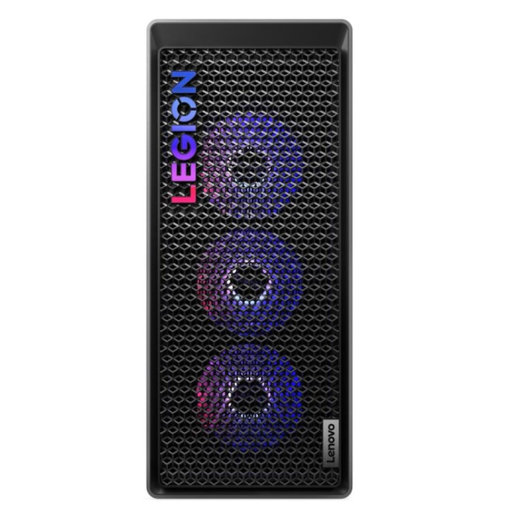
Lenovo Legion T7 34IAS10 — Core Ultra 7 265K, RTX 5070 Ti, 32GB RAM, 1TB SSD
Consider this tower if you want a gaming PC with 32GB RAM for a workflow that also includes Premiere editing. It has an Intel Core Ultra 7 265K, RTX 5070 Ti and a 1TB SSD. Confirm which ports belong to the graphics card, as well as the warranty and bundle contents, before choosing it for your large screen.
View on Joybuy
 No image available
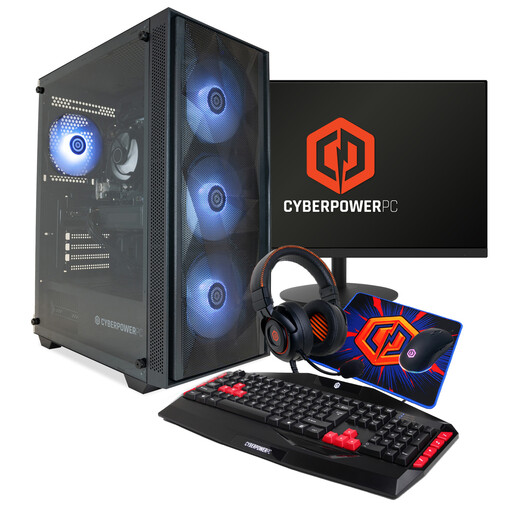
CyberPowerPC JOYB1004 bundle — Ryzen 5 7500F, RTX 5060 8GB, 16GB RAM, 1TB SSD, monitor
Consider this bundle if you need a desktop, monitor and peripherals together, but confirm that the included monitor’s size, inputs and refresh rate suit your large-screen setup. The PC has an AMD Ryzen 5 7500F, NVIDIA GeForce RTX 5060 8GB, 16GB DDR5 RAM and a 1TB NVMe SSD; a keyboard, mouse, headset and mousepad are included.
Its six-core CPU and 16GB RAM fall below Adobe’s Premiere recommendations for regular editing, which are not minimum requirements for watching existing footage.
View on Joybuy
Common questions
Do I need a particular PC just to show tournament footage on a large monitor?
Not necessarily: for playback, check that the final PC’s display output, your monitor input and the cable support the settings you intend to use. If you review in Adobe Premiere, Adobe also describes sending its Program Monitor preview to an attached display through the graphics card.
When should I choose 32GB of RAM?
It is particularly relevant when footage review includes regular Adobe Premiere editing or exports. Adobe recommends at least 32 GB of RAM on Windows, alongside an eight-core CPU; that guidance is specific to Premiere rather than a universal minimum for watching recordings.
Will an NVIDIA GPU automatically speed up my video exports?
No. NVIDIA describes NVENC as dedicated video-encoding hardware, but your application, codec, export settings, GPU model and driver must support its use. Check those details in the software you plan to run.
How should I compare gaming-PC warranties?
Compare parts, labour and transport cover separately for the exact system. CyberPowerPC UK states that its standard desktop warranty includes two years of parts, five years of labour and 12 months of collect-and-return service; Chillblast describes three years including parts and collection, followed by two years of return-to-base labour cover.


