Choose a desktop around the animation software and games you intend to run. If you will use Blender or keep several creative tools open, its published Windows recommendation of 32 GB RAM and 8 GB graphics memory is a useful reference point, not a requirement for every sprite project. Plan the display separately: the Occupational Safety and Health Administration notes that bright light can wash out a screen, something a faster tower will not fix.
Who is this setup for?
The useful specification depends on whether mixed use, daylight visibility or future rendering work is the main reason for changing your setup.
Sprite animators who also game
If animation software, reference images and games share one desktop, compare system memory, graphics memory and SSD capacity alongside the requirements of your actual applications. Blender Foundation publishes separate minimum and recommended Windows specifications; a gaming label alone does not establish creative-software suitability.
Bright-window desk users
Your tower and display are separate decisions. When daylight reaches or reflects in the screen, consider where the monitor can sit and whether you can control light from the window before choosing PC components.
GPU-rendering experimenters
If sprite work may develop into Blender scenes or 3D assets, check the renderer, supported graphics back end, drivers and graphics memory. Blender Foundation notes that GPU memory can constrain complex scenes.
What matters when choosing?
Start with your software and simultaneous applications, then plan the screen for its daylight position. Give rendering compatibility greater weight only if you expect to use that workflow.
| Concern |
What to check |
Who this matters to |
| Animation and gaming capacity |
Check installed RAM, GPU and graphics memory, SSD capacity and your software's requirements. Blender Foundation recommends 32 GB RAM and 8 GB graphics memory for Windows; a lighter 2D application may have different needs. |
If I animate with references and other applications open, I need a desktop that can accommodate that workload as well as my games. Around 42% of consumers put this mixed-use capacity first. |
| Daylight visibility |
Check whether you can turn the display relative to the window and control direct light with blinds or curtains. Assess the intended monitor in the room where possible. |
Working beside a bright window, I need to see sprite details without light washing out the display. Daylight usability comes first for around 33% of consumers. |
| Future GPU rendering |
Identify the intended renderer, then check the exact GPU, graphics memory, supported back end and driver requirements. Blender documents CUDA and OptiX for NVIDIA, HIP for AMD and oneAPI for Intel. |
If my projects move from sprites into GPU-rendered scenes, I want the graphics card to suit that software rather than rely on its gaming name. Around 25% of consumers prioritise this rendering path. |
Buying pitfalls
-
Assuming an entry gaming specification suits every creative workload
Scan's entry gaming examples include 16 GB RAM and SSDs starting at 500 GB, while Blender Foundation recommends 32 GB RAM for Windows. A lighter 2D workload may be comfortable with less, but the game's requirements alone do not settle the animation decision.
Compare the exact RAM, graphics memory and storage with your animation software and the applications you expect to keep open together.
-
Choosing the tower without planning the screen
Light falling on or reflecting in a display can make images harder to see. The Occupational Safety and Health Administration advises positioning bright window light at right angles to the screen where possible and using blinds or drapes to control it.
Work out the monitor position and window covering before deciding how much of the setup to devote to the tower.
A separate monitor, stand or window covering may be part of making the workstation usable in daylight.
-
Treating all gaming GPUs as interchangeable for rendering
Blender Foundation documents different GPU-rendering back ends for NVIDIA, AMD and Intel, and notes that graphics memory can limit complex scenes. A graphics card's gaming designation does not establish support for your chosen rendering workflow.
Name the application and renderer, then check its requirements against the exact GPU and driver before buying.
-
Applying Great Britain product-marking guidance to Northern Ireland
The Department for Business and Trade's guidance on UKCA and CE marking applies to products placed on the market in England, Scotland and Wales; it says processes differ for Northern Ireland.
For delivery to Northern Ireland, check the seller's applicable product information and warranty arrangements rather than assuming the Great Britain guidance covers the purchase.
Relevant brands to consider
These product lines illustrate configurations worth comparing; the stated components belong to particular models, not every desktop bearing the brand.
HP OMEN
HP's OMEN 35L range includes ready-built gaming towers with stated component configurations.
- One HP Store UK OMEN 35L configuration lists a Core Ultra 5 245K, 32 GB RAM, a 1 TB SSD and an RTX 5060 Ti with 16 GB graphics memory.
- Check the exact OMEN variant rather than assuming those specifications apply across the range. A monitor and glare-control plan remain separate choices.
Lenovo Legion
Lenovo's Legion Tower 5i Gen 10 line offers gaming-desktop configurations with differing components.
- Lenovo UK lists configuration 90YACTO1WWGB2 with 32 GB DDR5 memory and a 1 TB PCIe Gen4 SSD.
- That configuration lists an RTX 5060 Ti with 8 GB graphics memory. Compare the exact model's capacity with your rendering plans rather than treating Legion configurations as identical.
Scan 3XS
Scan's 3XS gaming-PC range offers component combinations to compare for lighter 2D work and gaming.
- Scan UK shows entry examples with 16 GB memory and 500 GB or 1 TB SSD storage.
- Those examples do not match Blender Foundation's recommended 32 GB Windows RAM specification; check your own application and multitasking needs.
Joybuy desktop choices
These gaming towers offer configurations to compare for sprite animation alongside gaming, including a 16 GB RAM option for lighter work. None replaces the need to choose and position a suitable display beside the window.
 No image available
CyberPowerPC JOYB1013 Ryzen 7 9800X3D and RTX 5080, White
Consider this tower if you want a 32 GB configuration for animation and gaming, and check your renderer's GPU and driver requirements if you plan to use it.
AMD Ryzen 7 9800X3D; NVIDIA GeForce RTX 5080 with 16 GB graphics memory; 32 GB DDR5 RAM; 2 TB NVMe SSD; Windows 11 Home.
Plan the display position separately and confirm which peripherals are supplied.
View on Joybuy
 No image available
CyberPowerPC JOYB1010 Core Ultra 7 265KF and RTX 5070, Black
This 32 GB tower is an option for keeping animation and gaming on one desktop; confirm that its GPU and drivers suit any rendering software you intend to use.
Intel Core Ultra 7 265KF; NVIDIA GeForce RTX 5070 with 12 GB graphics memory; 32 GB DDR5 RAM; 1 TB NVMe SSD; Windows 11 Home.
Check the supplied peripherals and arrange a monitor position that limits window reflections.
View on Joybuy
 No image available
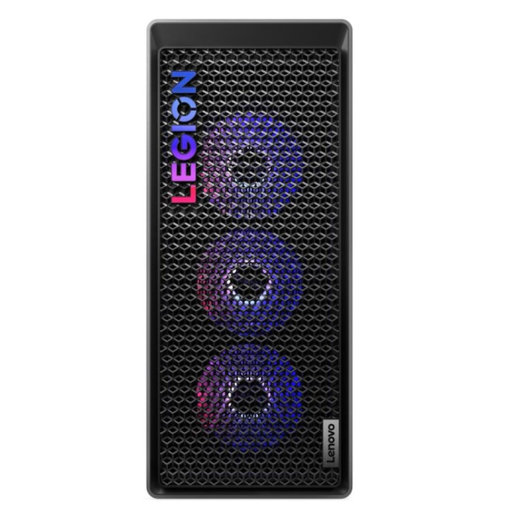
Lenovo Legion T7 34IAS10 Core Ultra 7 265K and RTX 5070 Ti
Its stated 32 GB RAM and 1 TB SSD make it relevant to a mixed animation-and-gaming shortlist; check the exact GPU details against any planned rendering work.
Intel Core Ultra 7 265K; 32 GB RAM; 1 TB SSD; NVIDIA GeForce RTX 5070 Ti; Windows 11 Home.
Confirm what display equipment is supplied and plan for glare at the desk.
View on Joybuy
 No image available
Stormforce Cyclone Core i7 and RTX 5080
Consider the stated memory and storage if games, project files and animation applications will share the tower; establish software compatibility before choosing it for GPU rendering.
Intel Core i7; 32 GB RAM; 2 TB SSD; NVIDIA GeForce RTX 5080; Windows 11.
Plan for a separate monitor, keyboard and mouse, and account for window light when positioning the screen.
View on Joybuy
 No image available
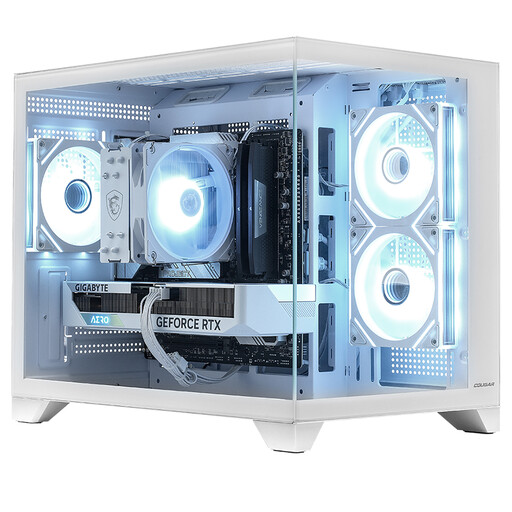
Stormforce White Ryzen 5 and RTX 5060 Ti
This 16 GB configuration is worth considering for lighter 2D sprite work and gaming if your applications fit its stated components. Blender Foundation's Windows RAM recommendation is 32 GB, so check your intended multitasking workload.
AMD Ryzen 5; 16 GB RAM; 1 TB SSD; NVIDIA GeForce RTX 5060 Ti; Windows 11.
Confirm the display equipment you need and the exact software and driver requirements before buying.
View on Joybuy
Frequently asked questions
Will a more powerful PC make a screen easier to see beside a bright window?
No: tower performance does not remove light falling on or reflecting in the display. The Occupational Safety and Health Administration advises turning the screen so bright window light is at right angles where possible and using blinds or drapes to control it.
What PC specification should I use as a starting point if I might use Blender?
Blender Foundation's published Windows recommendation is a useful reference: an 8-core CPU, 32 GB RAM and 8 GB graphics memory, with a 1920 × 1080 display recommended for optimal use. Check the requirements of your actual sprite-animation application and games; Blender's figures are not a universal specification for other software.
Do the GPU brand and drivers matter for Blender rendering?
Yes, if you intend to use Blender Cycles GPU rendering. Blender Foundation documents CUDA and OptiX for NVIDIA, HIP for AMD and oneAPI for Intel, subject to the applicable GPU and driver requirements. Check support for the exact card rather than assuming any gaming GPU will work with your preferred back end.
Does a regular work setup bring display-screen duties for an employer?
It can. The Health and Safety Executive says Great Britain's display-screen-equipment rules apply to workers who use a display daily for continuous periods of an hour or more. In that situation employers have duties including workstation assessment and risk reduction; these duties are not a PC specification rule for an ordinary home purchase.


