Single-PC strategy-guide recorder
You want to play, narrate and record on one desktop. OBS Project explains that hardware encoding can reduce CPU encoding load, although OBS still needs GPU resources to render the scene.


Choose a gaming PC around your strategy game’s settings and the guide you plan to record, rather than game specifications alone. Check the GPU’s hardware encoder and leave graphics headroom for OBS; give storage and memory more attention if you will keep footage, edit regularly or use complex scenes.
You want to play, narrate and record on one desktop. OBS Project explains that hardware encoding can reduce CPU encoding load, although OBS still needs GPU resources to render the scene.
You plan to keep footage and work with separate commentary and game-audio tracks. SSD space, recording format and editor compatibility matter alongside gameplay.
You intend to record at a higher resolution or frame rate, or use more complex OBS scenes. OBS Project says system requirements vary with the encoder, resolution, frame rate and scene complexity.
Start with your game and intended recording settings, then check encoder support, graphics headroom and the space needed for saved footage. OBS Project notes that hardware encoding reduces CPU encoding work but does not remove OBS’s need for GPU resources.
| Concern | What to check | Who this matters to |
|---|---|---|
| Stable gameplay and capture | Confirm the exact GPU’s supported hardware encoder and leave graphics headroom at your chosen game settings. | If I play and narrate on one PC, I need OBS to keep up while the game is running. Around 37% of consumers would put capture stability first. |
| Storage and editing | Check SSD capacity for games and retained footage, plus expansion options and compatibility with your intended recording and editing formats. | When I save sessions for editing, I need room for footage and a workable way to handle separate audio tracks. Roughly 27% of consumers would make that workflow their primary concern. |
| Mainstream recording setup | Compare the exact GPU, memory and SSD configuration against your game, recording resolution and OBS scenes. | If I record at conventional settings, I want a workable one-PC setup without choosing components solely for demanding capture plans I do not have. About 18% of consumers would prioritise that balance. |
| Demanding capture settings | Check the target resolution and frame rate, scene complexity and the exact GPU’s encoder capabilities. | For higher-resolution footage or elaborate scenes, I want enough resources left for recording alongside gameplay. Around 18% of consumers would put that headroom first. |
A game can appear smooth while OBS struggles to render or encode its scene. According to OBS Project, hardware encoding reduces CPU encoding load, but recording still needs GPU resources.
Check the GPU’s encoder support and assess the intended game settings, OBS scene, recording resolution and frame rate together.
A format that suits local capture may need a different export workflow for editing or upload. OBS Project recommends MKV for many recording workflows and explains that it can be remuxed later.
Check that your editor can use the recording and any separate audio tracks, and confirm the formats accepted by your intended destination before settling on AV1 or HEVC.
Saved footage shares storage with games and working files. The capacity you need depends on your recording settings and how many sessions you retain; a listed SSD size alone cannot settle that question.
Consider how long you will keep footage, check whether storage can be expanded and plan how you will back up or clear completed projects.
Keeping a large archive may also require additional storage or a separate backup drive.
A configurable gaming-PC route if you want to choose the processor, graphics card, memory and storage for your recording setup.
A route for comparing the CPU, GPU, memory and SSD in specific gaming-PC configurations.
Offers prebuilt and configurable gaming PCs to compare when deciding between a ready-specified system and chosen components.
These desktops provide different starting configurations for recording gameplay on one PC. Compare their listed memory, storage and setup components against your game, OBS settings and plans for editing; their specifications do not establish capture performance at your chosen settings.
 No image available
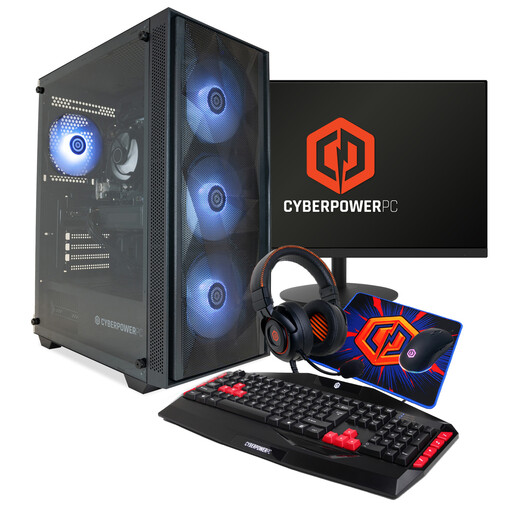
Consider this bundle if you want a desktop and listed setup accessories for playing and recording on one PC.
AMD Ryzen 5 7500F; NVIDIA GeForce RTX 5060 8GB; 16GB DDR5; 1TB NVMe SSD; Windows 11 Home. The bundle lists a monitor, keyboard, mouse, headset and mousepad.
Confirm the monitor’s exact specifications if they matter to your setup, and assess recording at your intended game and OBS settings.
 No image available
Consider this configuration if you plan to retain substantial footage or assess more demanding recording settings.
AMD Ryzen 7 9800X3D; NVIDIA GeForce RTX 5080 16GB; 32GB DDR5; 2TB NVMe SSD; Windows 11 Home.
Allow for a separate monitor and peripherals. Check capture performance with your game, resolution, frame rate and OBS scenes rather than relying on the component list alone.
 No image available
Consider this desktop if keeping recordings on the PC makes memory and SSD capacity important to your choice.
AMD Ryzen 7 5700X; NVIDIA GeForce RTX 5070; 32GB RAM; 2TB SSD; Windows 11.
Check which monitor and peripherals come with the configuration, and assess recording at your intended game and OBS settings.
 No image available
Consider this one-PC configuration if you want the listed 32GB memory while comparing how much SSD space your recording workflow needs.
Intel Core Ultra 7 265KF; NVIDIA GeForce RTX 5070 12GB; 32GB DDR5; 1TB NVMe SSD; Windows 11 Home.
Allow for a separate monitor and peripherals, and check the intended gameplay and capture settings before relying on its recording performance.
 No image available
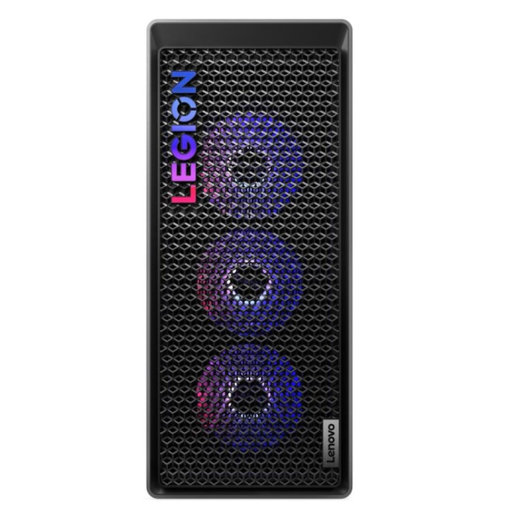
Consider this tower when comparing 32GB-memory desktops for recording alongside gameplay and other tasks.
Intel Core Ultra 7 265K; NVIDIA GeForce RTX 5070 Ti; 32GB RAM; 1TB SSD; Windows 11 Home.
Check whether the 1TB SSD fits the footage you plan to retain and which monitor and peripherals are supplied. Assess capture at your intended game and OBS settings.
No. OBS Project documents hardware-encoding routes through NVIDIA NVENC, AMD AMF and Intel Quick Sync. Check the encoder supported by the exact GPU or processor you are considering, alongside the rest of the PC and your intended recording settings.
OBS still needs GPU resources to compose and render a recording scene, even when hardware encoding reduces CPU encoding work. OBS Project advises addressing GPU overload or other bottlenecks; leave graphics headroom and assess the game, scene, resolution and frame rate together.
MKV is a practical option for an OBS workflow with multiple audio tracks. OBS Project recommends it for many recordings and explains that recordings can later be remuxed; check that your editor can use the separate tracks before you settle on a workflow.