One-PC tournament reviewers
If you will run OBS, footage playback, commentary, browser sources and chat on one desktop, leave enough CPU capacity for those tasks. OBS Project recommends hardware encoding as a way to move encoding work off the CPU.


For a tournament review streamed from one PC, start with a desktop whose exact GPU supports the hardware encoder you plan to use, rather than relying on a ‘streaming PC’ label. Hardware encoding can free CPU capacity for footage playback, OBS and commentary, but the right configuration also depends on your platform, upload connection, recording plans and the space available around the tower.
If you will run OBS, footage playback, commentary, browser sources and chat on one desktop, leave enough CPU capacity for those tasks. OBS Project recommends hardware encoding as a way to move encoding work off the CPU.
If you want to keep local recordings or use a higher resolution or frame rate, choose your destination platform and test your upload connection before deciding on output settings. Check the PC’s installed storage against how much footage you intend to retain.
If the tower must fit around an existing desk and network connection, plan its position, ventilation and cable route before ordering. Twitch recommends wired Ethernet over wireless where possible for a less complex broadcast connection.
Choose the stream destination and encoding route first. Then check the exact PC configuration against your recording plans and the room where it will run; a stronger component list cannot resolve an unstable connection or an awkward tower position.
| Concern | What to check | Who this matters to |
|---|---|---|
| One-PC encoding and multitasking | Confirm the exact GPU and its OBS hardware-encoder support. If you intend to use CPU-based x264 instead, check the processor against your chosen preset and concurrent workload. | I need footage playback, OBS and commentary to run together without making CPU encoding the main competing task. Roughly 44% of consumers put this one-PC reliability need first. |
| Replay output and recording | Check which codecs your destination accepts, test upload stability at your intended settings and confirm the installed SSD capacity against your recording plans. | If I stream fast-moving footage and keep review recordings, I need output settings my connection can sustain and enough space for the files I retain. Around 33% of consumers prioritise that replay-and-recording need. |
| Spare-room practicality | Plan an Ethernet route where possible; check tower dimensions, ventilation clearance and the final case and cooling configuration. | My PC needs to fit the room and stay connected while I broadcast, not merely look suitable on a specification list. For approximately 23% of consumers, that room-and-network need comes first. |
A category label does not tell you which encoder the final GPU supports or whether your destination accepts the codec you want to use. OBS Project distinguishes hardware encoding from CPU-based x264; codec choices also depend on the platform.
Decide where you will stream and which OBS encoder you intend to select, then check the exact GPU model before ordering.
A capable desktop cannot make an unstable local connection reliable. Twitch advises balancing broadcast settings with connection and hardware capacity and recommends Ethernet where possible.
Test upload stability from the spare room while other household devices are active, and plan a wired connection if one is practical.
CyberPowerPC UK says its configurable-system images are examples and that internal components depend on the selected configuration. That matters when you need to assess tower placement and cooling in a small room.
Keep the final configuration summary and check the CPU, GPU, memory, storage, case, cooling, connections and warranty before checkout.
Under section 30 of the UK Copyright, Designs and Patents Act 1988, fair dealing for criticism or review has conditions, including that the work has been made available to the public and that the use is accompanied by sufficient acknowledgement. A review label alone does not establish that a particular stream qualifies.
Check the footage source and relevant rights-holder or tournament terms. Seek permission or specialist legal advice if the planned use remains unclear.
These brands offer configurations worth examining for a one-PC review workflow; the final components and room fit matter more than a brand-wide description.
A custom-PC option for consumers who want to specify a streaming desktop’s components.
Scan 3XS offers customisable gaming-PC configurations. Its descriptions of speed and silence are the brand’s positioning, not an acoustic result for every build.
CyberPowerPC UK lists named streaming-PC configurations as well as custom systems, making their stated component combinations a useful starting point for comparison.
These desktops and one desktop bundle are options to examine if you want to run your tournament-review workflow on a single PC using a discrete GPU. Match the exact components, network connection and package contents to your room and recording plans before choosing.
 No image available
Consider this tower if you want a discrete-GPU route for OBS and expect to keep local review recordings. The named configuration includes 32GB RAM, a 2TB SSD and Windows 11.
Check where the tower will sit and how much ventilation clearance it needs. Confirm the final cooler and fan arrangement; a monitor, keyboard and mouse are not included.
 No image available
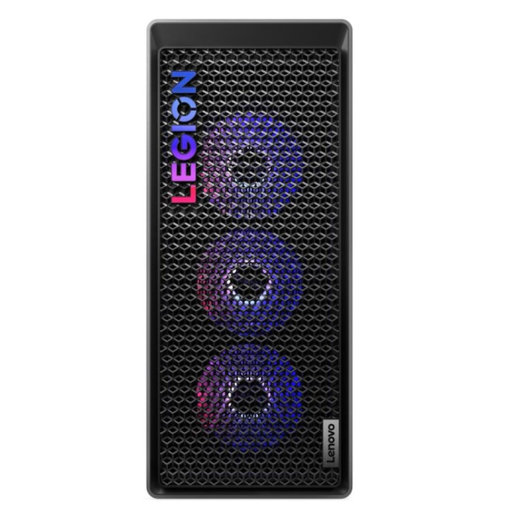
This tower is an option for a one-PC review workflow where you want a discrete GPU and a wired-network connection. Its named configuration has an Intel Core Ultra 7 265K, 32GB RAM, a 1TB SSD and Windows 11 Home.
Check the tower’s fit and ventilation clearance in the spare room. Confirm the cooling arrangement and whether the package includes the monitor or peripherals you need.
 No image available
If retaining local recordings is part of your review workflow, check whether this configuration’s 2TB NVMe SSD meets your plans. The named desktop also has an AMD Ryzen 7 9800X3D, an RTX 5080 16GB, 32GB DDR5 and Windows 11 Home.
Confirm that the final configuration provides the wired connection you intend to use, and check its cooling and fan layout. A monitor and peripherals are not included.
 No image available
This Intel-based desktop gives you a discrete-GPU option to assess for a one-PC stream. Its named configuration includes a Core Ultra 7 265KF, an RTX 5070 12GB, 32GB DDR5, a 1TB NVMe SSD and Windows 11 Home.
Check whether 1TB suits your recording-retention plans. Confirm wired-network access and the final cooling layout; a monitor, keyboard, mouse, headset and mousepad are not included.
 No image available
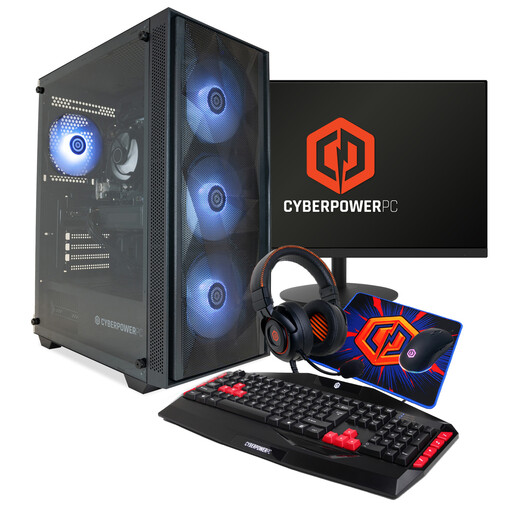
Consider this bundle if the spare room also needs a monitor and basic peripherals. The named configuration includes an AMD Ryzen 5 7500F, an RTX 5060 8GB, 16GB DDR5, a 1TB NVMe SSD and Windows 11 Home; the bundle lists a monitor, keyboard, mouse, headset and mousepad.
Confirm the exact monitor and peripheral configuration, wired-network access and the tower’s ventilation clearance before ordering.
No, but a supported GPU hardware encoder is a practical starting point when one PC must handle encoding alongside OBS, playback and commentary. OBS Project says hardware encoding moves work to specialised hardware, while Twitch notes that CPU-based x264 uses substantial CPU capacity. Check the exact GPU and encoder you intend to use.
Use 1080p60 only if your PC, upload connection and destination platform sustain it reliably. Twitch advises balancing output settings against hardware and connection capacity; test the actual stream and reduce settings if delivery is unstable or fast-moving footage looks poor.
Wi-Fi may work, but test it in the spare room before relying on it for a live review. Twitch recommends wired Ethernet over wireless where possible; if you must use Wi-Fi, check stability while other household devices are active.
Not automatically. Section 30 of the UK Copyright, Designs and Patents Act 1988 provides conditional fair-dealing exceptions for criticism, review and quotation; the applicable conditions include public availability and sufficient acknowledgement for criticism or review, while a quotation must be no more extensive than its purpose requires. Check the planned footage use and relevant terms, and seek permission or specialist legal advice if its status is unclear.
You need a compatible capture route if the PC must take in a console’s live video output. A capture card is not inherently required when you are reviewing lawfully obtained video files stored on the PC.