For tournament footage that you edit in Premiere Pro as well as review, start with a desktop that meets Adobe’s recommendations of at least eight CPU cores and 32GB RAM, then check its graphics specification and SSD layout against your work. An editing-oriented configuration makes sense when projects and exports dominate; a gaming desktop can also fit when gaming matters just as much, provided its exact memory and storage configuration suits the footage work. Check how your headphones connect before ordering either type.
Who this is for
Tournament analysts reviewing and clipping footage
You work with recordings, project files and an editor alongside notes or browser tabs. Adobe’s Premiere guidance makes memory and processor capacity relevant checks, while its storage guidance helps you plan where active files and media cache will live.
Players who also edit their matches
You need to assess gaming hardware without overlooking the memory and storage needed for footage work. Compare the exact configuration rather than choosing on the graphics-card name alone.
Headset-first desk users
Your existing headset’s connector or wireless method needs to match the desktop you choose. For long sessions, check the specified cooling arrangement too, without assuming a particular noise level from the gaming-PC label.
What to check when buying
Editing-oriented workstation
Choose when: Regular timeline work, exports or a growing local project library make the finished storage layout especially important.
Trade-off: A workstation configuration does not establish higher game frame rates; confirm the final processor, graphics card and drives rather than relying on the product-line name.
Gaming desktop for mixed use
Choose when: Gaming matters as much as footage review and the exact build also has suitable memory and SSD space.
Trade-off: A large stated SSD capacity does not, by itself, show how active footage, projects and cache will be accommodated.
For consumers choosing one desktop for tournament footage, headphones and gaming, the concerns below distinguish the need each person would put first.
| Concern | What to check | Who this matters to |
|---|
| Footage playback and editing |
For Premiere Pro, compare the configured CPU, installed RAM and GPU memory with Adobe’s guidance: at least eight CPU cores, 32GB or more RAM on Windows and at least 4GB GPU memory. |
If I edit recordings while keeping notes and other applications open, I need the footage workflow to take priority over a graphics-card label. Around 36% of consumers would put smooth footage work first. |
| Gaming alongside review |
Compare the exact processor, graphics card, RAM and SSD capacity; versions within a product range can differ. |
When I spend as much time playing as reviewing matches, I want a gaming configuration that still leaves room for footage work. Gaming balance would be the primary concern for around 29% of consumers. |
| Footage storage |
Check SSD capacity and drive layout, including where active footage and media cache will go. Adobe recommends keeping Premiere media cache on the boot drive or a separate fast, directly attached SSD. |
As my recording library grows, I need a clear place for current projects without losing track of stored matches. Around 21% of consumers would make the storage workflow their first concern. |
| Headphones and long sessions |
Match your headset’s connector or wireless method to the exact PC’s published connections, and check its cooling specification. |
If I review footage through my existing headphones for long stretches, a usable connection and practical desk setup matter before other refinements. Headset and session needs would come first for around 14% of consumers. |
Buying pitfalls
-
Choosing by graphics-card name while overlooking RAM
A gaming configuration with 16GB RAM falls below Adobe’s recommendation of 32GB or more for Premiere Pro on Windows.
Check the installed RAM on the exact build, then assess its CPU and GPU specification for your footage work.
-
Assuming a large drive provides an editing-ready layout
Capacity does not tell you where Premiere’s media cache and active projects will live. Adobe recommends the boot drive or a separate fast, directly attached SSD for media cache.
Check the supplied drives and available expansion before deciding how to organise recordings and projects.
If the initial layout does not suit your workflow, adding a drive later may also mean moving project files and media cache.
-
Assuming any gaming PC will connect to your headset
Wired, USB and wireless headsets need different connection paths, which vary by desktop configuration.
Compare your headset’s connection method with the exact PC’s published front and rear connections and wireless support.
-
Overlooking the repair process for a desktop
A builder’s warranty and its collection or repair arrangements are separate things; the stated warranty length alone does not explain how a fault will be handled.
Read the seller’s current warranty and repair terms, and keep a record of the configuration you receive. Consider applicable statutory rights separately from any voluntary warranty.
Brands to consider for this use
These builders list gaming or video-production configurations relevant to the decision. Compare individual builds rather than treating a brand name as a specification.
3XS / Scan
Scan lists dedicated 3XS Pro Video configurations alongside gaming and streaming systems.
- Scan lists a 3XS Evolve NLE HD configuration with 32GB RAM, an RTX 5070 with 12GB graphics memory, and separate 1TB and 2TB SSDs for OS and scratch storage.
- The line is configurable: check the final build’s drive layout rather than assuming another 3XS PC has the same arrangement.
Chillblast
Chillblast lists both gaming desktops and video-production systems.
- Its Spark Video Core listing includes 32GB DDR5, a 2TB SSD and a 2TB HDD; a separate gaming listing includes 32GB RAM and a 2TB SSD.
- Check the finished configuration when comparing its gaming and production ranges, particularly the supplied drives.
CyberPowerPC UK
CyberPowerPC UK lists gaming, creator, streaming and editing desktops.
- Its RTX 5070 range includes a listed Ryzen 7 9800X3D configuration with 32GB DDR5 and 2TB NVMe storage.
- CyberPowerPC UK describes its desktop warranty as limited; read its terms for coverage and the service process.
Stormforce Gaming
Stormforce Gaming lists prebuilt and configurable gaming desktops.
- Its site lists a Core Ultra 7 and RTX 5070 Ti configuration with 32GB DDR5 and a 2TB NVMe SSD.
- A gaming specification does not establish a particular editing-drive layout; check the exact build and Stormforce’s repair terms.
Gaming desktops on Joybuy
These gaming desktops are choices to compare for playing games and reviewing tournament footage on one PC. Check each build’s drive layout and your headset connection against the work you intend to do.
 No image available
CyberPowerPC JOYB1013 Ryzen 7 9800X3D, RTX 5080 16GB, 32GB DDR5, 2TB NVMe SSD
Consider this configuration if gaming and Premiere-based footage work share your time: its stated RAM capacity meets Adobe’s Windows memory recommendation.
Check the supplied drive layout for your projects and media cache, and confirm that the PC has the connection your headphones need.
Joybuy
 No image available
Stormforce Cyclone Intel Core i7, RTX 5080, 32GB RAM, 2TB SSD
This is a gaming-led configuration to consider if you also need the stated 32GB RAM for Premiere-based footage work.
Check which Core i7 model and drive arrangement the finished PC uses, and match its audio connections to your headset.
Joybuy
 No image available
Stormforce Defiance Ryzen 7 5700X, RTX 5070, 32GB RAM, 2TB SSD
If you want one desktop for matches and footage review, this named configuration gives you 32GB RAM to assess against Adobe’s Premiere guidance.
Confirm the supplied drive layout for active footage and whether your headset connects to the finished build.
Joybuy
 No image available
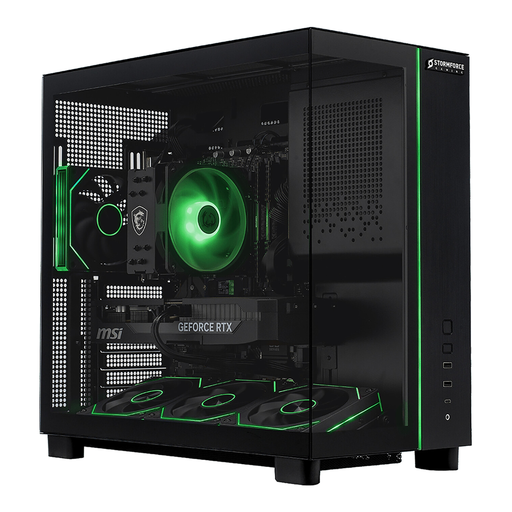
Stormforce Defiance Ryzen 7, RTX 5070 Ti-listed variant, 32GB RAM, 2TB SSD
The stated 32GB RAM makes this a configuration to examine for gaming alongside Premiere-based review, but do not choose it on the listed graphics name alone.
The title names an RTX 5070 Ti while the product descriptions name an RTX 5070. Confirm the actual GPU and graphics memory, as well as the drive layout and headset connection, before ordering.
Joybuy
 No image available
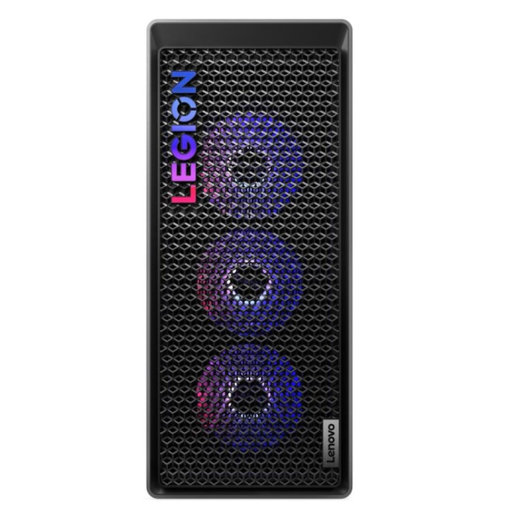
Lenovo Legion T7 34IAS10 Core Ultra 7 265K, RTX 5070 Ti, 32GB RAM, 1TB SSD
This gaming tower is worth comparing if you also want 32GB RAM for Premiere-based footage work.
Plan how the stated 1TB SSD will accommodate games and active recordings, and check the available drive layout and compatibility with your headset.
Joybuy
Frequently asked questions
Is 32GB RAM enough for reviewing tournament footage?
For Premiere Pro on Windows, 32GB or more meets Adobe’s memory recommendation and is a sensible starting point for editing alongside other applications. It cannot guarantee smooth playback with every footage format, resolution or effects workload, so check the demands of your own projects.
Do I need separate SSDs for footage editing?
Not necessarily: Adobe recommends keeping Premiere’s media cache on the boot drive or a separate fast, directly attached SSD. Check how much space your games and current projects need, then decide whether the supplied drive and any expansion options suit that arrangement.
Will my existing headphones work with a gaming desktop?
That depends on the headset and the exact desktop configuration. Match its 3.5mm plug, USB connection or wireless method to the PC’s published connections, including any adapter your headset requires.
What can I do with an old PC in the UK?
GOV.UK says households can take waste electrical products to a local household waste recycling centre. Check the centre’s arrangements before taking the PC there.


