Choose the PC around your game engine and the complexity of the wider project, then check that the configured machine can connect both monitors. Unity recommends at least 8 GB of RAM but says larger projects need more; Epic Games recommends 32 GB of RAM, at least 8 GB of graphics memory and a DirectX 12-compatible graphics card for Unreal Engine 5. A simple Unity menu need not be specified as though it were a larger UE5 game.
Who this setup is for
Unity menu prototype creators
If you are building menu screens, navigation and interaction logic in Unity, let the size of the project guide the specification. Unity recommends at least 8 GB of RAM and notes that larger, more complex projects need more.
Unreal Engine 5 developers
If the menu belongs to a wider UE5 game, compare the PC with Epic Games’ recommended 32 GB of system RAM, at least 8 GB of graphics memory and DirectX 12-compatible graphics guidance.
Two-display workflow builders
If you want the editor on one monitor and a preview, code or reference material on the other, check the PC’s physical video outputs against both monitors’ inputs. Windows can arrange displays once they are connected and detected, as Microsoft explains.
What to check when choosing
Decide whether you are building a modest Unity prototype or working within a larger UE5 project before comparing memory and graphics specifications. Check the two-monitor connections on the exact PC configuration separately.
| Concern |
Buying check |
Who this matters to |
| Engine and project headroom |
For UE5, compare system RAM, graphics memory and DirectX 12 compatibility with Epic Games’ recommended 32 GB, 8 GB or more, and compatible graphics card. For Unity, account for project complexity beyond its 8 GB recommendation. |
If my menu is part of a larger game, I need a PC suited to the engine and assets I will actually use; around 37% of consumers put engine and project headroom first. |
| Two-monitor connections |
Check for two usable video outputs on the selected configuration and match them to the monitors’ inputs and available cables. |
I want to edit the menu while keeping a preview or reference material visible without swapping windows; for around 36% of consumers, connecting two screens is the primary concern. |
| Fit for a smaller prototype |
Compare the engine’s requirements with the planned project scope. For frequent Unity builds, consider its recommendation for storage with high input/output operations per second (IOPS). |
If I am making a modest Unity menu, I would rather choose for that work than assume I need a UE5-oriented configuration; around 18% of consumers prioritise this fit. |
| Configuration and warranty clarity |
Keep the selected PC’s written specification and check the warranty terms, upgrade options and order details. |
When choosing a configurable desktop, I need to know exactly which components and terms apply to the one I order; clear purchase details come first for around 9% of consumers. |
Mistakes to avoid
-
Assuming any gaming PC meets UE5’s recommendation
A gaming graphics card does not establish how much system RAM is installed. Epic Games recommends 32 GB of RAM, at least 8 GB of graphics memory and DirectX 12-compatible graphics for UE5.
Compare all three details on the configured PC if your menu is part of a UE5 project. For Unity, choose around the size and complexity of your actual project instead of automatically adopting UE5’s recommendation.
-
Assuming a desktop will connect both monitors
The outputs vary by configuration, and Windows display settings cannot replace a physical connection that your monitors can use.
Match two outputs on the exact PC to your monitor inputs before ordering, and check which cables or adapters you will need. Microsoft’s multi-monitor instructions cover arranging the displays after they are connected and detected.
Mismatched connections may mean obtaining different cables or adapters before you can use the planned workspace.
-
Treating a seller’s frame-rate estimate as an editor benchmark
AWD-IT describes its game frame-rate figures as estimates that vary with settings and system configuration. They do not tell you how long your project will take to build or how the editor will respond.
Use the configured CPU, RAM, graphics memory, storage and display-output details to assess the development task; keep game frame-rate claims in their stated gaming context.
Relevant brands to compare
CyberPowerPC
CyberPowerPC UK lists configurable RTX 5070 desktops with differing processor, memory and storage combinations.
- Its listed configurations include 32 GB DDR5 options, giving UE5-oriented consumers a specification to compare with Epic Games’ memory recommendation.
- Other listed configurations have 16 GB of RAM. Check the selected build rather than relying on the RTX 5070 name to identify its system memory.
AWD-IT
AWD-IT’s listed Chaos Ryzen 7 and RTX 5070 configuration has 32 GB of RAM, a 1 TB SSD, and DisplayPort and HDMI outputs.
- The published memory and output details give two-screen consumers concrete connections and capacity to check against their plans.
- The listed build uses a Ryzen 7 5700X and DDR4. Compare the exact processor and platform when considering other configurations; seller frame-rate estimates are not development benchmarks.
ASUS ROG
The ASUS ROG G700 configuration has an RTX 5070, a 1 TB SSD, and HDMI and DisplayPort options.
- The listed video-connection options give consumers a starting point for checking their monitor inputs.
- That configuration is listed with 16 GB of system RAM, below Epic Games’ 32 GB UE5 recommendation. Check the chosen variant or an upgrade option if that recommendation matters to your project.
Joybuy desktop options
These desktops offer configurations to consider for game-menu work. Some list memory capacities aligned with Epic Games’ UE5 recommendation; for every option, check the exact video outputs against both monitors before choosing a two-screen setup.
 No image available
CyberPowerPC JOYB1013, Ryzen 7 9800X3D, RTX 5080 16 GB
Consider this configuration if your game-menu work forms part of a larger project and you are comparing system and graphics memory with Epic Games’ UE5 guidance.
The named variant has 32 GB DDR5 RAM, a 2 TB NVMe SSD and Windows 11 Home. Confirm DirectX 12 compatibility and the video outputs and cables needed for both monitors.
View on Joybuy
 No image available
CyberPowerPC JOYB1010, Core Ultra 7 265KF, RTX 5070 12 GB
Consider this variant when comparing desktops for a UE5-oriented project, while checking the monitor connections independently of its graphics-card name.
Its name specifies 32 GB DDR5 RAM, a 1 TB NVMe SSD and Windows 11 Home. Confirm DirectX 12 compatibility, the outputs and cables for two screens, and storage performance if frequent builds are important to you.
View on Joybuy
 No image available
Stormforce Cyclone Core i7, RTX5080, 32 GB RAM
Consider this tower if you want to compare a 32 GB desktop for menu development within a larger game project.
The named configuration includes a 2 TB SSD and Windows 11. Check the exact graphics-memory capacity, DirectX 12 compatibility and usable outputs for your monitors before assessing its UE5 and two-screen fit.
View on Joybuy
 No image available
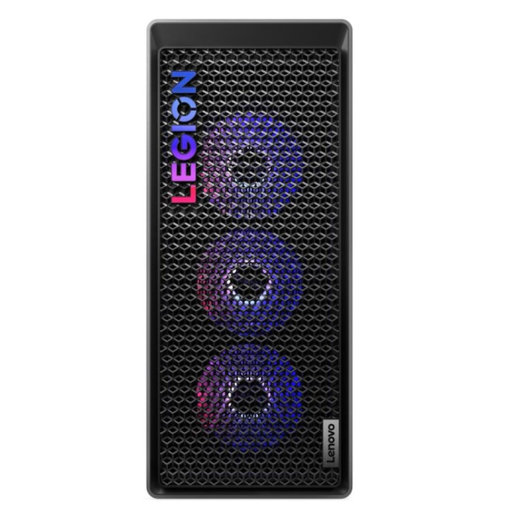
Lenovo Legion T7 34IAS10, Core Ultra 7 265K, RTX 5070 Ti
This is a desktop to compare for a project where 32 GB of system RAM is a priority, but its two-monitor fit needs a separate connection check.
The named variant has 32 GB RAM, a 1 TB SSD and Windows 11 Home. Confirm its graphics-memory capacity and DirectX 12 compatibility for UE5, and establish that the exact configuration offers two outputs you can use.
View on Joybuy
 No image available
Stormforce Defiance Ryzen 7 5700X, RTX5070, 32 GB RAM
Consider this configuration if system memory and project storage are your starting points, then assess its graphics and display connections for the work you plan.
Its name specifies a 2 TB SSD and Windows 11. If you are targeting UE5 and two monitors, confirm graphics-memory capacity, DirectX 12 compatibility and two usable video outputs on the selected PC.
View on Joybuy
Questions about the setup
Do I need 32 GB of RAM to create a game menu?
Not for every game-menu project. Unity recommends at least 8 GB of RAM and says larger, more complex projects need more, while Epic Games recommends 32 GB for UE5. Choose around the engine and the wider project rather than treating either figure as a guarantee for every menu.
How can I check whether a PC will run two monitors?
Match two physical video outputs on the exact configured PC to your monitors’ inputs, and confirm the cables or adapters needed. Once both screens are connected and detected, Windows Display settings can identify and arrange them, as Microsoft explains; a generic gaming-PC label does not establish which outputs the configuration has.
Does SSD performance matter for game-menu development?
It can matter when your workflow involves frequent builds and asset changes. Unity says building reads and writes many small files and recommends storage with high IOPS for build performance. Choose capacity around the engine, project assets and other tools you plan to keep installed.


