Choose storage by platform and whether current-generation games must run directly from it. PlayStation says PS5 games need compatible internal M.2 storage for direct play, while Xbox Support says Optimised for Xbox Series X|S games need internal storage or a Storage Expansion Card; external storage can still suit archives, supported older games, PC libraries and recordings.
Who this is for
PS5 and Xbox Series X|S players
Choose a route that can run current-generation games directly, rather than one used only for storage and transfers. PlayStation and Xbox Support set different direct-play requirements for PS5 and Optimised for Xbox Series X|S titles.
PC players with growing Steam libraries
Add or repurpose a compatible drive, then create another Steam Library location and move installed games instead of repeatedly uninstalling them. Steam supports moving games, while the PC still needs the right slot, interface and physical fit.
Players recording or editing gameplay
Plan recording space separately from game installs. OBS notes that the recording path, quality, encoder, bitrate and resolution settings all affect the files created.
Buying priorities
Start with where the games will be played, then check the drive’s connection, fit and storage role before choosing capacity.
| Priority |
What to check |
Your needs |
| Direct play |
Check whether the platform can launch your games from this storage type. PS5 games cannot run from USB extended storage; Optimised for Xbox Series X|S games need internal storage or a Storage Expansion Card. |
I want current-generation console games ready to launch, not just stored for transfer. Choose the platform-specific direct-play route before considering an external USB drive. |
| Fit and connection |
For internal SSDs, confirm interface, form factor, slot availability, clearance and cooling. For external storage, check the required USB standard, cable and direct connection requirements. |
My drive needs to fit and connect properly to my own console or PC. A compatible-looking M.2 drive can still be unsuitable if its dimensions or cooling arrangement do not meet the host requirements. |
| Capacity planning |
Separate installed-game storage from recording storage. Set a recording destination and review the quality, encoder, bitrate and resolution settings used for gameplay captures. |
I want enough room for the games I keep installed without recordings unexpectedly filling the same drive. On PC, Steam can use another library location and move existing games. |
| Existing data |
Back up files before formatting a reused drive. Check where saves are stored and follow the console’s safe-removal process for external storage. |
I need to avoid erasing files while reusing a drive. On Nintendo Switch and Switch 2, save data remains in the console’s system memory rather than on the expansion card. |
Common buying mistakes
-
Expecting a USB drive to launch every current-generation console game
PS5 games cannot run from USB extended storage, and Xbox Series X|S Optimised games generally need internal storage or a Storage Expansion Card to play.
Choose the direct-play route first when you want current-generation titles installed and ready. Use USB storage for supported older games, archives, transfers, recordings or PC files.
A storage route that cannot run the game directly can mean extra transfer time or a redownload before play.
-
Treating any M.2 SSD as PS5-compatible
PlayStation specifies the interface, capacity range, physical dimensions and heat dissipation for PS5 M.2 SSD storage, and notes that meeting the listed specifications does not guarantee every drive’s performance will match internal storage.
Check the exact drive and heatsink dimensions against every PlayStation requirement before installing it.
An unsuitable drive may require replacement or a different cooling solution.
-
Formatting a reused external drive before copying needed files
PlayStation states that formatting a drive as PS5 USB extended storage erases its existing data, while unsafe disconnection can cause data loss or corruption.
Copy off files you need, then use the console’s storage settings to format and safely remove the drive.
Files left on the drive can be lost during formatting.
-
Sizing a recording drive from game installs alone
OBS explains that recording output changes with settings such as quality, encoder, bitrate and resolution, so game-library capacity is not a reliable proxy for recording space.
Set the recording path, make representative recordings at your intended settings and leave headroom before sharing a drive between recordings and a large game library.
Relevant storage brands
WD_BLACK
Gaming-focused internal and external SSD lines, including SN850P storage for PS5 expansion and P50 portable SSDs for PC storage.
- SanDisk describes the SN850P as a PS5-focused internal NVMe option with capacities up to 8 TB.
- Check Sony’s current M.2 requirements for the exact drive rather than relying on the product line name. External SSDs are more relevant to PC portability and supported external-library workflows than direct PS5-game play from USB.
Seagate
Console-specific storage lines include Xbox Series X|S Storage Expansion Cards and PlayStation-branded external and internal drives.
- Seagate’s Xbox Expansion Card is designed for the dedicated console expansion slot; Xbox Support states that this route provides internal-SSD-equivalent functionality for compatible games.
- A PlayStation-licensed M.2 model may be appropriate only when the exact model meets the console’s requirements. Availability can vary by retailer.
Samsung
PCIe 4.0 internal NVMe SSDs for PC upgrades, with heatsink variants that can be screened against console fit and cooling requirements.
- Samsung lists the 990 PRO with Heatsink as a PCIe 4.0 NVMe option with model-specific sequential performance figures.
- Samsung notes that performance can vary by firmware, system hardware and configuration. For PS5 use, verify the exact drive dimensions and cooling arrangement against Sony’s requirements.
Kingston
PC-oriented internal NVMe storage, including the KC3000 PCIe 4.0 M.2 line for compatible desktops and laptops.
- Kingston lists the KC3000 as an M.2 2280 PCIe 4.0 x4 NVMe range with capacities from 512 GB to 4 TB.
- A low-profile heat spreader does not confirm fit in every laptop or console. Check the host device’s slot, clearance and cooling requirements.
Joybuy product options
These Joybuy options cover Nintendo Switch 2 microSD Express expansion, internal PC SSD upgrades and portable storage for compatible PC libraries, recordings or PS5 game archiving.
 No image available
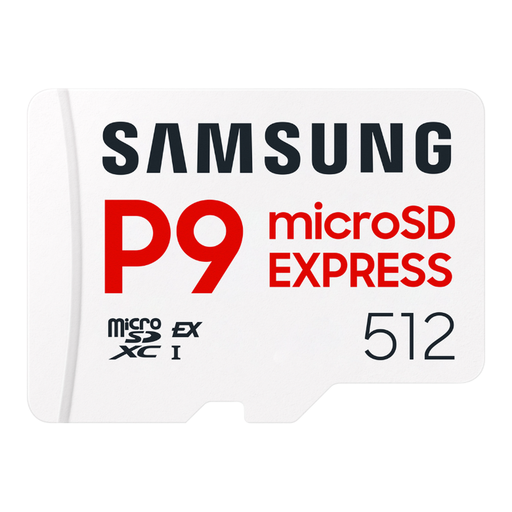
Samsung P9 Express microSD 512GB
A compact option for Nintendo Switch 2 owners expanding space for downloaded software, updates, DLC and captured content.
Stated specifications: 512GB microSD Express storage, PCIe/NVMe interface, up to 800MB/s read speed and UHS-I backward compatibility.
Check that your host supports microSD Express for maximum performance. Switch 2 save data remains in console system memory.
Joybuy
 No image available
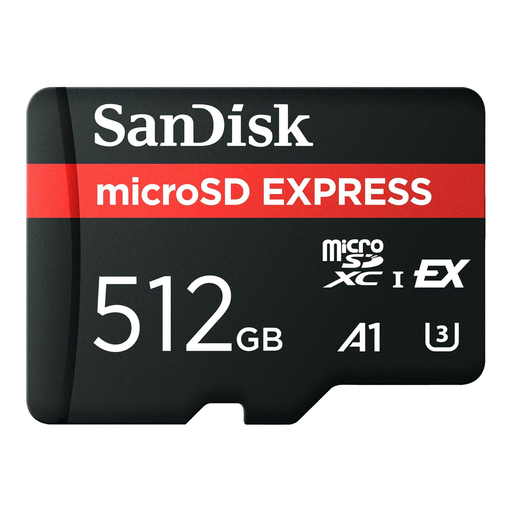
SanDisk Express microSD Card 512GB
This card suits Switch 2 download-library expansion when a microSD Express-compatible host is confirmed.
Stated specifications: 512GB capacity, PCIe Gen 3 NVMe interface and UHS-I fallback compatibility.
Legacy UHS-I devices use the fallback interface. Maximum transfer performance requires a compatible SD Express reader, and Switch 2 saves remain in console memory.
Joybuy
 No image available
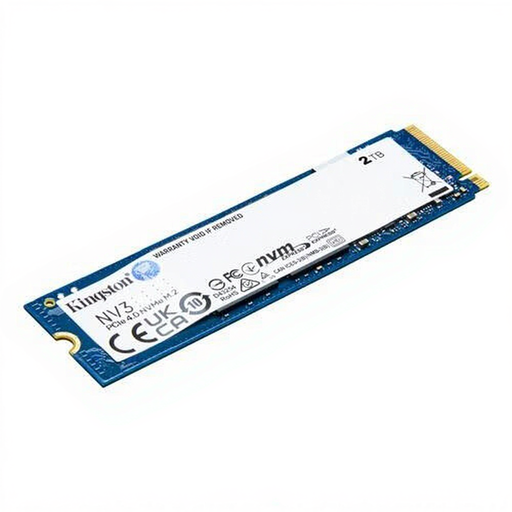
Kingston NV3 M.2 2280 NVMe SSD 2TB
An internal-drive route for a PC game library when your desktop or laptop has a compatible M.2 slot.
Stated specifications: 2TB capacity, M.2 2280 format, PCIe 4.0 NVMe and up to 6,000/5,000MB/s sequential read/write.
Confirm slot support, physical clearance, cooling and installation requirements before choosing an internal SSD.
Joybuy
 No image available
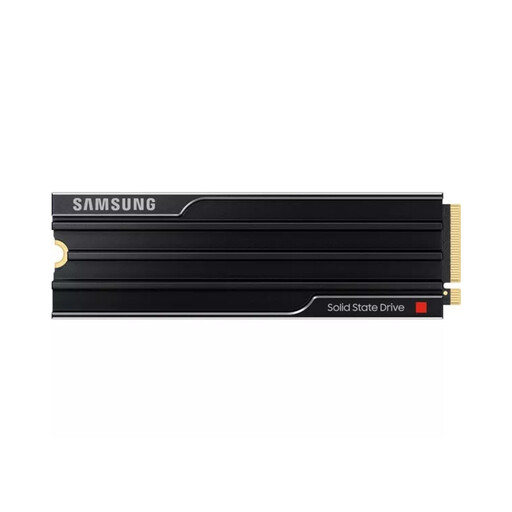
Samsung 990 PRO NVMe M.2 SSD 1TB
A permanent internal option for redistributing an existing PC game library through another Steam Library location.
Stated specifications: 1TB capacity, M.2 2280 format, PCIe 4.0 x4 NVMe and up to 7,450/6,900MB/s sequential read/write.
Check M.2 slot support, fit and cooling in your PC. For PS5 use, verify the exact installed configuration against every PlayStation M.2 requirement.
Joybuy
 No image available
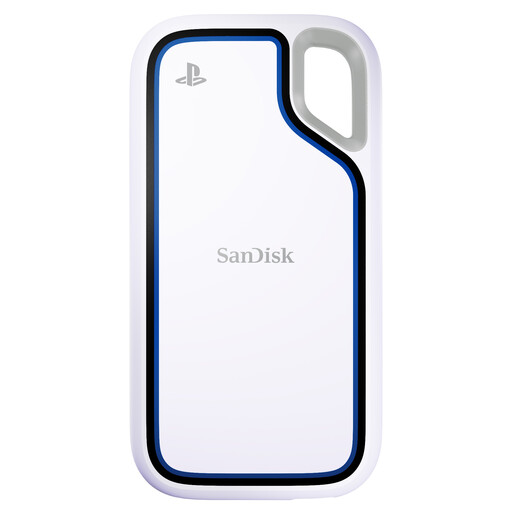
SanDisk Extreme Portable SSD 2TB for PS5 and PC
A portable storage option for PS5 game archiving or compatible PC game-library and recording workflows.
Stated specifications: 2TB capacity, USB 3.2 Gen 2, up to 1,000MB/s read speed, USB-C and USB-A cables.
PS5 games must be copied back to console storage before play. For PC gaming, check the game, connection and host system; Steam advises against installing the Steam client itself on an external hard drive.
Joybuy
Frequently asked questions
Can I play PS5 games directly from an external USB SSD or hard drive?
No. PlayStation says PS5 games cannot be played directly from USB extended storage. You can move them there to free console space, then copy them back to console storage when you want to play; PS4 games can be installed and played directly from PS5 USB extended storage.
What storage can run Optimised for Xbox Series X|S games directly?
Xbox Support says Optimised for Xbox Series X|S games must be installed on the console’s internal SSD or a Storage Expansion Card to play. A USB external drive can store games, but it is not the general direct-play route for those Optimised titles.
Can I use an ordinary microSD card in Nintendo Switch 2?
For Switch 2 game-related expansion, Nintendo specifies a microSD Express card. Nintendo also says that Switch 2 save data remains in internal system memory and cannot be saved or copied to the microSD Express card; external USB hard drives are not supported.
How should I plan storage if I record gameplay on a PC?
Set a deliberate recording path and plan capacity from your own recording settings. OBS says that recording quality, encoder choice, bitrate and output resolution can change resource use and output characteristics, so recording capacity should be considered separately from game-install capacity.


