Choose a gaming-focused TV if the screen will serve sofa-based play, shared viewing and streaming; choose a monitor if you play close to the screen and want a more compact setup. Either can offer current-console features, but check the exact HDMI input and the resolution, 120 Hz and variable refresh rate (VRR) modes available with your console. The cable, game and any equipment between console and display can also affect the result.
Who each setup suits
Sofa-based households
If the display will also be used for streaming and shared viewing, consider the space available and how easily everyone can see the screen. A TV can serve those uses alongside console games; its gaming modes still need checking model by model.
Close-range console players
If you sit near the screen, a monitor may fit your setup. Check its supported console modes over HDMI rather than relying on a refresh-rate figure intended for PC use.
Mixed-generation console owners
If you connect current and older consoles, list the output modes you actually need before choosing a display. Check the available HDMI inputs and any equipment between each console and the screen.
What to prioritise
Decide where and how you will watch first, then check the video modes for your particular console and connection path. A TV or monitor label alone does not establish which gaming modes its HDMI input accepts.
| Concern |
What to check |
Who this matters to |
| Room fit and shared viewing |
Check the available screen space, viewing position and whether the display will also be used for streaming or television. |
If I want everyone on the sofa to use the same screen for games and other viewing, room fit comes before desk-style features. Around 45% of consumers would put that shared-use need first. |
| 120 Hz and VRR |
Check the exact model's console-facing HDMI modes for your intended resolution, 120 Hz and VRR; test the connected display using your console's video settings. |
When I play close to the screen, I want the gaming modes I care about to work with my console, not just with a PC. That would be the primary concern for around 33% of consumers. |
| Console connections |
List your consoles and intermediary devices; check the relevant HDMI port and settings, then try a direct connection if a mode disappears. |
With older and current consoles sharing a setup, I need to know which output each connection can carry. Around 22% of consumers would make connection certainty their main priority. |
Common buying mistakes
-
Assuming a headline refresh rate works with a console
A 144 Hz or higher figure may describe a PC mode rather than the resolution and refresh rate available over HDMI from a console. Samsung United Kingdom, for example, says some of its advertised 4K modes above 120 Hz require PC-connected games.
Check the display's console-facing HDMI specifications for the exact model and use the console's output information after connecting it.
-
Expecting a cable or switch to add display features
A cable cannot add a mode the display or another device in the connection path does not support. Xbox Support warns that an AV receiver or soundbar between console and TV can affect video features and quality.
Try the console's supplied cable directly to the display first. Consider a replacement lead if length, damage or the cable specification is the issue.
-
Using the wrong HDMI port or display setting
On supported Sony BRAVIA TVs, Sony UK instructs users to enable Enhanced Format on the console's HDMI port for 4K/120 Hz. The relevant setting and port depend on the display.
Check the model's instructions for its console-compatible port, enhanced HDMI setting and Game Mode or automatic low-latency mode.
-
Reading a monitor's PC features as PS5 or Xbox features
A monitor can list different output modes for different inputs or consoles. ASUS, for example, lists console-specific modes separately for its ROG Strix XG43UQ.
Look for the manufacturer's PS5 and Xbox HDMI modes, including the resolution and VRR combination you intend to use.
Relevant brands to consider
LG
LG has gaming-TV lines and UltraGear monitors relevant to the TV-versus-monitor decision.
- LG UK specifies 4K and VRR up to 120 Hz through HDMI 2.1 for its 27GP950-B monitor.
- That specification is for the named monitor, not every LG display; check the chosen model's console modes.
Samsung
Samsung's gaming-TV range is relevant when the screen will also serve a living-room viewing role.
- Samsung United Kingdom describes HDMI 2.1 and gaming functions across its gaming-TV material.
- Samsung says some advertised 4K 240/165/144 Hz modes require PC-connected games; check 4K/120 Hz and VRR for the selected TV and port.
Sony BRAVIA
Sony BRAVIA is relevant to buyers checking how a supported TV is configured for PS5.
- Sony UK provides instructions for enabling Enhanced Format on the HDMI port used for 4K/120 Hz on supported BRAVIA products.
- VRR requires a compatible TV; the guidance does not mean every BRAVIA model or HDMI port supports the same modes.
TCL
TCL has larger gaming-TV models worth checking for a sofa-based setup.
- TCL UK lists HDMI 2.1, automatic low-latency mode and 120 Hz VRR support for its Q9BK model.
- The model's higher advertised refresh-rate figures do not establish the output available from a particular console.
ASUS ROG
ASUS ROG is relevant if you want to examine a larger monitor-format alternative to a TV.
- ASUS lists two HDMI 2.1 inputs and native 4K/120 Hz support for latest consoles on its 43-inch ROG Strix XG43UQ.
- ASUS also lists distinct console output details for that model, so check the mode for your own console rather than its PC refresh-rate headline.
Joybuy monitors for console setups
These monitors suit shoppers considering a close-range console setup. Compare the screen size and stated display features, then check the exact HDMI output modes for your PS5 or Xbox before choosing.
 No image available
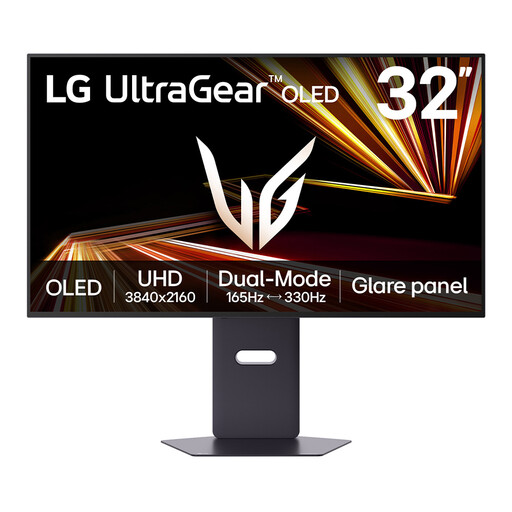
LG UltraGear 32GX850A-B 32-inch 4K OLED monitor
Consider this monitor if you want a 32-inch screen for close-range console play. Its title specifies a 4K UHD OLED panel and Dual Mode; check the intended console's resolution, 120 Hz and VRR modes over HDMI rather than using the headline 330 Hz figure as a console specification.
For prolonged static images, follow the display's OLED image-care guidance.
View on Joybuy
 No image available
LG UltraGear G8 27G850A 27-inch 4K Nano IPS monitor
The 27-inch format is an option for a close-range setup. The title specifies 4K UHD Nano IPS, Dual Mode and HDMI 2.1; confirm which resolution, refresh-rate and VRR combinations the HDMI connection supports with your console. Its 240 Hz and 480 Hz headline modes should not be treated as console output modes.
View on Joybuy
 No image available
Acer X Predator X27U W3 26.5-inch QHD QD-OLED monitor
Consider this 26.5-inch monitor if a smaller close-range display suits your space. Its title specifies QHD resolution of 2560 × 1440 and a QD-OLED panel; check the resolution, refresh rate and VRR modes available from your particular console over HDMI. PC adaptive-sync and 240 Hz claims do not establish console behaviour.
View on Joybuy
Questions about console displays
What do I need for 4K at 120 Hz on Xbox Series X?
Xbox Support says 4K gaming at 120 frames per second on Xbox Series X requires a compatible HDMI 2.1 TV and an Ultra High Speed HDMI cable. Check the selected HDMI port and the TV's supported modes; if the TV does not support HDMI 2.1, Xbox may still offer 120 Hz at a lower resolution.
Can PS5 use a 1440p monitor at 120 Hz and with VRR?
PS5 can test 1440p output at 60 Hz or 120 Hz and VRR when the connected display supports those modes, according to PlayStation UK. Run the console's 1440p output test and check its connected HDMI-device information rather than assuming every 1440p monitor accepts the same combination.
Why do gaming features disappear when I connect through a soundbar or receiver?
A device between console and screen can affect the available video features; Xbox Support specifically cautions about AV receivers and soundbars. Connect the console directly to the display to test the mode, then check whether the intermediary device supports the complete HDMI connection you need.
Does a monitor's high refresh-rate figure apply to console games?
Not necessarily: the advertised maximum may describe a PC mode rather than the monitor's console-facing HDMI modes. Check the exact model's stated PS5 or Xbox resolution and refresh-rate combinations, as well as VRR support for your intended connection.


