Living-room PS5 or Xbox Series X households
A shared TV needs to work for ordinary viewing as well as the console. If 4K at 120Hz or VRR matters to you, check support on the particular HDMI port the console will occupy.


Choose a gaming-focused TV when a shared-room screen also needs to handle everyday viewing and you intend to use console features such as 4K at 120Hz and variable refresh rate (VRR). A regular TV with enough HDMI inputs can suit older consoles or 60Hz play; a compact monitor can make more sense at a desk. In every case, check the exact display model and the HDMI port you will use, rather than relying on a panel refresh-rate claim.
A shared TV needs to work for ordinary viewing as well as the console. If 4K at 120Hz or VRR matters to you, check support on the particular HDMI port the console will occupy.
A compact monitor may fit close-range play better than a living-room TV. Check its HDMI capabilities for console use: a refresh rate specified for DisplayPort does not necessarily apply through HDMI.
Start with a suitable HDMI connection and enough inputs for the other devices you use. High-frame-rate features need not drive the choice if your console setup will not use them.
Decide where the screen will sit and how else it will be used, then match your console’s intended output to a specific HDMI input.
Choose it when: A lounge screen must serve both everyday viewing and console games for which you want features such as 4K at 120Hz or VRR.
Bear in mind: Gaming modes and HDMI capabilities vary by model and port; a higher PC-gaming refresh-rate claim does not establish a console mode.
Choose it when: Ordinary TV use comes first and an older console or 60Hz setup needs a suitable connection rather than high-frame-rate features.
Bear in mind: An HDMI connection alone does not establish support for VRR or 4K at 120Hz, and other equipment may use up the available inputs.
Choose it when: The console is used close to a compact, single-user screen rather than across a shared room.
Bear in mind: Compare HDMI specifications, not just the monitor’s headline refresh rate. Sony UK, for example, specifies up to 120Hz through HDMI but 144Hz through DisplayPort for its INZONE M9.
| Priority | What to check | Your needs |
|---|---|---|
| Console compatibility | Match the console’s intended resolution and refresh rate to the exact HDMI port. Xbox Support says Series X 4K gaming at 120fps requires an HDMI 2.1-capable TV and an Ultra High Speed HDMI cable; PlayStation provides a video-output check for PS5 display modes. | I want the screen to accept the modes my console can actually output, without choosing on the strength of a gaming label alone. |
| Gaming modes | Check 120Hz, VRR and automatic low-latency mode (ALLM) or game-mode support separately. The console, game and connected display must support the mode you intend to use; check any port settings required by the exact model. | Fast games make me interested in higher-frame-rate output or VRR, but I need to know whether my particular setup can use those features. |
| Connections and audio | Count the console, set-top box and other HDMI devices. If you use a soundbar, check its connection and whether it needs a particular TV port for audio return (ARC or eARC). | The console shares this screen with other equipment, so I need an input plan that still works when everything is connected. |
| Screen and room | Assess screen size against the available space and seating position. Decide whether the display must also function as the household TV or will be viewed mainly from a desk. | A large screen needs to fit our shared room; at a desk, I would rather choose a size for close-range use. |
The panel figure does not establish what the connected HDMI input will accept. Xbox Support specifies a Series X, an Ultra High Speed HDMI cable and an HDMI 2.1-capable TV for 4K gaming at 120fps.
Check the exact display model, intended HDMI port and cable, then inspect the console’s available output modes after connection.
Consoles use HDMI for this connection, while a monitor may specify different limits for HDMI and DisplayPort. Sony UK lists 144Hz through DisplayPort and up to 120Hz through HDMI for the INZONE M9.
Read the monitor’s HDMI specifications for your intended resolution, refresh rate, VRR and ALLM before choosing it for a console.
On applicable Sony BRAVIA models, Sony UK advises selecting the appropriate HDMI port format for 4K/120Hz. A feature may not appear in the console’s output information until the connection is configured correctly.
Follow the exact display model’s port instructions and check the console’s display-information screen after setup.
A set-top box, Blu-ray player or soundbar can affect which HDMI inputs remain free. The console may also need a particular input for the mode you want.
List the devices that will stay connected, identify any soundbar port requirement and reserve a suitable input for the console.
These brand ranges illustrate different gaming-display checks; their features should be confirmed on the individual model rather than assumed across the range.
LG UK discusses high refresh rates and VRR in its guidance for gaming-oriented TVs.
Samsung UK presents selected TVs with gaming features alongside ordinary TV use.
Sony UK provides BRAVIA TV setup guidance and model-specific INZONE monitor specifications, relevant to the TV-versus-desk-monitor choice.
These are televisions for shared-room console setups, with different screen sizes to consider against your space. Check each model’s HDMI-port capabilities for the console mode you want; the TV selection here does not replace the desk-monitor decision.
 No image available
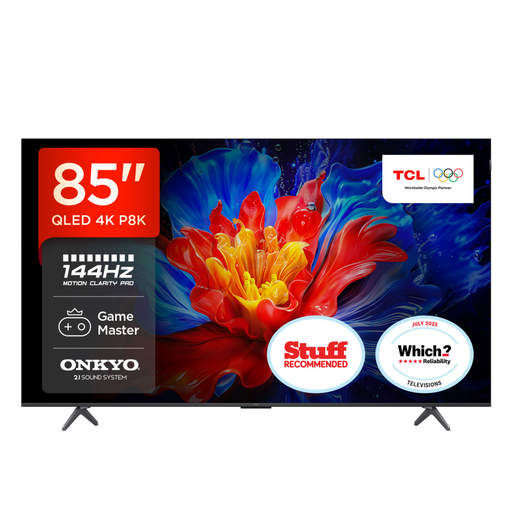
This 85-inch TV is an option for a shared console and television space if the screen fits the room. Its title lists QLED 4K HDR PRO and an ONKYO 2.1 sound system; confirm the required console mode on the HDMI port you will use rather than treating its refresh-rate description as a 4K/120Hz guarantee.
 No image available
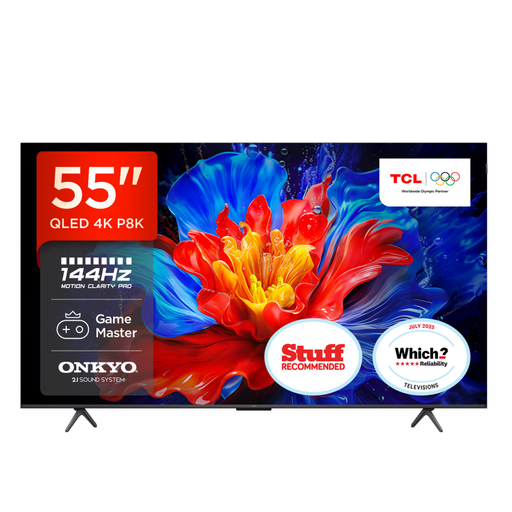
Consider this 55-inch QLED 4K HDR PRO TV when a shared-room screen of that size suits the seating arrangement. The listing’s refresh-rate descriptions differ, so check the exact HDMI-port and console-mode combination instead of relying on its Game Accelerator figure.
 No image available
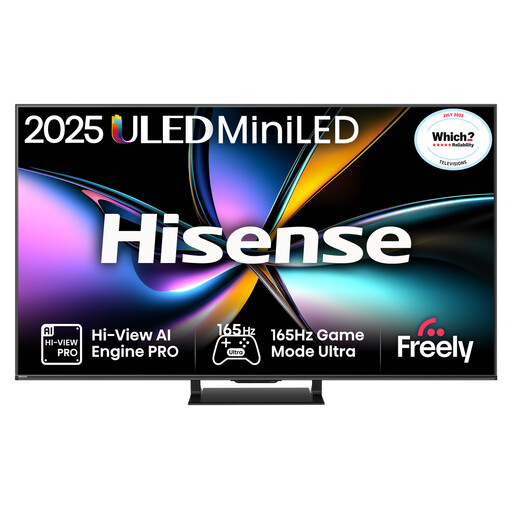
This 65-inch Mini LED 4K HDR TV with VIDAA is a shared-room option if its size suits your space. Its title also lists a built-in subwoofer; check the intended HDMI port’s resolution, refresh-rate and VRR combination for your console before choosing it for a particular gaming mode.
 No image available
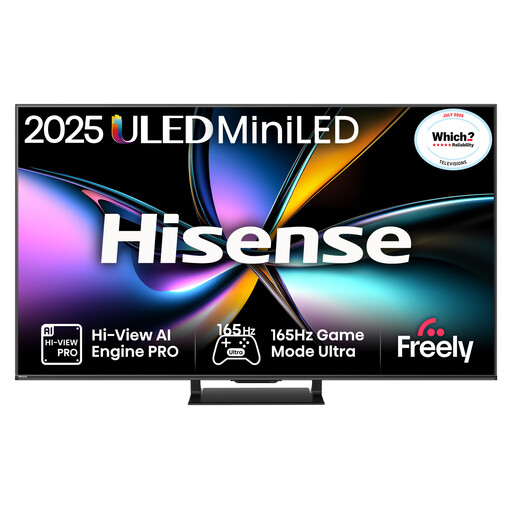
For a shared TV setup where a 55-inch screen fits, this model’s title specifies Mini LED 4K HDR, VIDAA and a built-in subwoofer. Confirm the console modes available through the HDMI port you plan to use; its gaming-mode name alone does not establish those combinations.
 No image available
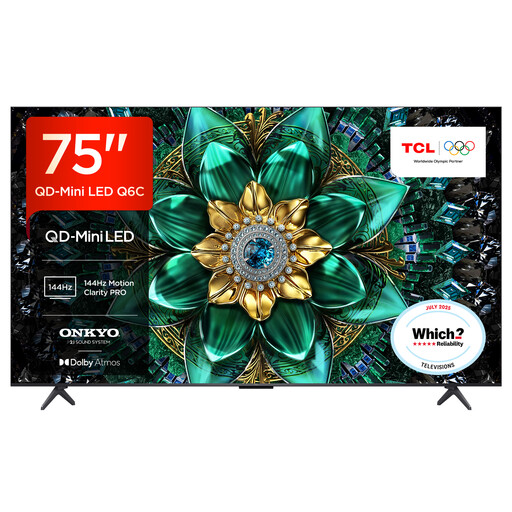
This 75-inch QD-Mini LED 4K HDR Google TV is an option for a larger shared-room screen. Its title specifies a 144Hz native refresh rate, which does not by itself establish a console’s available mode; check the intended HDMI port and the room’s available space.
No. Choose that capability if you intend to use a mode supported by your console, game and display connection. Xbox Support specifies an HDMI 2.1-capable TV and Ultra High Speed HDMI cable for Series X 4K gaming at 120fps; PlayStation lets PS5 owners inspect the connected display’s available modes in Video Output settings.
Yes, if the monitor supports the intended output through HDMI. PlayStation says PS5 can test 1440p SDR or HDR output at 60Hz or 120Hz, and VRR, where the connected display supports those modes. Check the monitor’s HDMI specification rather than applying a DisplayPort refresh-rate figure to the console.
It does not tell you that the particular port and settings will provide every mode you want. Sony UK advises configuring the appropriate HDMI port format on applicable BRAVIA TVs for 4K/120Hz. Check the exact model’s port instructions, then inspect the console’s display-status screen after connection.