Start with the console output you want, rather than the “gaming TV” label. If you want 4K at 120Hz from an Xbox Series X, Xbox Support specifies a compatible HDMI 2.1 TV and an Ultra High Speed HDMI cable; if that output is not a priority, an ordinary TV with suitable connections and settings may meet your needs. In either case, choose a screen size for your seating layout and check the whole connection path, including any soundbar or AV receiver.
Who is choosing this TV?
PS5 or Xbox Series X players seeking 4K at 120Hz
If high-frame-rate console play matters to you, check the exact TV input, cable and console settings as well as the screen’s advertised features. Xbox Support sets out specific TV and cable requirements for Xbox Series X 4K gaming at 120Hz; the game must also offer the mode you intend to use.
Households sharing a living-room TV
A screen used for gaming, films and other viewing needs to fit the usual seating distance and the space available. Check where other viewers sit before choosing a size or stand position.
Xbox Series S or older-console owners
Identify the console output you plan to use before making 4K at 120Hz a purchase requirement. Xbox Support describes Series S as designed for 1440p gaming with the ability to upscale to 4K, so its needs should not simply be copied from an Xbox Series X checklist.
What should you check first?
Decide which console output matters to you, then compare TVs in screen sizes that fit the room. Treat cables and devices between the console and TV as part of that check, not as reasons to replace the screen automatically.
Gaming-focused TV
Consider it: You use a PS5 or Xbox Series X and want a supported high-frame-rate mode, with compatible features on the input you will use.
Bear in mind: A headline refresh-rate figure may describe PC use rather than console output; Samsung explicitly limits some of its higher-refresh claims to supported PC-connected games.
General TV with suitable connections
Consider it: You do not need 4K at 120Hz and can confirm that the TV has the input and gaming settings your console use requires.
Bear in mind: An HDMI connection alone does not establish support for every refresh-rate, VRR or low-latency feature.
| Priority |
What to check |
Your needs |
| Console output |
Identify your console and intended resolution and refresh rate. For Xbox Series X 4K at 120Hz, Xbox Support specifies an HDMI 2.1 TV and an Ultra High Speed HDMI cable; check the relevant TV input and game mode too. |
I want to know whether my console and games can use the display mode I am considering, rather than buying on the TV’s maximum figure alone. |
| Gaming settings |
Check whether the exact TV model and input offer the Game Mode, automatic low-latency mode (ALLM), variable refresh rate (VRR) and HDR settings you intend to use. Confirm compatibility with your console. |
For fast-paced games, I care about responsive controls and the picture modes my setup can actually use. |
| Room fit |
Measure the normal seating distance and proposed screen position. Check stand space or the exact TV and mount instructions before planning a wall installation. |
The TV has to work from our usual seats, including when the living room is used for viewing together. |
| Connection path |
Check cable suitability, the selected HDMI input and TV settings. If a soundbar or AV receiver sits between console and TV, test a direct connection when diagnosing missing video modes; Xbox Support says intervening devices can affect video features and quality. |
If a mode is missing after setup, I would rather isolate the connection problem before replacing a TV or cable. |
Common buying mistakes
-
Choosing by the “gaming” label or peak Hz figure
A maximum refresh-rate claim may apply only to selected models, inputs or PC-connected games. Samsung’s UK gaming-TV information explicitly limits some higher-refresh figures to supported PC use.
Match the full TV model and screen size to your console’s intended output. Check which HDMI input supports the modes you want before relying on a headline figure.
-
Replacing the screen before checking the signal path
Xbox Support says a soundbar, AV receiver or other device between console and TV can affect video features and quality. The cable, input and TV settings also matter to the mode you are trying to use.
Check the console’s video settings and try a direct TV connection when diagnosing a missing mode. Consider a different cable only after confirming the required output and cable specification.
-
Using screen size as a substitute for room planning
A larger diagonal does not add VRR or change the console connection. Hisense’s UK room-size guidance makes viewing distance and room size part of the size decision.
Measure from the usual seats to the planned screen position, then compare gaming features among sizes that work in that layout.
Brand features worth checking
These brand references describe particular gaming-TV features, not every model in a range. Check the full model and screen size before applying a brand-level claim to a purchase.
LG
LG markets TV ranges for gaming alongside general home viewing.
- LG highlights high refresh rates, low input lag and VRR in its gaming-TV guidance.
- Check the chosen model, screen size and HDMI input for the console features you need; a range-level claim is not a specification for every LG TV.
Samsung
Samsung’s gaming-TV information covers selected TVs across its TV lines.
- Its UK gaming-TV information highlights gaming connections and settings on selected models.
- Samsung states that some 4K refresh-rate claims above 120Hz require supported PC-connected games. Check console-relevant modes and ports on the exact TV instead.
Sony BRAVIA
Sony presents BRAVIA gaming features for use with compatible consoles and TVs.
- Sony’s BRAVIA gaming information describes 4K at 120fps, VRR and ALLM features.
- Confirm those features on the specific BRAVIA model and HDMI input, rather than assuming every BRAVIA TV has the same connections.
Joybuy TV options
These TVs offer several screen sizes for a living-room console setup, from a 43-inch option to an 85-inch option. Their inclusion does not settle which output modes work on a particular HDMI input: match the size to your room and check your console requirements against the exact model.
 No image available
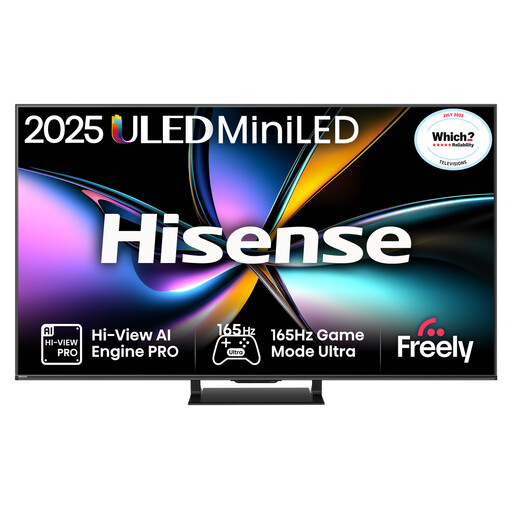
Hisense 65U7QTUK Pro 65-inch Mini LED 4K HDR TV
The 65-inch screen is worth considering where the seating distance and available space suit it. The title mentions 165Hz Game Mode Ultra; do not treat that figure as confirmation of a console output mode. Check 4K at 120Hz support on the input you plan to use if it matters to you.
Joybuy
 No image available
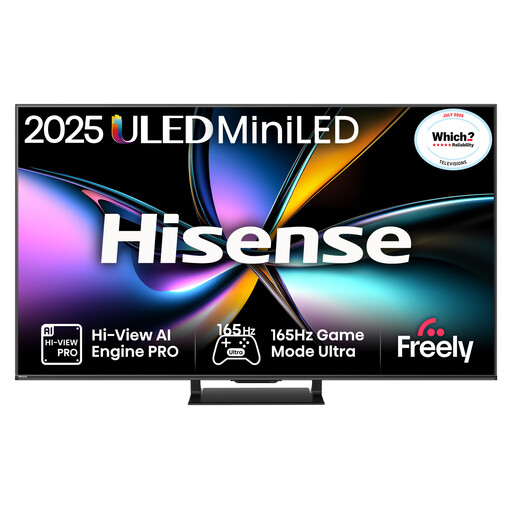
Hisense 55U7QTUK Pro 55-inch Mini LED 4K HDR TV
This 55-inch variant offers another size to assess against your usual seating position. Its title also mentions 165Hz Game Mode Ultra, which is not by itself a promise of 165Hz console output; confirm the desired console mode and HDMI input for this exact variant.
Joybuy
 No image available
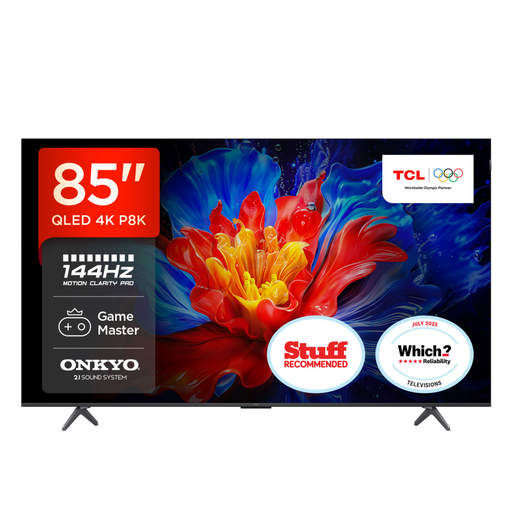
TCL 85P8K-UK 85-inch QLED 4K HDR PRO TV
Consider this 85-inch option only after checking the viewing distance and space for the screen. Its title states a 144Hz native refresh rate; confirm the console modes supported by the exact HDMI input rather than treating the panel figure as a console compatibility guarantee.
Joybuy
 No image available
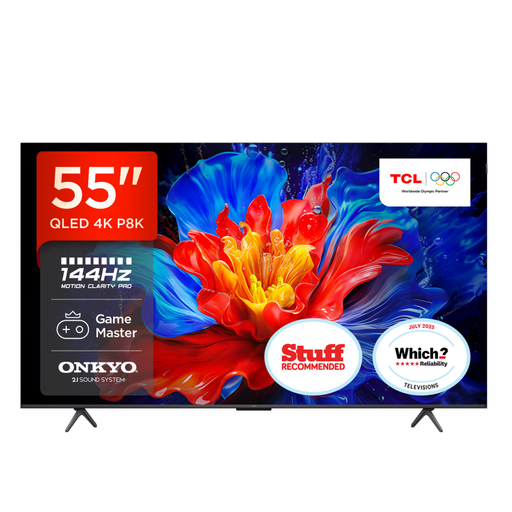
TCL 55P8K-UK 55-inch QLED 4K HDR PRO TV
The 55-inch size provides a different room-fit choice from the 85P8K-UK. The title’s 288Hz Game Accelerator wording should not be read as a 288Hz console refresh rate; check the actual HDMI input and console output modes before choosing it for high-frame-rate play.
Joybuy
 No image available
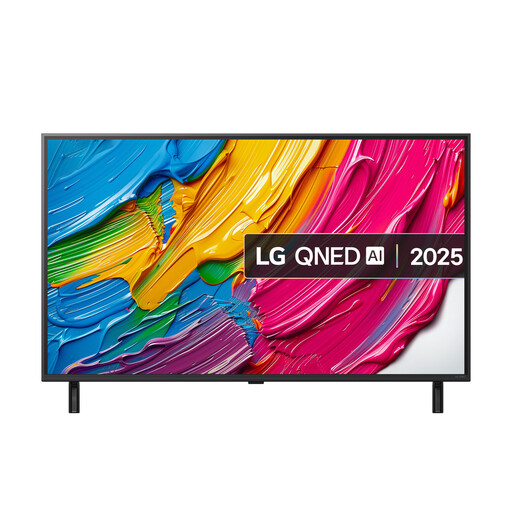
LG 43QNED80A6A 43-inch QNED 4K UHD TV
The 43-inch screen is an option to assess for closer seating or limited screen space. Its title lists VRR and ALLM, but those terms alone do not establish a refresh rate above 60Hz; check the exact supported modes if higher-refresh console play is a requirement.
Joybuy
Frequently asked questions
Do I need HDMI 2.1 for a console gaming TV?
Not for every console setup. Xbox Support specifies an HDMI 2.1 TV and an Ultra High Speed HDMI cable for Xbox Series X gaming at 4K and 120Hz. If that is the output you want, check the exact TV input; otherwise, choose connections around the modes your console and games will use.
How do I check a TV setup for PS5 gaming?
Check the PS5’s video output settings with the console connected to the HDMI input you intend to use, then compare the result with that input’s specifications. PlayStation says PS5 detects the connected TV’s capabilities when selecting an available resolution; check VRR, HDR and 120Hz requirements separately if those modes matter to you.
Why might 4K at 120Hz be unavailable on a TV that advertises it?
Check the console model, game mode, selected HDMI input, cable and any device between console and TV. Xbox Support says an AV receiver or soundbar in the signal path can affect video features and quality, so a direct TV connection is a useful diagnostic step before replacing equipment.
Should screen size decide which living-room gaming TV I buy?
No. Measure the distance from the usual seats and check the planned screen position, then compare console features among sizes that fit. Hisense’s UK room-size guidance identifies room size and viewing distance as factors in choosing a TV size; screen diagonal does not establish gaming-feature compatibility.


