Dim-room co-op households
You play together with the lights low and want dark game areas and films to look convincing, while keeping gaming features on your shortlist.


For local co-op in a dim home cinema, consider an OLED gaming TV if dark-scene contrast matters most; for a brighter shared room, compare QLED and Mini LED models as well. Whichever display you choose, check the exact screen size, gaming-capable HDMI inputs and the modes your console or PC can actually use, especially if a soundbar or AV receiver is part of the setup.
You play together with the lights low and want dark game areas and films to look convincing, while keeping gaming features on your shortlist.
Your local co-op sessions happen with daylight or lamps in the room, making visibility and reflections important when comparing screens.
You need room for a console and a soundbar or AV receiver, so the TV’s input layout and gaming settings matter alongside its display technology.
Start with the light in the room and the screen size everyone can view comfortably, then check how the TV connects to your game system and audio equipment.
| Concern | Buying checks | Who this matters to |
|---|---|---|
| Dark-scene contrast | Compare the exact OLED model and a screen size that works for everyone’s seating position. | If our co-op sessions happen in a dim room, dark scenes are central to the cinema experience. Around 33% of consumers put cinematic contrast first. |
| Responsive play | Check 4K/120Hz, variable refresh rate (VRR) and automatic low-latency mode (ALLM) against the TV input, game and source device. | When several of us play, I want the game’s supported output to feel responsive rather than choosing by the largest advertised refresh number. Roughly 27% of consumers make responsive play their primary concern. |
| Bright-room visibility | Look at window and lamp reflections where you play; compare the exact QLED, Mini LED or OLED models. | If the living room stays bright, I need to see the picture clearly without arranging every session around the lighting. Around 20% of consumers prioritise bright-room visibility. |
| Console and audio connections | Map the console, soundbar or receiver to the TV’s inputs and check which gaming formats each connection supports. | With a console and sound system to connect, I want the intended gaming mode to work through the chosen input. For about 20% of consumers, straightforward connections come first. |
On compatible BRAVIA TVs, Sony UK advises using the appropriate input and enabling its Enhanced Format setting for 4K/120Hz. A feature on the specification sheet may still need the right connection and setup.
Check the exact TV manual for input assignments before buying, particularly if an audio device also needs an HDMI connection. After installation, check the output mode reported by your console.
Samsung UK says its advertised 4K 144Hz, 165Hz and 240Hz modes require compatible PC-connected games and hardware. Those figures do not establish what a local co-op console game will output.
Compare the modes supported by your own console or PC, the game and the TV’s intended HDMI input.
Samsung UK positions OLED around dark-scene blacks and QLED around bright viewing, but a technology name alone cannot tell you how a particular screen will fit your room.
Assess the lighting at your usual playing time, then compare the size, reflections and gaming features of exact models.
Replacing a large screen also means arranging somewhere for the old electrical item to go.
Ask the seller about take-back for an old TV and check the practical arrangements before delivery; a local-authority electrical recycling route may also suit your plans.
Relevant if you are considering an OLED TV for a dim home-cinema room and want to compare model-specific gaming modes.
Relevant when comparing OLED with QLED or Neo QLED for rooms with different lighting.
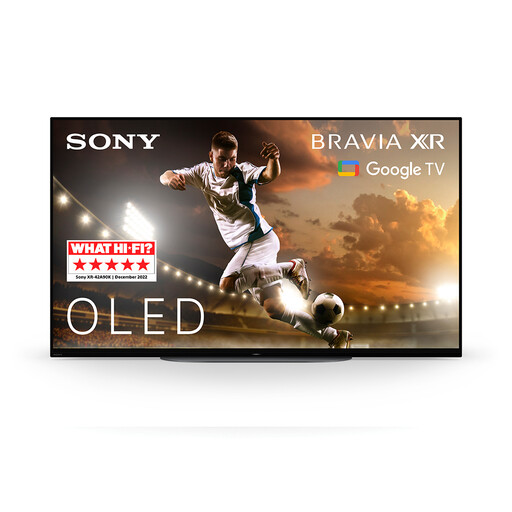
Relevant to console-focused households comparing BRAVIA gaming setup requirements and OLED screen sizes.
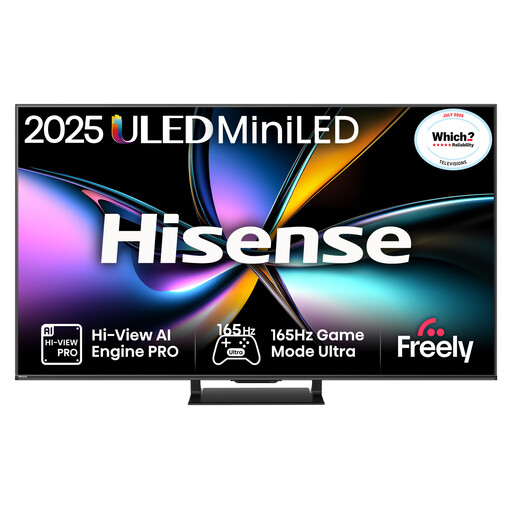
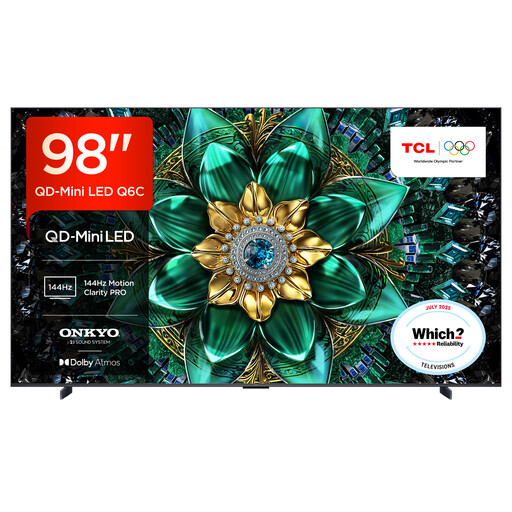
These OLED and Mini LED models offer screen sizes from 42 to 98 inches for different co-op seating layouts. Compare each one with your room and confirm its input arrangement before planning a console and sound-system setup.
 No image available
Consider this 55-inch screen if it fits your shared seating layout and you want to compare Mini LED options.
 No image available
Consider the 42-inch size for closer seating, but check that every local player will have a comfortable view.
 No image available
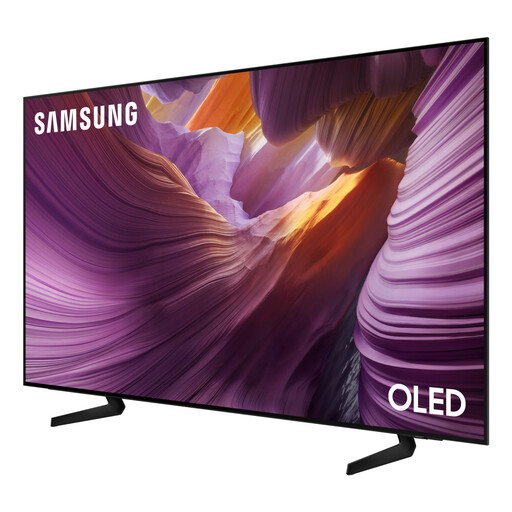
Its 83-inch screen calls for a check of seating positions, installation space and delivery access before choosing it for group play.
 No image available
For a 98-inch local co-op screen, measure the room, seating positions and installation route before considering gaming features.
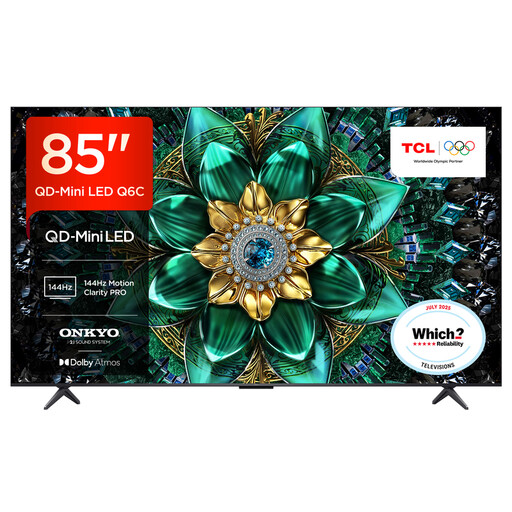 No image available
This 85-inch option needs enough viewing and installation space for everyone sharing the screen.
Check support for 4K/120Hz on the exact TV model and use its specified HDMI input and signal setting with a compatible console and game. Sony UK advises enabling Enhanced Format on the relevant port for compatible BRAVIA TVs.
Not simply because 165Hz appears in the TV’s advertising. Samsung UK says its advertised 4K 144Hz, 165Hz and 240Hz modes require compatible PC-connected games and hardware, so check the output supported by your console, game and exact TV model.
Confirm that both the source device and TV support the feature, then check the selected HDMI port and settings. Sony UK also advises checking the required signal format and TV firmware when troubleshooting compatible BRAVIA setups.
Ask the seller about its take-back arrangements when buying a replacement, or check local electrical recycling options. GOV.UK says retailers with the applicable take-back responsibility must accept waste of the same type as the item the customer buys; confirm where and how your old TV can be handed over.