TV-and-sofa platform gamers
If you mainly play on a TV, the laptop’s output, cable and TV input need to support the picture mode you want. Check the whole connection rather than choosing by screen size alone.


Choose a gaming laptop by the monitor or TV mode you intend to use: confirm the exact laptop’s external-display output, then compare its graphics configuration with your games and target resolution and refresh rate. A Full HD setup leaves more room to consider lower-tier configurations; a 4K/120Hz TV or high-refresh monitor makes the complete connection path and graphics headroom more important, without guaranteeing a particular game frame rate.
If you mainly play on a TV, the laptop’s output, cable and TV input need to support the picture mode you want. Check the whole connection rather than choosing by screen size alone.
If smooth motion matters more to you than a larger picture alone, check the external monitor’s available refresh rate and whether variable refresh rate works through your intended connection.
If the computer will usually sit beside a monitor but must occasionally travel, consider the laptop and charger together, along with the connections needed for your peripherals.
Decide which games and external-screen mode matter to you, check the exact laptop-to-display connection, then weigh graphics specifications against how often you will move the setup.
| Concern | What to check | Who this matters to |
|---|---|---|
| External-display connection | Match the exact laptop’s HDMI or DisplayPort-capable output to the TV or monitor input, cable and intended resolution and refresh rate. | I want the TV or monitor to show the mode I chose the laptop for, rather than assuming an HDMI port is enough. Around 36% of consumers would put connection certainty first. |
| Graphics headroom | Compare the exact GPU configuration with your games, intended resolution and refresh-rate target; check game requirements rather than relying on the laptop’s internal screen specification. | If I plan to use a higher-resolution or high-refresh display, I need to judge whether the laptop suits those games and settings. Graphics headroom would come first for around 29% of consumers. |
| Carrying and desk space | Consider the laptop’s weight, charger and space beside the display, as well as its storage and warranty terms. | I will mostly play at a desk, but I still need to move the computer without an awkward charger or oversized setup. Around 21% of consumers would make practicality their primary concern. |
| Controller connections | Check the available USB ports and your intended controller connection, especially if you use controller-attached audio or accessories. | For games I play with a controller, I want the connection method to support the accessories I use. Controller and peripheral convenience would matter most to around 14% of consumers. |
The HDMI Forum identifies 4K/120Hz and variable refresh rate among HDMI 2.1 capabilities, but a port label alone does not establish the mode available through your laptop, cable and display. Microsoft also notes that the refresh rates offered in Windows depend on the active display.
Check the exact laptop output and display input before ordering. Once connected, confirm the external display’s active resolution and refresh rate in Windows.
An unsuitable cable, dock or other part of the connection path may need replacing.
ASUS lists several GPU configurations for the V16 family, while Acer describes some Nitro V 16 specifications as maximums for the line. A family name does not identify the configuration you will receive.
Compare the complete model or retailer part number with the listed GPU, memory, storage, ports, supplied charger and warranty.
ASUS lists the researched ROG Strix G16 configuration at 2.65 kg with a 280W adapter; Lenovo specifies a 400W adapter for the researched Legion Pro 7i UK configuration. Those details matter if the laptop will move regularly.
Allow space for the laptop and its connections beside your display, and consider the charger when deciding whether a desk-first model suits you.
Xbox Support lists Bluetooth as a Windows connection option, but says controller-attached audio and accessories are not supported through Bluetooth.
If you need those functions, check whether USB or Xbox Wireless suits your controller and whether the laptop has the required connection.
That setup may require a suitable data USB cable or an Xbox Wireless Adapter.
These product lines offer different configurations to investigate; their presence here does not establish that any particular model suits your external display.
ASUS V16 offers a range of gaming-laptop configurations, while the researched ROG Strix G16 provides a more explicitly specified external-display connection route.
The researched Legion Pro 7i Gen 10 UK configuration is relevant if you also want a high-refresh internal display and a predominantly desk-based setup.
Acer Nitro V 16 is a gaming-laptop line to compare if you want one computer for gaming and other everyday tasks.
These gaming laptops offer different internal screens and graphics configurations for a setup using a larger monitor or TV. Before choosing one, match its exact external-output capability to your display and the games you intend to play.
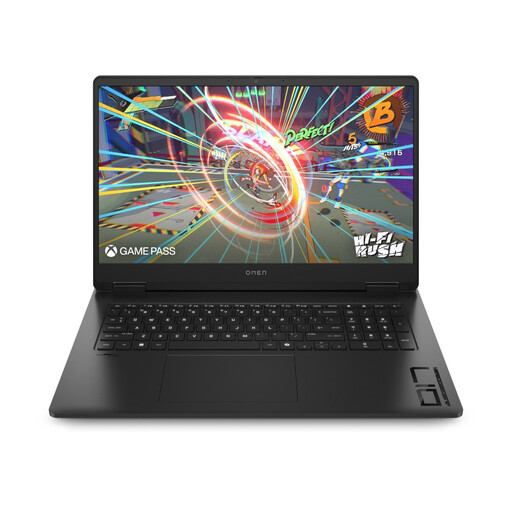 No image available
Consider this configuration if you also want a large built-in screen when you are away from your TV or monitor.
AMD Ryzen AI 7 350, 16GB RAM and 1TB SSD. Check which external resolution and refresh rate its output supports with your display.
 No image available
This is a configuration to compare if a 15.6-inch laptop will spend most gaming sessions connected to a separate screen.
AMD Ryzen 7 170, 16GB RAM, 1TB SSD and a Full HD 144Hz internal display. Confirm the external modes available with your TV or monitor.
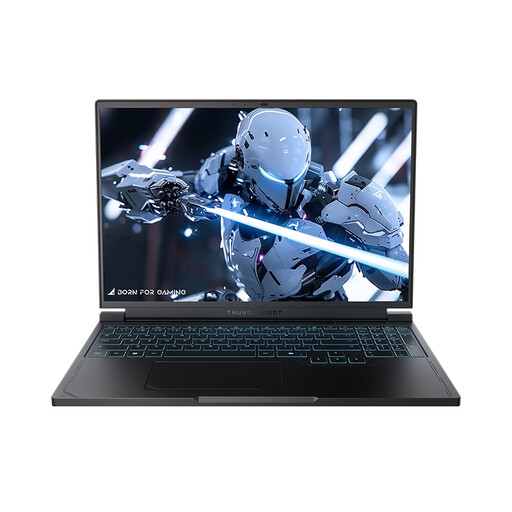 No image available
Consider its internal display alongside your external-screen plans if you expect to play in both places.
AMD Ryzen 7 7745HX, 16GB DDR5 RAM, 1TB SSD and a 16-inch QHD+ 240Hz internal display. Check the output standard and supported mode for your separate display.
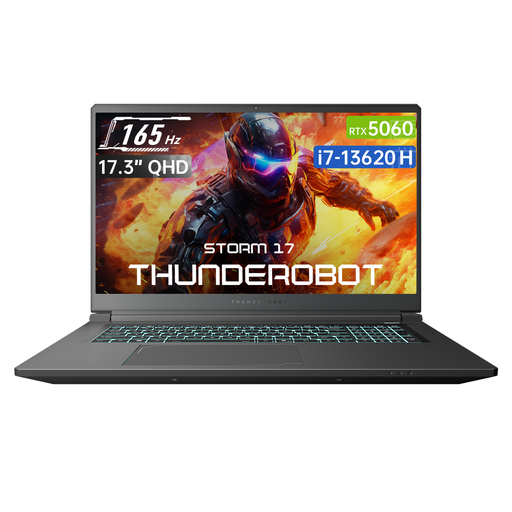 No image available
Its larger built-in display may matter if you will not always have access to your external monitor or TV.
Intel Core i7-13620H, 16GB DDR5 RAM, 1TB SSD and a 17.3-inch QHD 165Hz internal display. Confirm the HDMI standard and external mode needed for your setup.
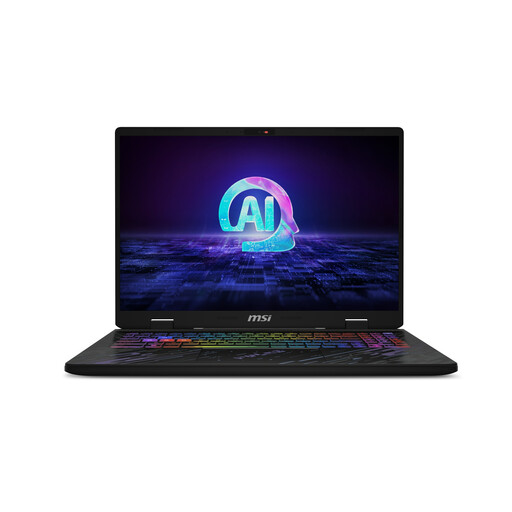 No image available
Compare this laptop with your game requirements if you also expect to use its high-refresh internal screen.
Intel Core Ultra 7 155H, 16GB DDR5 RAM, 1TB SSD and a 16-inch QHD+ 240Hz internal display. Confirm the exact variant and its external ports before relying on a particular TV or monitor mode.
Not necessarily: the required output depends on the TV mode you intend to use. HDMI 2.1 is particularly relevant to a 4K/120Hz or compatible variable-refresh-rate path, according to the HDMI Forum; check the exact laptop port, TV input and cable together.
After connecting it, select the external display in Windows’ advanced display settings and check its active resolution and refresh rate. Microsoft Support notes that the available rates depend on the display and that choosing a higher rate can sometimes change the resolution.
Yes: Xbox Support lists USB, an Xbox Wireless Adapter and Bluetooth as Windows connection methods for an Xbox Wireless Controller. Check that your particular game supports the controller; if you need controller-attached audio or accessories, Xbox lists those functions as unsupported over Bluetooth.