Choose a desk monitor by the signal your PC or console can send through the input you will use, not its highest advertised refresh rate alone. For Xbox Series X gaming at 4K and 120Hz, check the monitor’s HDMI 2.1 capability and the full cable-and-display requirements set out by Xbox Support; for PS5, check the particular resolution, refresh-rate and VRR modes you want. A lower-resolution high-refresh screen may make more sense for PC-led gaming, while any option still needs to fit your desk and connected devices.
Who is this for?
PS5 and Xbox Series X desk players
If you are choosing a screen for a particular console mode, check what that console sends and what the monitor accepts over HDMI. Xbox Support sets out separate requirements for Series X 4K/120Hz; PlayStation Support provides a PS5 test for 1440p output at 60Hz and 120Hz, including HDR and VRR checks.
PC-first players
If high refresh matters more to you than 4K resolution, match the monitor’s resolution, refresh rate and input to your PC and the games you play. Check motion and input-lag testing at the refresh rate you intend to use rather than relying on an advertised response-time number.
People sharing a desk between work and games
A screen used with a PC, console or work device needs the right inputs as well as a practical size and position. Check the stand or mounting arrangement and the route each cable must take across your desk.
What should you check?
Start with the output you want from your hardware. Then assess motion at that setting and whether the complete setup works on your desk.
| Priority |
What to check |
Your needs |
| Console signal |
Check the exact HDMI input’s supported resolution and refresh-rate combinations, then HDR and variable refresh rate (VRR) at the setting you want. Xbox Support specifies an Xbox Series X, an Ultra High Speed HDMI cable and an HDMI 2.1 display for 4K gaming at 120Hz; PlayStation Support offers a PS5 test for 1440p modes. |
I want to know that my chosen console mode will work through the monitor’s HDMI input, rather than assuming a high panel refresh rate guarantees it. |
| PC gaming motion |
Compare refresh rates at the resolution and input you will use. Look for testing of response time and input lag at relevant settings; an advertised response-time figure does not describe the whole experience. Which? contrasts typical 144Hz gaming monitors with standard 60Hz office monitors. |
Fast-moving games matter more to me than extra desktop detail, provided my PC and connection can make use of the refresh rate I choose. |
| Desk and connections |
Check screen dimensions, viewing position, stand adjustment or VESA mounting, and inputs for every device. Measure the cable route: Xbox Support says the Series X includes a 2-metre Ultra High Speed HDMI cable. |
One display needs to sit comfortably on my desk and connect the devices I actually use, without assuming the supplied cables will reach. |
What commonly goes wrong?
-
Taking the panel’s refresh rate as its console HDMI capability
A monitor’s advertised PC refresh rate does not establish which resolution, refresh rate, HDR and VRR combinations work through HDMI with your console. Xbox Support’s Series X 4K/120Hz requirements and PlayStation’s HDMI 2.1 VRR guidance concern the connected setup, not the refresh-rate label alone.
Check the exact model’s HDMI mode information for your console and, where available, console-specific signal tests before choosing it.
-
Expecting 1440p and 4K to give the same result
A 1440p panel does not display the same native resolution as a 4K panel. Its available console settings also depend on the console and monitor together: PlayStation Support provides a PS5 1440p output test, while Xbox Support describes 120Hz selection when the display supports it over HDMI.
Decide which resolution you want first, then check the refresh rate and other modes available at that resolution on your equipment.
-
Using response time as the only motion check
A single advertised response-time value does not tell you the input lag or motion behaviour at the refresh rate and connection you plan to use.
Check testing for those conditions alongside the monitor’s supported signal modes, especially if the same screen will serve both a PC and a console.
-
Leaving the desk layout until after choosing a screen
Screen size, stand movement, ports and cable reach can determine whether the monitor works in its intended position. Xbox Support specifies a 2-metre supplied cable for Series X; that length may not suit every desk layout.
Measure the space and cable path, then check the stand’s adjustments or VESA pattern and the inputs you need.
A different mounting arrangement or a suitable longer cable may be needed if your chosen layout cannot use the stand or supplied cable.
Relevant brand references
The named models illustrate why ports and display modes need checking individually; a specification for one monitor does not apply to its entire brand range.
LG UltraGear
Joybuy UK lists the LG UltraGear 32GS95UV-B as a 32-inch 4K OLED monitor with separate 4K 240Hz and FHD 480Hz modes.
- The listed model includes HDMI 2.1 alongside its dual display modes.
- Those listed specifications do not establish which console signal and VRR combinations work on the model’s HDMI input.
Dahua
Joybuy UK’s Dahua listings show distinct FHD, QHD and 4K gaming-monitor configurations rather than one common port-and-refresh specification.
- The listed 27-inch FHD model has a 240Hz HDMI 2.0 input mode; the 32-inch QHD model lists 144Hz over HDMI 2.0 and 180Hz over DisplayPort 1.4.
- The listed 32-inch 4K model instead has HDMI 2.1 inputs. Check the exact model and intended console mode rather than using the brand name as a compatibility shortcut.
Gaming monitors on Joybuy
These gaming monitors cover 4K and QHD desk setups, including options with high refresh rates for PC use. Their listed panel and port specifications are starting points; choose for console use only after checking the exact HDMI signal and VRR modes you need.
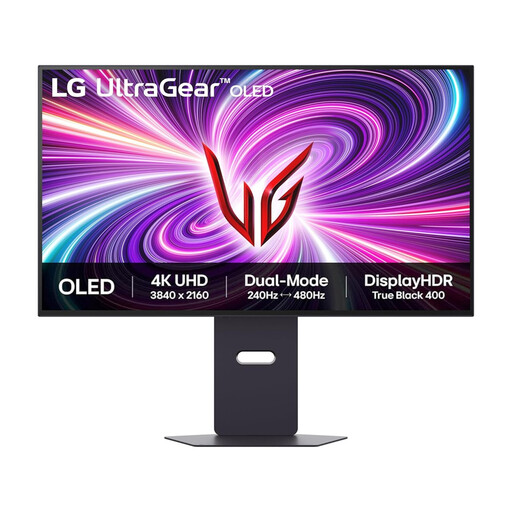 Image unavailable
LG UltraGear 32GS95UV-B 32-inch OLED monitor
Consider its two listed modes if your PC setup calls for a choice between resolution and refresh rate. The product name specifies 4K at 240Hz or FHD at 480Hz, plus DisplayPort and HDMI 2.1; the 480Hz mode is not 4K. Check the HDMI signal and VRR combinations required by your console before choosing it for console play.
View on Joybuy
 Image unavailable
LG UltraGear G8 27G850A 27-inch monitor
This 27-inch option suits a desk where its size and dual-mode PC specifications match the intended setup. Its product name lists a 4K Nano IPS panel, 240Hz/480Hz dual mode, DisplayPort 2.1 and HDMI 2.1; the 480Hz mode is listed at 1080p rather than 4K. Confirm the exact HDMI modes and VRR behaviour for any console you will connect.
View on Joybuy
 Image unavailable
Dahua 32-inch curved 4K OLED monitor
Check this curved screen against your desk space if a larger 4K display is your priority. Its product name lists 3840 × 2160 resolution, 165Hz and USB-C with 65W power delivery; Joybuy UK lists HDMI 2.1 inputs for this model. The port specification alone does not confirm your console’s HDR or VRR behaviour, so check its exact console signal modes.
View on Joybuy
 Image unavailable
Samsung Odyssey G6 S27DG612 27-inch OLED monitor
This is a QHD option to consider for a PC-led setup where 2560 × 1440 and high refresh suit your plans. The product name specifies a 27-inch OLED screen and 240Hz refresh rate, not a 4K panel. For PS5 or Xbox use, confirm the HDMI resolution, refresh-rate, HDR and VRR combinations for this exact model.
View on Joybuy
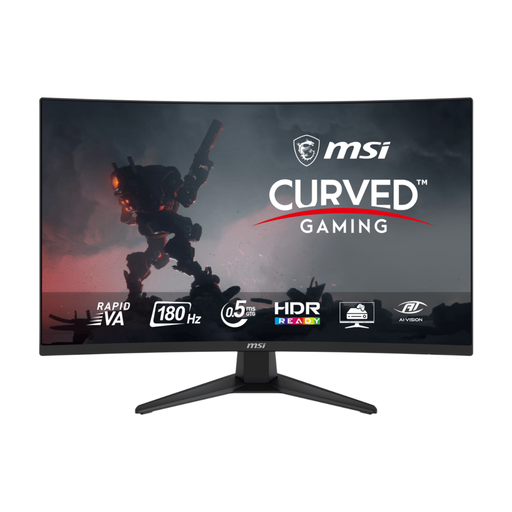 Image unavailable
MSI MAG 321CQF E18 32-inch curved monitor
Consider the screen’s physical fit as well as its QHD gaming specification: its product name lists a 32-inch curved WQHD display and 180Hz refresh rate. Check the refresh rate available through the input you will actually use. If 4K/120Hz console output is your aim, verify the required HDMI mode rather than treating this WQHD monitor’s 180Hz rating as evidence of it.
View on Joybuy
Questions about console and PC monitors
Do I need HDMI 2.1 for Xbox Series X gaming at 4K and 120Hz?
Yes, for the 4K/120Hz setup described by Xbox Support: it specifies an Xbox Series X, an Ultra High Speed HDMI cable and an HDMI 2.1 display. Check that the monitor’s intended HDMI input supports the required mode; a panel’s higher PC refresh-rate rating does not answer that question.
Can a PS5 use a 1440p desk monitor?
Yes, if the connected display supports the output you want. PlayStation Support provides a PS5 1440p output test covering SDR and HDR at 60Hz and 120Hz, as well as VRR; use it to check the available combinations rather than assuming every 1440p monitor accepts every mode.
Does a 240Hz monitor mean a console will run at 240Hz?
No. A monitor’s 240Hz specification may describe a PC-oriented mode, while the console’s output and the monitor’s HDMI input determine the setting you can use together. For example, Xbox Support documents Series X 4K gaming at 120Hz with specific cable and display requirements.
Should I buy a longer HDMI cable with the monitor?
Only if your cable route requires one or the cable you have does not suit the intended signal. Xbox Support says the Series X includes a 2-metre Ultra High Speed HDMI cable that supports HDMI 2.1 features. Measure the route first, and check your particular console and target mode before choosing a replacement cable.


