Dense-interface colony planners
If you spend long sessions moving between maps, production panels, menus and spreadsheets, screen detail and room for windows may matter more to you than the highest refresh-rate figure.


Start with a 27-inch 4K IPS monitor if reading dense colony-management menus and fitting work windows on screen matter most, provided your PC can run the display mode you want. A 27-inch QHD IPS monitor shifts the emphasis towards high-refresh gaming, while QHD OLED suits consumers who put motion specifications ahead of 4K desktop detail; whichever route you take, check the connection and whether the stand fits your desk.
If you spend long sessions moving between maps, production panels, menus and spreadsheets, screen detail and room for windows may matter more to you than the highest refresh-rate figure.
If the same display serves work and games, consider its stand adjustments, footprint and mounting options alongside panel specifications. The Health and Safety Executive advises that home workers should be able to achieve a comfortable, sustainable posture.
If you also value fast scrolling and high-refresh gaming, you may prefer to consider a QHD OLED route rather than putting 4K workspace detail first. LG’s 27GS95QE-B is one model example with a published 240Hz refresh rate.
Choose it when: Detailed maps, management panels and work windows are your leading priorities.
Accept the trade-off: Check that your PC and chosen input support the 4K refresh mode you intend to use.
Choose it when: You want a conventional IPS panel and put more emphasis on high-refresh gaming than on 4K desktop detail.
Accept the trade-off: You get fewer native pixels than 4K, and the available refresh rate can depend on the input.
Choose it when: High-refresh gaming and the panel’s motion specifications take priority over a 4K work layout.
Accept the trade-off: Review the model’s panel-care, power-setting and warranty guidance before using it for long work sessions.
| Concern | What to check | Who this matters to |
|---|---|---|
| Interface space and detail | Compare native resolution and screen size, then check that your PC supports the resolution and refresh mode you want. | When maps, tooltips and work windows compete for space, I want detail I can read without constantly changing views. Around 40% of consumers put that need first. |
| Home-office fit | Check stand movement, depth with the stand and the VESA mounting pattern if you plan to use an arm. | If I work at the screen for long periods, I need to position it comfortably on my actual desk. For around 30% of consumers, workstation fit is the primary concern. |
| PC and input compatibility | Match the monitor’s per-port resolution and refresh limits to your PC output and cable. | I do not want to choose a gaming mode that my connection cannot deliver. That compatibility question comes first for around 20% of consumers. |
| Motion and OLED characteristics | Decide whether QHD suits your work layout; check the intended refresh mode and the model’s panel-care and power-setting guidance. | When I play, I care more about high-refresh motion and an OLED panel than about a 4K desktop. Around 10% of consumers place this preference first. |
Connection limits can differ on the same monitor. Dell lists the Alienware AW2725DM at up to QHD 180Hz through DisplayPort, but up to QHD 144Hz through HDMI.
Before ordering, match the intended monitor input and cable to the graphics output on your PC.
Higher resolution does not establish whether your PC can deliver your intended refresh mode or whether the monitor and stand fit your available space. BenQ lists the EX2710U at 609.0 × 252.3mm with its stand.
Measure usable desk depth and check your PC’s supported display modes before deciding whether 4K detail or a QHD route better fits your setup.
A monitor used for home work needs a position that suits the workstation. The Health and Safety Executive advises a comfortable, sustainable posture for home workers; stand movement and mounting options vary by model.
Check the stand’s height and movement, the VESA pattern and the monitor’s depth against your desk.
If the supplied stand cannot achieve a comfortable position, an appropriate monitor arm or other workstation equipment may be needed.
LG says turning off Smart Energy Saving on the 27GS95QE-B for a brighter OLED experience can increase power consumption.
If you are considering that model for both work and gaming, read its power-setting and panel-care guidance before choosing your everyday display settings.
The EX2710U is a 27-inch 4K IPS example to consider when colony-game detail and practical desk features both matter.
The AW2725DM illustrates a 27-inch QHD Fast IPS route for consumers who favour high-refresh capability over 4K resolution.
The 27GS95QE-B is a QHD OLED example for consumers putting high-refresh gaming ahead of 4K workspace detail.
The PG27UQR is a 27-inch 4K Fast IPS example with stand adjustments to assess for a shared work-and-game desk.
These choices include 4K IPS displays, larger 4K OLED displays and a 4K productivity monitor. Compare their screen size, refresh specifications and desk fit against the balance of colony gaming and home-office work you need.
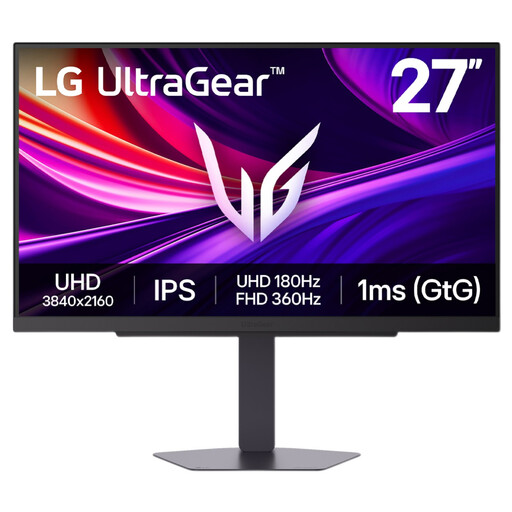 No image available
Consider this 27-inch 4K IPS model if detailed game interfaces and work windows are your priority.
Its title lists a dual mode with a maximum of 360Hz; check which resolution and connection deliver the mode you want.
 No image available
This is another 27-inch 4K IPS choice for consumers who want desktop detail alongside gaming modes.
The title specifies dual-mode 240Hz/480Hz operation and DisplayPort 2.1 and HDMI 2.1; confirm the resolution available at each refresh rate with your PC and cable.
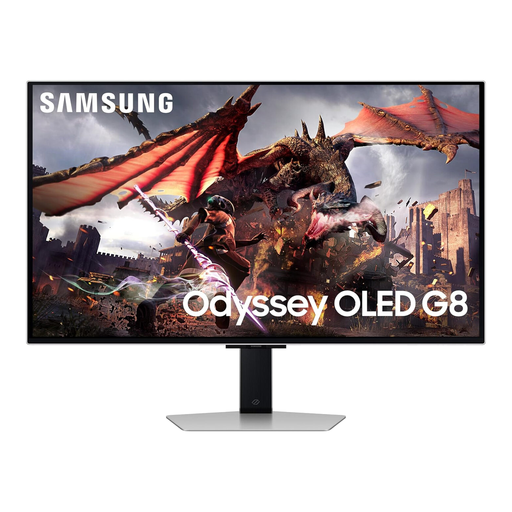 No image available
Consider this larger OLED option if a 32-inch display suits your desk and you want Ultra HD detail for games and work.
Check its dimensions with the stand, available adjustments and panel-care guidance against your workspace before ordering.
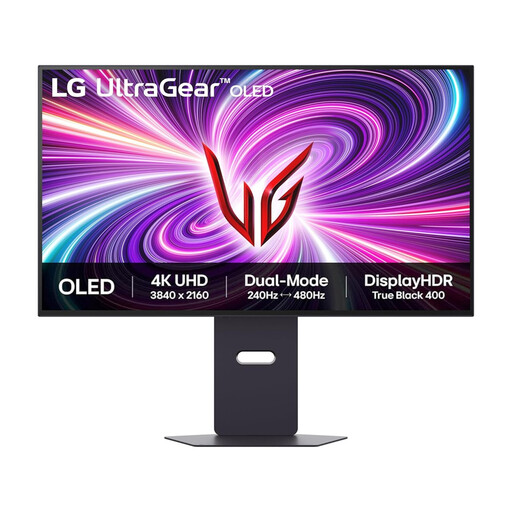 No image available
This larger 4K OLED model is worth comparing if you want desktop detail as well as high-refresh gaming.
Its title specifies 4K at 240Hz and FHD at 480Hz. Check your connection and desk fit, and review the usage guidance if work leaves static content on screen for long periods.
 No image available
Consider this productivity-oriented 4K monitor if work and dense interfaces matter more to you than choosing a gaming-specific model.
Check its refresh rate against your gaming preferences and confirm that the stand and connections suit your desk and PC.
Choose 4K if reading detailed maps and fitting work windows on screen are your leading needs, and your PC supports your intended display mode. Choose QHD if you would rather prioritise a high-refresh route over 4K native detail; Dell UK, for example, lists up to QHD 180Hz through DisplayPort for the Alienware AW2725DM.
Not necessarily: check the exact model’s limit for the input you plan to use. Dell UK lists the Alienware AW2725DM at up to QHD 144Hz through HDMI and up to QHD 180Hz through DisplayPort, so your PC output and cable matter.
They can matter if you are an employee who regularly uses display screen equipment for work at home, rather than an occasional home user. The Health and Safety Executive says employers should assess relevant home-working setups and help workers achieve a comfortable, sustainable posture; check how its guidance applies to your working pattern.
Check the retailer’s and your local authority’s current electrical-equipment collection or recycling options before disposing of it. UK Waste Electrical and Electronic Equipment Regulations include producer marking obligations, such as the crossed-out wheeled-bin symbol; the symbol itself is not a collection arrangement.