Story-first dark-scene explorers
You spend time examining environments, colour cues and shadowed clues rather than choosing a screen chiefly for competitive reaction speed.


For long mystery-game sessions, choose a monitor around the scene detail you want to see, the viewing position you can maintain and the output your PC or console can deliver. A QHD IPS display is a practical PC starting point; consider QD-OLED if dark-scene contrast takes priority, or curved QHD VA if you prefer that shape and want an adjustable stand. Check the exact model’s inputs and HDR claims before treating a headline refresh rate as a reason to buy.
You spend time examining environments, colour cues and shadowed clues rather than choosing a screen chiefly for competitive reaction speed.
Your choice depends on positioning the screen at your desk and making room for breaks during extended play.
You need the monitor’s resolution, refresh mode and inputs to work with the device and cable you intend to use.
For mystery games, settle your main viewing and setup need before comparing headline refresh rates.
Consider it: If you want a 27-inch-class PC screen for detailed scenes and general use.
Keep in mind: Check that your PC can run your games at QHD before prioritising additional refresh-rate headroom.
Consider it: If contrast in dark scenes is central to your choice.
Keep in mind: A 240Hz specification alone says little about its value for slower play; check panel-care and warranty terms for the model.
Consider it: If you prefer a curved single-screen setup and want a height-adjustable stand.
Keep in mind: Curvature is a viewing preference, while an HDR10 label does not identify a VESA DisplayHDR performance tier.
| Concern | What to check | Who this matters to |
|---|---|---|
| Scene detail and dark areas | Compare resolution and the exact panel; if HDR matters, check the model’s VESA DisplayHDR or DisplayHDR True Black tier. | I want to inspect documents and shadowed clues without making refresh rate my only criterion. Around 29% of consumers put scene detail and dark-area viewing first. |
| Long-session comfort | Check the stand’s stated adjustments and whether the screen fits your viewing position. | If I play for hours, I need to position the screen comfortably and pause from time to time; around 29% of consumers put this setup need first. |
| Device compatibility | Check which resolution, refresh rate and variable-refresh-rate mode your device supports through the intended input and cable. | I switch between a PC and console and do not want to buy a mode neither connection can use. For around 24% of consumers, compatibility is the primary concern. |
| Desk fit and usable features | Measure available desk space and decide whether a curved or ultra-wide format suits your setup. | A larger curved screen has to work on my desk, not just look appealing on a specification sheet; around 18% of consumers prioritise desk fit and useful features. |
HDR10 support and a VESA-certified DisplayHDR tier describe different things. VESA advises looking for the exact certified DisplayHDR or DisplayHDR True Black designation when HDR performance matters.
Check the exact model and its stated certification tier rather than relying on an HDR label alone.
LG says the UltraGear 27GS85Q-B needs DisplayPort 1.4 graphics support and a DisplayPort 1.4 cable for its advertised 200Hz overclock mode.
Check your graphics output, cable and expected game frame rate before treating that mode as a purchasing benefit.
Using the mode could require a different cable; your current graphics hardware may also be unable to provide it.
Screen features do not replace a workable viewing position and pauses during an extended session.
Check the stand or mounting options, position the screen to limit glare and break up prolonged play.
A curved panel changes the viewing geometry and may not suit every desk or multi-monitor arrangement.
Measure your available space and decide whether you prefer a curved single-screen setup.
A reference point for a conventional QHD IPS gaming-monitor route.
A reference point for an adjustable QHD QD-OLED display when dark-scene viewing is a priority.
A reference point for players comparing QHD connectivity and model-specific dark-scene settings.
A reference point for a curved QHD VA monitor with an included adjustable stand.
These models cover QHD and 4K OLED options alongside curved ultra-wide displays. Compare their size, connections and positioning against your own long-session setup rather than treating refresh rate alone as the deciding feature.
 No image available
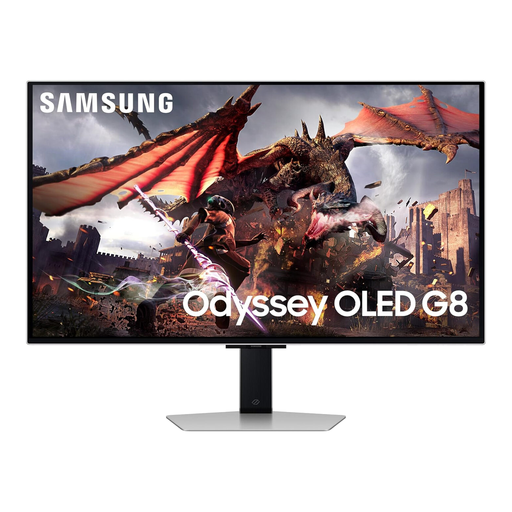
Consider this for a 27-inch OLED screen when dark-scene viewing and positioning both matter. Its name specifies QHD, 240Hz and 0.03ms; check which modes your device and cable can deliver.
Check the exact HDR certification, panel-care guidance and warranty terms if they affect your choice.
 No image available
Consider this 32:9 screen if an expansive single-display setup suits your games and desk. Its name specifies an 1800R curve, Double Quad HD resolution and 240Hz.
Plan space and handling for the 49-inch format, and confirm the exact port configuration and modes for your devices. Check the claimed DisplayHDR 400 True Black tier if HDR is a priority.
 No image available
Consider this if you want a QHD QD-OLED screen without moving to an ultra-wide format. Its name specifies 2560 × 1440, 240Hz, HDR10 and FreeSync Premium Pro.
Check the stand’s adjustment range if screen position matters to you. HDR10 alone does not establish a VESA DisplayHDR tier.
 No image available
Consider this larger Ultra HD screen if finer scene detail is your priority and your device can handle the intended resolution.
Check the input-specific refresh modes, variable-refresh-rate support and stand adjustments before choosing it for your setup.
 No image available
Consider this curved 3440 × 1440 display if an ultra-wide view and adjustable positioning suit your desk. Its name lists height, swivel and tilt adjustment.
The listed refresh rate is 175Hz via DisplayPort and 100Hz via HDMI; check the mode available from your device and whether your games suit the wider aspect ratio.
Not as a first priority for slower, clue-led play. Check image detail, viewing position and the output your device can sustain before deciding whether you would use that refresh rate; LG UK lists 180Hz native refresh for the 27GS85Q-B, while Dell UK lists 240Hz for the AW2726DM.
No: HDR10 wording does not identify a tested VESA DisplayHDR performance tier. If HDR matters to your purchase, VESA advises checking the exact model for DisplayHDR or DisplayHDR True Black certification.
Check the monitor’s HDMI input and its supported resolution, refresh rate and variable-refresh-rate modes for your console. A high mode advertised through another connection may not be available through HDMI: LG UK specifies DisplayPort 1.4 graphics support and cable for the 27GS85Q-B’s 200Hz overclock mode.
No particular home-gaming monitor is prescribed by the Health and Safety Executive guidance cited here. That guidance addresses employers’ responsibilities towards workers who use display-screen equipment daily for continuous periods of an hour or more; it does not turn a workplace equipment assessment into a monitor requirement for home play.