If you play on a compatible laptop, a monitor with suitable USB-C or Thunderbolt video connectivity and power delivery could let one monitor-to-laptop cable replace a separate desk charger, although the monitor still needs a socket. A desktop or console still needs its own power, so built-in speakers may be more useful for avoiding another powered accessory; choose OLED or very high refresh rates for your wider game mix, not as a solution to the socket shortage.
Who these setups suit
Laptop players short of sockets
If your laptop supports video output and charging through a suitable connection, a hub monitor could simplify what you plug in at the desk. Dell UK lists Thunderbolt 4 and 90 W power delivery for the U2724DE, but you still need to check your laptop and cable.
Desktop or console players avoiding extra speakers
Your computer or console needs its own power. A monitor with built-in sound may avoid a separate powered speaker set: BenQ lists a 2.1-channel speaker system on the EX2710U, alongside two HDMI 2.1 inputs.
Adventure players who also play faster games
If this screen must also serve fast-action games, panel type and refresh rate may carry more weight. LG UK lists a QHD OLED panel and 240 Hz refresh rate for the 27GS95QE-B; those display features do not, by themselves, change your socket needs.
What to prioritise
Work out which devices need mains power before choosing the screen: laptop charging, separate audio and display preferences solve different parts of this setup.
| Concern |
What to check |
Who this matters to |
| One-cable laptop use |
Check the monitor’s stated power delivery, your laptop’s charging and video support, and the cable specification. |
I want to connect my laptop for play without keeping its separate charger plugged in, provided that one connection can do both jobs. Around 50% of consumers would put compatible laptop charging first. |
| Audio without another powered device |
Check for built-in speakers, suitable sound for your use and inputs for each device you intend to connect. |
My desktop or console already needs a socket, so I would rather not add powered speakers just to hear the game. Roughly 33% of consumers would make avoiding that extra audio device their main concern. |
| Picture and motion for mixed gaming |
Choose a resolution and panel type you want to use; check whether your other games and connections warrant a higher refresh rate. |
I mainly play adventures, but I also want this screen for faster games where motion performance matters to me. About 17% of consumers would prioritise those wider display needs. |
Buying pitfalls
-
Assuming any USB-C monitor can replace a laptop charger
A USB-C port alone does not tell you whether a monitor supplies enough power or whether your laptop can receive charging and video through that connection.
Check the laptop’s charging and video requirements against the exact monitor’s power-delivery specification, then check the cable. Dell UK specifies 90 W power delivery for the U2724DE, but that figure is model-specific.
If the connection is unsuitable, you may still need a separate charger, compatible cable or dock.
-
Expecting a monitor to power a desktop or console
Laptop power delivery does not replace a desktop PC or console’s own mains connection. For those setups, built-in audio may be a more relevant way to avoid an extra powered accessory.
Count the display, gaming device, speakers, charger and any dock in your intended setup before deciding which monitor feature could remove a plug.
-
Choosing refresh rate before sorting out connections
A high refresh rate may matter for other games, but it does not reduce the sockets required for point-and-click play. LG UK lists 240 Hz for the 27GS95QE-B; BenQ lists 144 Hz for the EX2710U.
Settle your device connections and audio plan first, then decide whether your other games make a higher refresh rate worthwhile.
-
Putting an old monitor in general waste
An unwanted display belongs in an electrical reuse or recycling route rather than ordinary household rubbish.
If it still works, consider passing it on. Otherwise, check a local electrical recycling point or an applicable retailer take-back option, as advised by Recycle Your Electricals.
Relevant brands for reference
Dell
Dell’s U2724DE is a hub-monitor reference for a laptop-based desk with limited sockets.
- Dell UK lists a 27-inch QHD display at 120 Hz, Thunderbolt 4 and 90 W power delivery for this model.
- Confirm that your laptop and cable support the required video and charging functions before relying on it instead of a separate charger.
BenQ
BenQ’s EX2710U illustrates the built-in-audio route for a desktop or console that retains its own power connection.
- BenQ’s specification lists 4K resolution, 144 Hz, two HDMI 2.1 inputs and 2.1-channel speakers.
- Those features do not establish laptop charging through the monitor; check the exact connections if that is part of your plan.
LG
LG’s UltraGear 27GS95QE-B is relevant when the same screen will also be used for faster games.
- LG UK specifies a 27-inch QHD OLED panel and 240 Hz refresh rate for this model.
- Its display specifications do not resolve laptop charging or extra-audio needs; plan those connections separately.
ASUS ROG
The ASUS ROG monitor range includes a gaming-oriented option with stated USB-C power delivery.
- The ASUS ROG UK catalogue lists USB-C 90 W power delivery for the PG27UCWM.
- Check the exact model, laptop compatibility and cable before treating its gaming specifications and charging capability as one complete socket-saving solution.
Joybuy product choices
These choices cover different priorities within the limited-socket setup: a potential laptop connection, built-in audio, or a screen chosen mainly for mixed gaming. Check each model’s stated features rather than assuming one choice covers all three.
 No image available
Acer Predator X49X 49-inch 32:9 QD-OLED monitor
Consider this ultrawide screen if a compatible laptop connection and a larger game view both matter to you. Its title also lists 240 Hz; check desk space, your games’ ultrawide support, the exact model identity and whether its USB-C charging arrangement meets your laptop’s needs.
View on Joybuy
 No image available
Samsung Odyssey G6 S27DG612 27-inch QHD OLED 240 Hz monitor
This is a display-focused choice if you also play games where its stated 240 Hz refresh rate matters. If fewer plugs are the priority, confirm any required laptop charging or built-in audio before planning around it.
View on Joybuy
 No image available
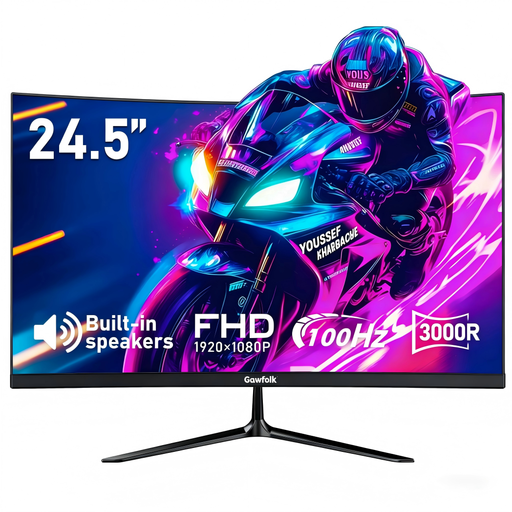
Gawfolk 24.5-inch Full HD 100 Hz curved monitor with speakers
Its stated built-in speakers make it worth considering if you want to avoid separate powered desktop audio. Check whether the sound suits your use and confirm the curvature before buying: the product title gives 3000R, while the accompanying description gives 1500R.
View on Joybuy
 No image available
ASUS ProArt PA278CV IPS WQHD monitor
Consider this general-use screen if you play adventures from a laptop and also want it for other desk work. Before relying on a single connection, check its USB-C power-delivery wattage, your laptop’s video and charging support, and the cable.
View on Joybuy
 No image available
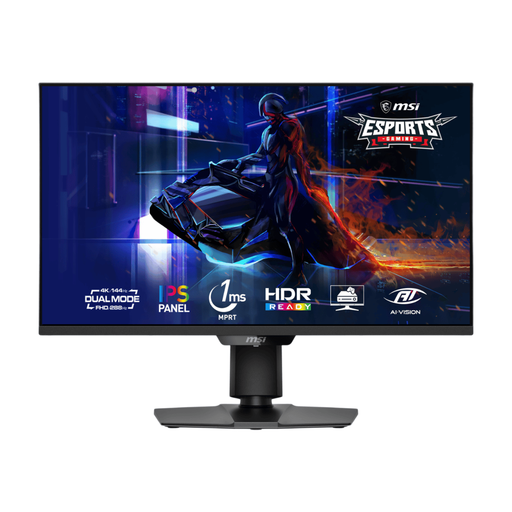
MSI MAG 275UPD E14 27-inch dual-mode gaming monitor
This suits a setup where you want to choose between the stated UHD 144 Hz and FHD 288 Hz modes for different games. Neither mode reduces socket use; confirm any required laptop charging or built-in audio separately.
View on Joybuy
Common questions
Can a monitor replace my laptop charger at the desk?
It can for a compatible laptop if the monitor supplies suitable power and carries video through the connection your laptop supports. Dell UK lists Thunderbolt 4 and 90 W power delivery for the U2724DE; check your own laptop’s requirements and the cable rather than assuming every USB-C connection works alike.
Will a USB-C monitor save a socket for my desktop or console?
It will not replace the desktop or console’s own power connection. If separate speakers would otherwise need a plug, check a monitor’s built-in audio instead; BenQ lists 2.1-channel speakers on the EX2710U.
Do point-and-click adventures need a 240 Hz monitor?
No: 240 Hz is a choice for a wider mix of games, not a requirement created by point-and-click play. LG UK lists that refresh rate for the 27GS95QE-B; decide first whether its connections, panel and your other games justify prioritising it.
What should I do with an old monitor?
Use a reuse or electrical recycling route rather than general household waste. Recycle Your Electricals recommends checking local electrical recycling points and retailer take-back options; a working display may also be suitable to pass on.


